
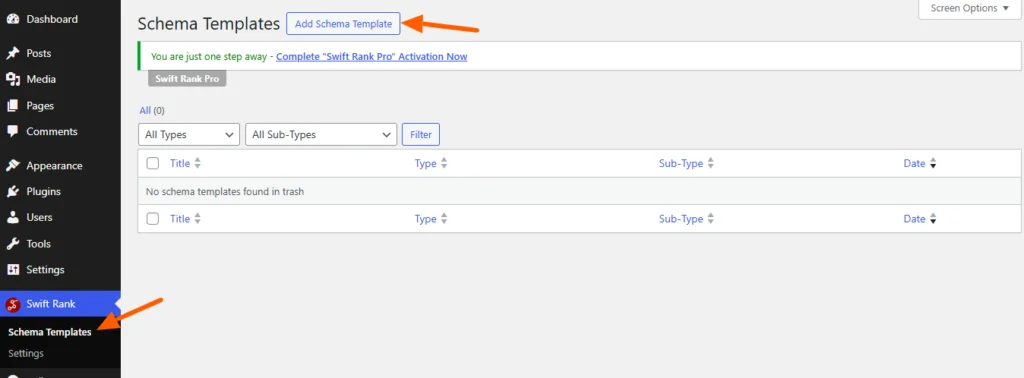
To add webpage schema using Swift Rank, first ensure that the Swift Rank plugin is properly installed and activated on your WordPress website. Once the plugin is active, navigate to Schema Templates from the Swift Rank dashboard to begin creating webpage schema template.
Click on Add Schema Template to start.
Name Your WebPage Schema Template #
You can enter a clear and descriptive title for your template.
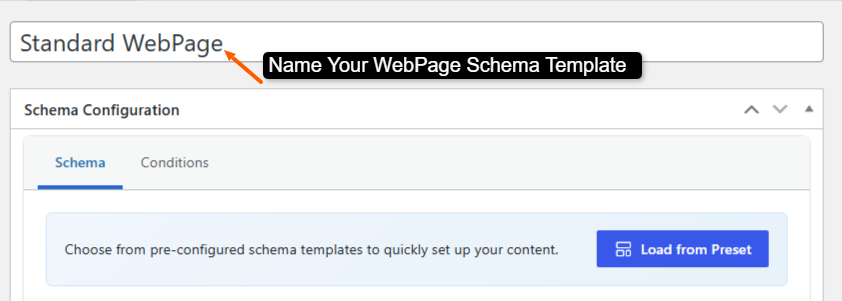
- Standard WebPage
- Generic WebPage Markup
- Brand Homepage WebPage
- Service WebPage Schema
- User Account WebPage
This helps you easily identify the template later, especially when managing multiple schemas.
Select the Schema Type #
In the Schema Configuration panel located in the right sidebar, find the Schema Type dropdown. Click the dropdown and select webpage from the available schemas.
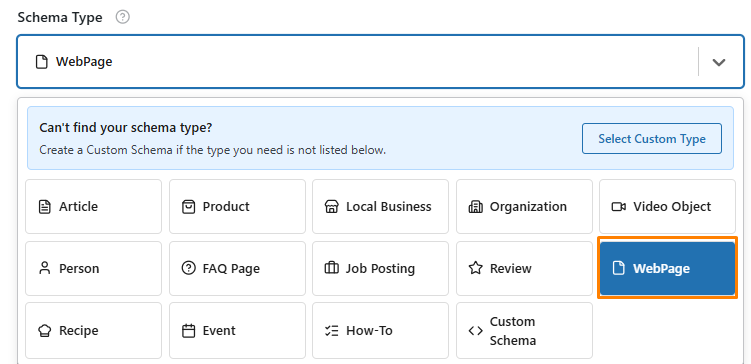
Once the webpage schema type is selected, Swift Rank will automatically load all predefined fields required to describe webpage content accurately.
Name #
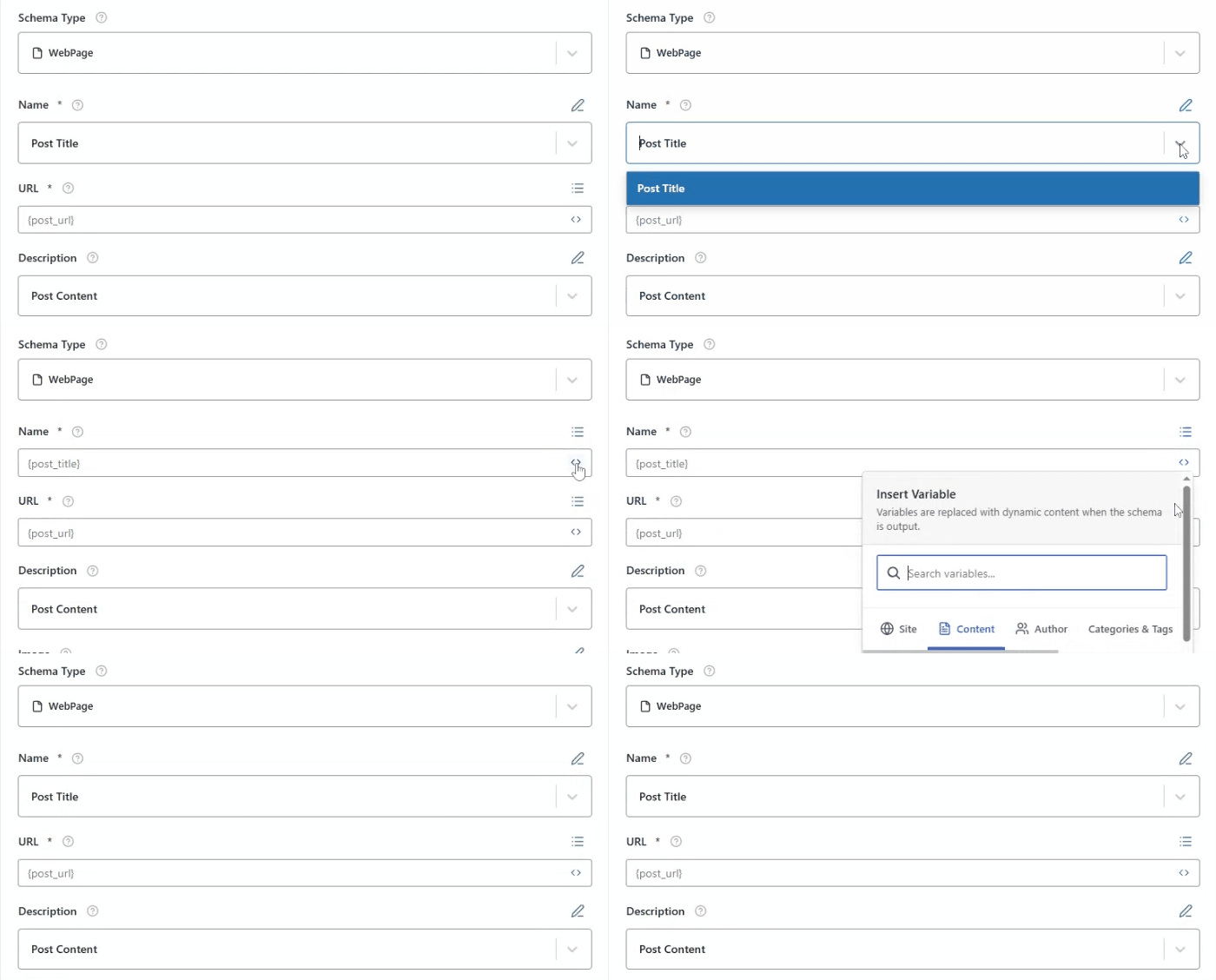
Name represents the title of the webpage. To add this click the pencil icon to enter a custom name or you can open the Insert Variables panel by clciking on <> icon and choose post title to automatically assign the correct author for each post.
URL #
This is the canonical URL of the webpage.
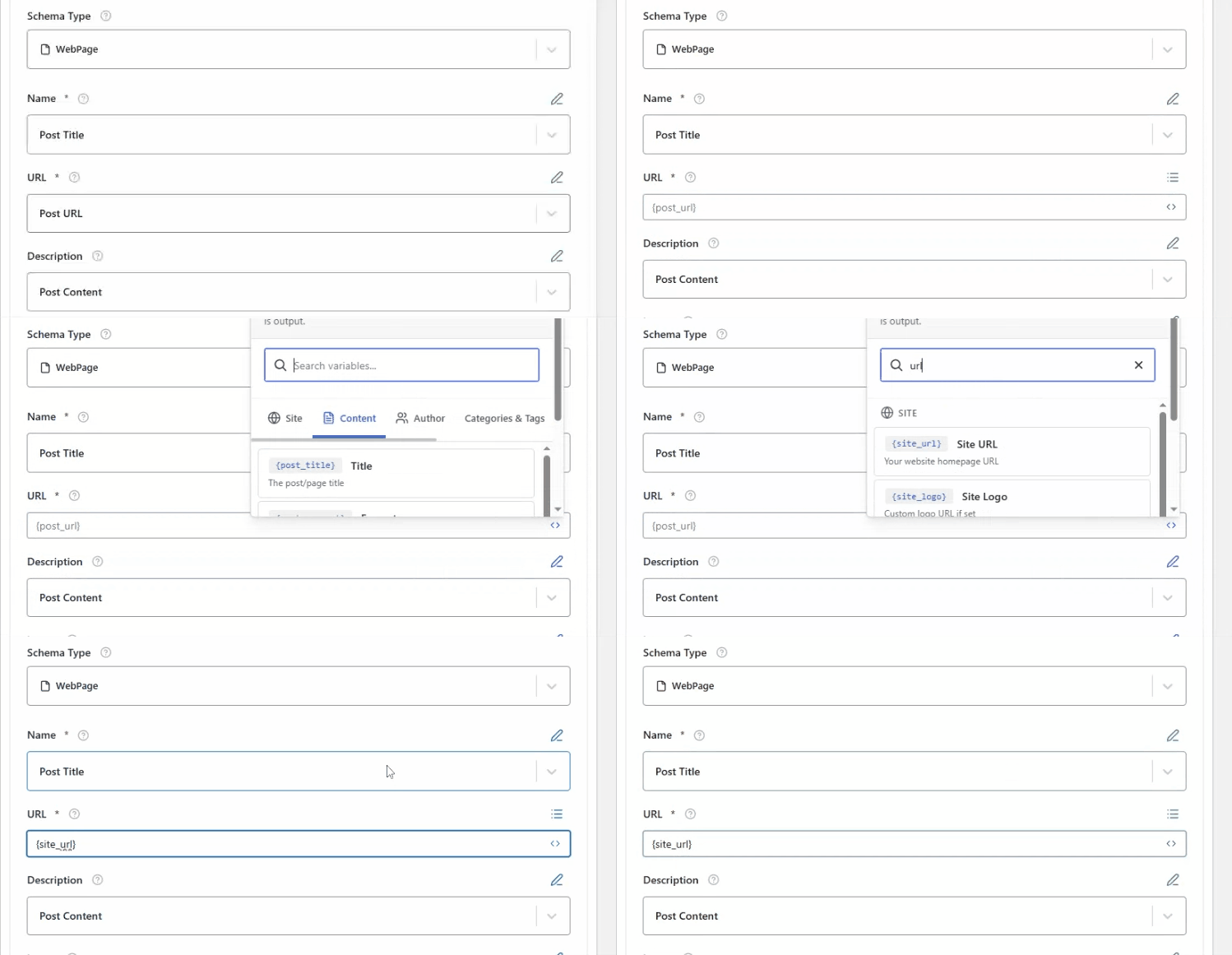
You can add with the same method by clicking on the pencil icon to enter a custom name or you can open the Insert Variables panel by clciking on <> icon and choose post URL to automatically assign the correct url.
Description #
This represents the short summary describing the content of the webpage. You can either select post content or post excerpt from dropdown.
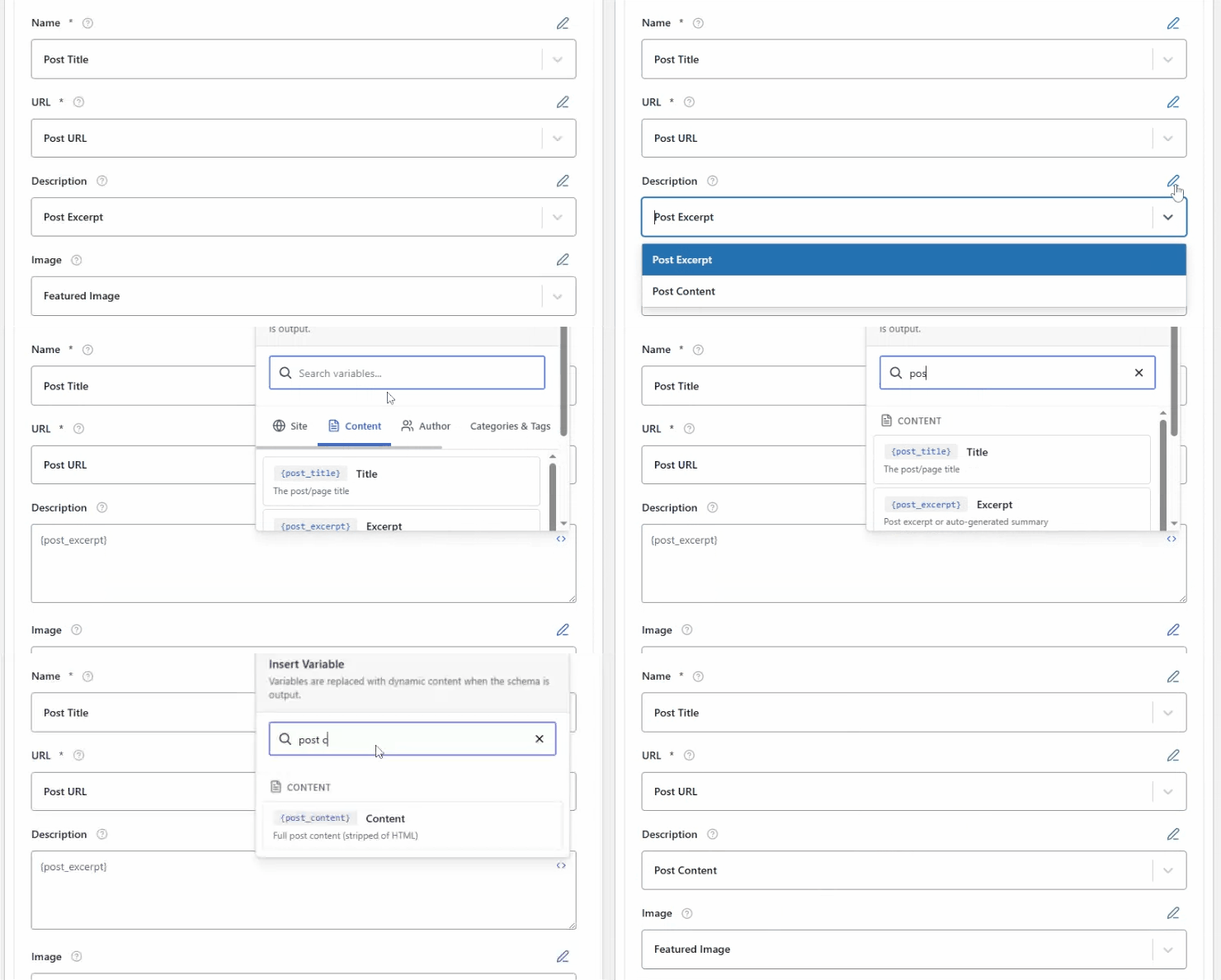
Plus you can enter a custom value by clicking on pencil icon.
Image #
To add an image, click the pencil (edit) icon and enter a direct image URL, or use the <> (Insert Variable) icon to dynamically insert an image from your site. For this, you can select the {featured_image}.
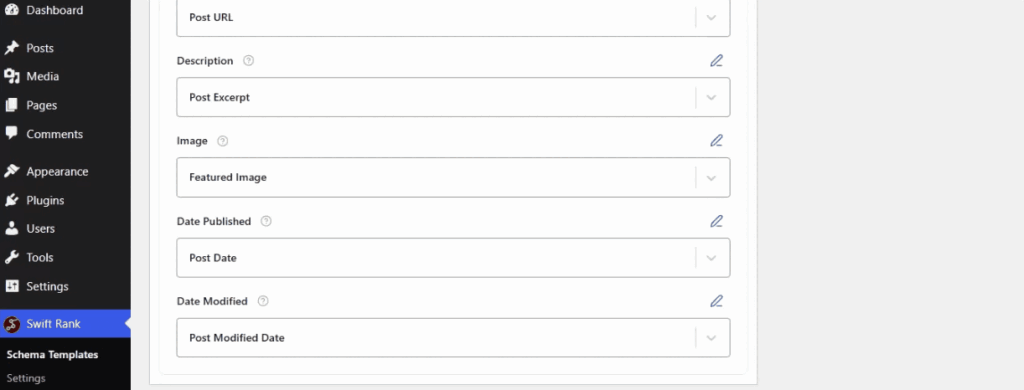
You can upload the image by clicking on the image icon in field. The image field defines the primary image associated with your webpage. This image may appear in rich results and helps search engines.
Date Published #
Indicates the original publication date of the webpage.
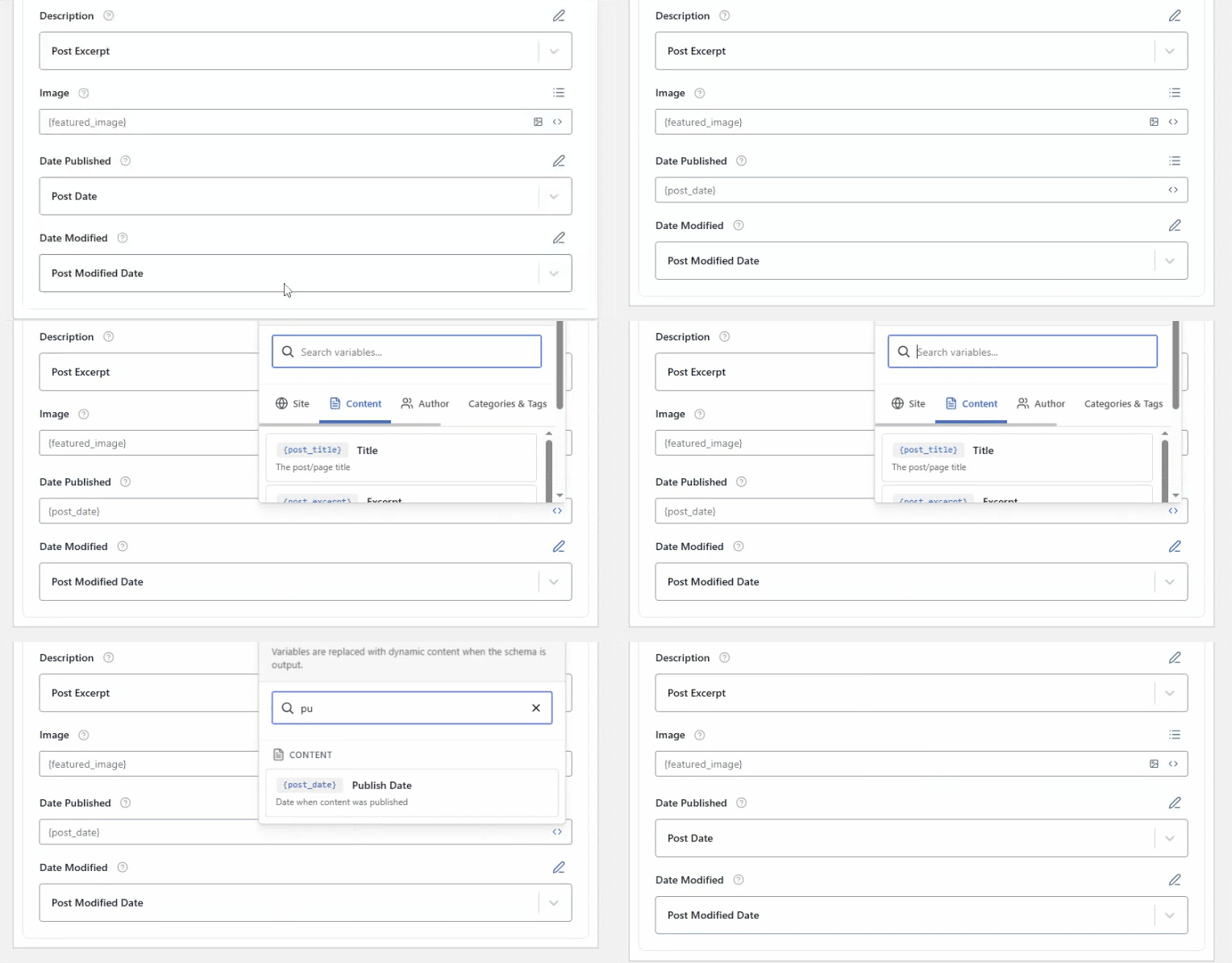
This helps search engines understand content freshness and timeline relevance.
Date Modified #
Shows the last updated date of the webpage.
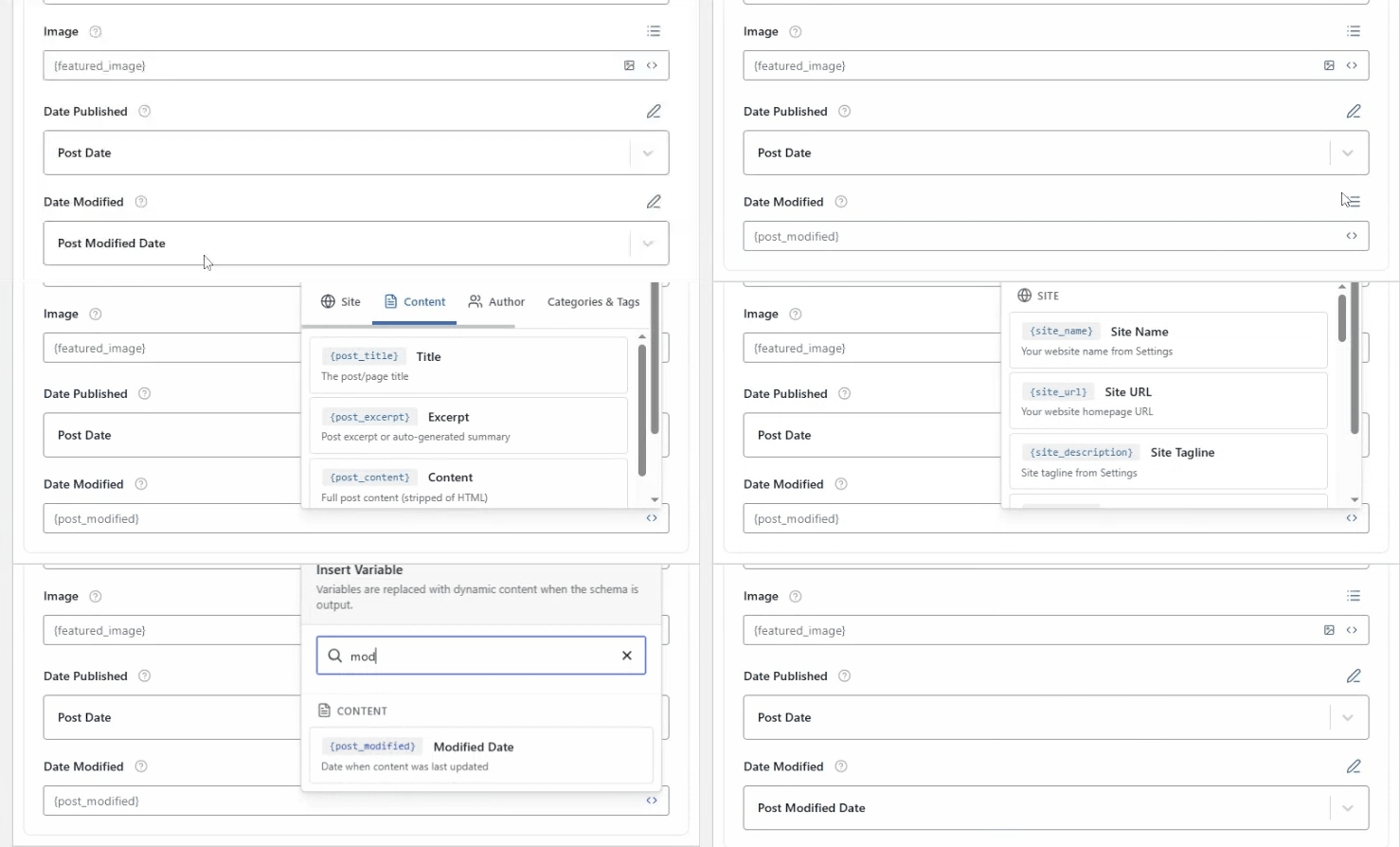
This is useful for signaling content updates and improvements. These fields can also be configure in an individual post or page without effecting the whole template.


