
In this documentation, we’ll walk through the general settings of the Swift Rank Schema plugin and explain how each option works.
You’ll learn how to manage schema behavior, avoid duplicate structured data, configure fallback images, control where schema code is injected, and optimize schema output for performance.
Before proceeding to the General Settings, make sure that the Swift Rank plugin has been successfully installed and activated on your website.
General Settings of Swift Rank #
Navigate to Swift Rank → Settings.
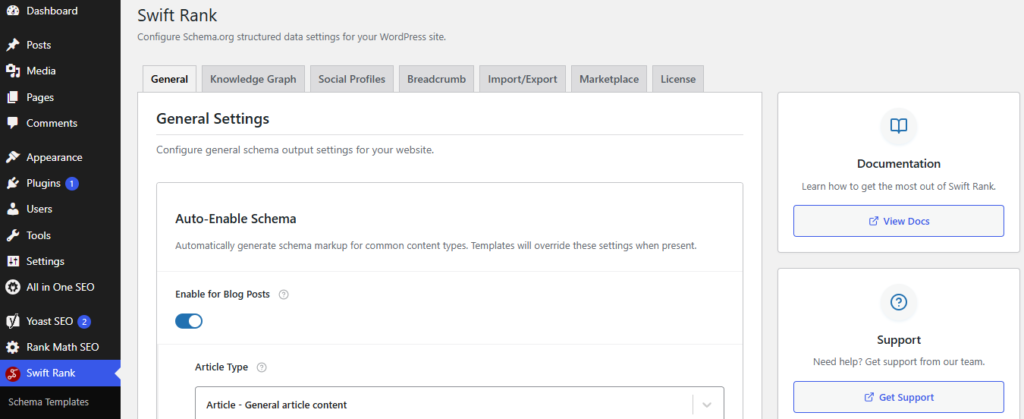
By default, you’ll land on General Settings, where you can enable different options.
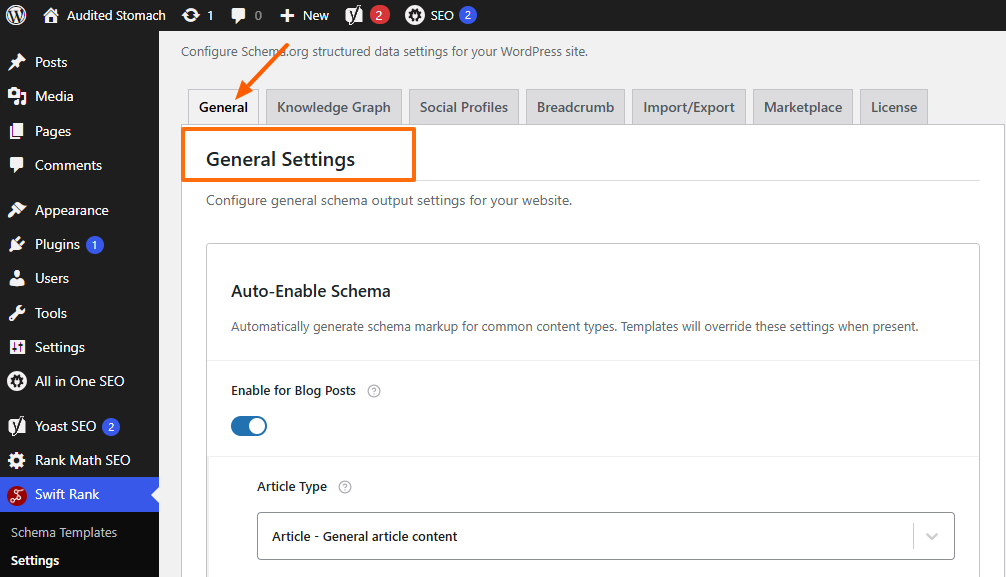
Auto-Enable Schema #
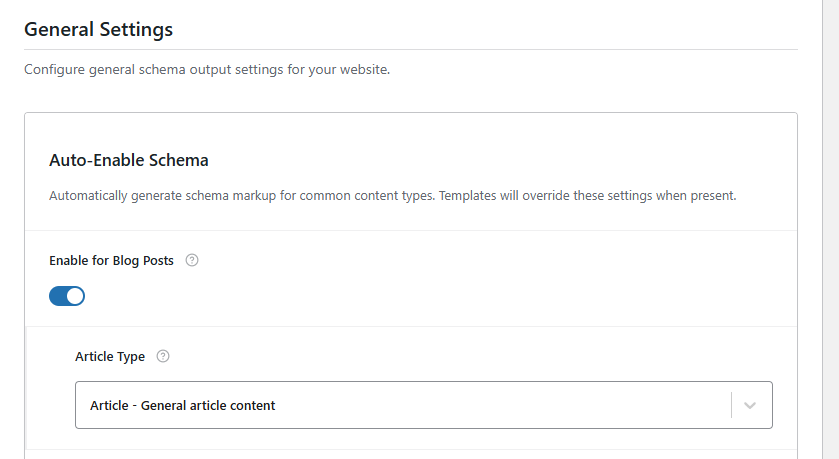
When Enable for Blog Posts is turned on, Swift Rank automatically applies schema markup to all posts under the default WordPress “Post” post type. The plugin dynamically pulls important data such as the post title, featured image, author name, publish date, and description, and structures it according to the selected article type.
Article Type #
The Article Type option allows you to define how your blog posts are categorized in structured data. For general content, selecting “Article” is appropriate, as it tells search engines that the content is informational in nature.
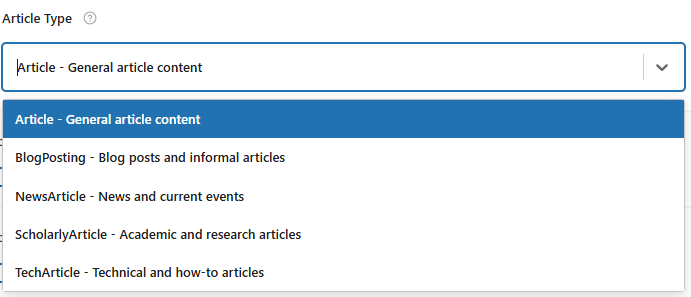
Depending on your website type, other options like BlogPosting or NewsArticle may be more suitable. Choosing the correct article type helps search engines better interpret and classify your content, which can improve visibility and indexing accuracy.
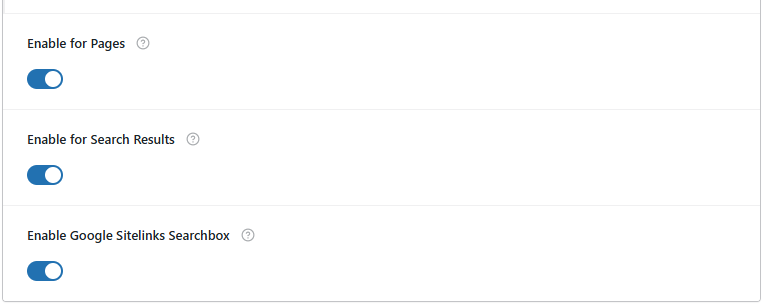
Enable for Pages #
When Enable for Pages is activated, Swift Rank automatically generates schema markup for all WordPress pages. This typically applies WebPage schema to static pages such as About Us, Contact, Services, or other important sections of your site.
Enable for Search Results #
The Enable for Search Results option applies structured data to your website’s internal search results pages. When enabled, Swift Rank detects search result URLs and marks them with SearchResultsPage schema. This signals to search engines that the page displays a list of search results rather than standard content. Properly identifying search result pages helps prevent misinterpretation and supports cleaner indexing.
Enable Google Sitelinks Searchbox #
The Enable Google Sitelinks Searchbox feature tells Google that your website has a working search function. When you turn this option on, Swift Rank adds special structured data (SearchAction schema) to your homepage. This helps Google understand that users can search content directly on your site.
If your website qualifies, Google may show a search box below your website link in search results. This allows users to search your website directly from Google without first opening your site. However, even after enabling this feature, it is Google’s decision whether the search box will appear in the search results.
Default Fallback Image #
The Default Fallback Image setting is used whenever a post, page, or content item does not have a featured image assigned. Setting a fallback image ensures that your structured data always includes a valid image, helping to prevent schema warnings and maintain consistent visual presentation in search results. It is recommended to use a high-quality, brand-relevant image to ensure the best appearance across all rich result displays.
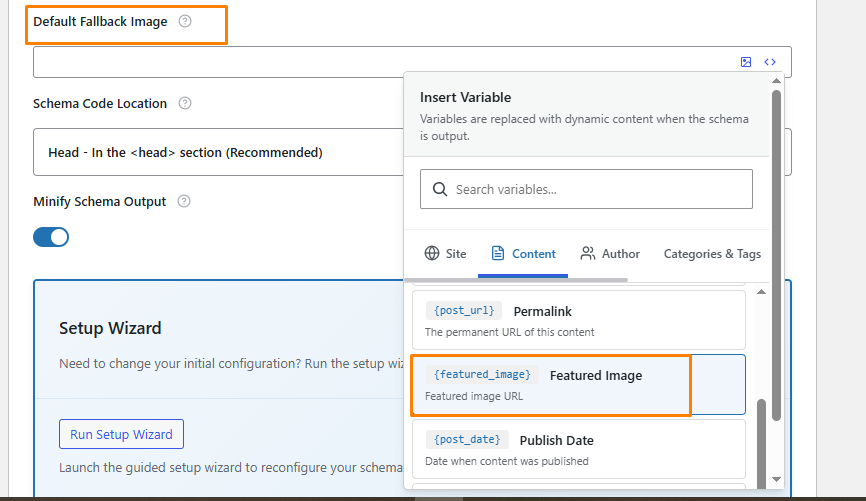
You can either use this featured image variable or you can upload your own by clicking on the image icon at the top right corner.

Auto Image Schema #

When Auto Image Schema is enabled, Swift Rank automatically generates ImageObject schema for images used within your posts and pages. The plugin detects images and adds structured metadata such as the image URL, caption, and description when available. This improves image indexing and enhances the chances of appearing in Google Image search results, making it especially beneficial for media-rich websites.
Auto Video Schema #
Auto Video Schema option automatically generates VideoObject schema for pages containing embedded or hosted videos. Swift Rank detects video content and adds relevant structured data such as the video title, description, thumbnail URL, and embed link. This increases the likelihood of your videos appearing in video-rich search results and improves overall search visibility for multimedia content.
Schema Code Location #
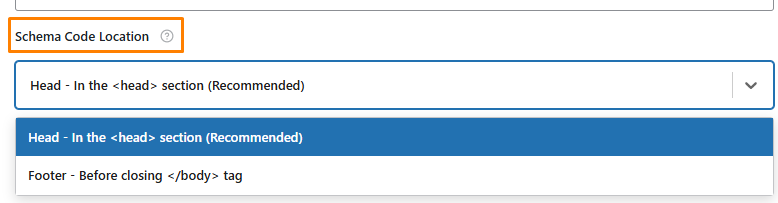
The Schema Code Location option controls where the structured data is injected into your website’s HTML. Selecting the option to place the schema code in the <head> section is recommended, as this ensures search engines can detect and process the structured data efficiently. In cases where theme or framework limitations exist, the schema can alternatively be placed before the closing </body> tag.
Minify Schema Output #
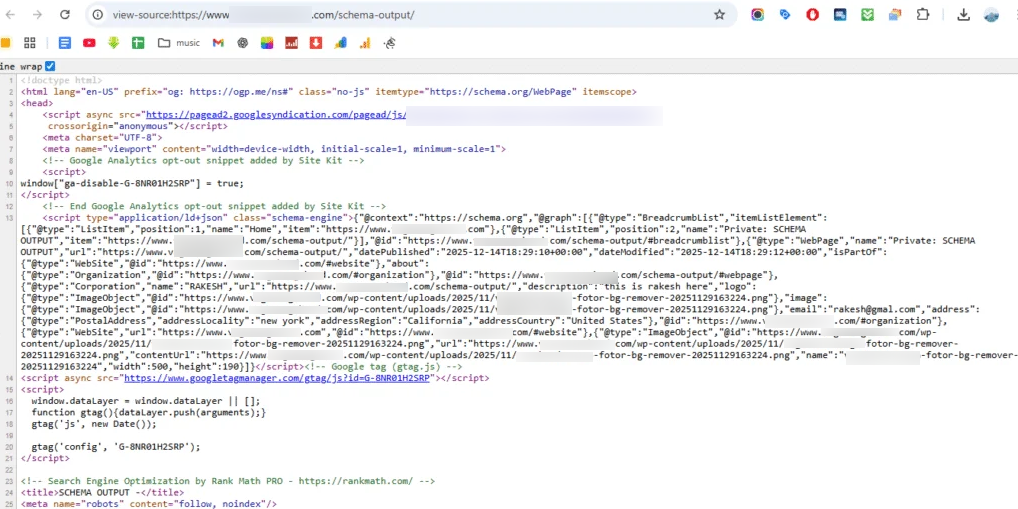
Minify Schema Output removes unnecessary whitespace and formatting from the generated schema markup. This reduces the overall file size, helping the schema load more efficiently while keeping its structure and meaning fully intact for search engines.

This is the following result before enabling the minify schema output:
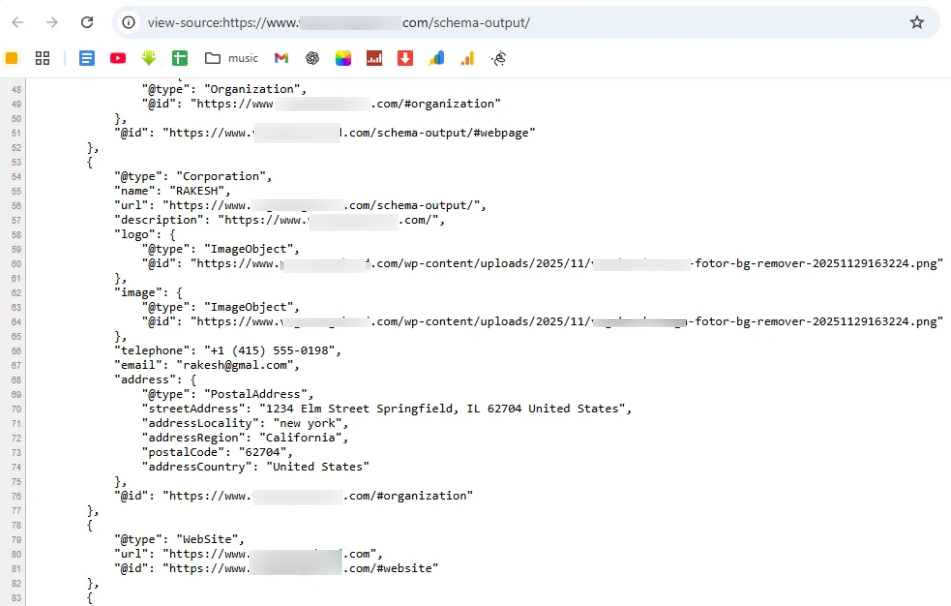
And this is the result after enabling the minify schema output that have removed all the white spaces:
Disable Yoast SEO Schema #
You can also disable yoast seo schema in swift rank that helps to avoid duplicate structured data when the yoast SEO is active on your website. Both Swift Rank and Yoast SEO generate schema markup automatically.

When schema is output by both plugins at the same time, it can lead to duplicate or conflicting structured data. This may confuse search engines and reduce the chances of rich results appearing correctly.
If you plan to use Swift Rank Schema, enable this option to disable Yoast’s schema output and let Swift Rank handle all structured data cleanly and consistently.
Disable All in One SEO Schema #
If All in One SEO is installed, you can disable its schema output using this toggle in Swift Rank.

If you’re using any of these SEO plugins (Rank Math, Yoast SEO, or All in One SEO). Swift Rank makes it easy to disable their schema so that only Swift Rank Schema is used across your website, avoiding overlap and keeping everything clean and consistent.
Disable Rank Math Schema #
The Disable Rank Math Schema option is available under Swift Rank → General Settings. This feature helps prevent duplicate schema markup on your website when the Rank Math SEO plugin is already active.
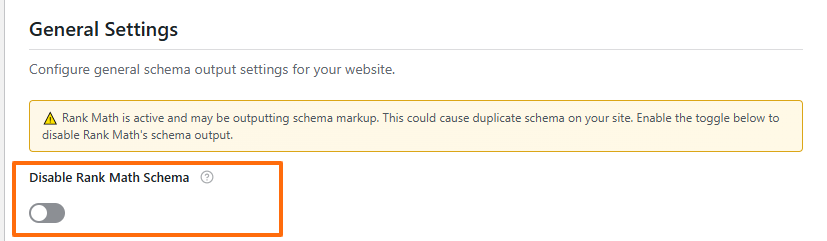
Swift Rank and Rank Math both generate structured data (schema). If both plugins output schema simultaneously, search engines may detect duplicate or conflicting schema, which can negatively impact SEO performance and rich result eligibility.
After configuring these settings, click the Save Changes button to apply them across your website. The updated schema settings will take effect immediately, although search engines may require some time to recrawl and reflect the changes in search results.


