
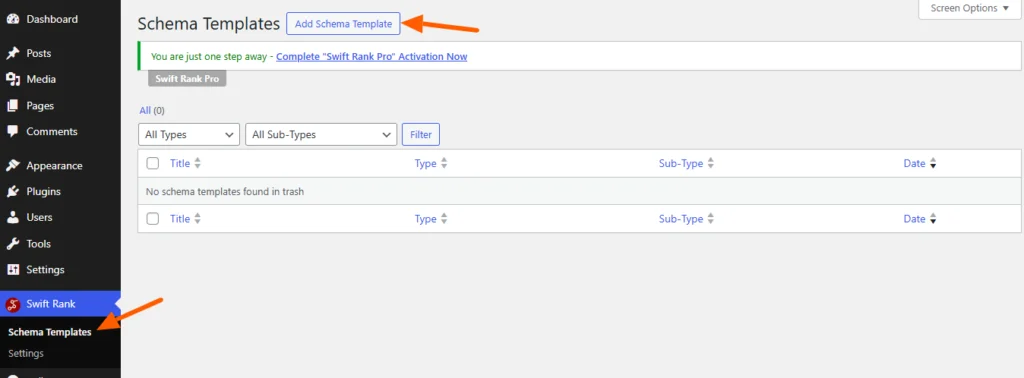
To add video object schema using Swift Rank, first ensure that the Swift Rank plugin is properly installed and activated on your WordPress website. Once the plugin is active, navigate to Schema Templates from the Swift Rank dashboard to begin creating video object schema template.
Click on Add Schema Template to start.
Name Your Schema Template #
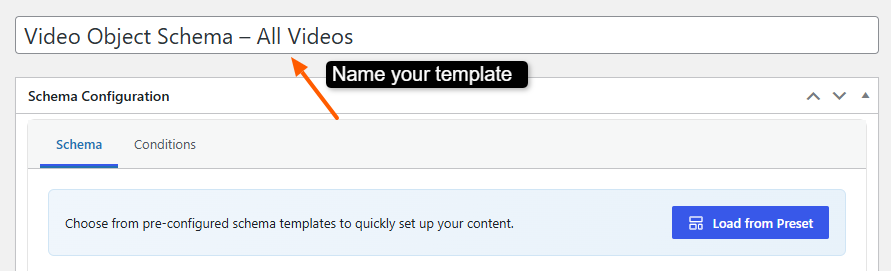
You can enter a clear and descriptive title for your template.
- Video Object Schema – All Videos
- Video Object Schema – Blog Videos
- Video Object Schema – Tutorial Videos
- Video Object Schema – YouTube Videos
- Video Object Schema – Landing Page Videos
This helps you easily identify the template later, especially when managing multiple schemas.
Select the Schema Type #
In the Schema Configuration panel located in the right sidebar, find the Schema Type dropdown. Click the dropdown and select video object from the available schemas.
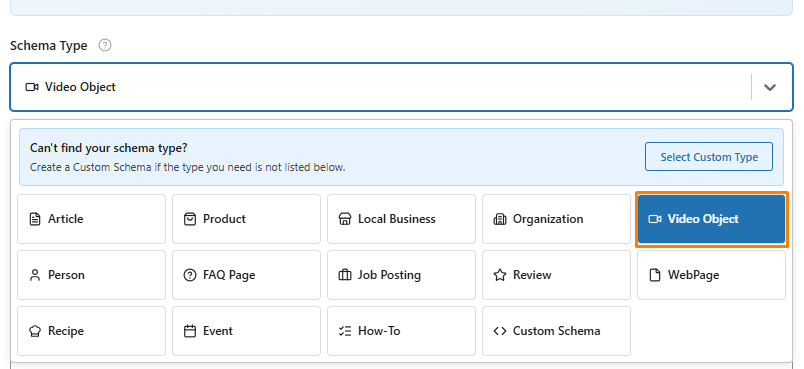
Once you select Video Object as the schema type in Swift Rank, the plugin automatically loads all relevant fields required to accurately describe a video for search engines. Each field plays an important role in helping platforms like Google understand, index, and display your video content correctly in search results.
Please note that VideoObject schema is a Pro feature in Swift Rank, and you must upgrade to the Pro version to access and enable this functionality.
Video Name #
To enter the video name, click the pencil (edit) icon next to the field to manually add a custom video name. Otherwise, click the <> (Insert Variable) icon and select the {post_title} variable from the list.
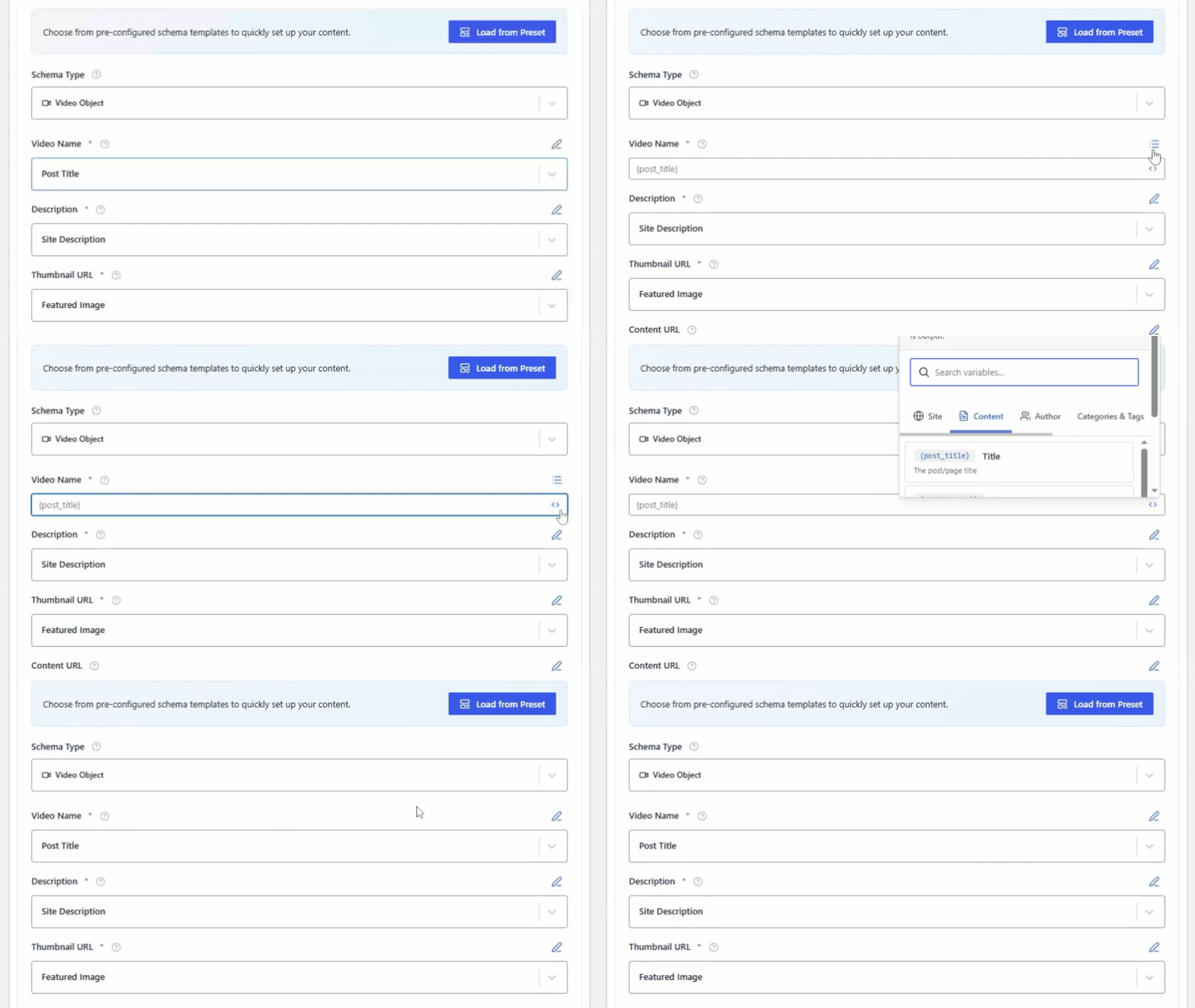
This field represents the title of the video. It should be clear, descriptive, and closely match the actual title shown on the video player or hosting platform.
Description #
To add a description, you can either select post content or post excerpt or you can click the pencil (edit) icon to enter a custom description manually. The description should be informative, accurate, and aligned with the content displayed on your website.
You may also click the <> (Insert Variable) icon to insert a dynamic variable {site_description}, allowing Swift Rank to automatically populate the description based on your site or content settings. Dynamic variables help maintain consistency and reduce the need for manual updates.
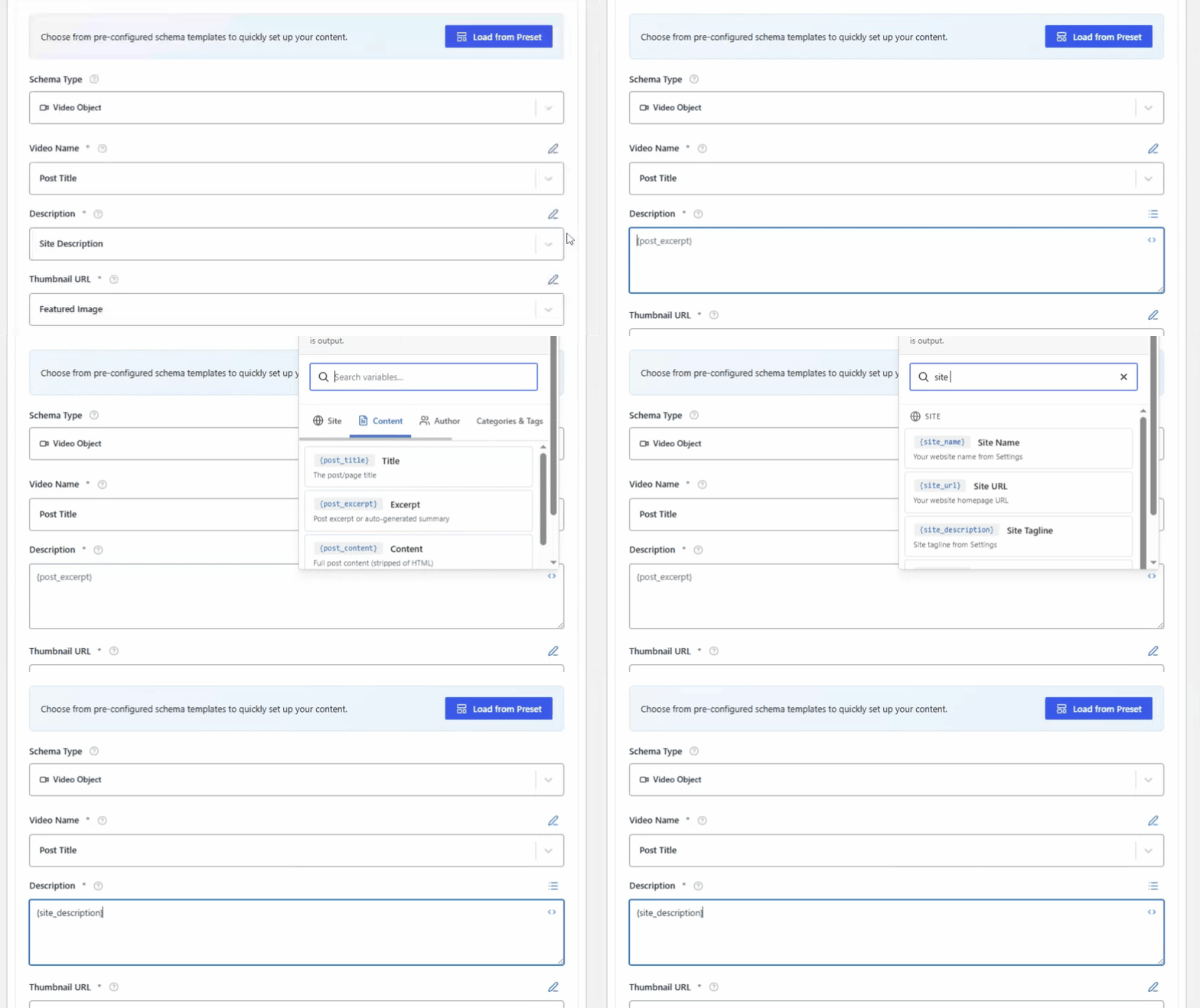
The Description field provides a clear and concise overview of your business, including the services you offer and your primary area of focus. This description helps search engines better understand your business and improves the relevance of your local search appearance.
Thumbnail URL #
This field contains the URL of the video’s thumbnail image.
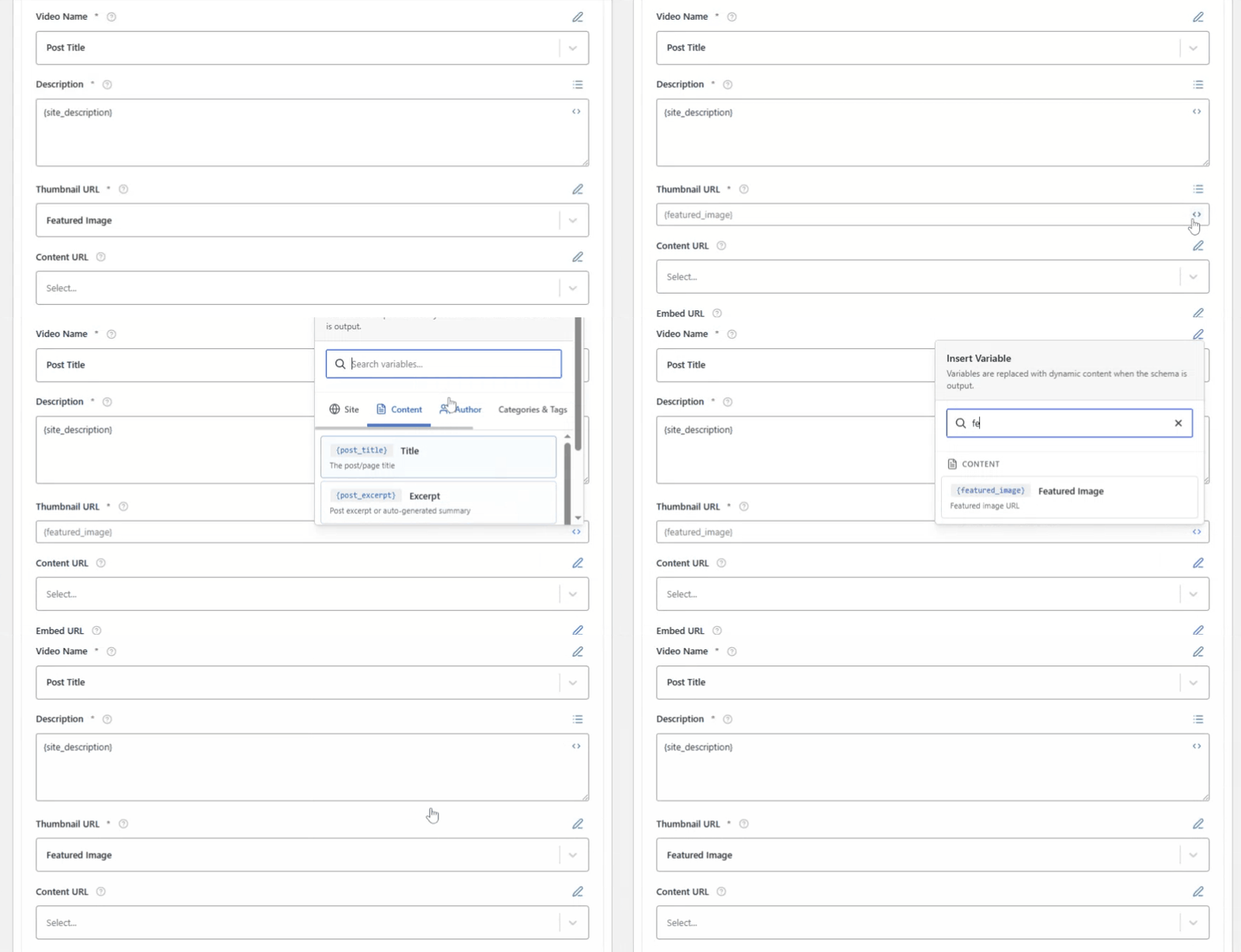
To add this click the pencil (edit) icon and enter a direct image URL, or use the <> (Insert Variable) icon to dynamically insert {featured_image} variable.
Content URL #
The content URL is the direct URL to the video file.

To add this cick on the pencil icon and enter your video URL in the field.
Embed URL #
To add this cick on the pencil icon and enter your video embed URL in the field.

This field specifies the URL used to embed the video on a webpage.
It is commonly used for videos hosted on platforms like YouTube or Vimeo.
Duration #
Duration defines the total length of the video which is in ISO 8601 format.

Providing the duration helps users and search engines know how long the video runs before watching it.
These schema fields can also be modified directly while editing an individual post or page.
Upload Date #
This field indicates the date when the video was first published or uploaded.
To add this, click the pencil (edit) icon and enter a direct upload date, or use the <> (Insert Variable) icon to dynamically insert {post_date} variable.

It helps search engines assess the freshness of the content and can be important for time-sensitive or trending videos.
URL #
The URL field refers to the webpage URL where the video is published or available.To add this:
- Or manually enter the page URL using the pencil (edit) icon
- Click the <> (Insert Variable) icon and select {post_url}

This connects the video object schema with the specific page on your website where users can view the video.
Width #
This field specifies the width of the video player in pixels.
To define the Width of the video player:
- Enter the width in pixels (for example: 1920)
- Click the <> variable icon to add dynamically.

It provides additional technical information about the video display format.
Height #
Height defines the height of the video player in pixels.
To add the Height of the video player:
- Enter the width in pixels (for example: 1080)
- Click the <> variable icon to add dynamically.

Together with width, this helps search engines understand the video’s display dimensions.
Seek To Action Target #
This field enables video seek functionality in search results.
To enable Seek To Action Target:
- Enter the appropriate seek URL format
- or you can click on <> variable icon to add from list.

Format: https://www.youtube.com/watch?v=VIDEO_ID&t={seek_to_second_number}
Example: https://www.youtube.com/watch?v=dQw4w9WgXcQ&t=9060
When a user clicks this, the video starts playing from 60 seconds.
It allows users to jump directly to specific timestamps within the video from search engines, improving user experience and engagement.
Broadcast Start Date #
This field is used for scheduled video broadcasts.

It specifies the date and time when the live video broadcast starts that you can enter manually or add {post_date} variable by clicking on <> variable icon.
Live Broadcast #
This option indicates whether the video is a live stream.

Enabling this helps search engines correctly classify and display live video content. You can enable this feature by clicking on it.
Broadcast End Date #
This field defines the end date and time of a live broadcast.You can add end date manually here in the field.

It helps search engines understand when a live event finishes or has already ended.
Video Clips #
The Video Clips section allows you to define specific segments (key moments) within a video. These clips help search engines understand important parts of your video and may appear in search results as “key moments”, allowing users to jump directly to a relevant section of the video.
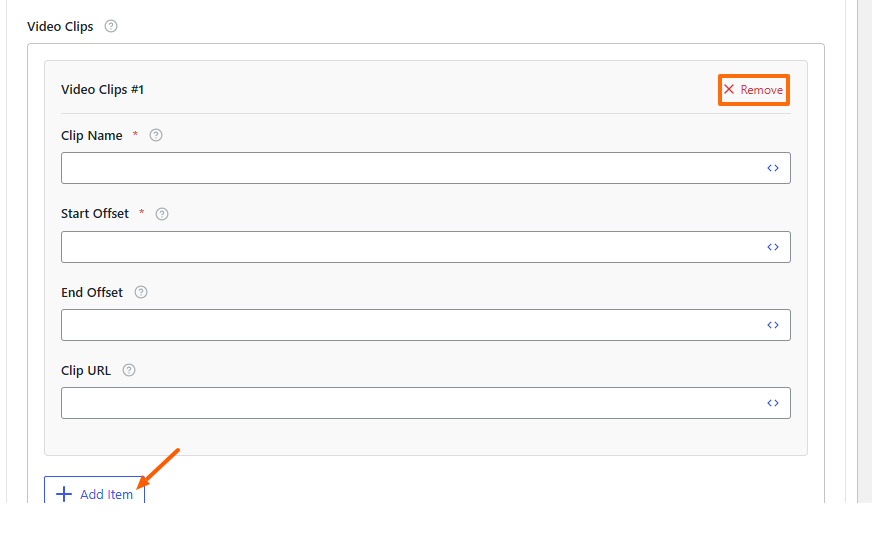
In Swift Rank, you can add one or multiple video clips by clicking the Add Item button.
Video Clips #1 #
Each clip represents a single highlighted segment of the video. You can add multiple clips to describe different important sections.
Clip Name #
The Clip Name is the title of the video segment. You can add by clicking on the <> (Insert Variable) icon to use a dynamic value.
Start Offset #
The Start Offset defines the exact time (in seconds) when the video clip begins. Enter the start time in seconds (numeric value only).
End Offset #
The End Offset defines the exact time (in seconds) when the video clip ends. You can enter the ending time in seconds.
Example:
- Start Offset: 30
- End Offset: 90
This means the clip plays from 30 seconds to 1 minute 30 seconds. In schema, this clearly marks the duration of the highlighted segment.
Clip URL #
The Clip URL is the direct URL that points users to the specific moment in the video. Enter a URL that includes a timestamp parameter.
YouTube:
https://www.youtube.com/watch?v=VIDEOID&t=60s- Self-hosted or embedded video with timestamp support
This URL allows search engines and users to jump directly to the clip instead of starting from the beginning.
Add Item #
To add more clips:
- Click the + Add Item button
- A new Video Clips block will appear
- Repeat the same steps for each important video segment
You can add as many clips as needed to highlight key moments.
Remove Clip #
If you want to delete a clip:
- Click the Remove option in the top-right corner of the clip block
This allows easy management and cleanup of unnecessary clips.
Why Video Clips Matter in Schema #
Adding Video Clips helps:
- Provide better content structure for search engines
- Improve video search appearance
- Enable key moments in Google search results
- Increase user engagement by sending users directly to relevant sections
Enable Paywall Markup #
Swift Rank Pro includes Paywall Settings for subscription-based or restricted content.
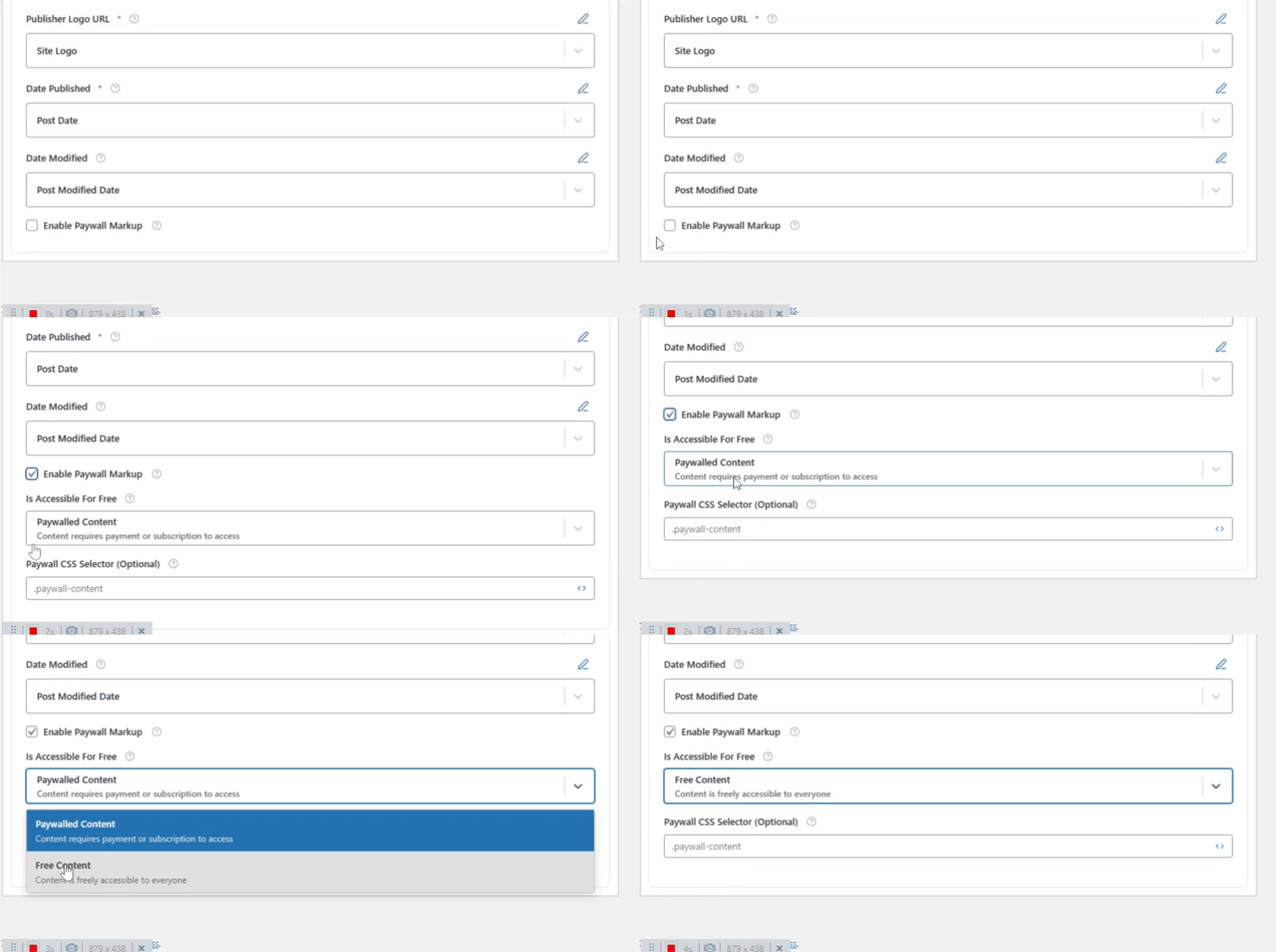
From the dropdown:
- Select Paywalled Content if the article requires a subscription or payment.
- Select Free Content if the article is accessible to everyone.
This ensures search engines correctly interpret the accessibility of your content.


