
A complete step-by-step guide for integrating Tawk.to live chat support on your WordPress website using ToolPress without writing any code.
Introduction #
Tawk.to is a free live chat application that allows you to monitor and chat with visitors on your website. By integrating Tawk.to with ToolPress, you can:
- Add live chat support without editing theme files
- Control where and when the chat widget appears
- Easily manage the widget from your WordPress dashboard
- Switch between development and production environments seamlessly
Time Required: 10-15 minutes
Difficulty Level: Beginner-friendly
Prerequisites #
Before you begin, ensure you have:
- A WordPress website
- Administrator access to your WordPress dashboard
- Tawk.to account
Step 1: Create a Tawk.to Account #
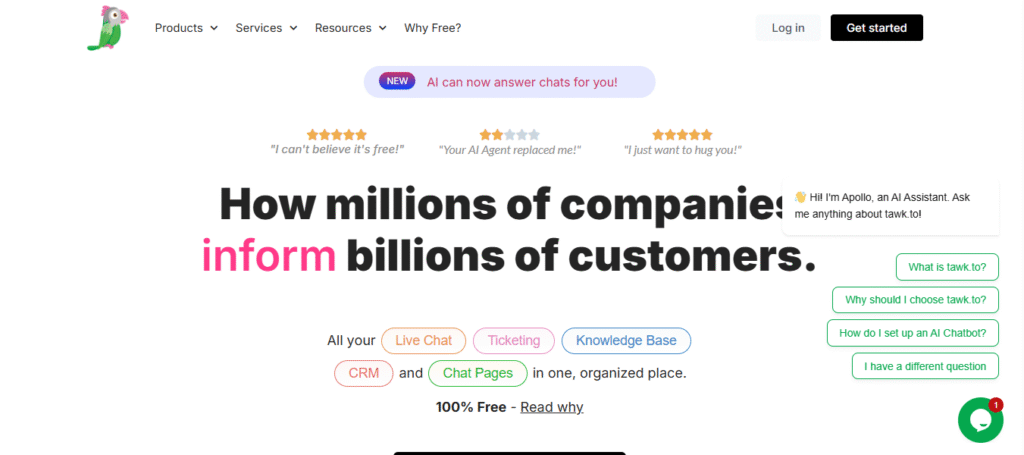
Sign Up for Tawk.to #
- Visit https://www.tawk.to/
- You can follow up guide here to create new account.
Step 2: Sign-up Your Tawk.to Account #
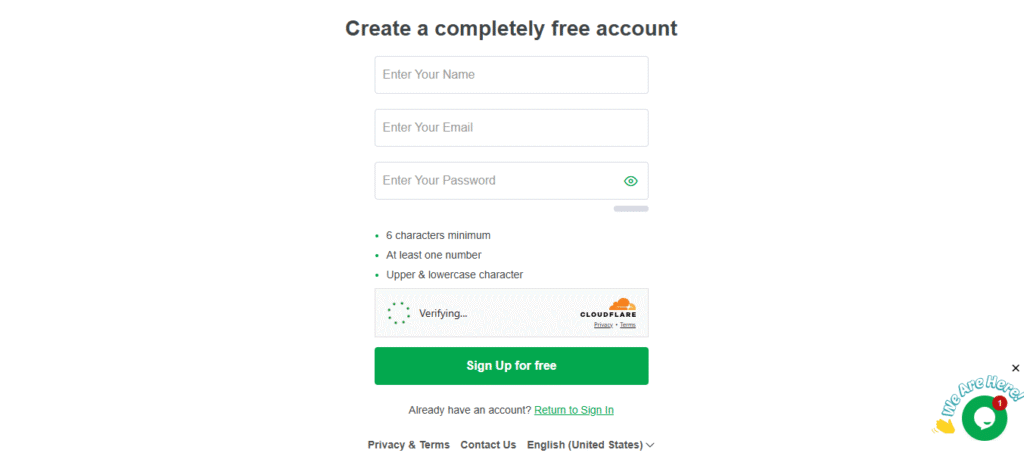
- Click Sign Up Free.
- Enter your email, password, and basic details.
- Verify your email to activate the account.
Step 3. Add a new property (your website) #
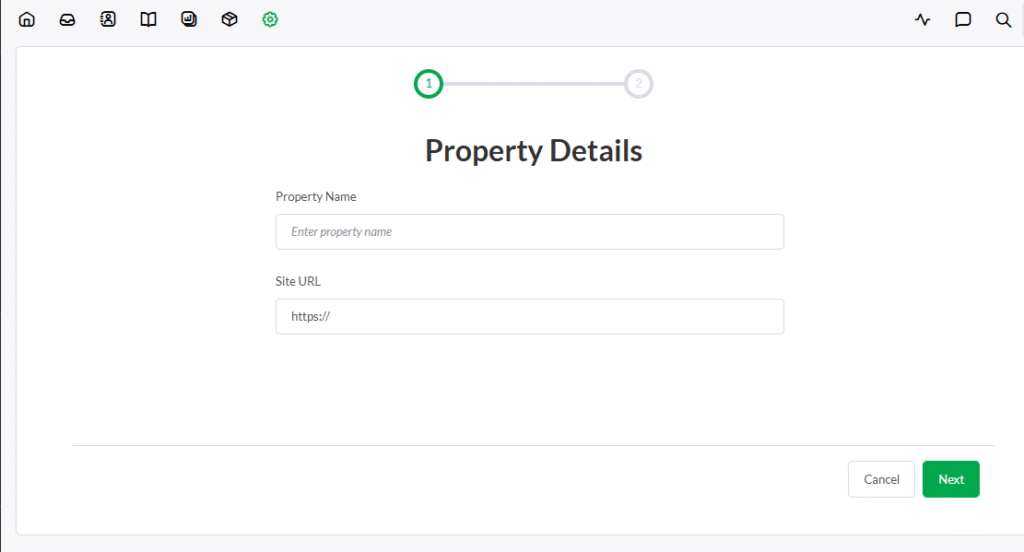
- Go to Administration (bottom-left gear icon).
- Select Property Settings.
- Add your site’s name and URL.
Step 4. Get your Property Id #
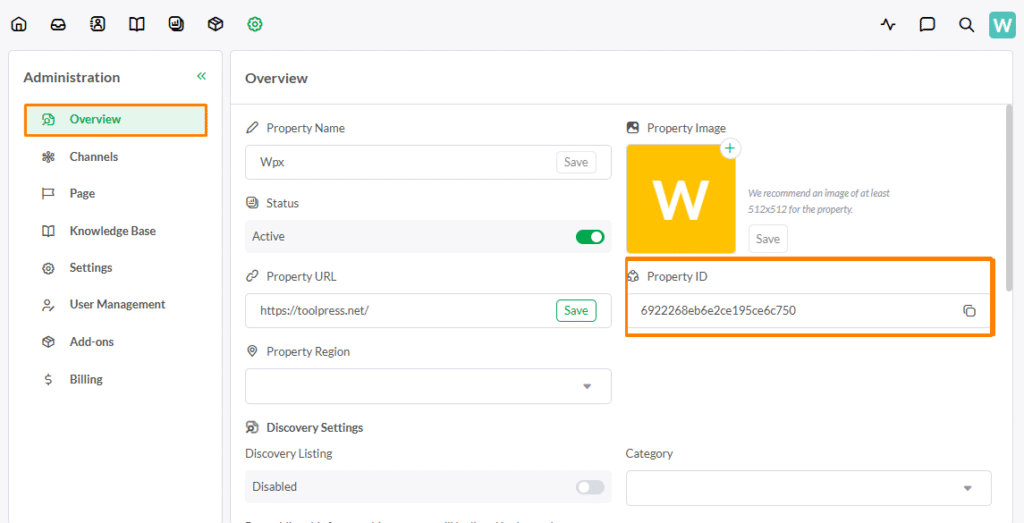
- In the same settings area, go to overview and you will see the property id.
- From here you can copy the proprety id.
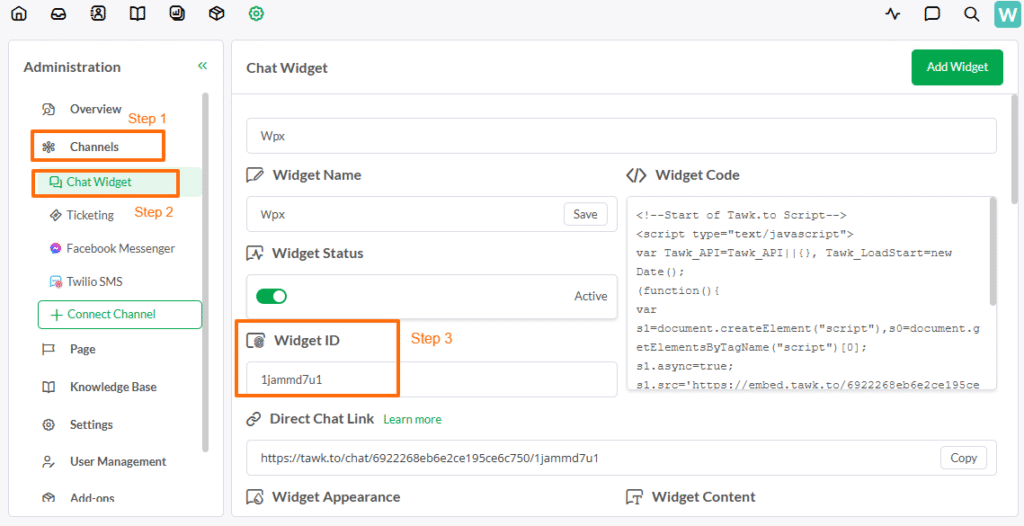
Step 5. Get your Widget id #
Settings → Channels → Chat Widget
Step 6: Add Tawk.to Chat Tool in ToolPress #
Install the toolpress plugin.
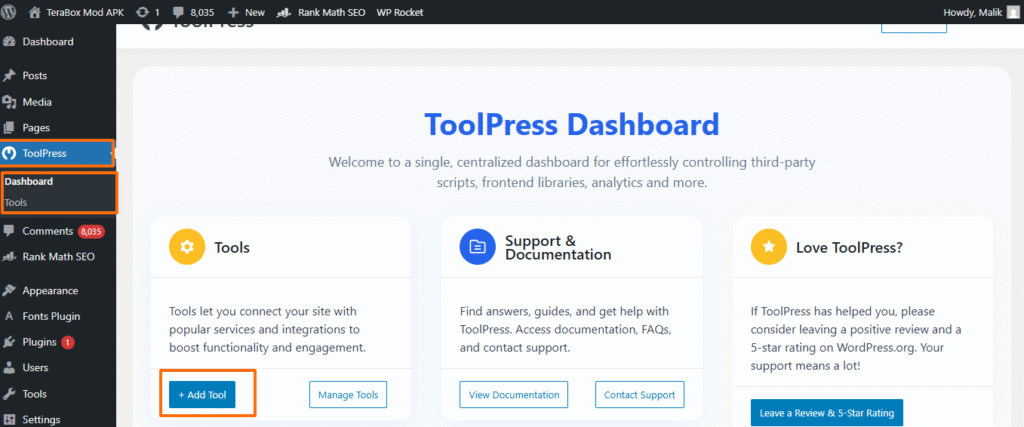
- In your WordPress dashboard, click on ToolPress in the left sidebar
- You can also add the tools from going into dashboard or tools both.
Create New Tool #
- Click the “Add New Tool” button
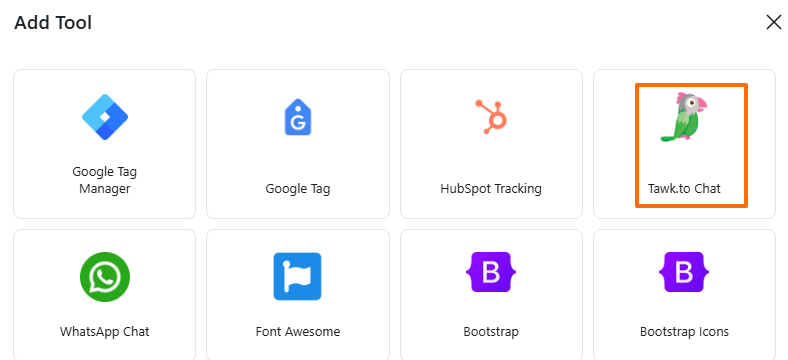
- Now, you will see this: And click on “Tawk.to Chat“.
Enter “Tawk.to Live Chat” (or any name you prefer). Then paste the Property ID and Widget ID you copied earlier into their required fields.
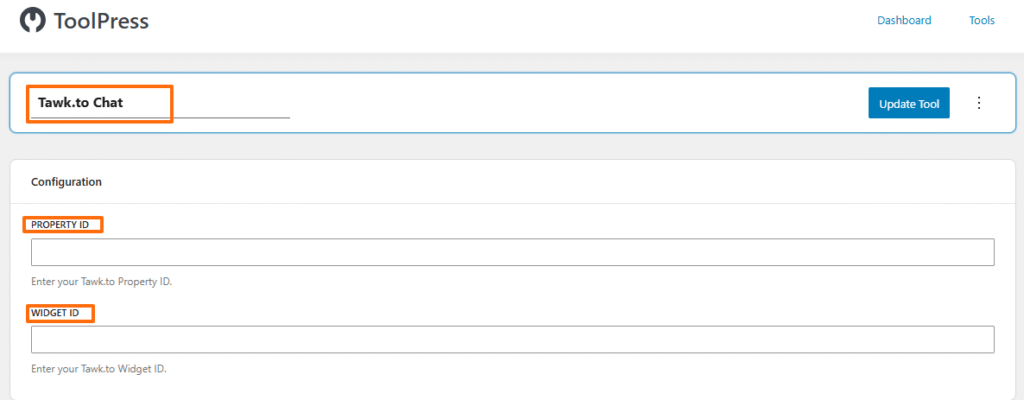
After adding it, update the tool and test to make sure everything is working correctly.
Step 7: Customize the Chat Widget in Tawk.to #
Inside the Tawk.to dashboard:
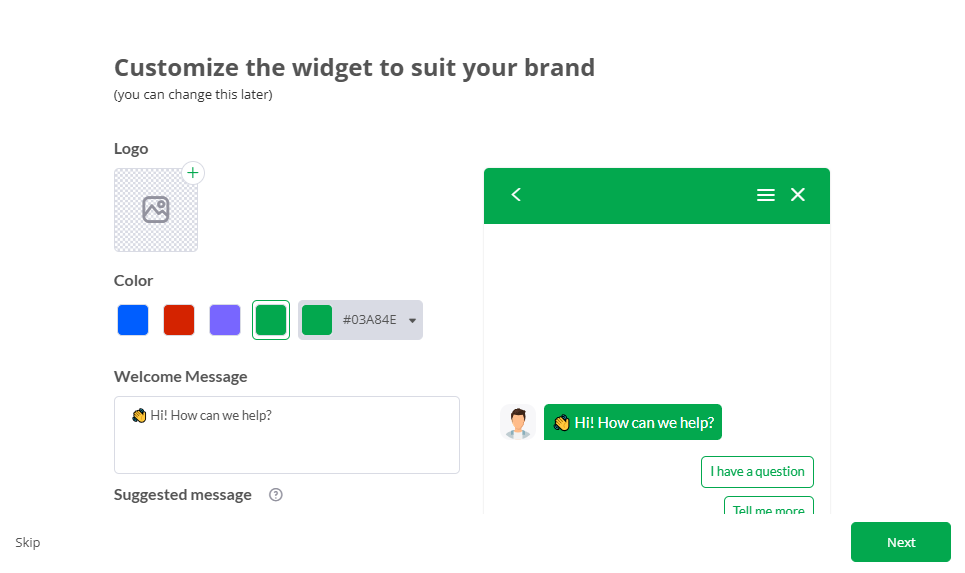
Appearance: #
- Pick the widget position (bottom-right / bottom-left).
- Match colors with your brand.
- Add a custom icon and welcome text.
Chat Window: #
- Update header color.
- Add agent images.
- Customize greeting messages.
Step 8. Set Availability in Tawk.to #
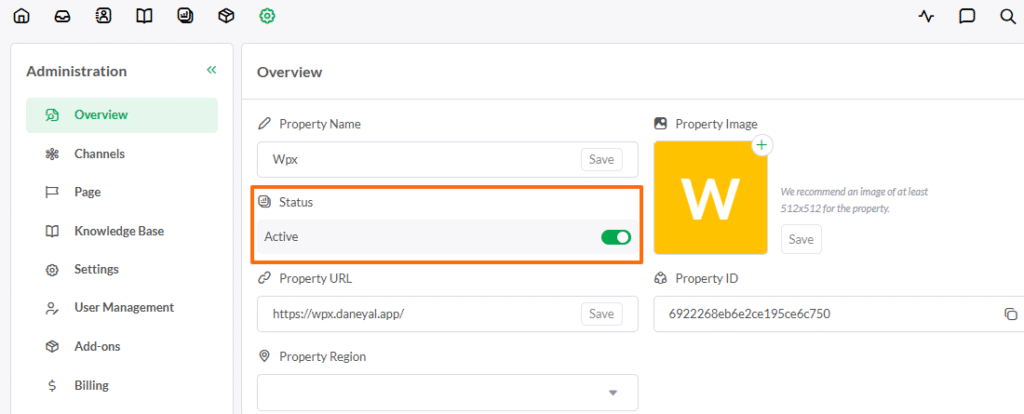
Inside your agent profile, you’ll see:
- Online
- Away
- Invisible / Offline
Step 9. Change Your Status #
You can set your availability manually:
- Online → You are active and will receive chats
- Away → You’re not active but still visible
- Offline → Chat shows as offline form on your website
(Optional) Use Schedules
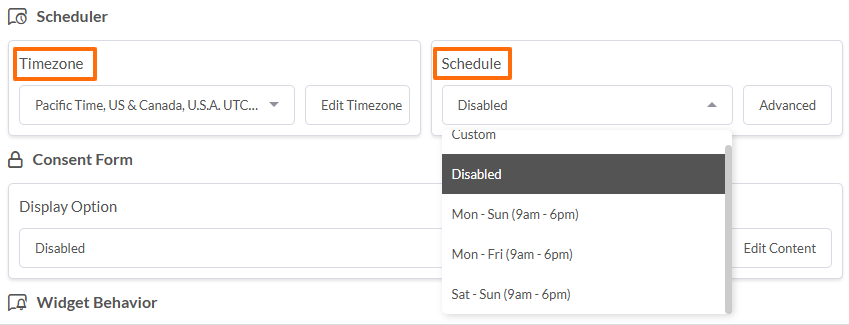
If you want automatic availability:
Settings → Channels → Chat Widget → Scheduler
Here you can set:
- Days
- Hours
- Time zone
So your widget switches between online and offline automatically.
Step 10: Add Support Agents #
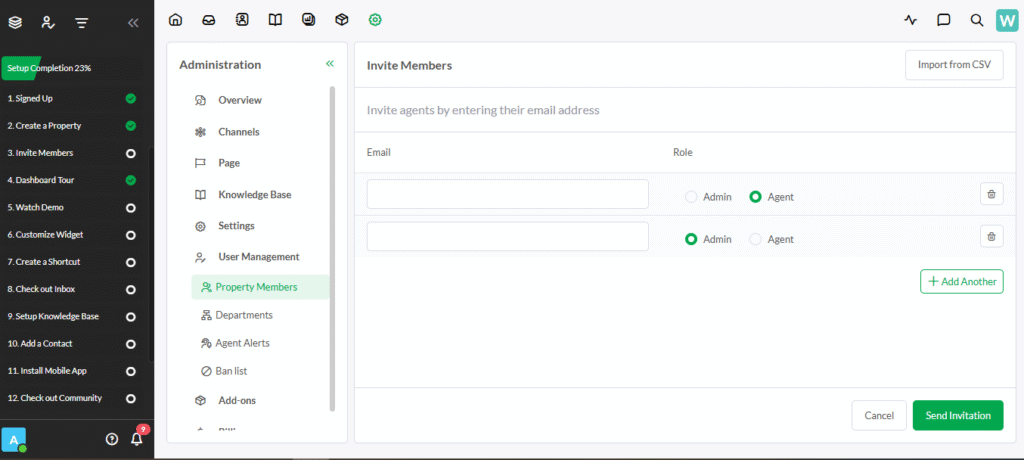
- Go to Administration → Agents.
- Invite new agents via email.
- Assign roles and permissions.
- Agents can download Tawk.to mobile apps to reply on the go.
Step 11: Test the Entire Setup #
- Reply to ensure everything is working.
- Open your site in incognito mode.
- Confirm the chat widget appears.
- Send a test message.
- Check if it shows correctly in the Tawk.to dashboard/mobile app.


