
Schema templates are the core of Swift Rank. Instead of adding structured data to each page individually, you create a schema template once and let it apply automatically based on defined conditions. This saves time, ensures consistency, and keeps your schema scalable as your site grows.
What Is a Schema Template? #
A schema template is made up of three key components:
- Schema Type
Defines the type of structured data you want to apply, such as Article, Product, Organization, FAQ, or Local Business. - Field Values
The data used to populate the schema properties, such as title, description, author, logo, or address. These can be entered manually or dynamically using variables. - Display Conditions
Rules that control where the schema appears, such as specific post types, pages, categories, or the entire site.
Creating Your First Schema Template #
Step #1: Access Swift Rank in WordPress #
- Log in to your WordPress admin dashboard.
- From the left sidebar, Click on Plugins → Add Plugin → Upload Plugin.
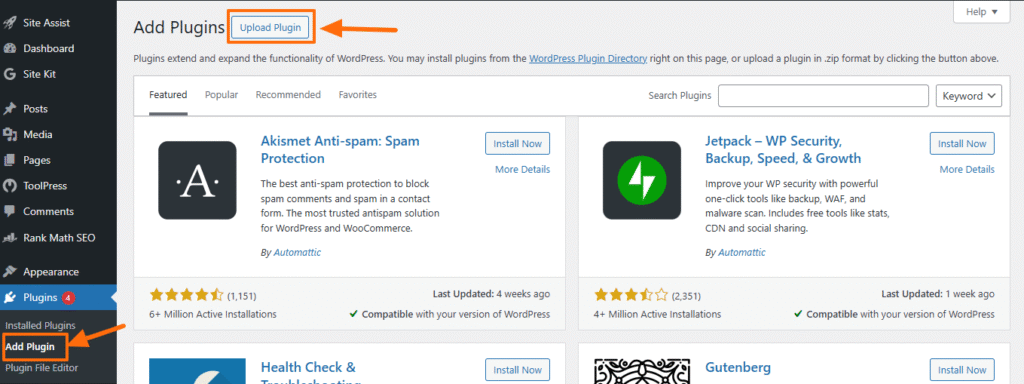
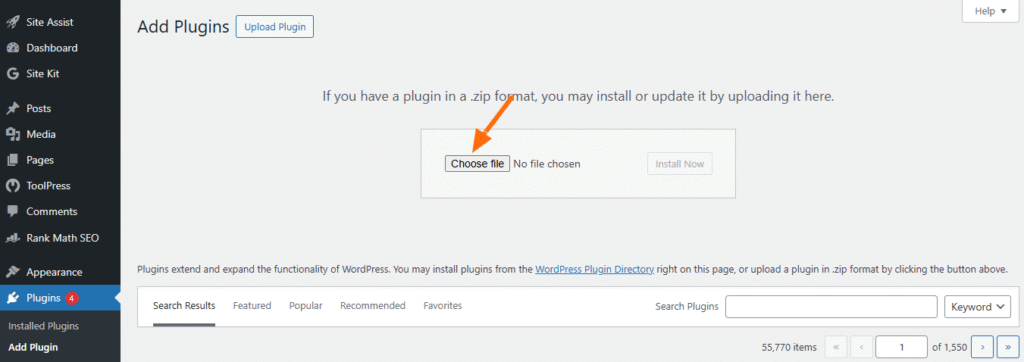
Click Choose File and upload the Swift Rank plugin from your computer, or install it directly from the WordPress plugin directory.
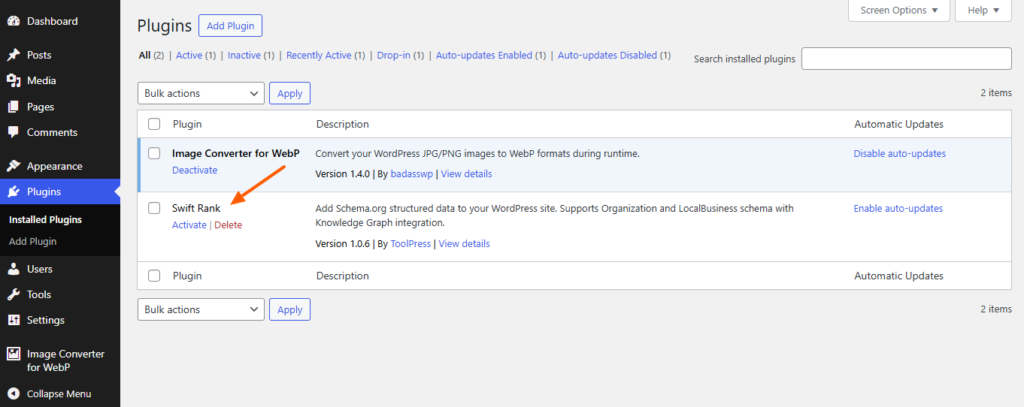
Once uploaded, select Activate.
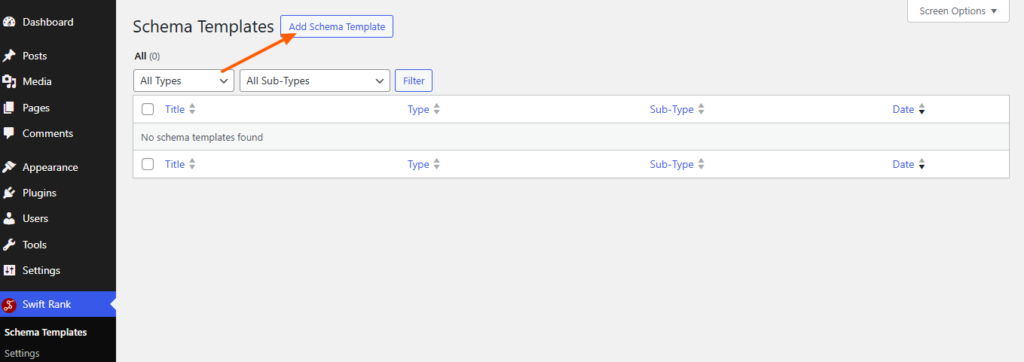
After activation, you’ll see the “Schema Templates” in the left sidebar. Click on it to create a schema template.
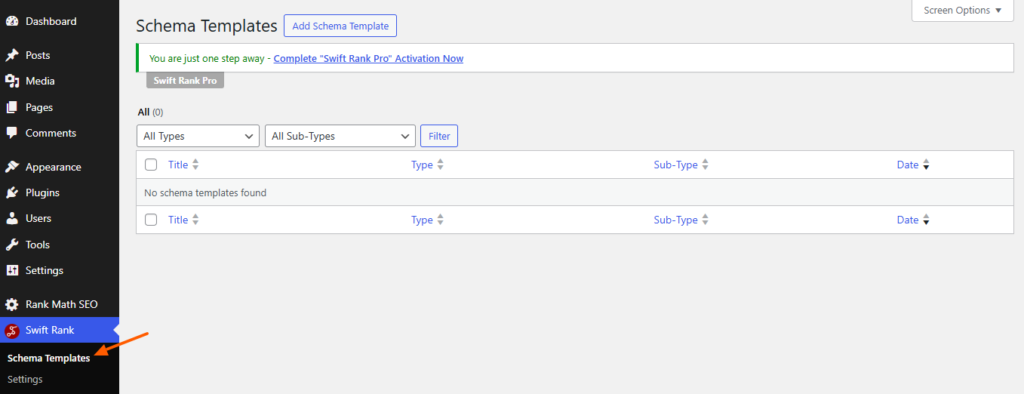
Then click on “Add Schema Template”.
Name Your Template #
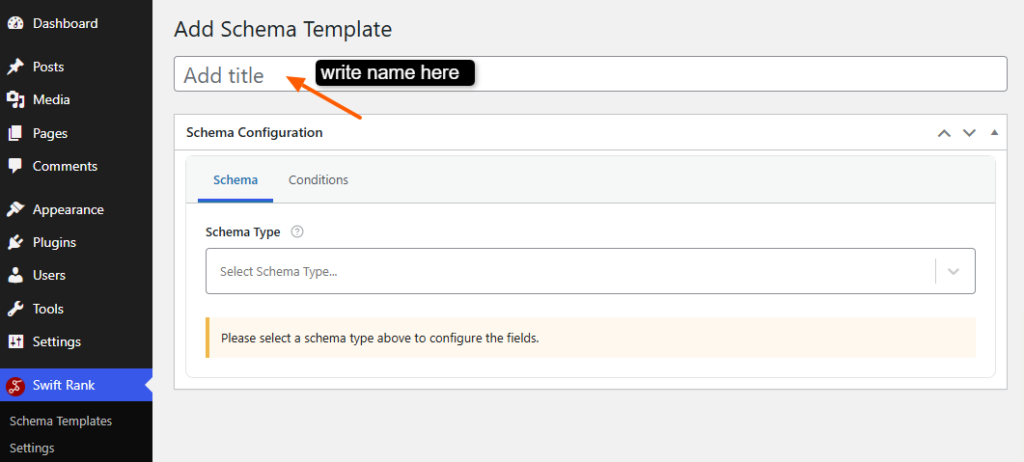
Enter a clear and descriptive title in the title field at the top.
Recommended examples:
- Article Schema – Blog Posts
- Product Schema – WooCommerce
- Organization Schema – Homepage
- FAQ Schema – Support Pages
Why this matters:
- It makes templates easy to identify later
- Prevents confusion when managing multiple templates
- Helps during updates or troubleshooting
Select a Schema Type #
In the Schema Configuration panel on the right sidebar:
- Locate the Schema Type dropdown
- Click the dropdown to view available schema types
- Select the schema type that best matches your content
Available schema types include:
- Article
- Product
- Local Business
- Organization
- Person
- FAQ Page
- Job Posting
- Review
- WebPage
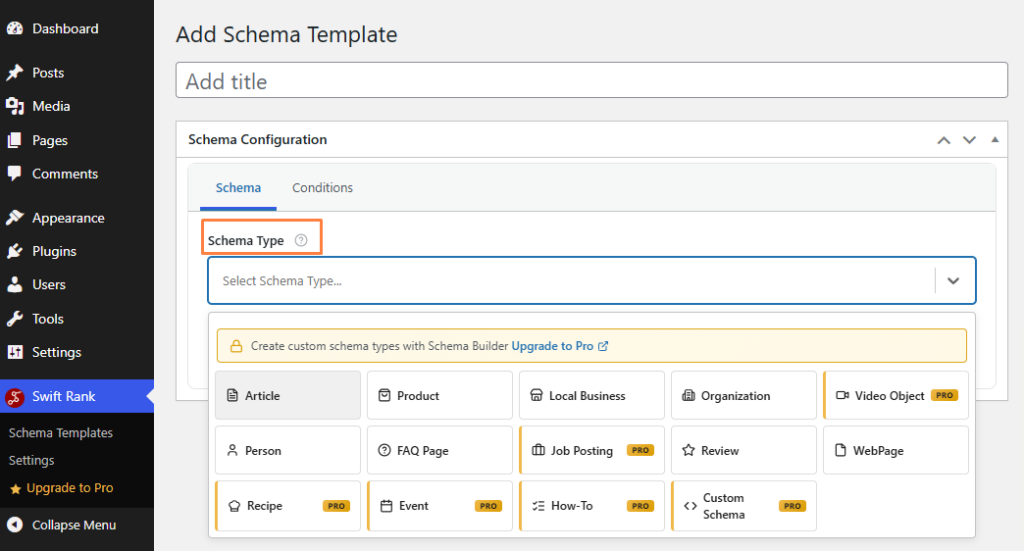
Some advanced schema types such as Recipe, Event, How-To, and Custom Schema are available in the Pro version.
Article Schema Configuration #
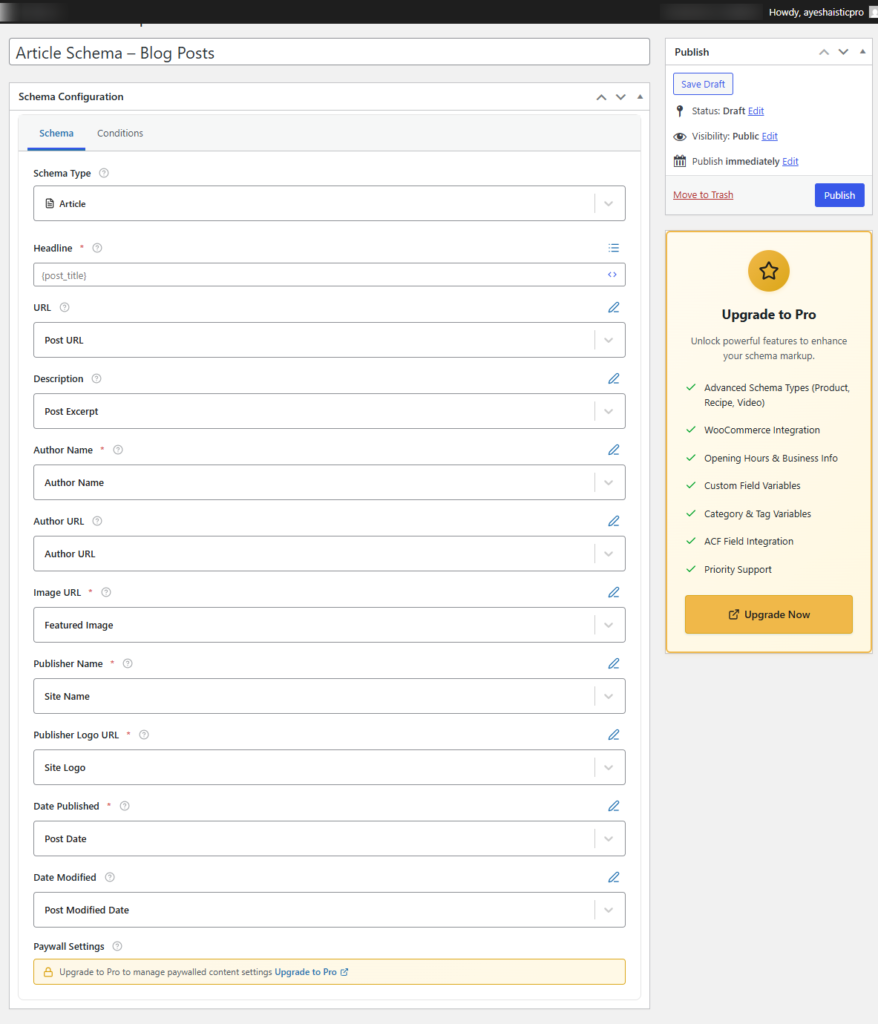
When you select Article as the schema type, Swift Rank displays a set of predefined fields required to accurately describe article-based content. These fields help search engines understand your blog posts and qualify them for rich results.
Most fields support dynamic variables, allowing the schema to automatically pull data from each post.
Headline #
From the available options, select Post Title to automatically populate this field for each article.

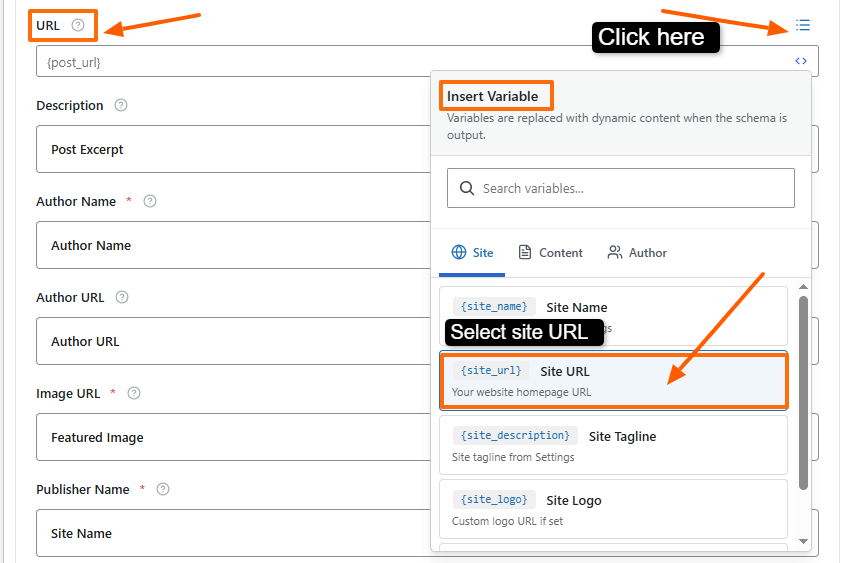
URL #
This field specifies the canonical URL of the article. It helps search engines correctly associate the schema with the published page. Click the pencil icon to open the Insert Variables panel. From the list, select Post URL to dynamically apply the correct URL to every article.
Description #
This field provides a short summary of the article’s content. It helps search engines understand the topic and context of the article. Click the pencil icon to access Insert Variables and select Post Excerpt, or enter a custom description if needed.
Author Name #
This field defines the name of the article’s author. It is important for content credibility and author attribution. Click the pencil icon to open the Insert Variables panel and choose Author Name to automatically assign the correct author for each post.
Author URL #
Links to the author’s profile or archive page. This strengthens author attribution and supports credibility signals.
Image URL #
Specifies the primary image associated with the article. By default, the featured image is used, which is required for rich results and visual enhancements.
Publisher Name #
Identifies the publishing entity, usually your website or brand name. This helps search engines connect the article to your organization.
Publisher Logo URL #
Adds the official publisher logo. This is an important requirement for article rich results and should match the logo used across your site.
Date Published #
Indicates the original publication date of the article. This helps search engines understand content freshness and timeline relevance.
Date Modified #
Shows the last updated date of the article. This is useful for signaling content updates and improvements.
Paywall Settings (Pro Feature) #
This option allows you to configure schema for paywalled or subscription-based content. It is available in the Pro version and helps search engines properly interpret restricted content.
Each schema template acts as a default setup, but when you edit an individual post, you can update and customize the schema values for that specific post without affecting others.
After filling in these fields, click the ‘Update’ button to save your changes.


