
To add review schema using Swift Rank, first ensure that the Swift Rank plugin is properly installed and activated on your WordPress website. Once the plugin is active, navigate to Schema Templates from the Swift Rank dashboard to begin creating review schema template.
Click on Add Schema Template to start.
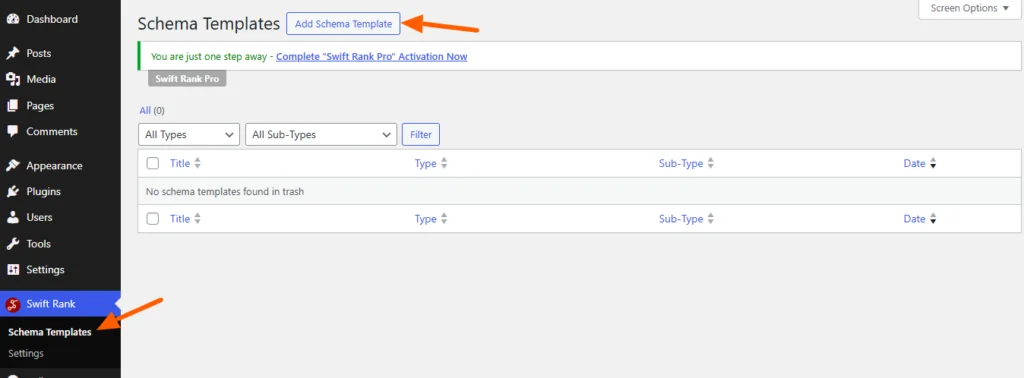
Name Your Review Schema Template #
You can enter a clear and descriptive title for your template.
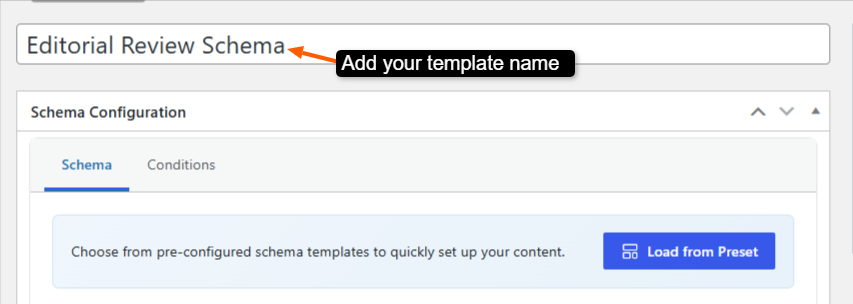
- Editorial Review Schema
- Customer Review Schema
- User Review Schema
- Product Review Schema
- Product Rating & Review Schema
This helps you easily identify the template later, especially when managing multiple schemas.
Select the Schema Type #
In the Schema Configuration panel located in the right sidebar, find the Schema Type dropdown. Click the dropdown and select review from the available schemas.
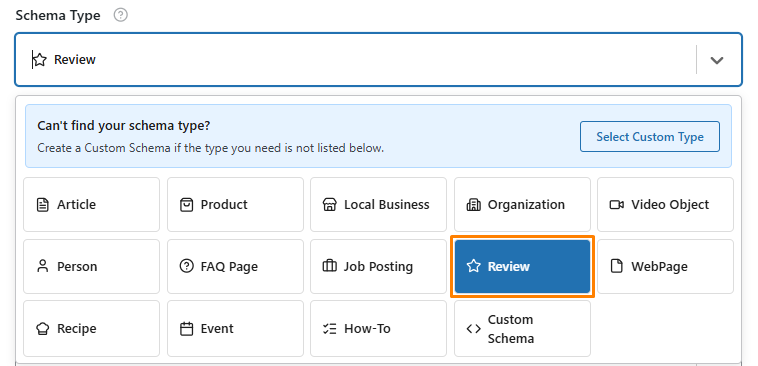
Once the review schema type is selected, Swift Rank will automatically load all predefined fields required to describe review content accurately.
Fill in All Fields #
Item Type #
This represents what type of item is being reviewed. Is it:
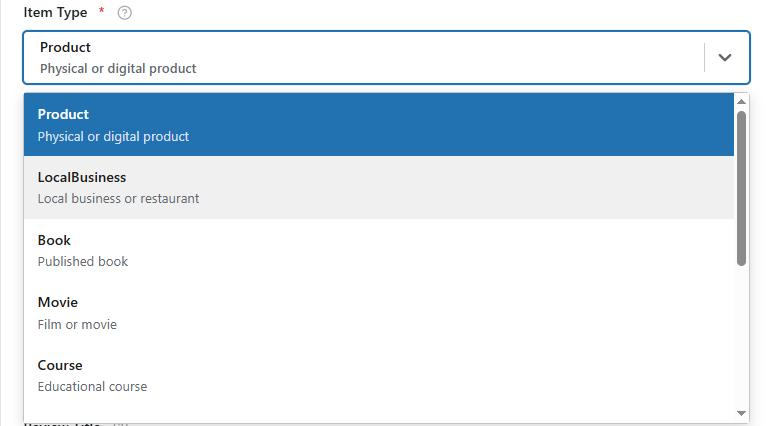
- Product
- Book
- Movie Course
- Event
- Recipe
- Game
You can select any one from the dropdown menu.
Item Name #
This specifies exact name of the item being reviewed.
for example is it Apple iPhone 15 Pro” or “The Great Gatsby.” Enter the official name of the product, service, or content.
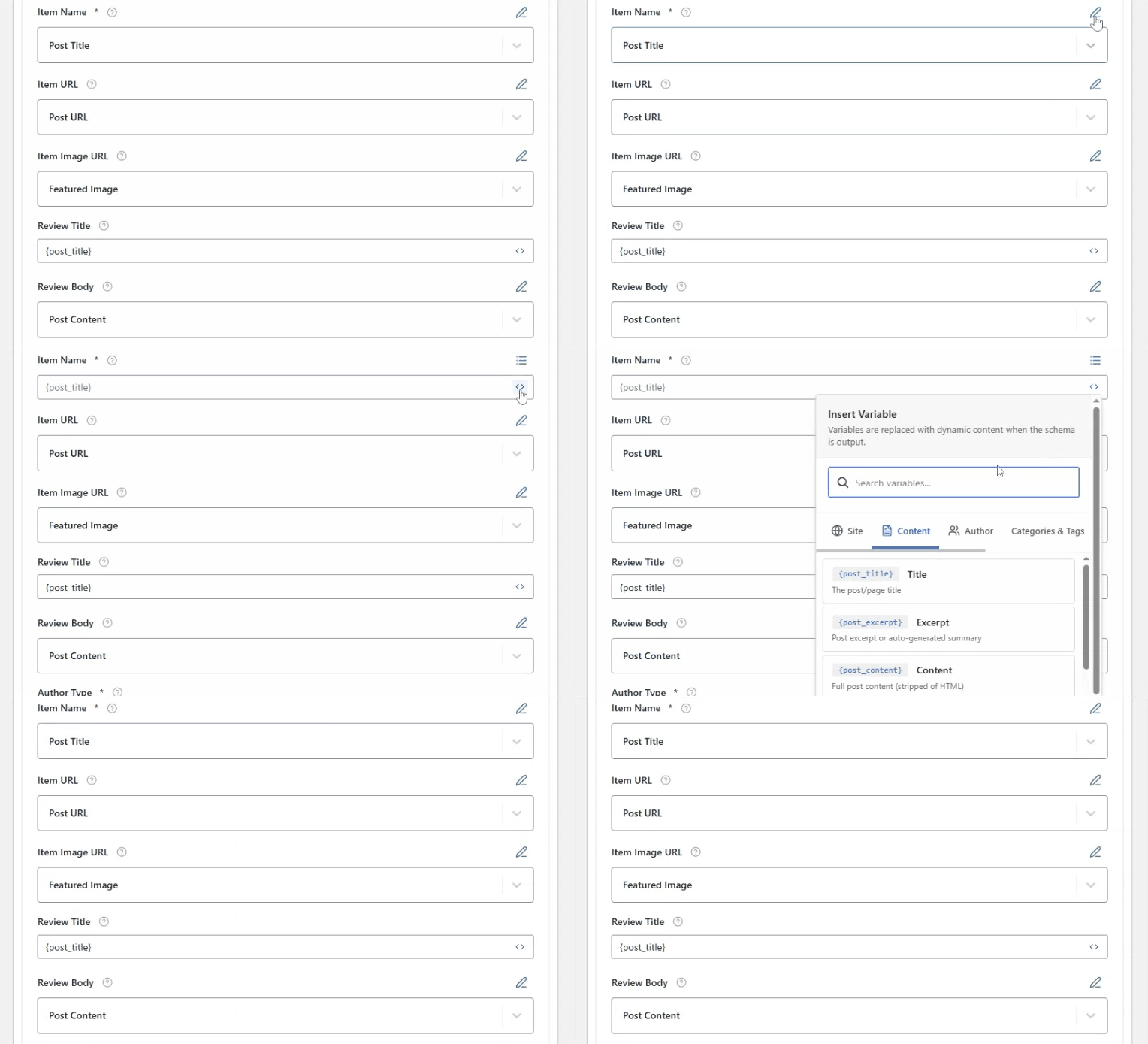
This ensures that the review is linked to the correct item in search results. Or you can insert variable by clicking on <> icon and choose “post title” from the list.
Item URL #
Here you provide the URL of the page that contains the item or product. for example:
https://www.example.com/products/iphone-15-pro
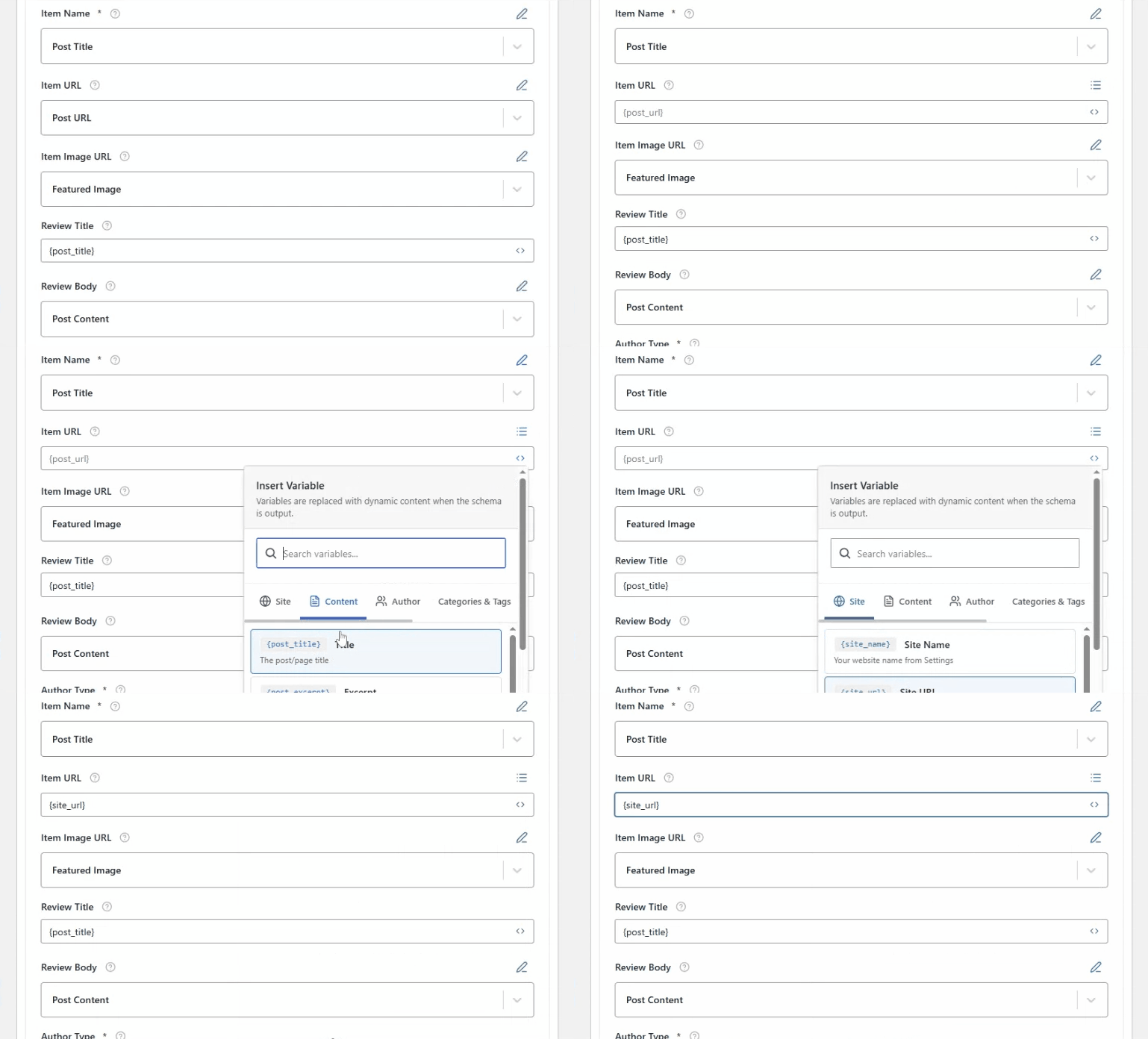
Paste the direct URL of the item on your website. It helps search engines associate the review with the specific webpage.
Item Image URL #
It shows an image of the item being reviewed. For example:
https://www.example.com/images/iphone-15-pro.jpg
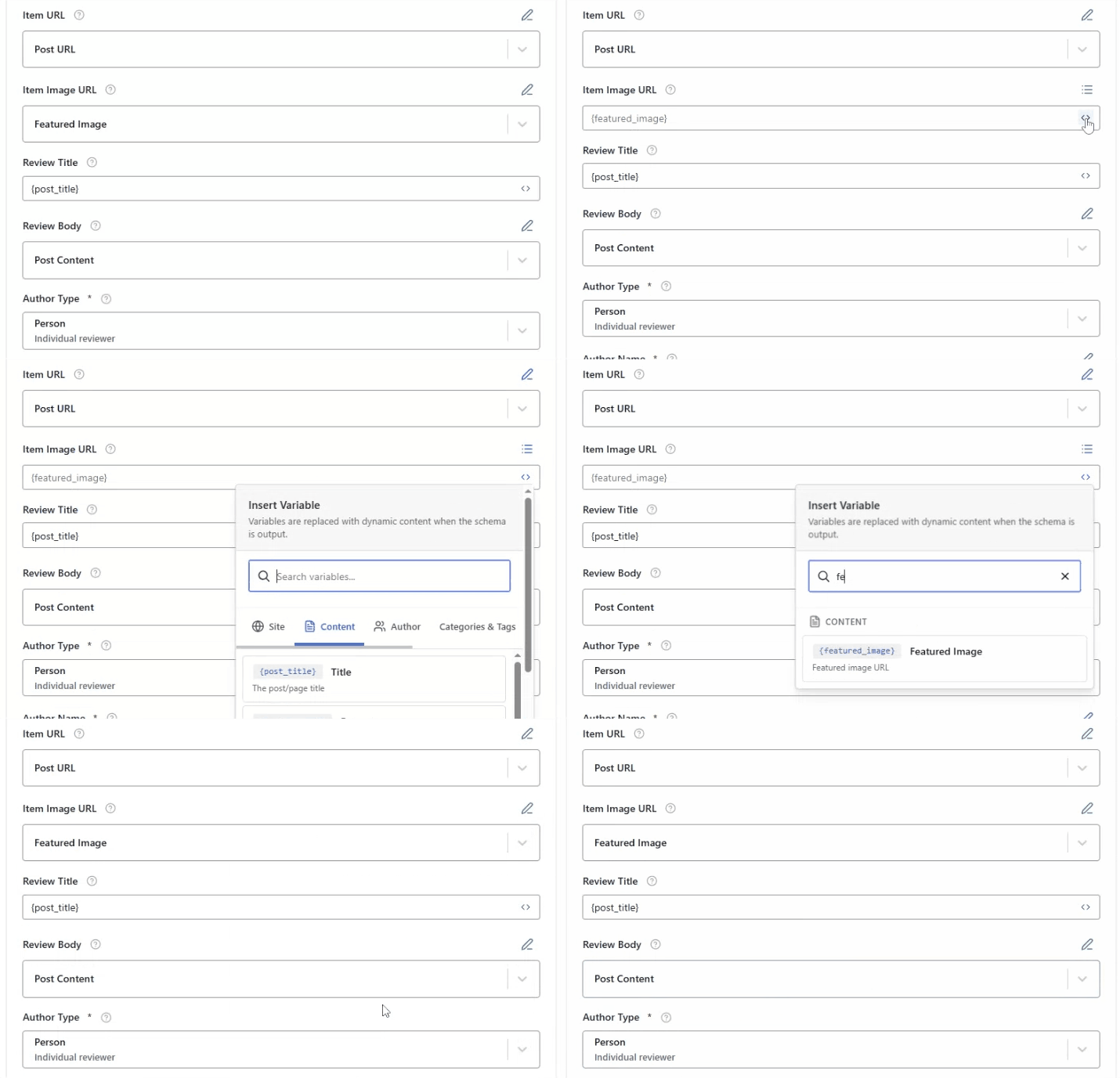
Provide a high-quality image URL. Or you can add dynamically by clciking on <> variable icon and select the featured image. This Item Images improve rich snippet appearance and user engagement in search results.
Review Title #
It is the headline or title of the review.

Here you can enter a direct headline or add variable {post_title}.
Review Body #
It contains the main content of the review. A detailed description of the reviewer’s experience, pros and cons, or key points about the item.
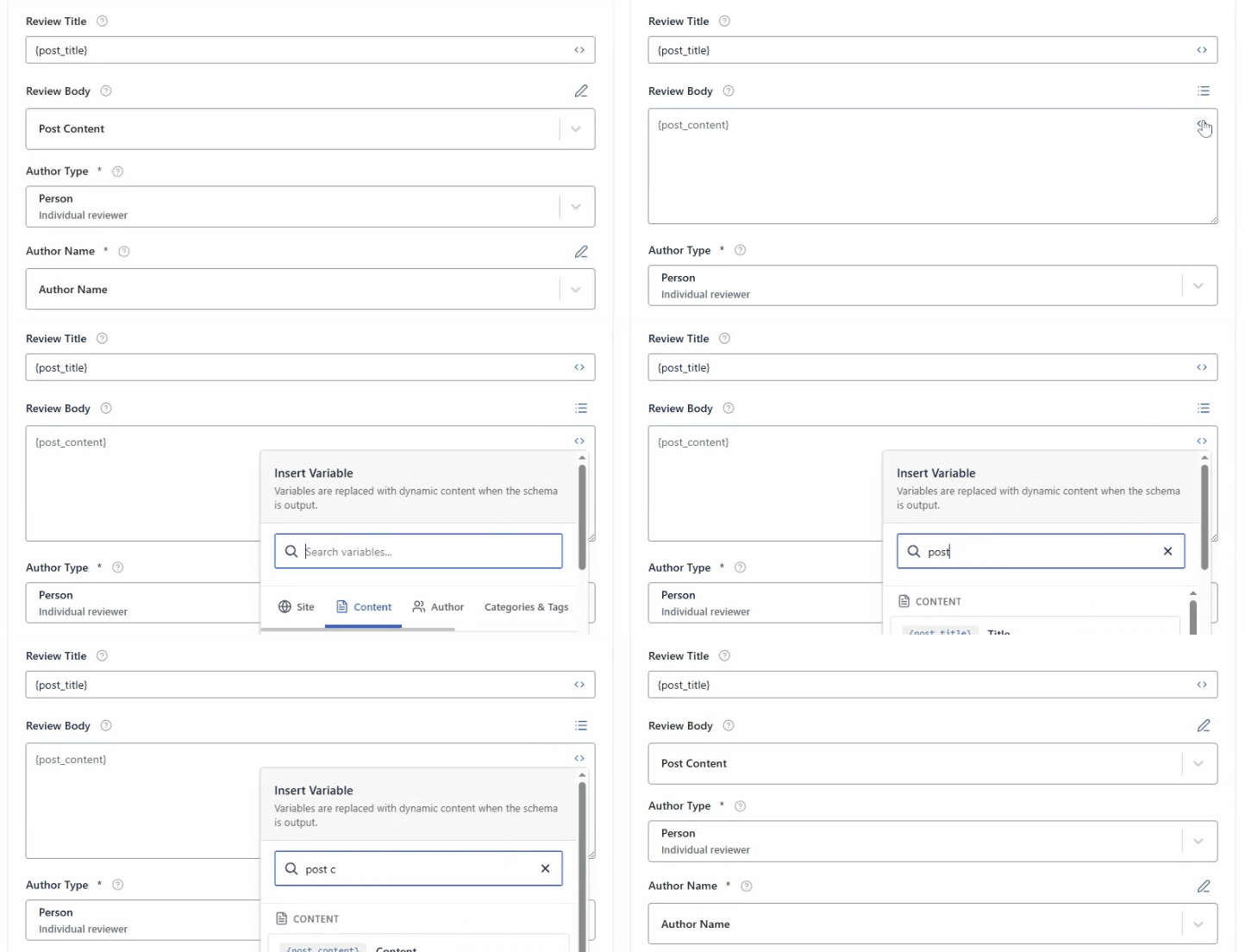
Here you get two options in dropdown that you can select from one of them.
Author Type #
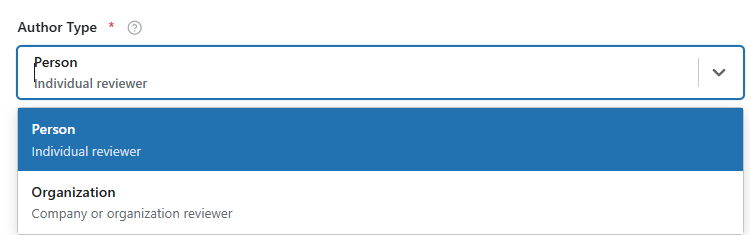
It indicates the type of reviewer. Select “Person” if an individual is reviewing or “Organization” if a company or website provides the review.
Author Name #
The Author field represents the individual or organization responsible for writing the review. This information helps search engines and users understand who is behind the opinion, adding transparency and trustworthiness to the review content.
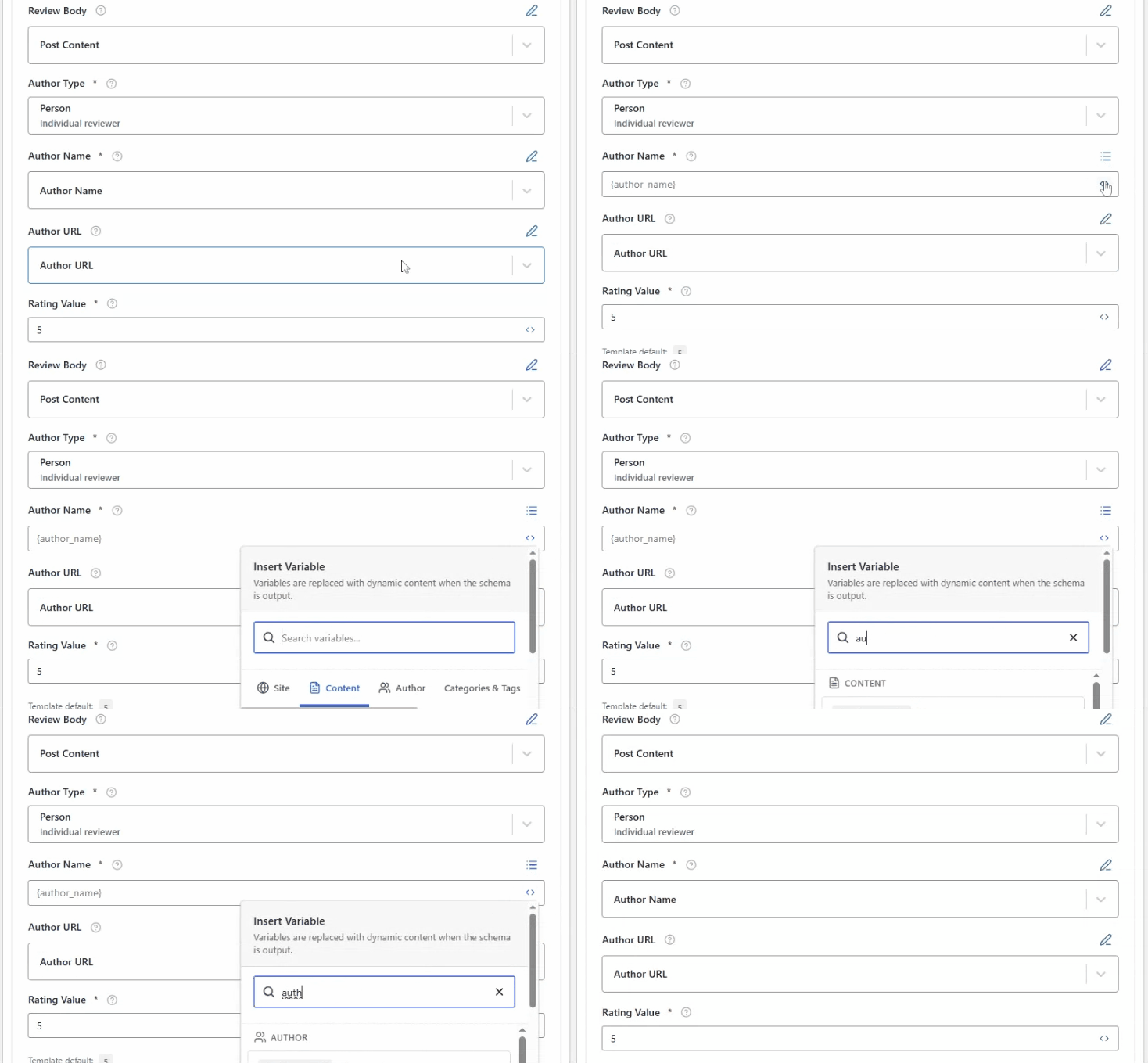
You should enter the real, recognizable name of the reviewer, such as a person’s full name (for example, John Doe) or an established organization or brand name (for example, Tech Review Co.). Or you can insert it dynmically by clciking on <> variable icon and select author name.
Author URL #
It is the links to the author’s profile or webpage.It is a structured data field used to link the review content to the author’s official profile or dedicated webpage.
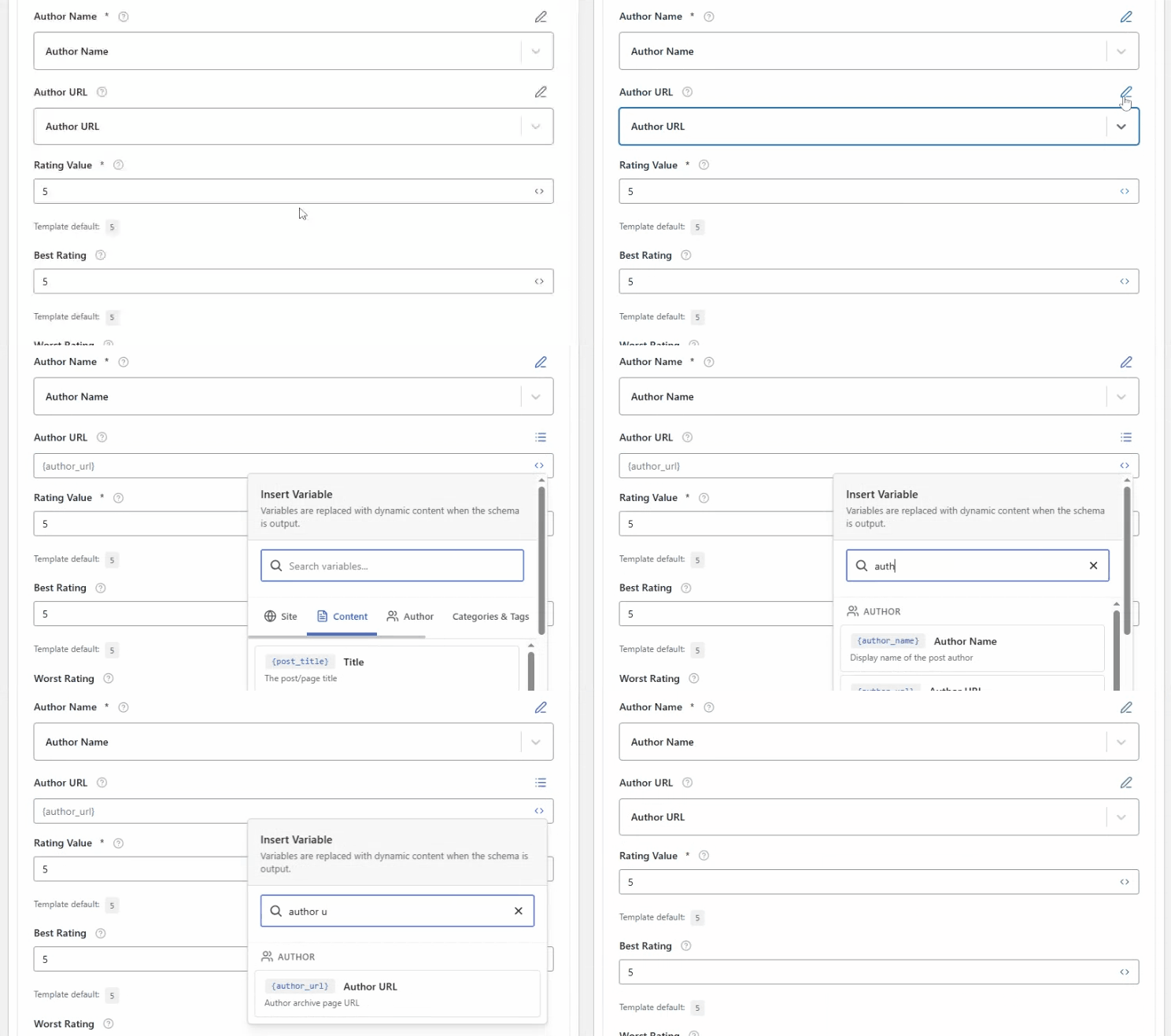
Its primary purpose is to help search engines clearly identify who created the review and to connect that individual to a trustworthy online presence. You can insert it dynmically by clciking on <> variable icon and select author URL.
Rating Value #
Rating Value represents the numerical score assigned to the item being reviewed, reflecting the reviewer’s overall evaluation of its quality, performance, or satisfaction level.

When filling in the Rating Value field, enter a numeric value that accurately represents the reviewer’s opinion, such as 4, 4.5, or 5, depending on the rating scale you are using (commonly 1–5).
Best Rating #
The Best Rating field defines the highest possible score that can be given in a review or rating system.

For example, if your website uses a five-star rating system, the best rating value should be set to 5.
Worst Rating #
The Worst Rating field represents the lowest possible score that can be assigned within the same rating system. This value defines the starting point of the rating scale and provides important context for understanding how positive or negative a review is.

For instance, if your ratings begin at one star, the worst rating should be set to 1. In cases where zero-based ratings are used, the value may be 0.
Date Published #
The Date Published field indicates the exact date when the review was made publicly available on your website.

The date must be entered in the standard YYYY-MM-DD format, such as 2025-12-28, to ensure proper interpretation by search engines. These schema fields can also be modified directly while editing an individual post or page.


