
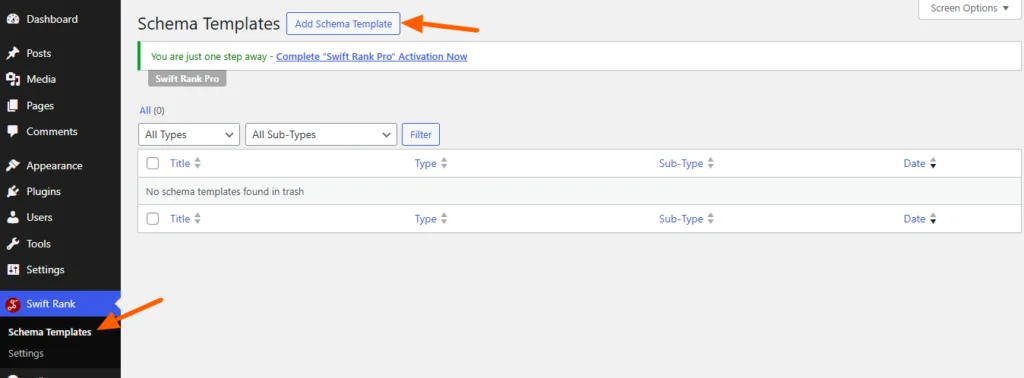
To add person schema using Swift Rank, first ensure that the Swift Rank plugin is properly installed and activated on your WordPress website. Once the plugin is active, navigate to Schema Templates from the Swift Rank dashboard to begin creating person schema template.
Click on Add Schema Template to start.
Name Your Person Schema Template #
You can enter a clear and descriptive title for your template.
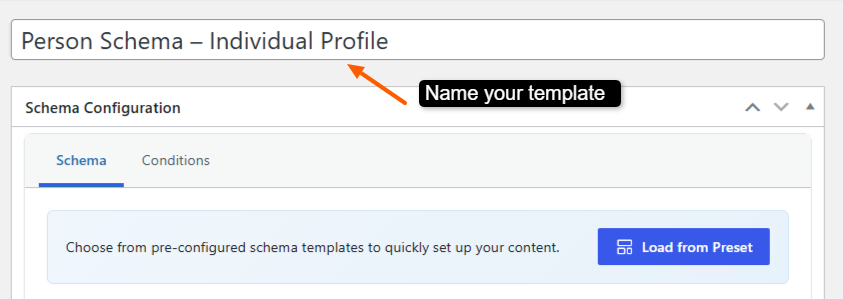
- Person Schema – Individual Profile
- Person Schema – Blog Author
- Person Schema – Content Writer
- Person Schema – Consultant Profile
- Person Schema – Freelancer Profile
This helps you easily identify the template later, especially when managing multiple schemas.
Select the Schema Type #
In the Schema Configuration panel located in the right sidebar, find the Schema Type dropdown. Click the dropdown and select person from the available schemas.
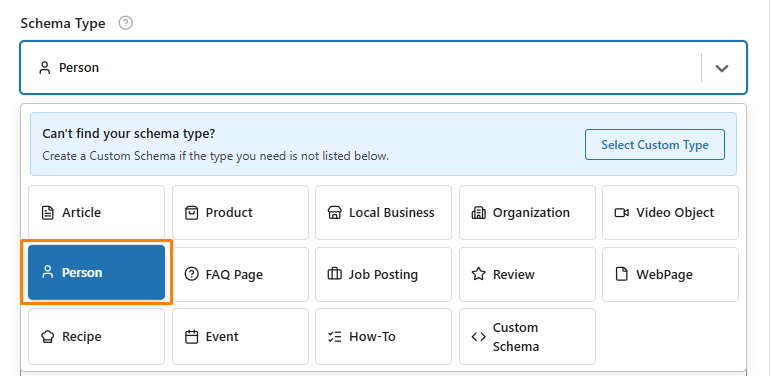
Once the person schema type is selected, Swift Rank will automatically load all predefined fields required to describe person content accurately.
Fill in All the fields #
Name #
In the Person schema, the name property describes the full name of the person being represented.
Click the pencil icon and select site name from the variable list to automatically assign the correct author for each post.
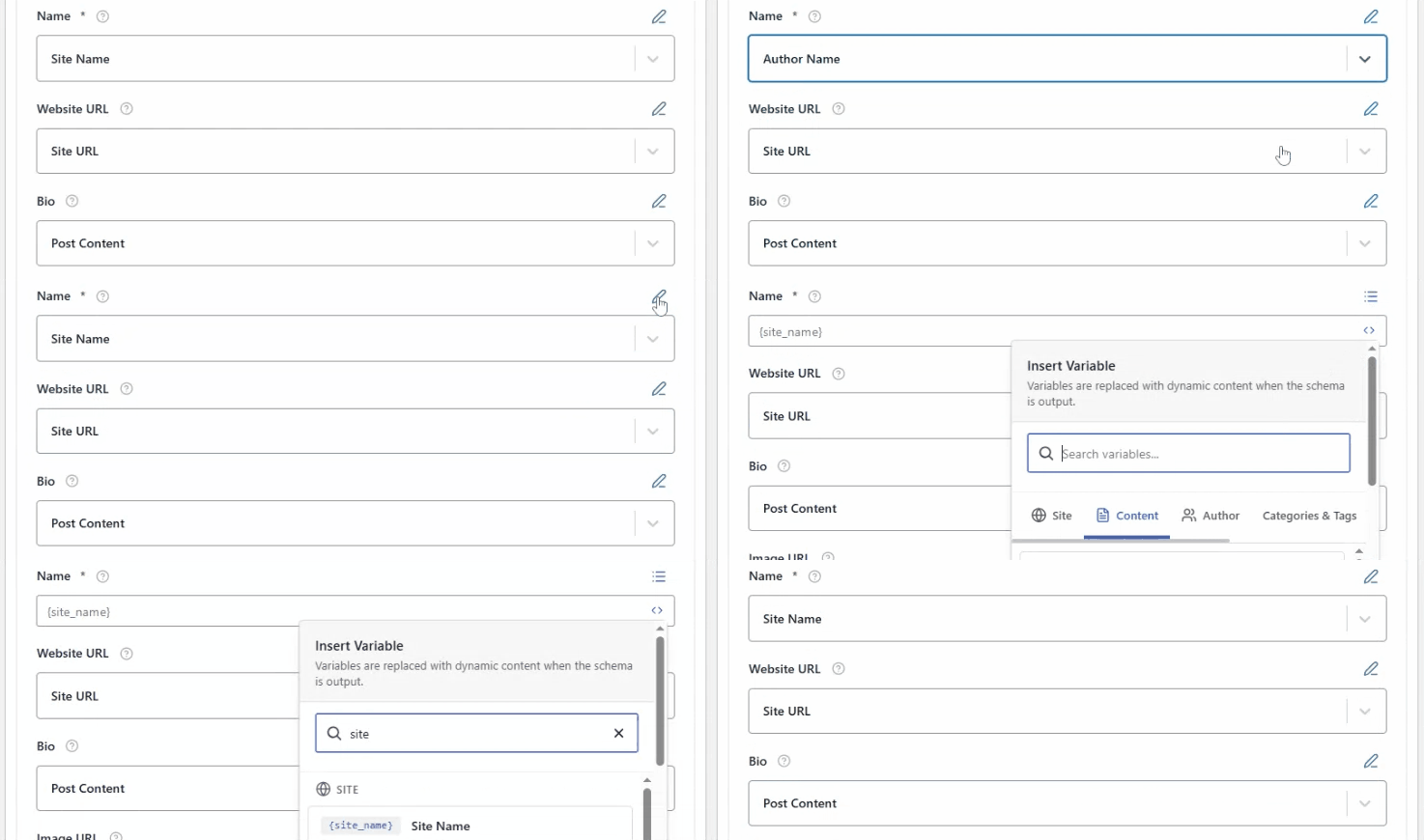
You can also select from the dropdown menu.
Website URL #
The Website URL field defines the primary website address of the person’s business. This information helps search engines correctly associate the Local Business schema with your official website and improves brand recognition in search results.
To add the website URL, click the pencil (edit) icon next to the field. You can manually enter a custom URL if required. Alternatively, click the <> (Insert Variable) icon and select the {site_url} variable from the list.
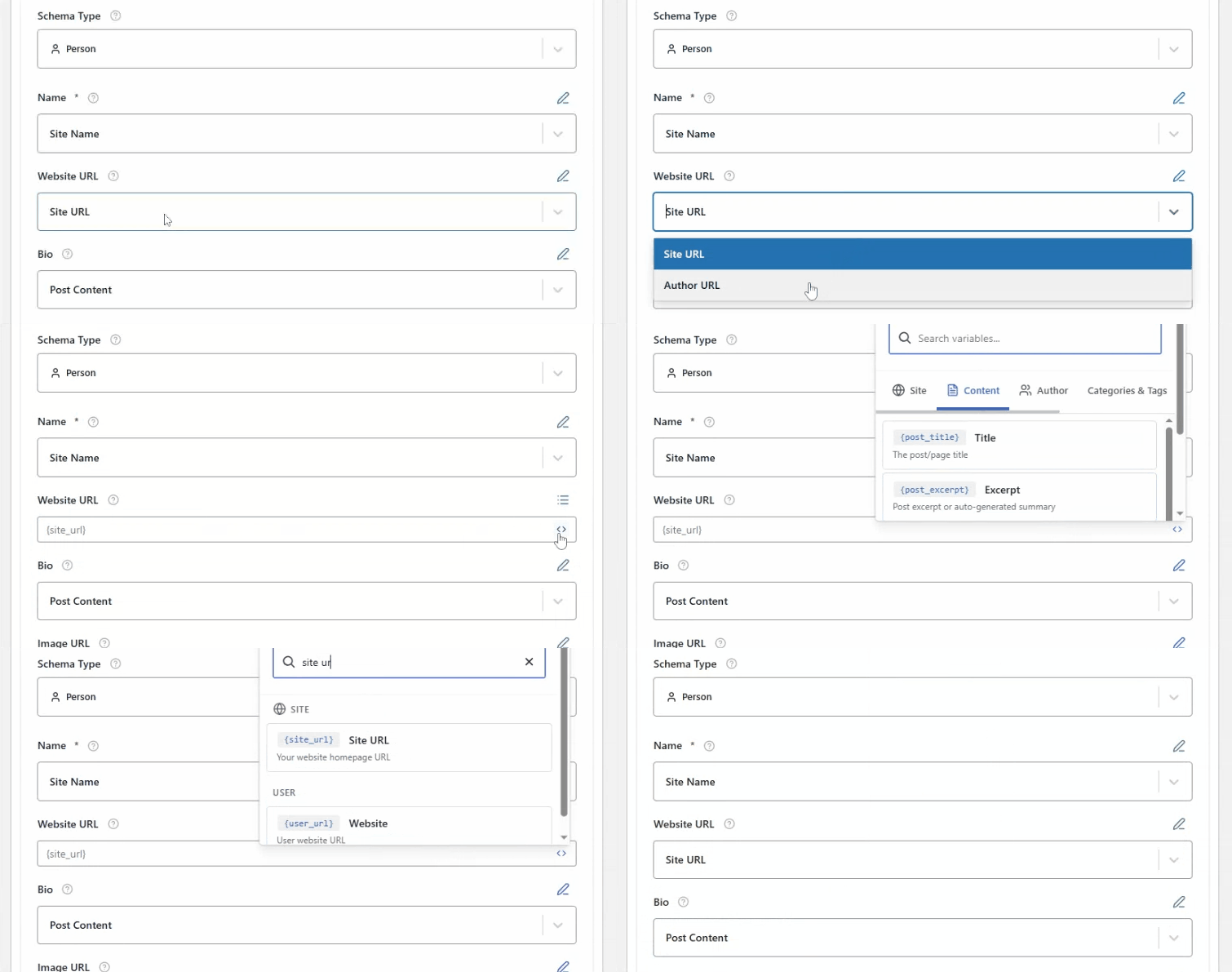
Using this variable automatically pulls the main website URL from your WordPress settings, ensuring consistency across all schema implementations.
Bio #
The bio field provides a clear and concise overview of your business, including the services you offer and your primary area of focus. This description helps search engines better understand your business and improves the relevance of your local search appearance.
To add a description, click the pencil (edit) icon to enter a custom business description manually. The description should be informative, accurate, and aligned with the content displayed on your website.
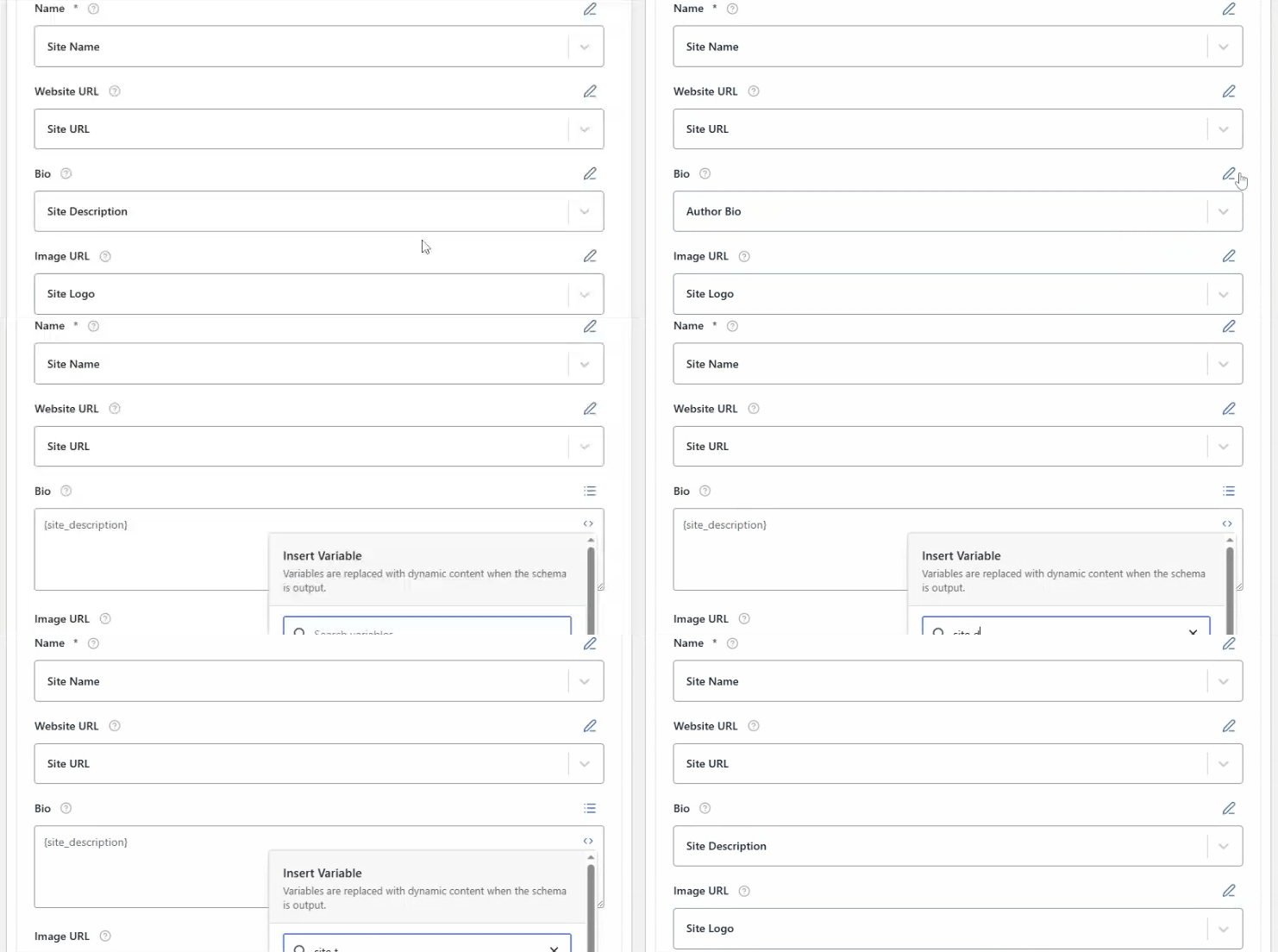
You may also click the <> (Insert Variable) icon to insert a dynamic variable {site_description}, allowing Swift Rank to automatically populate the description based on your site or content settings. Dynamic variables help maintain consistency and reduce the need for manual updates.
Image URL #
To add an image, click the pencil (edit) icon and enter a direct image URL, or use the <> (Insert Variable) icon to dynamically insert an image from your site. For this, you can select the {site_logo}. You can upload the image by clicking on the image icon in field.
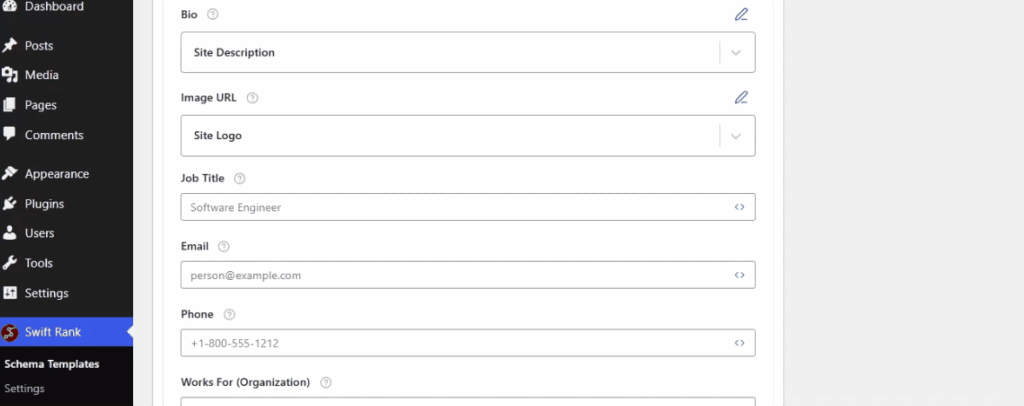
The image URL field defines the primary image associated with your business. This image may appear in rich results and helps search engines visually represent your business.
Job Title #
The Job Title field allows you to define the official title of the job position. This title is one of the most important elements, as it helps users and search engines quickly understand about the person.

Click on the pencil (edit) icon next to the Job Title field. This allows you to type a custom job title that accurately reflects the position, such as Software Developer, Marketing Manager, or Customer Support Executive.
Click on the <> (Insert Variable) icon to choose a dynamic value instead of manual text and select {site_name}.
Email #
The Email field defines an official contact email address of the person. This information supports trust and accessibility.

You can enter a valid business email address. It is recommended to use a professional email associated with your domain rather than a personal email address.
Phone #
Click the <> variable insert option to enter a phone number from dynamic variables or enter phone number manually, including the country code if applicable. Ensure the number matches the one displayed on your website and other business listings for consistency.

The Phone Number field specifies the primary contact number of business. This helps users and search engines easily connect with your organization.
Works For (Organization) #
The “Works For” field is used to establish a clear connection between the person and the organization, company, or business they are professionally associated with.
This helps search engines, websites, and users understand the person’s professional affiliation.

Properly filling this field improves structured data accuracy and can enhance rich results in search, such as knowledge panels or professional profiles.
Gender #
It specifies the gender of the person (Male, Female, Non-Binary).
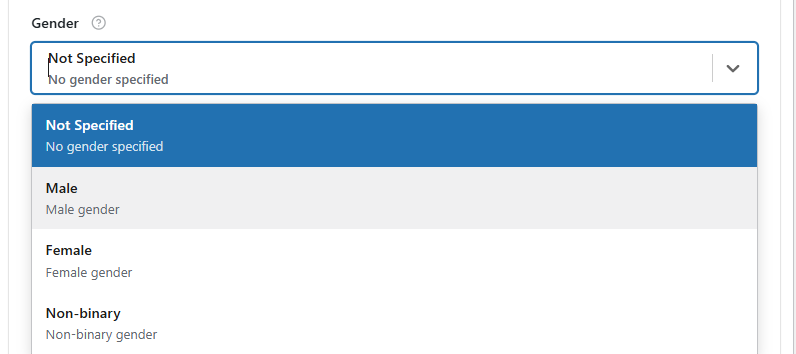
This helps search engines categorize the individual correctly.
Birth Date #
It provides the date of birth for the person, enhancing structured data accuracy for profiles.
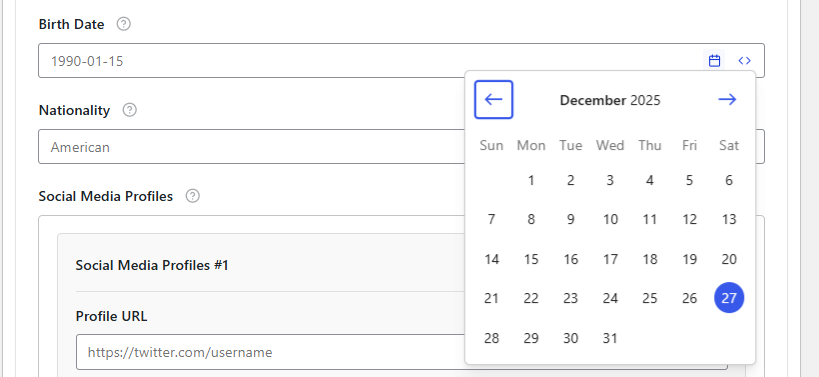
You can add the date by clicking on select date icon.
Nationality #
The nationality property defines the country or national identity of the person.

Including this information in your schema helps search engines and other data consumers understand the person’s cultural or geographic context.
Social Media Profiles #
Social media profiles connect your business to its official social platforms, such as Facebook, Instagram, Twitter, or LinkedIn.
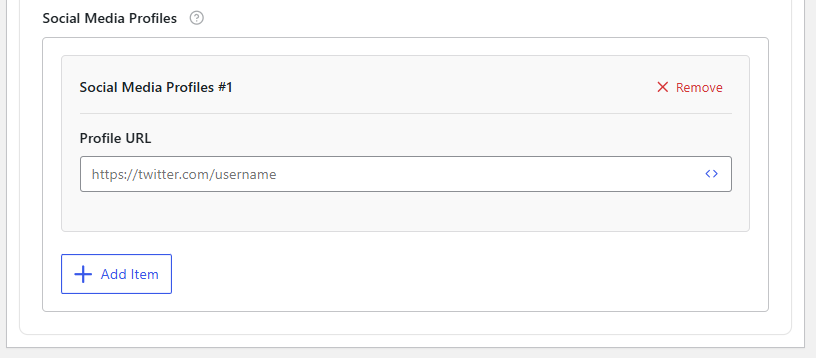
Adding these links strengthens brand authority and helps search engines associate your business with its online presence.
Once all these fields are done click on the publish button. These schema fields can also be modified directly while editing an individual post or page.


