
In this section, we’ll focus on the Knowledge Graph tab of the Swift Rank Schema plugin and explain how each setting works. You’ll learn how to configure Knowledge Graph options to define your entity information, strengthen your Knowledge Graph, and ensure your structured data is accurate and consistent across your website.
Settings #
Navigate to Swift Rank→ Settings→ Knowledge Graph.
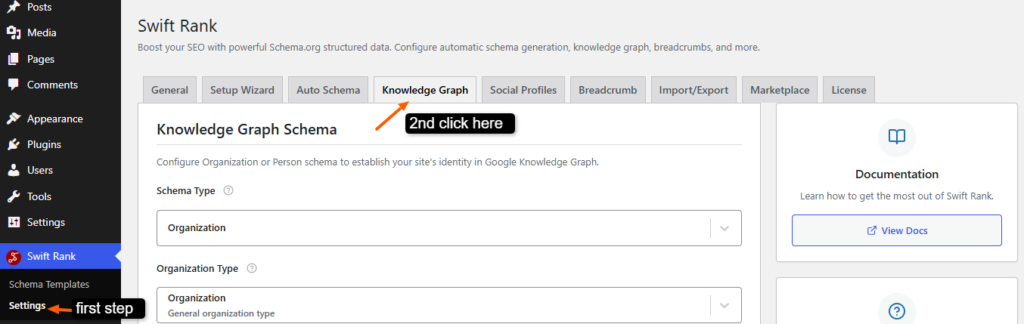
Now configure your knowledge graph fields.
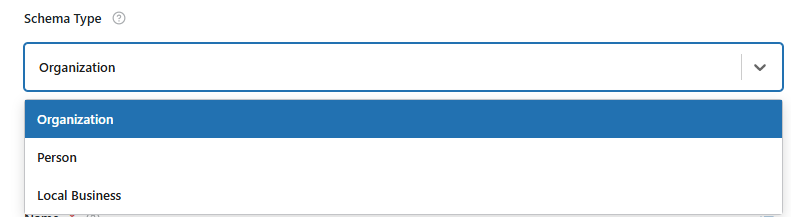
First, we have the Schema Type that have options to choose from organization for companies, Person for individual creators, or Local Business for businesses with a physical location.
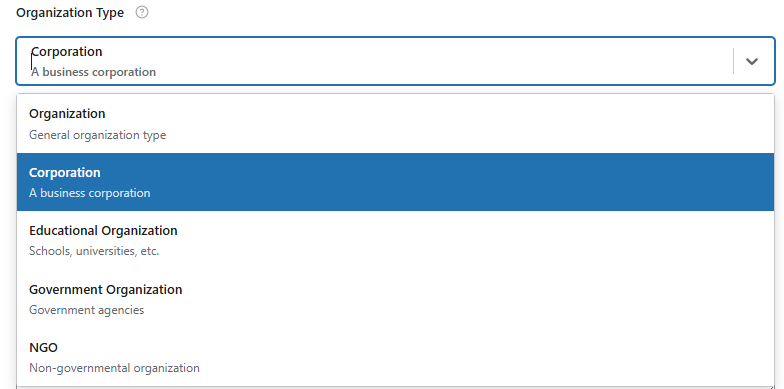
Then the organization type lets you select a more specific classification, improving accuracy and SEO relevance. Options include NGOs, government agencies, business corporations, educational institutions, and more.
Next,You can add your website name directly or use Insert Variables to automatically pull the site name defined during your site setup. By default, the stored site name is available here, and you can switch to predefined or custom options if you want to override it.
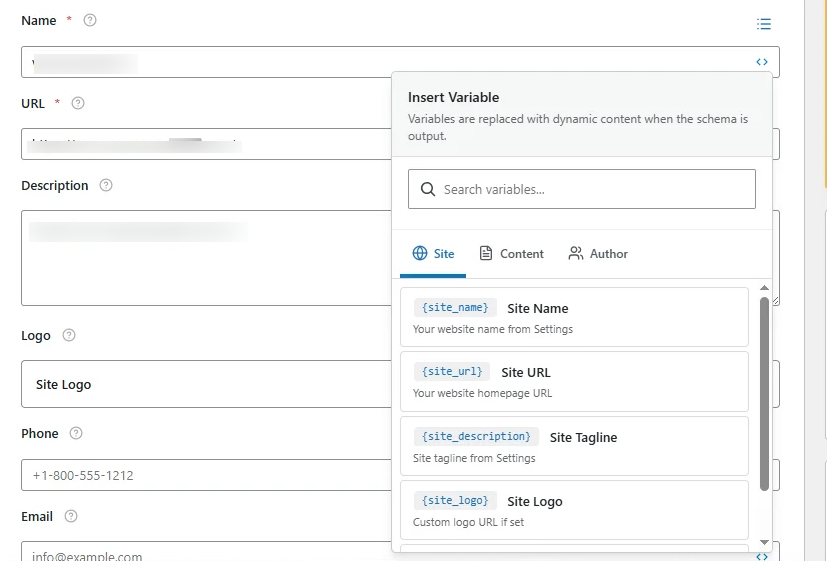
Note: Insert Variables (Applicable to All Fields)
The Insert Variables option allows you to automatically use predefined site data—such as site name, logo, or URL—already configured in your website settings. By default, these values are available for quick selection, but you can also switch to custom input if you need to override them.
URL #
This field defines the official website URL associated with your schema entity. It should point to your primary domain or a relevant page that represents your organization, person, or business. You can enter the URL manually or use Insert Variables to automatically pull the site URL configured during your site setup.
Description #
The Description field allows you to provide a brief summary of your website, brand, or business. This helps search engines better understand what your site represents. You can write a custom description or use predefined variables to dynamically insert existing site information.
Logo #
Use this field to add your official site or brand logo. By default, you can insert the logo already set in your website settings using variables. This ensures consistency across your site and helps search engines visually associate your brand in rich results.
Phone #
Add your primary contact phone number in a standard, international format. This information may be used by search engines to display contact details in enhanced search results, especially for organizations and local businesses.
Email #
Enter a valid business or contact email address. This helps establish trust and provides an additional point of reference for search engines when understanding your entity’s identity.
Street Address #
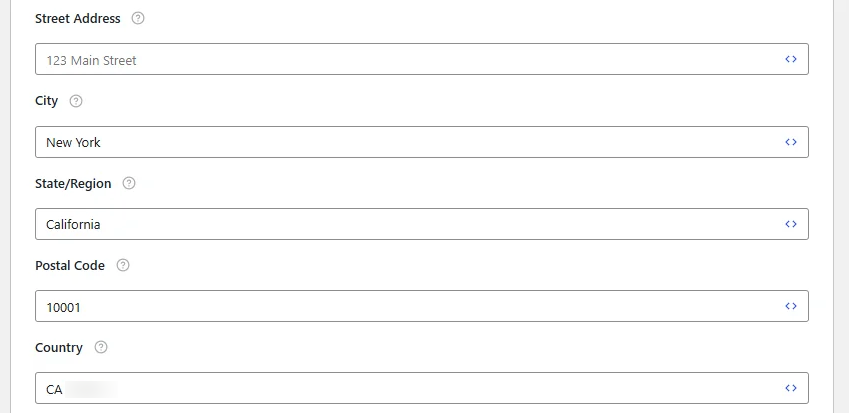
This field captures the physical street address of your business or organization. It is especially important when using Local Business schema, as it helps search engines associate your business with a real-world location.
City #
Specify the city where your business or organization is located. This information supports accurate local relevance and improves visibility in location-based search results.
State / Region #
This field specifies the state or region where your business or organization operates. It strengthens geographic relevance and helps search engines accurately associate your entity with a specific location.
Postal Code #
Enter the official postal or ZIP code for your address. This detail improves location accuracy and is especially important for local SEO and map-based search results.
Country #
Select the country’s ISO code where your business or organization is based. For example if you have business in canada you can pick its ISO code and paste in country field. Providing the correct country’s ISO ensures your schema aligns with international search standards and improves regional targeting.
Save Changes #
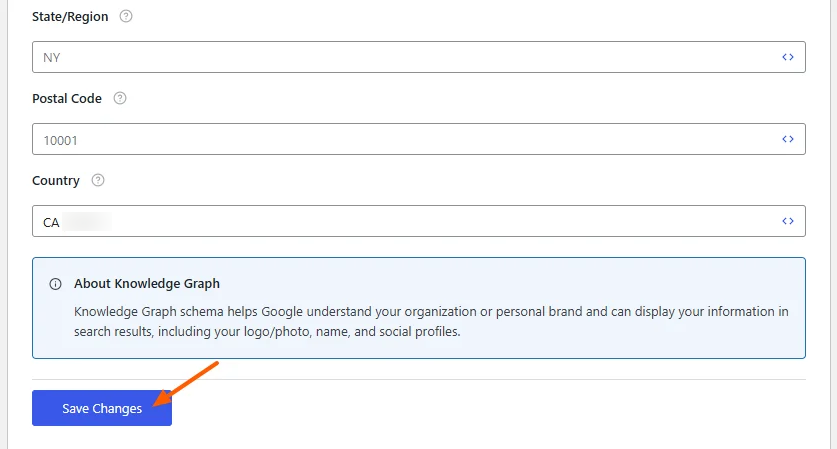
Once all details are filled in, click Save Changes to apply your settings. The plugin will automatically generate and update the Knowledge Graph schema across your site based on this information.
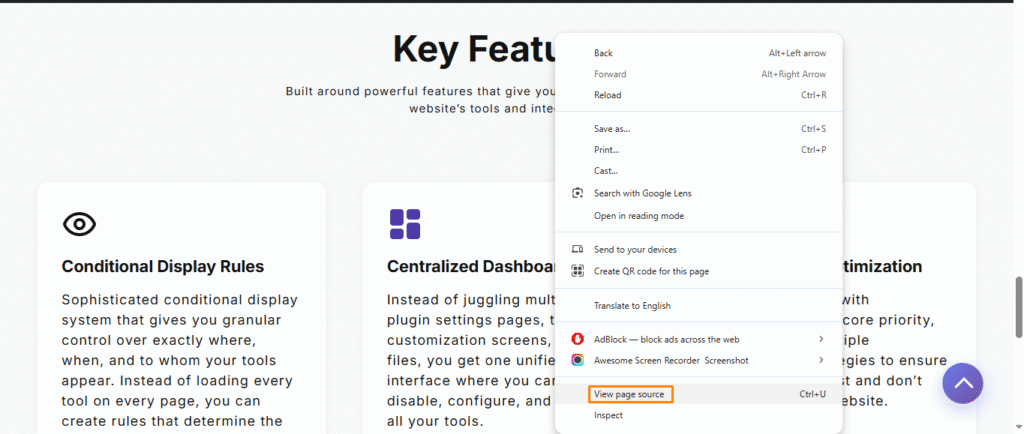
Right-click anywhere on the page and select View Page Source to open the source code.
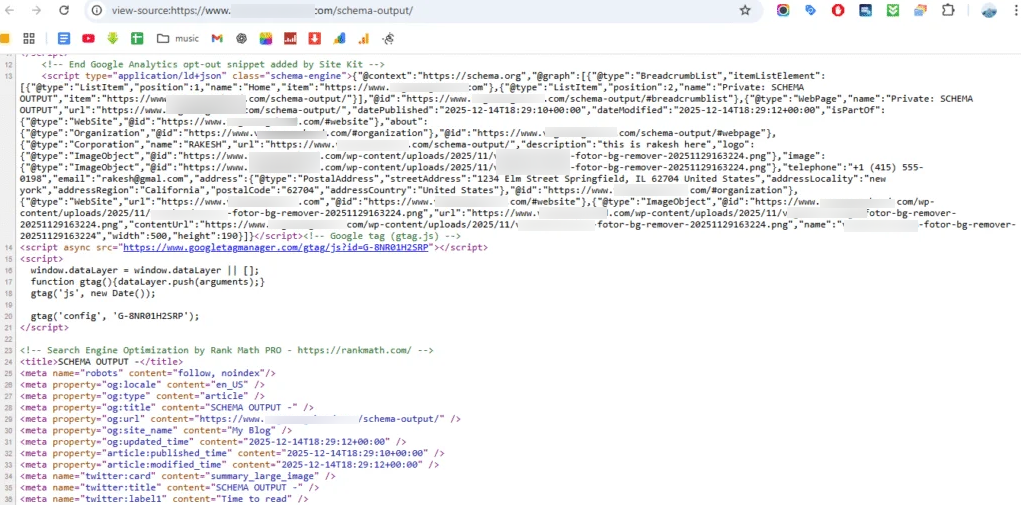
All the details entered in these fields are reflected here, ensuring the schema accurately represents the information you’ve provided. This confirms that your settings are correctly applied and used in the generated schema output.
After configuring these settings, click the Save Changes button to apply them across your website. The updated schema settings will take effect immediately, although search engines may require some time to recrawl and reflect the changes in search results.


