
This guide walks you through the complete process of installing free version of Swift Rank on a WordPress website. It covers installing from wordpress dashboard, using zip file plus using FTP and resolving common installation issues.
System Requirements #
- A working WordPress installation running version 5.0 or higher.
- PHP version 7.0 or above to ensure compatibility.
- Access to the WordPress admin dashboard with sufficient permissions to manage plugins and configure settings.
- A modern web browser (Chrome, Firefox, Safari, or Edge) for accessing the plugin interface.
Meeting these requirements ensures that Swift Rank functions correctly and that you can fully configure swift rank’s schema settings without any issues.
Installing Swift Rank #
You can install the free version of Swift Rank directly from the WordPress plugin directory or by uploading the plugin manually.
Install from the WordPress Dashboard #
Log in to your WordPress admin dashboard. Go to Plugins → Add Plugin.
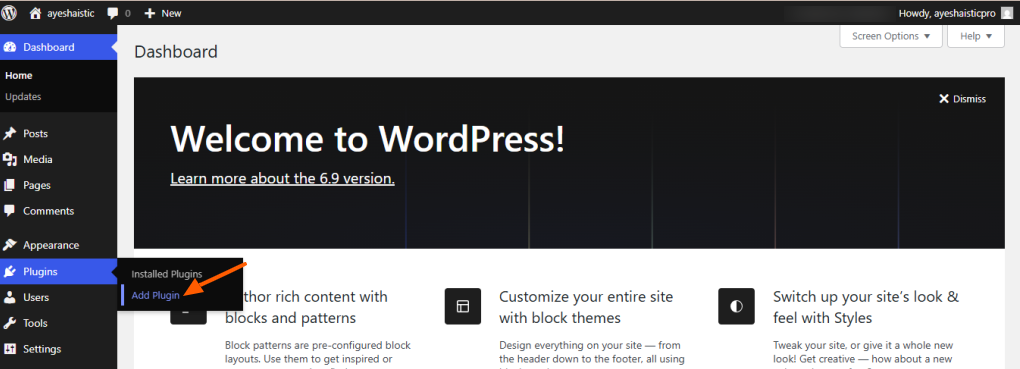
Now use the search plugin bar to look for “Swift Rank.”
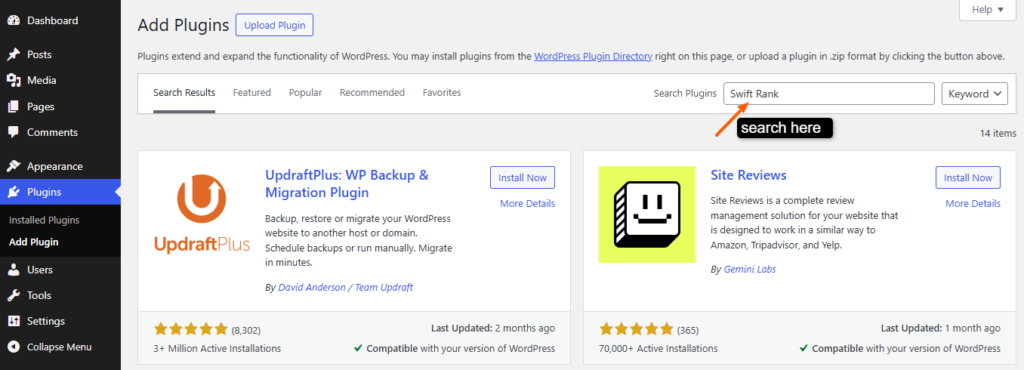
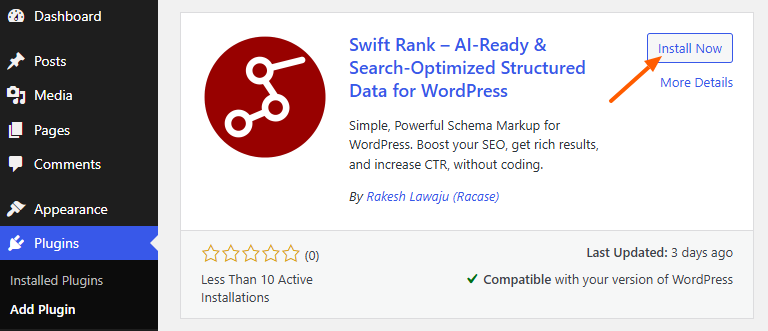
Once the plugin appears in the results, click on the Install Now button to begin the installation process.
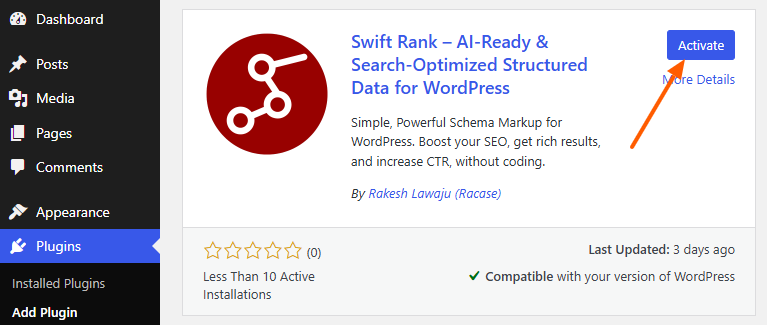
Once it is installed, click on activate button.
Upload Swift Rank Using Zip File #
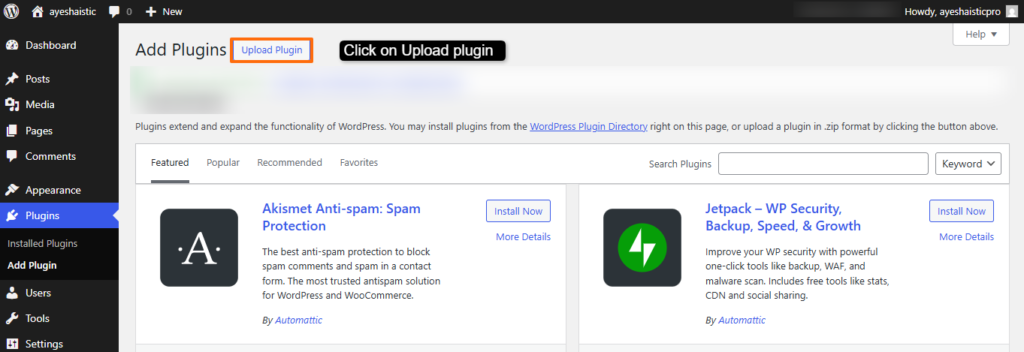
To upload zip file, click on upload plugin.
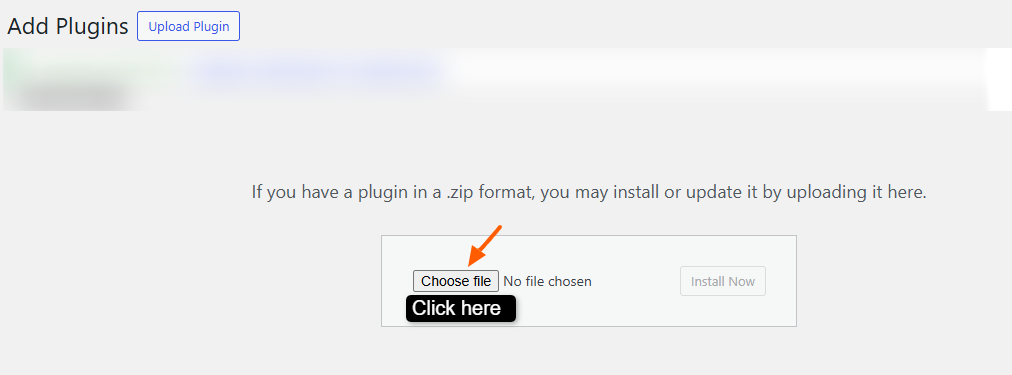
Click on choose file from your computer.
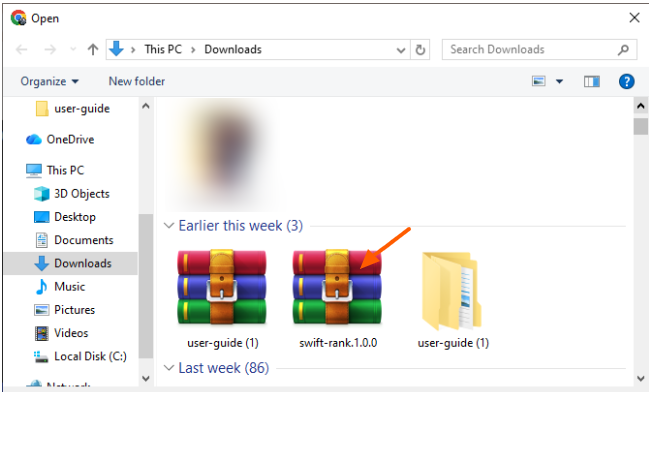
Pick zip file of swift rank from your computer.
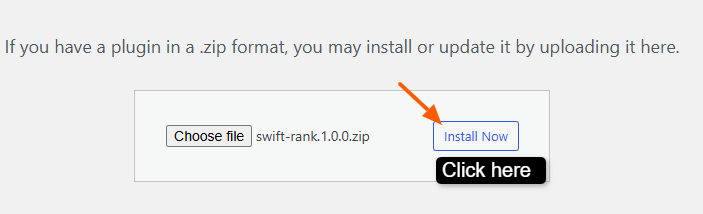
Click Install Now.
Once the installation is complete, click Activate.
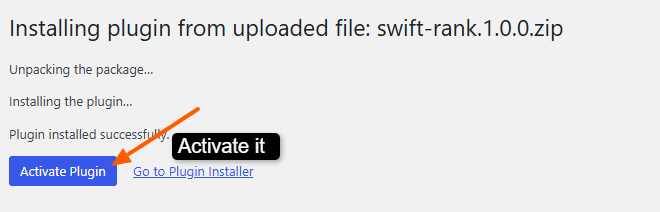
After activation, the Swift Rank plugin will be ready to use on your website.
Installing Swift Rank via FTP #
If you’re unable to install Swift Rank using the WordPress dashboard, often due to upload size limits or server restrictions, you can install the plugin manually using FTP.
Step 1: Download and Extract the Plugin #
First, download the Swift Rank plugin ZIP file to your computer. Once downloaded, extract the ZIP file. This will create a folder named swift-rank.
Step 2: Connect to Your Server Using FTP #
Use an FTP client such as FileZilla, Cyberduck, or any FTP tool provided by your hosting provider. Log in using the FTP credentials supplied by your host (FTP hostname, username, password, and port).
Step 3: Navigate to the Plugins Directory #
After connecting, open your WordPress installation directory on the server. Navigate to:
wp-content/plugins/
Step 4: Upload the Plugin Folder #
Upload the extracted swift-rank folder directly into the plugins directory. Make sure the folder structure looks like this after upload:
wp-content/plugins/swift-rank/
Step 5: Activate the Plugin #
Once the upload is complete, log in to your WordPress admin dashboard. Go to Plugins → Installed Plugins, locate Swift Rank, and click Activate.
Installing via FTP is useful when standard installation methods fail and ensures the plugin is added directly to your WordPress site without relying on server upload limits. If you experience any issues during this process, your hosting provider can assist with FTP access details.
Troubleshooting Installation Issues #
“Missing Parent Plugin” Error #
If you see an error stating that Swift Rank Pro requires Swift Rank to be installed and active, make sure:
- The free version of Swift Rank is installed.
- The free version is activated before activating Swift Rank Pro.
Upload Size Limit Exceeded
If your server prevents uploading the plugin ZIP file, your upload limit may be too low. You can resolve this by:
- Increasing the upload_max_filesize value in your php.ini file
- Contacting your hosting provider for help


