
The Import / Export Schema Templates section allows you to easily transfer schema templates between websites or back up your existing configurations. This feature helps maintain consistent structured data across multiple sites by enabling you to import preconfigured schema templates or export your current ones for reuse.
When used correctly, importing and exporting schema templates saves time, reduces setup errors, and ensures uniform schema implementation. This improves structured data accuracy, supports better search engine understanding, and helps preserve rich result eligibility while streamlining schema management across your projects.
Import / Export Schema Templates Tab of Swift Rank #
Navigate to Swift Rank→ Settings → Import / Export Schema Templates Tab.
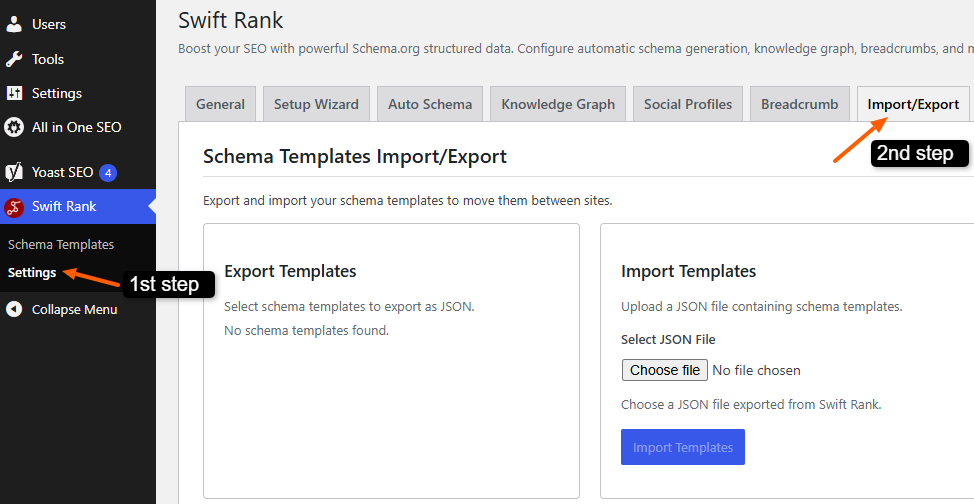
Export Schema Templates #
The Export Schema Templates section enables you to export existing schema templates from your site into a JSON file. This file contains all selected schema configurations, including their structure and settings. You can export your existing schema template by clicking on “Export Selected Templates“. This allows you to create backups, reuse schemas on other websites, or share predefined configurations with team members.
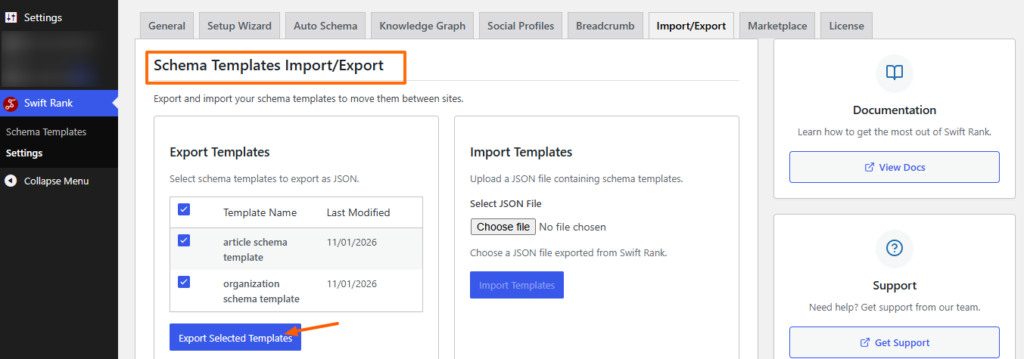
If no schema templates are available, the export section will indicate that no templates are found. Once templates exist, they can be selected and exported as a JSON file, which can then be stored locally or transferred to another site.
Import Schema Templates #
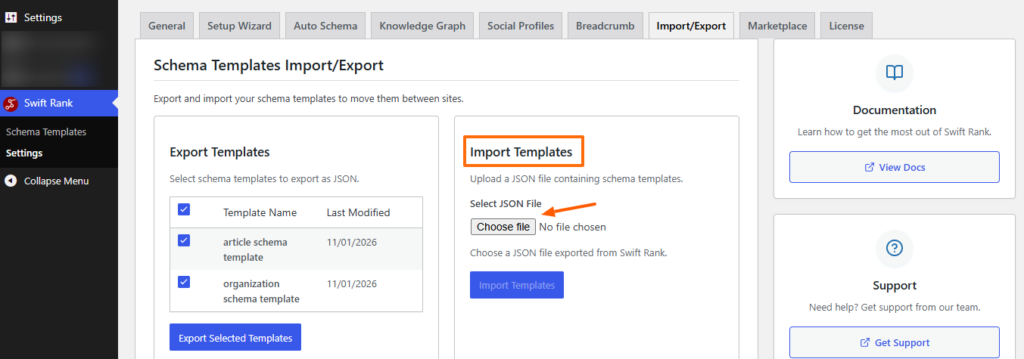
The Import Schema Templates section allows you to upload a previously exported JSON file containing schema templates. By selecting a valid JSON file and clicking the Import Templates button, Swift Rank reads the file and adds those schema templates to your current site.
Click on choose file > Import Templates.
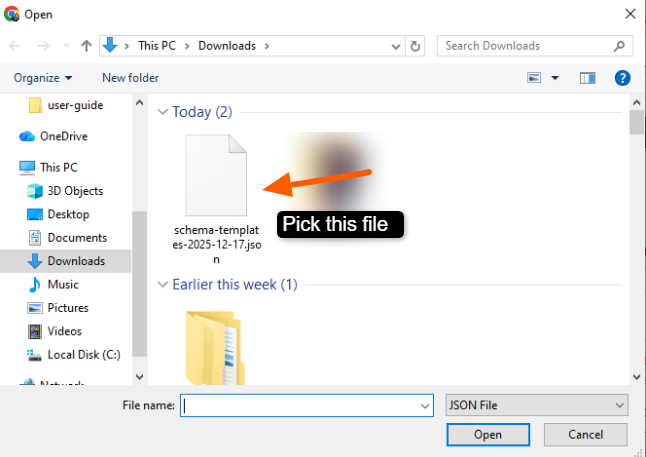
Pick this exported JSON file from your computer.
Click on import templates button.
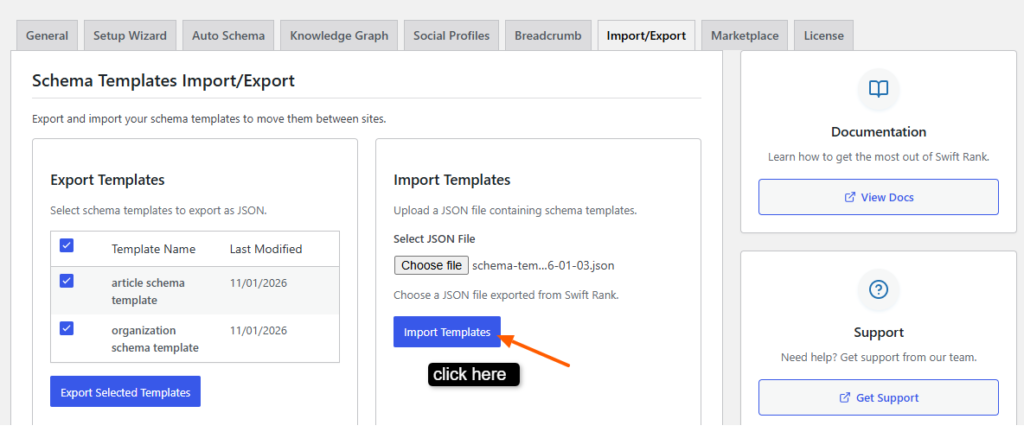
This process ensures accuracy and consistency, as imported templates retain the same structure and settings as the original source.
After configuring these options, always click the Save Changes button to apply your settings. This ensures that all selected schema features are correctly implemented across your website.


