
Paywalled content has become a core part of modern publishing. Whether you run a news site, a blog, or a knowledge platform, a paywall helps protect premium content and create a sustainable revenue stream. In this blog post, we’ll explain what a paywall is, why it matters for SEO, and how you can implement a paywall using a custom schema feature of swift rank in the right way.
What is Paywall Content? #
Paywalled content refers to digital material that is restricted behind a payment or access requirement. Users must meet specific conditions, such as paying a fee, subscribing, or logging into view the full content.
Common types of Paywall Content #
- Hard paywall: A hard paywall provides no access to content without payment, as seen on sites like Financial Times, Harvard Business Review, and Statista, where full articles and reports are available only to subscribers.
- Soft paywall: A soft paywall allows limited free access before prompting users to subscribe; examples include The New York Times, Medium, and The Economist, which let readers view a small number of articles for free.
- Freemium: The freemium model offers basic content at no cost while reserving advanced or exclusive material for paying users. This approach is used by platforms such as HubSpot, Moz, and Canva.
- Metered paywall: Metered paywall grants users a fixed number of article views within a specific time period before restricting access, a strategy followed by publishers like The Washington Post, Bloomberg, and The Wall Street Journal. Each model helps publishers balance content visibility with revenue generation.
Supported Structured Data Types for Paywalled Content #
Paywalled content must use a CreativeWork type or one of its supported subtypes, including:
- Article
- NewsArticle
- Blogpost
- Course
- HowTo
- Review
- WebPage
Multiple types can be used together if relevant:
"@type": ["Article", "LearningResource"]This way you are telling search engines that this page is an Article, and it also functions as a LearningResource.
Why this exists #
Real content isn’t always one-dimensional.
- A tutorial behind a paywall → Article + LearningResource
- A paid course lesson → Article + Course
- A long educational blog post → BlogPosting + LearningResource
Schema allows multiple types so you don’t have to pick one and lie by omission. At least one type must be a CreativeWork (or subtype) for paywalled content. As Google focuses primarily on the CreativeWork type it understands best (e.g., Article).
The additional type (LearningResource) adds semantic clarity, not ranking magic. Multiple types don’t give a boost. They give accuracy.
Required Property for Paywalled Content #
isAccessibleForFree(Required)
- Type: Boolean
- Purpose: Declares whether content is freely accessible
For paywalled content, this must be set to:
"isAccessibleForFree": falseThis tells Google the page is restricted and avoids cloaking issues.
Recommended Properties for Section-Level Paywalls #
If only part of the page is paywalled, Google recommends defining restricted sections using hasPart. hasPart is a Schema.org property that tells search engines which specific part of a page belongs to something in paywalled content, it’s used to identify the locked section. Whereas cssSelector: points to the locked HTML section.
Required rules: #
- Use class selectors only
- Do not nest content sections
- Each restricted section must exist in the HTML
Example HTML #
<body>

  <p>This content is freely visible.</p>

  <div class="paywall">This content requires a subscription.</div>

</body>
Example Structured Data (Single Paywalled Section) #
{

  "@context": "https://schema.org",

  "@type": "Article",

  "headline": "Example Article",

  "isAccessibleForFree": false,

  "hasPart": {

    "@type": "WebPageElement",

    "isAccessibleForFree": false,

    "cssSelector": ".paywall"

  }

}
Multiple Paywalled Sections #
If more than one section is restricted, use an array for hasPart.
<div class="section1">Paywalled content</div>

<p>Free content</p>

<div class="section2">Another restricted section</div>
Example Structured Data (Multiple Paywall Sections) #
"hasPart": [

  {

    "@type": "WebPageElement",

    "isAccessibleForFree": false,

    "cssSelector": ".section1"

  },

  {

    "@type": "WebPageElement",

    "isAccessibleForFree": false,

    "cssSelector": ".section2"

  }

]
Creating a Paywalled NewsArticle Schema Using Swift Rank (Custom Schema) #
This guide explains how to create a NewsArticle schema with paywalled content using the Custom Schema Builder in the Swift Rank plugin.
Step 1: Open Custom Schema Builder #
- Log in to your WordPress dashboard
- Go to Swift Rank → Schema Templates
- Click Add Custom Schema Template
- Give your template a clear name
Example: NewsArticle – Paywalled Content
Step 2: Set the Root Schema Type #
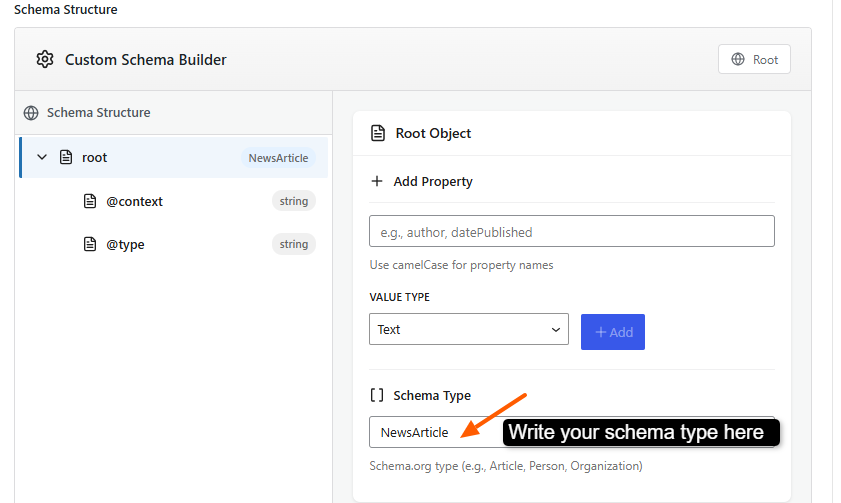
- In the right sidebar → Schema Configuration
- Add “NewsArticle” in the Schema Type.
What this does
- Sets @type to NewsArticle
- Makes NewsArticle the root object
- Tells search engines the main subject of the page
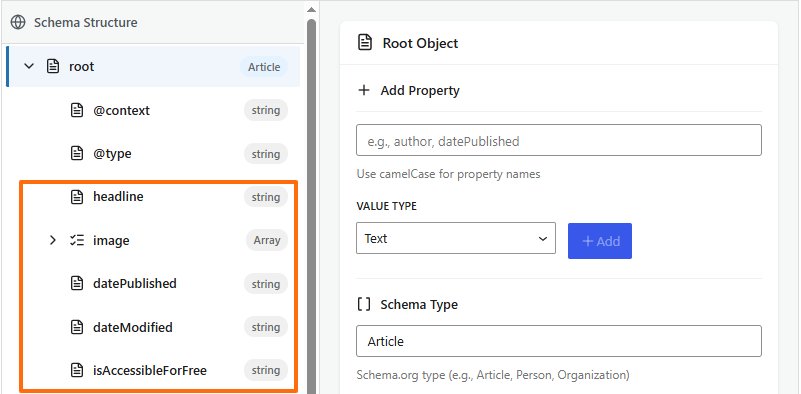
After these add these properties step by step with the same value type and schema type:
- Headline → Text
- Description → Text
- datePublished → Text
- dateModified → Text
- isAccessibleForFree → Text
You can add image property like this:
- Add property: image
- Value type: Array
- Schema type: ImageObject
This allows you to add one or multiple image URLs associated with the article.
Add hasPart (Paywalled Section) #
The hasPart property is required to properly mark paywalled content for search engines.
- Write “haspart” in the property field.
- Value type: Object
- Schema Type: WebPageElement
Inside haspart:
| Add Property | Edit Field |
| cssSelector | .paywall |
| isAccessibleForFre | false |
This tells search engines exactly which section of the page is restricted.
Add Author Section #
- Add Property to “Author”
- Value type: Object
- Schema Type: Person
Inside author add name and url with text value type:
| Add Property | Edit Field |
| name | ayesha |
| url | https://example.com/profile/ayesha |
Add Publisher Property #
To add publisher property add:
- Add Property: Publisher
- Value Type: Object
- Schema Type: Organization
- Inside publisher add name property as did before in the author section.
Test This into Rich Results #
The following example demonstrates how to implement NewsArticle structured data for paywalled content.
{
  "@context": "https://schema.org",
  "@type": "Article",
  "headline": "Article headline",
  "image": [
    "https://example.org/thumbnail1.jpg"
  ],
  "datePublished": "2025-02-05T08:00:00+08:00",
  "dateModified": "2025-02-05T09:20:00+08:00",
  "isAccessibleForFree": "false",
  "hasPart": {
    "@type": "WebPageElement",
    "cssSelector": "body",
    "isAccessibleForFree": "false"
  },
  "author": {
    "@type": "Person",
    "name": "Ayesha",
    "url": "https://example.com/profile/ayesha"
  },
  "publisher": {
    "@type": "Organization",
    "name": ""
  }
}
AMP Paywall Considerations #
If you use AMP:
- Use amp-subscriptions where applicable
- Keep access rules consistent across AMP and non-AMP
- Allow authorized access to Google bots
- Avoid serving different content versions to users and crawlers
Inconsistent access rules often cause Search Console errors.
Validation and Testing #
Before publishing:
- Test with Rich Results Test
- Confirm no critical structured data errors
- Use URL Inspection to check rendering
- Verify Googlebot access permissions
- Allow time for re-crawling and indexing


