
Dynamic variables in Swift Rank are a powerful feature that allows you to create flexible templates. With them, a single template can automatically populate content for different pages, saving time and ensuring consistency. Dynamic variables act as placeholders in your schema templates.
Format: {variable_name}
Example:
Template field: {post_title}
- On Post A: “How to Use Schema Markup”
- On Post B: “WordPress SEO Best Practices”
This way, the same template outputs a unique schema for each page automatically.
Variables vs Static Text #
Static Text Example:
Publisher: “My Company Name”
- Always the same
- Ideal for brand names or fixed data
Dynamic Variables Example:
Headline: {post_title}
- Changes per page
- Perfect for content that varies
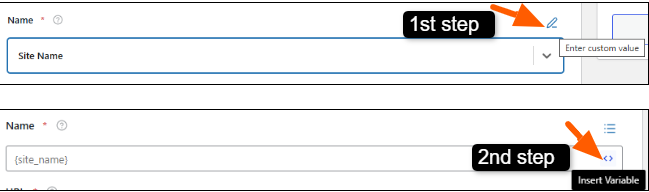
Swift Rank provides a variable option on each field within the schema editor. Every input field includes a variable icon on the right side, allowing you to insert dynamic variables directly—no matter whether the field is for a URL, name, image, date, or location.
To add a variable, start by clicking the pencil (edit) icon for the field. Once the field is editable, select the <> (variable) icon to insert the variable.
You can choose the appropriate variable from the dropdown and let Swift Rank automatically populate the data for each page.
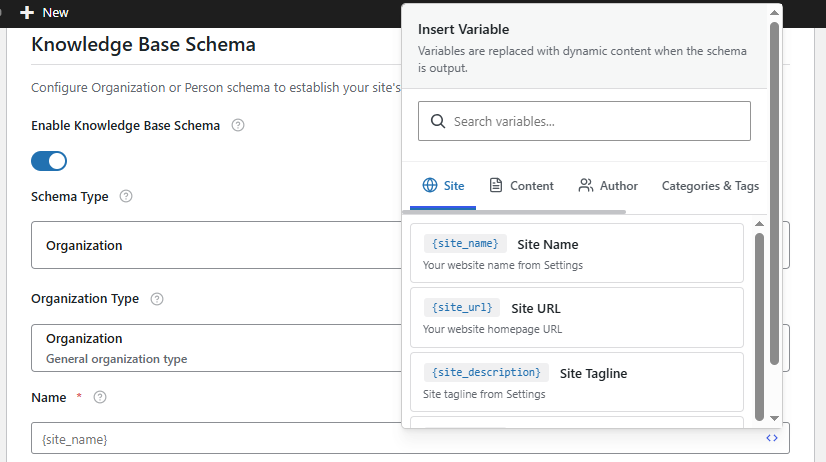
This setup gives you full control and flexibility while ensuring your schema remains accurate and consistent site-wide.
Types of Variables #
1. Site Variables #
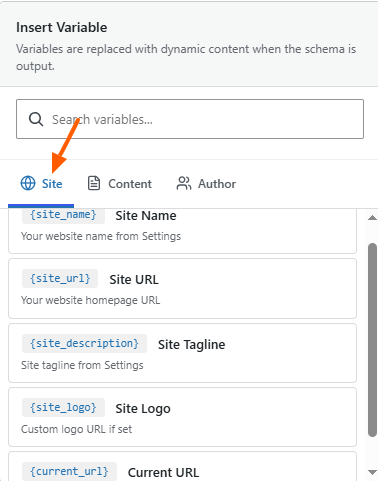
Pull information from your WordPress site settings.
| Variable | Description | Example |
| {site_name} | Site title | “My Awesome Site” |
| {site_url} | Homepage URL | “https://example.com“ |
| {site_description} | Site tagline | “Just another WordPress site” |
| {site_logo} | Site logo URL | “https://example.com/logo.png“ |
Use for: Site-wide information like publisher data, logos, or default images.
Example Schema:
{
 "@type": "Organization",
"name": "{site_name}",
"url": "{site_url}",
 "description": "{site_description}",
"logo": "{site_logo}"
}
2. Content Variables #
Pull data from the post or page being viewed.
| Variable | Description | Example |
| {post_title} | Post/page title | “Getting Started Guide” |
| {post_excerpt} | Post excerpt | “Learn how to use…” |
| {post_content} | Full content (HTML stripped) | “Full article text…” |
| {post_url} | Permalink | “https://example.com/post“ |
| {featured_image} | Featured image URL | “https://example.com/image.jpg“ |
| {post_date} | Publish date | “2025-01-15T10:30:00+00:00” |
| {post_modified} | Last modified date | “2025-01-16T14:22:00+00:00” |
Use for: Article content, product data, or any page-specific information.
Example Schema:
{

  "@type": "Article",

  "headline": "{post_title}",

  "description": "{post_excerpt}",

  "image": "{featured_image}",

  "datePublished": "{post_date}",

  "dateModified": "{post_modified}"

}
3. Author Variables #
Pull details from the post author’s profile.
| Variable | Description | Example |
| {author_name} | Display name | “John Doe” |
| {author_url} | Author archive URL | “https://example.com/author/john“ |
| {author_bio} | Biographical info | “John is a writer…” |
| {author_email} | “john@example.com” | |
| {author_avatar} | Profile image | “https://gravatar.com/avatar.jpg“ |
Use for: Author information, reviews, or person schema.
Example Schema:
{

  "@type": "Article",

  "author": {

    "@type": "Person",

    "name": "{author_name}",

    "url": "{author_url}",

    "description": "{author_bio}"

  }

}
These are the variables provided by Swift Rank to help you build flexible and accurate schema templates.


