
To add custom schema using Swift Rank, first ensure that the Swift Rank plugin is properly installed and activated on your WordPress website. Once the plugin is active, navigate to Schema Templates from the Swift Rank dashboard to begin creating custom schema template.
Click on Add Custom Schema Template to start.
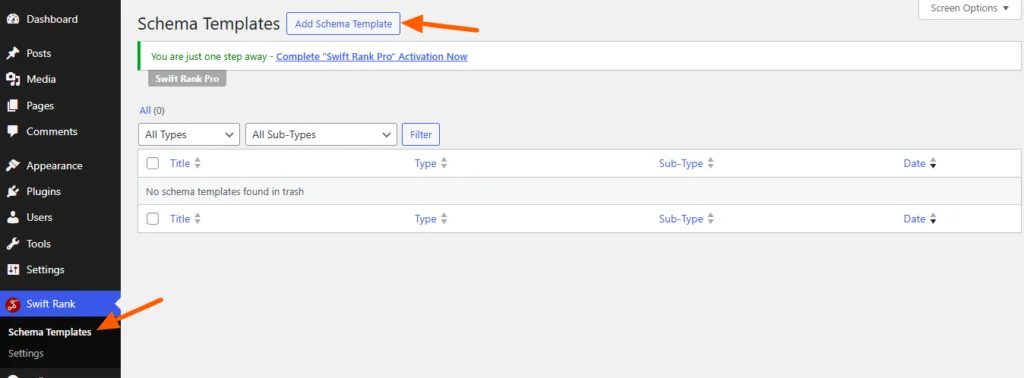
Please note that Custom schema is a Pro feature in Swift Rank, and you must upgrade to the Pro version to access and enable this functionality.
Select the Custom Schema Type #
In the Schema Configuration panel located in the right sidebar, find the Schema Type dropdown. Click the dropdown and select custom schema from the available schemas.
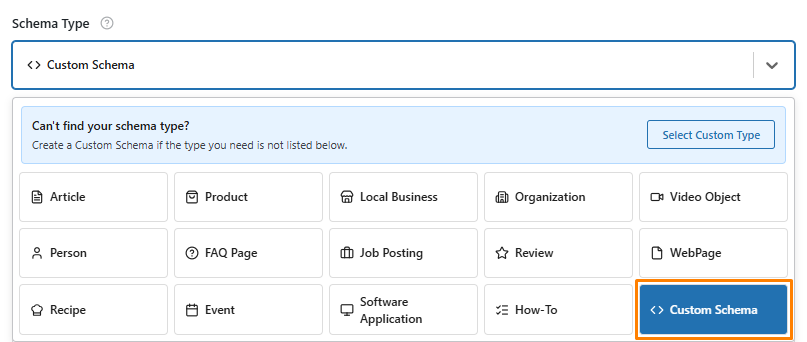
Once the custom schema type is selected, Swift Rank will automatically load schema builder fields required to describe custom content accurately.
What Is Root in Schema? #
Root is the main object of your schema — the central entity that everything else describes.
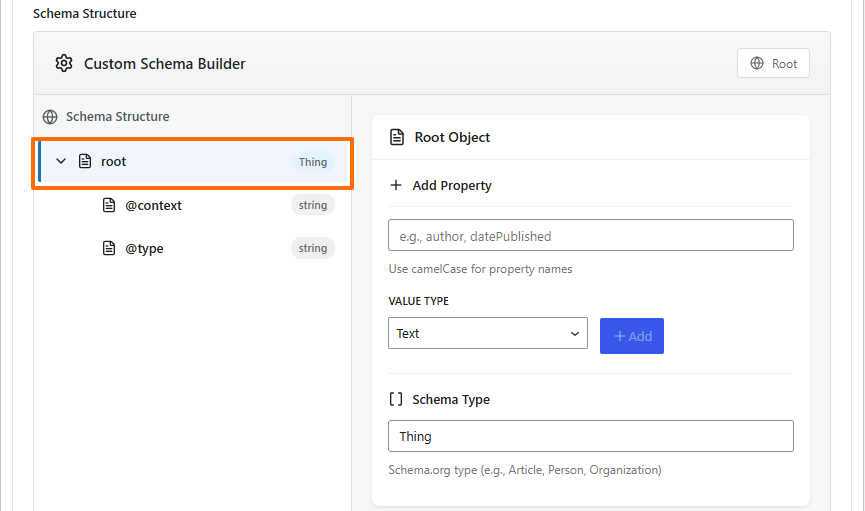
Think of root as:
- The starting point of your structured data
- The top-level container
- The main subject Google should understand from the page
Every schema must have exactly one root. By default, the root schema type is set to Thing, which is the most generic type in Schema.org. From this root, you can refine the schema by changing the type to something more specific, such as Product, Article, Person, Event, or Organization, depending on the content of your page.
Root Object #
Every schema must have one and only one root object, because search engines need a single primary entity to understand what the page is mainly about. All schema properties, attributes, and nested objects—such as reviews, ratings, offers, authors, or locations—are added under this root.
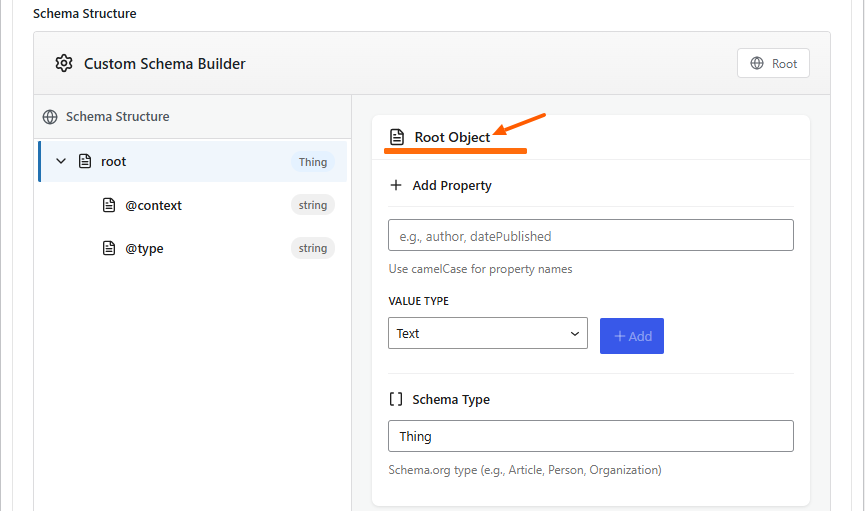
This hierarchical structure ensures that all related data is clearly connected to the main entity, making the schema easier for search engines to interpret.
Add Property Field #
Enter the name of the property you want to define in the field. For example, in a BlogPosting schema, properties like author, datePublished, headline, and image describe key aspects of the post.
Vlaue Type #
In Swift Rank’s Custom Schema Builder, Value Type defines how a property stores its data. There are three value types: Text, Object, and Array. Each serves a different purpose in schema creation.
1. Text (String) #
Text is used for simple, single values such as words, numbers, or dates. You can use it when the property does not need structure.
Common examples
namedescriptionheadlinedatePublishedprice
2. Object #
Object is used when a property represents another schema entity with its own type and properties.
You can use Object when the property needs:
- Its own
@type - Multiple sub-properties
Common examples
itemReviewed→ Productauthor→ Personpublisher→ OrganizationreviewRating→ Rating
3. Array #
Array is used when a property can have multiple values instead of one.
Use Array when:
- The same property repeats
- More than one value is valid
Common examples
sameAs(multiple profile links)image(multiple images)author(multiple authors)review(multiple reviews)
Schema Type #
The ‘Schema Type’ field allows you to manually specify the type of schema based on the value types you intend to use. By selecting the appropriate schema type, you ensure that the data structure aligns correctly with your content.
Examples:
- Person
- Organization
- Rating
- ImageObject
This creates a nested schema entity inside the root object.
@Type #
Since the “publisher” property has been added in the Property Field, its value type is set to “object”, and the associated schema type is Organization. As a result, an @type field is automatically generated. When you click on this field, the “Edit Value” interface appears, with the default type displayed as Thing.
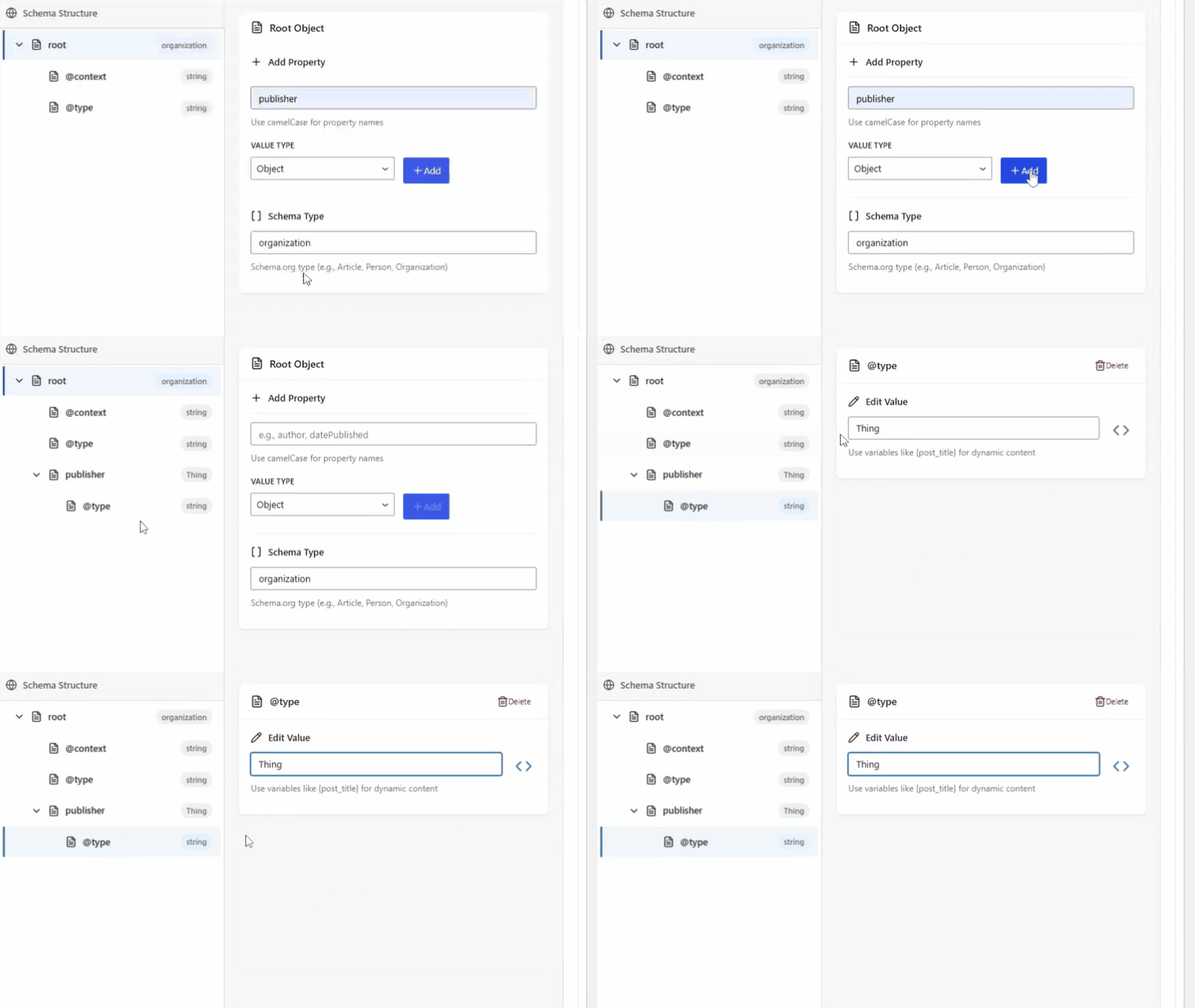
Next to the field, there is an “Insert Variable” (<> ) option. By clicking this option, you can dynamically insert any available variable into the field, allowing for more flexible and context-specific data. If no variable is selected, it is not mandatory; the schema will remain valid and generic, using the default type Thing.
This setup ensures that the publisher property is correctly structured while providing optional customization through variables, helping search engines better interpret your content without breaking schema validity.
This ensures that search engines correctly interpret the types, properties, and relationships in your JSON-LD markup.
JSON Preview (Bottom Section) #
The JSON Preview section, typically located at the bottom of the Custom Schema Builder interface, provides a live view of the JSON-LD structured data that is being generated based on the schema settings you configure. JSON-LD (JavaScript Object Notation for Linked Data) is the format recommended by search engines like Google to help them understand the content and context of your web pages.
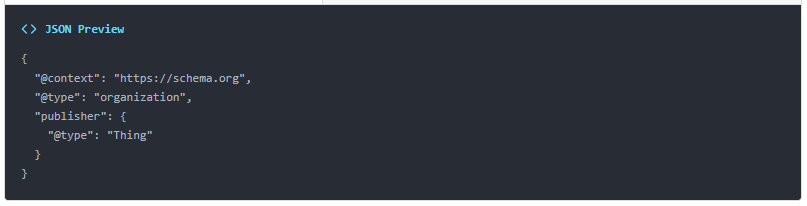
This section acts as a real-time reflection of all the fields you fill in the schema builder. As you add, remove, or edit properties such as name, author, publisher, datePublished, or nested objects like organization or person, the JSON Preview updates automatically to show the exact structured data that will be added to your webpage.
Add Basic Event Properties (Text Value Type) #
After understanding all the field, now lets add custom event schema.
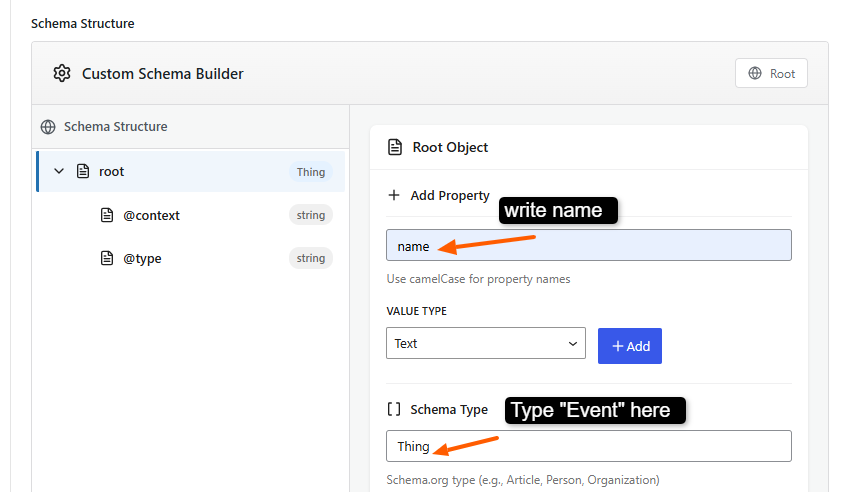
- Add property: name
- Value type: text
- Schema Type: Event
Type “name” in the property field, choose “Text” from the value type and write “Event” in the schema type field.
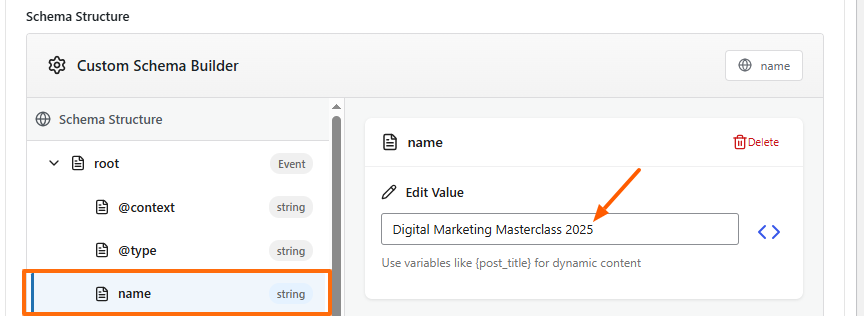
After adding the name field, click on it and you will see “Edit Value”. Add event name here.
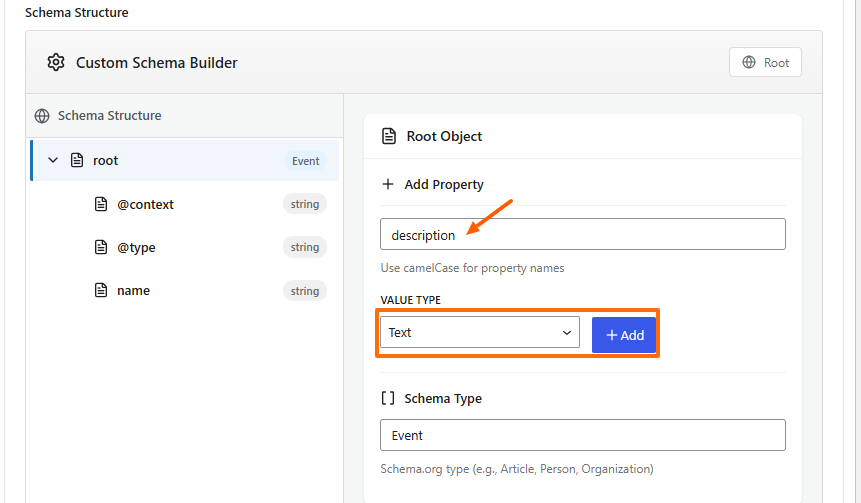
Event Description #
- Property Field:
description - Value Type: Text
Write description in the property field, choose “Text” option from the value type dropdown. Now after adding description, click on it and in the “Edit Value” field add your event description.
Start Date #
- Property Field:
startDate - Value Type: Text
- Edit Value: ISO 8601
Type start date in the field with value type “text”. And in the edit value section add your date there, for example 2025-07-21T19:00-05:00.
End Date #
- Property Field:
endDate - Value Type: Text
Use the same date format as startDate in the Edit Value field.
Event Status #
- Property Field:
eventStatus - Value Type: Text
- Edit ValueField: https://schema.org/EventScheduled – It indicates whether the event is scheduled, cancelled, or postponed.
Add Location (Object Value Type) #
In the property field, enter location, select Object as the value type, and specify Place as the schema type.
This tells search engines that the location is a structured object describing a physical place.
Location #
- Property Field:
location - Value Type: Object
- Schema Type:
Place
Type location in the property field, choose object in the value type and write “Place” in the schema type.
Inside Location (Place) #
Once the location object is created, you must add the required properties inside it, mainly the place name and address.
a) Place Name #
- Property Field:
name - Value Type: Text
b) Address #
- Property Field:
address - Value Type: Object
- Schema Type:
PostalAddress
Select Object as the value type and set the schema type to PostalAddress. This ensures the address follows Google’s structured data standards.
Inside Address (PostalAddress) #
Add the following fields:
| Property Field | Value Type |
|---|---|
| streetAddress | Text |
| addressLocality | Text |
| postalCode | Text |
| addressRegion | Text |
| addressCountry | Text |
All address details should be consistent with what is shown on your website and other online listings.
Add Event Images (Array Value Type) #
Event Images #
- Property Field:
image - Value Type: Array
- Item Type: Text
Add one or more image URLs (each URL as a separate array item).
Why Array?
Events can have multiple images (banner, poster, venue image).
Add Offers (Object → Offer) #
Offers #
- Property Field:
offers - Value Type: Object
- Schema Type:
Offer
Inside Offers (Offer) #
Add the following properties:
| Property Field | Value Type |
|---|---|
| url | Text |
| price | Text |
| priceCurrency | Text |
| availability | Text |
| validFrom | Text |
Example:
- price:
499 - priceCurrency:
USD - availability:
https://schema.org/InStock
Add Performer (Object) #
Performer #
- Property Field:
performer - Value Type: Object
- Schema Type:
PerformingGroup
Inside Performer #
- Property Field:
name - Value Type: Text
Example:John Smith Marketing Team
Add Organizer (Object) #
Organizer #
- Property Field:
organizer - Value Type: Object
- Schema Type:
Organization
Inside Organizer #
| Property Field | Value Type |
|---|---|
| name | Text |
| url | Text |
Example:
- name:
ABC Digital Agency - url:
https://example.com
Check JSON Preview #
Scroll down to the JSON Preview section and verify:
"@type": "Event",
  "name": "Digital Marketing Masterclass 2025",
  "description": "A comprehensive digital marketing masterclass covering SEO, social media marketing, paid advertising, and AI-driven growth strategies for entrepreneurs and professionals.",
  "startDate": "2025-07-21T19:00-05:00",
  "endDate": "2025-07-21T22:00-05:00",
  "eventStatus": "https://schema.org/EventScheduled",
  "location": {
    "@type": "Place",
    "name": "Tech Innovation Conference Hall",
    "address": {
      "@type": "PostalAddress",
      "streetAddress": "123 Innovation Street",
      "addressLocality": "Chicago",
      "postalCode": "60601",
      "addressRegion": "IL",
      "addressCountry": "US"
    }
  },
  "image": [
    "https://example.com/images/digital-marketing-masterclass.jpg"
  ],
  "offers": {
    "@type": "Offer",
    "url": "https://example.com/events/digital-marketing-masterclass-2025",
    "price": "99",
    "priceCurrency": "USD",
    "availability": "https://schema.org/InStock",
    "validFrom": "2025-05-01T09:00:00-05:00"
  },
  "performer": {
    "@type": "PerformingGroup",
    "name": "Marketing Growth Experts"
  },
  "organizer": {
    "@type": "Organization",
    "name": "Growth Academy",
    "url": "https://example.com"
  }
}
✔ Root Schema: @type: Event
✔ Location → Place → PostalAddress
✔ Image → Array
✔ Offers → Offer
✔ Performer → PerformingGroup
✔ Organizer → Organization
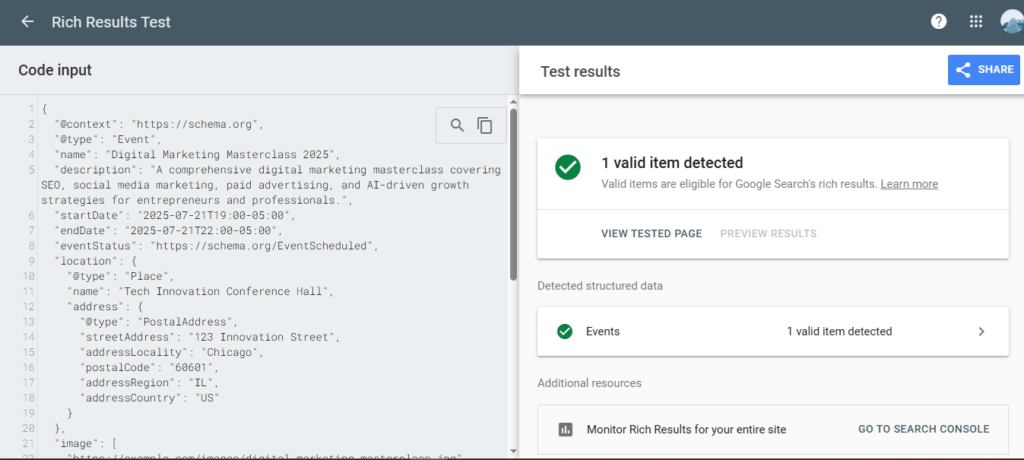
If the schema is structured correctly, it will be eligible for Google Rich Results. You can paste your JSON code into the Rich Results Test tool to verify its validity. If the result shows as invalid, carefully review the implementation and ensure that all required fields and properties have been added correctly.
Publish the Schema #
- Review all fields carefully
- Click Publish
Your Event Schema is now live.
Once you are done with all your changes click on the publish button.


