
In this documentation, we’re setting up Custom CSS inside ToolPress. ToolPress brings multiple tools together in one place, and adding your own CSS lets you fine-tune styling, adjust layouts, and refine the look and feel of your site. The setup is straightforward once you know where each option is located.
Prerequisites for Custom CSS #
Before adding Custom CSS through ToolPress, make sure you have the following in place:
- WordPress Installed – A functioning WordPress site.
- ToolPress Plugin Installed and Activated – Ensure you’re using the latest version.
- Admin Access – Needed to access tool settings and make adjustments.
- Basic Understanding of CSS – Useful for adding classes, styling rules and interactive features effectively.
Access ToolPress in WordPress #
- From the sidebar, click ToolPress → Tools (or the relevant section to add a new tool).
- Log in to your WordPress admin dashboard.
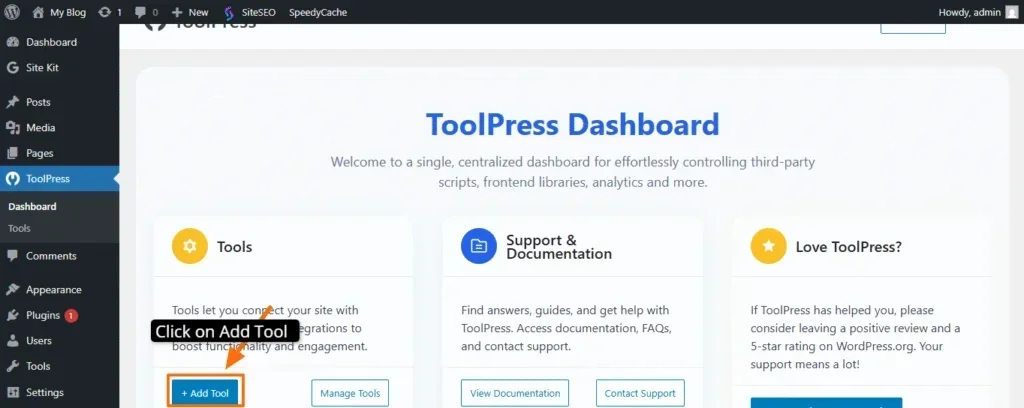
In the list of tools, select Custom CSS.
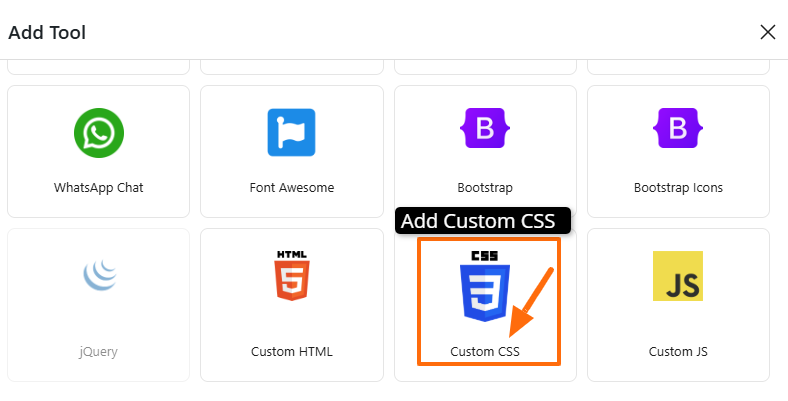
Prepare Your Custom CSS #
Before adding anything into ToolPress, prepare your CSS code.
Example test CSS: #
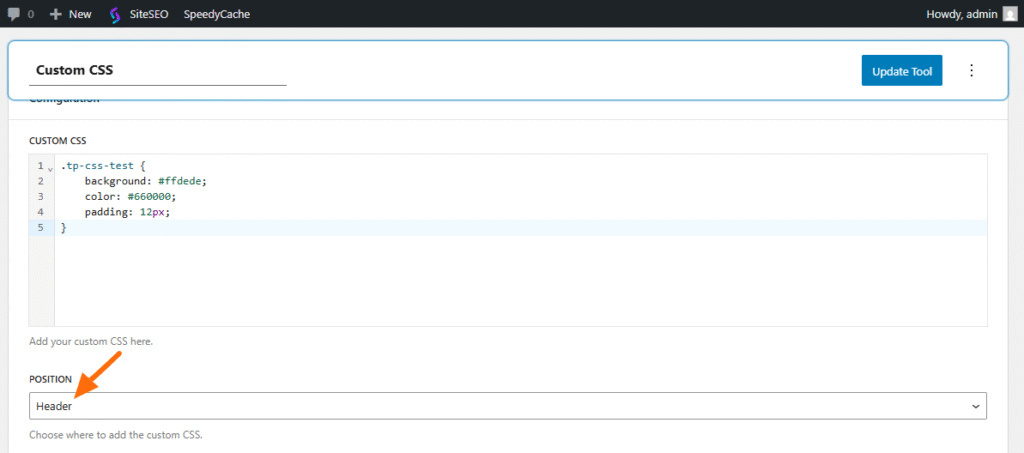
.tp-css-test {
    background: #ffdede;
    color: #660000;
    padding: 12px;
}
Add Your CSS Code #
Paste your CSS directly into the Custom CSS editor field. Toolpress gives you the options to add the css code into your header and footer both. So i selected the header option.
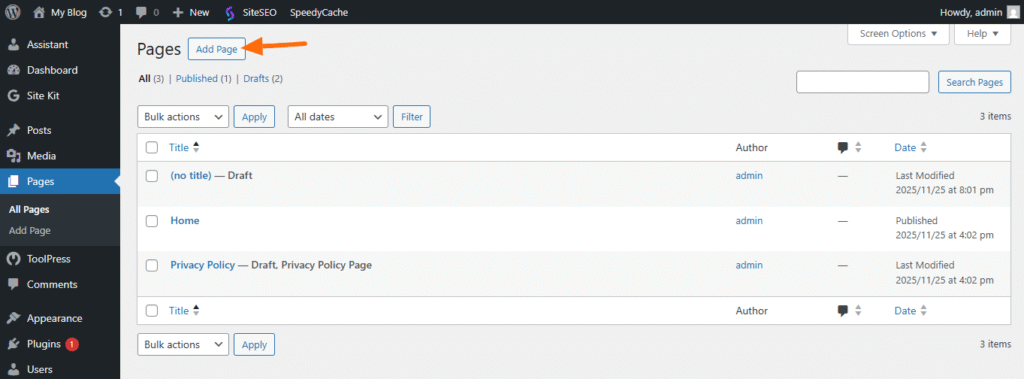
After adding the CSS code, you can create a new page or open any existing page in WordPress where you want to apply your changes.
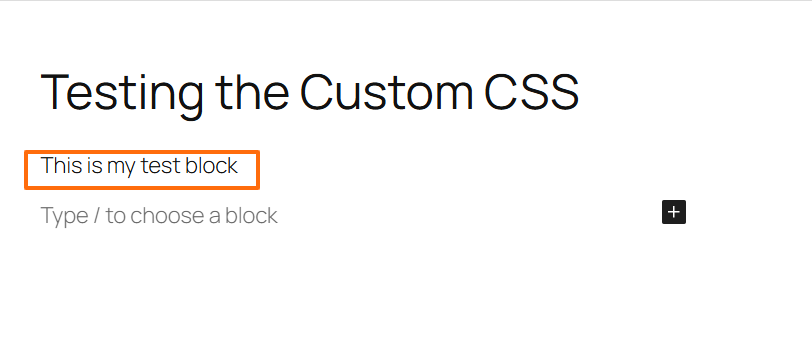
For the moment, I’ve added placeholder text to verify that the CSS is functioning correctly.
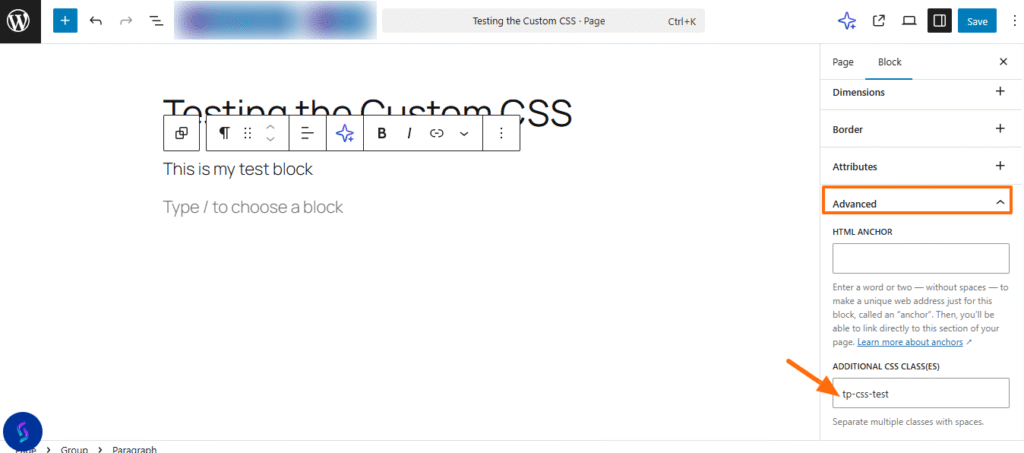
Now add the ‘Additional CSS class(es)’ in the right sidebar under the Advanced options.
Click Save. Once that’s done, we can review the results.
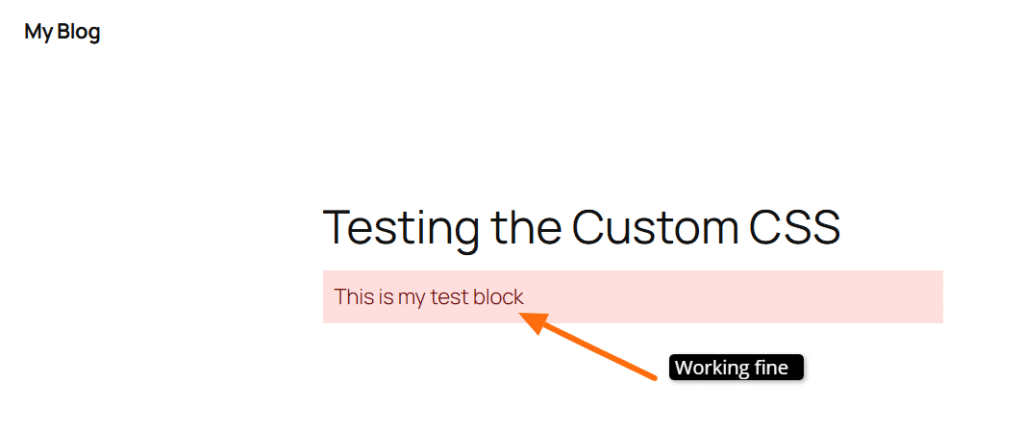
Custom CSS allows you to create and style your own header and footer, and ToolPress makes it easy to customize elements exactly the way you want.
If you have any questions or need help along the way, feel free to contact us through our support page.


