
The Breadcrumbs section allows you to enable and manage breadcrumb navigation for your website. Breadcrumbs help search engines understand your site structure by showing clear relationships between pages, categories, and subpages.
You can also enable breadcrumbs from auto schema tab. When properly configured, breadcrumbs improve crawlability, enhance user navigation, and increase the likelihood of rich breadcrumb results appearing in search listings.
This leads to better visibility, clearer page context, and a more user-friendly experience across your site.
Breadcrumb Tab of the Swift Rank Schema plugin #
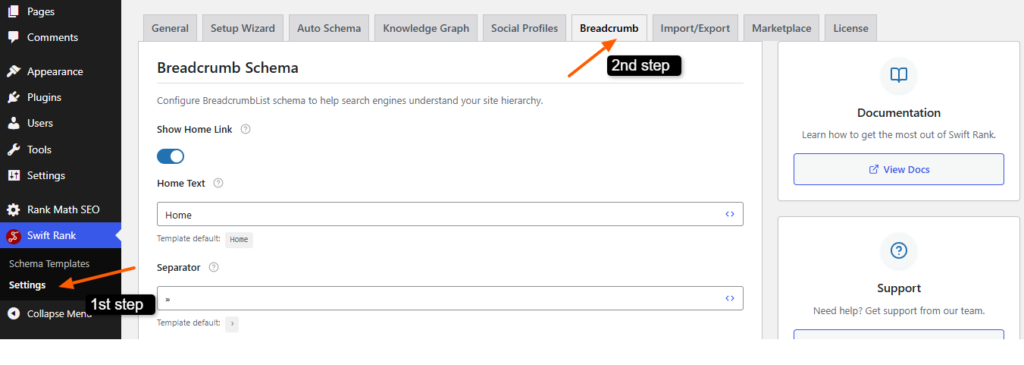
Navigate to Swift Rank→ Settings → Breadcrumb Tab.
Step 1: Show Home Link #
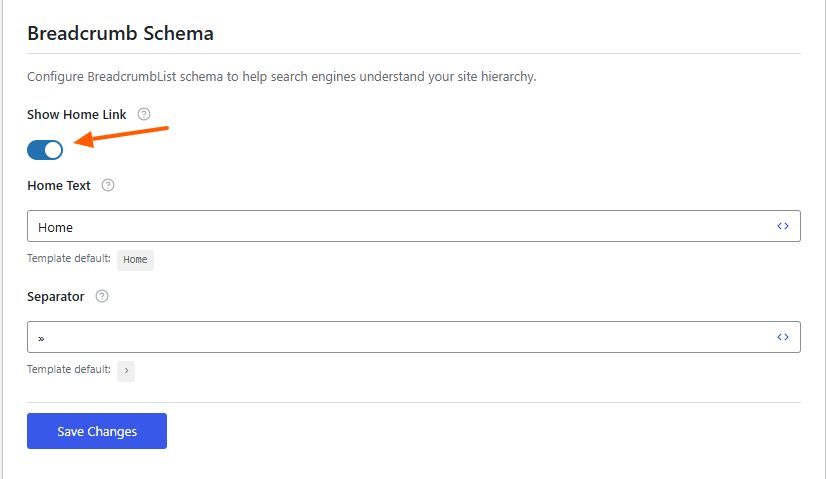
The Show Home Link option determines whether the homepage is included as the first item in the breadcrumb trail. When this option is enabled, the breadcrumb navigation always begins with the homepage, clearly indicating the top level of your website’s structure.
Example (Enabled):
If the Show Home Link option is turned on, a breadcrumb path will appear as:
Home > Blog > SEO Tips > Breadcrumb Guide
In this case, users can easily click Home to return to the homepage, and search engines can clearly identify the starting point of the site hierarchy.
Example 2: E‑commerce Product Page
For an online store selling electronics, a product page breadcrumb may look like:
Home > Electronics > Mobile Phones > Android Devices > Product NameExample (Disabled):
If the Show Home Link option is turned off, the breadcrumb path will start from the next level:
Blog > SEO Tips > Breadcrumb Guide
Including the home link improves navigation clarity, strengthens internal linking, and helps search engines better understand the relationship between your homepage and inner pages.
Step 2: Home Text #
The Home Text field allows you to customize the label used for the homepage in the breadcrumb trail.

By default, this value is set to “Home”, but it can be changed to match your website’s branding, language, or tone, such as “Homepage”, “Start”, or your brand name.
Example (Default Setting):
If the Home Text is set to “Home”, the breadcrumb may appear as:
Home > Blog > SEO Tips > How to Optimize Breadcrumb Schema
Example (Customized Home Text):
If you change the Home Text to “MyWebsite”, the breadcrumb will display as:
MyWebsite > Blog > SEO Tips > How to Optimize Breadcrumb SchemaThis text is displayed as part of the breadcrumb navigation and is also included in the structured data sent to search engines.
Step 3: Separator #
The Separator setting defines the symbol or character used to separate each breadcrumb item.
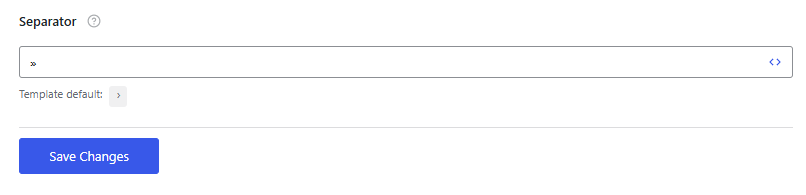
Common separators include arrows, slashes, or greater-than symbols.
Example:
If your breadcrumb structure is:
Home > Blog > SEO Tips > Breadcrumb Guide
Here, the “>” symbol is used as the separator.
If you change the separator to a slash “/”, the same breadcrumb will appear as:
Home / Blog / SEO Tips / Breadcrumb Guide
Using an arrow, such as “→”, would display:
Home → Blog → SEO Tips → Breadcrumb GuideThis separator affects how breadcrumbs are visually displayed on the front end while also maintaining a clean and readable structure for users navigating the site.
Step 5: Save Changes #
After configuring all breadcrumb options, clicking the Save Changes button applies the settings across your website. Once saved, breadcrumb schema is generated automatically based on your site structure, and search engines can begin processing the updated structured data during their next crawl.


