
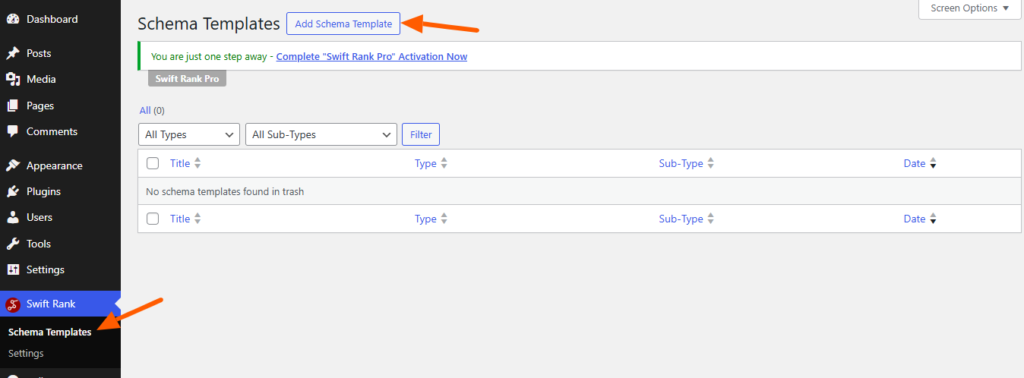
To add an Article schema using Swift Rank, first ensure that the Swift Rank plugin is properly installed and activated on your WordPress website. Once the plugin is active, navigate to Schema Templates from the Swift Rank dashboard to begin creating an article schema template.
Click on Add Schema Template to start.
Name Your Article Schema Template #
At the top of the screen, enter a clear and descriptive title for your template. For example:
Article Schema – Blog Posts
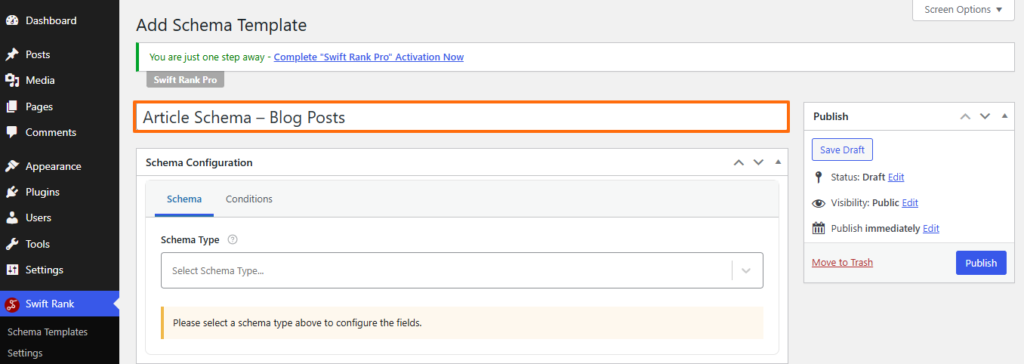
This helps you easily identify the template later, especially when managing multiple schemas.
Select the Schema Type #
In the Schema Configuration panel located in the right sidebar, find the Schema Type dropdown. Click the dropdown and select Article from the available schemas.
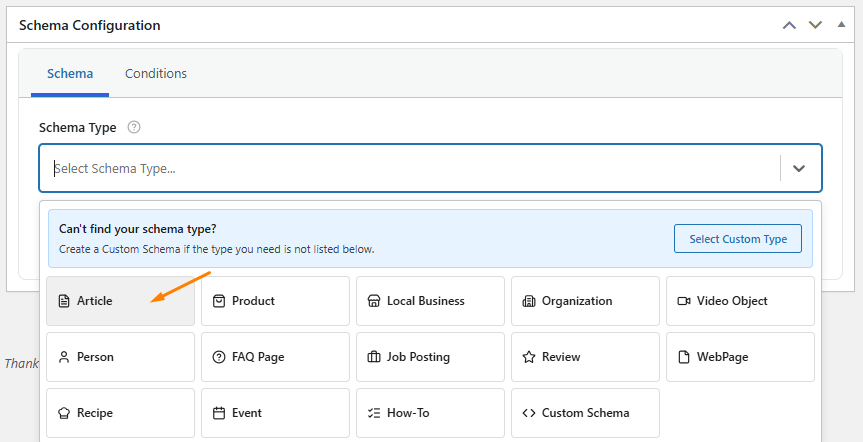
Once the Article schema type is selected, Swift Rank will automatically load all predefined fields required to describe article-based content accurately. Most of these fields support dynamic variables, allowing the schema to automatically pull data from each individual post.
Configure Article Fields #
Post Title #
From the available fields, locate Post Title and click the pencil (edit) icon.
To insert a dynamic value, click the <> (Insert Variable) icon and select Post Title {post_title} from the dropdown. This ensures that the correct title is automatically applied to each article.
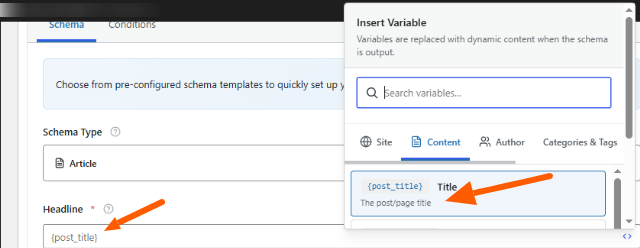
You may also enter a static title if needed, but dynamic variables are recommended as they adapt automatically per page.
URL #
The URL field defines the canonical URL of the article, helping search engines correctly associate the schema with the published page.
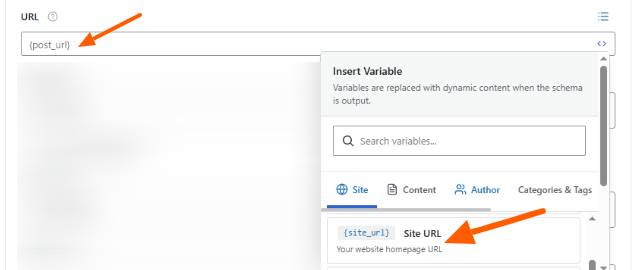
Click the pencil icon, open the Insert Variables panel, and select Post URL to dynamically apply the correct URL to every article.
Description #
You can select post excerpt or post content from the drop down list or click the pencil icon and choose Post Excerpt from the Insert Variables panel, or enter a custom description if required.
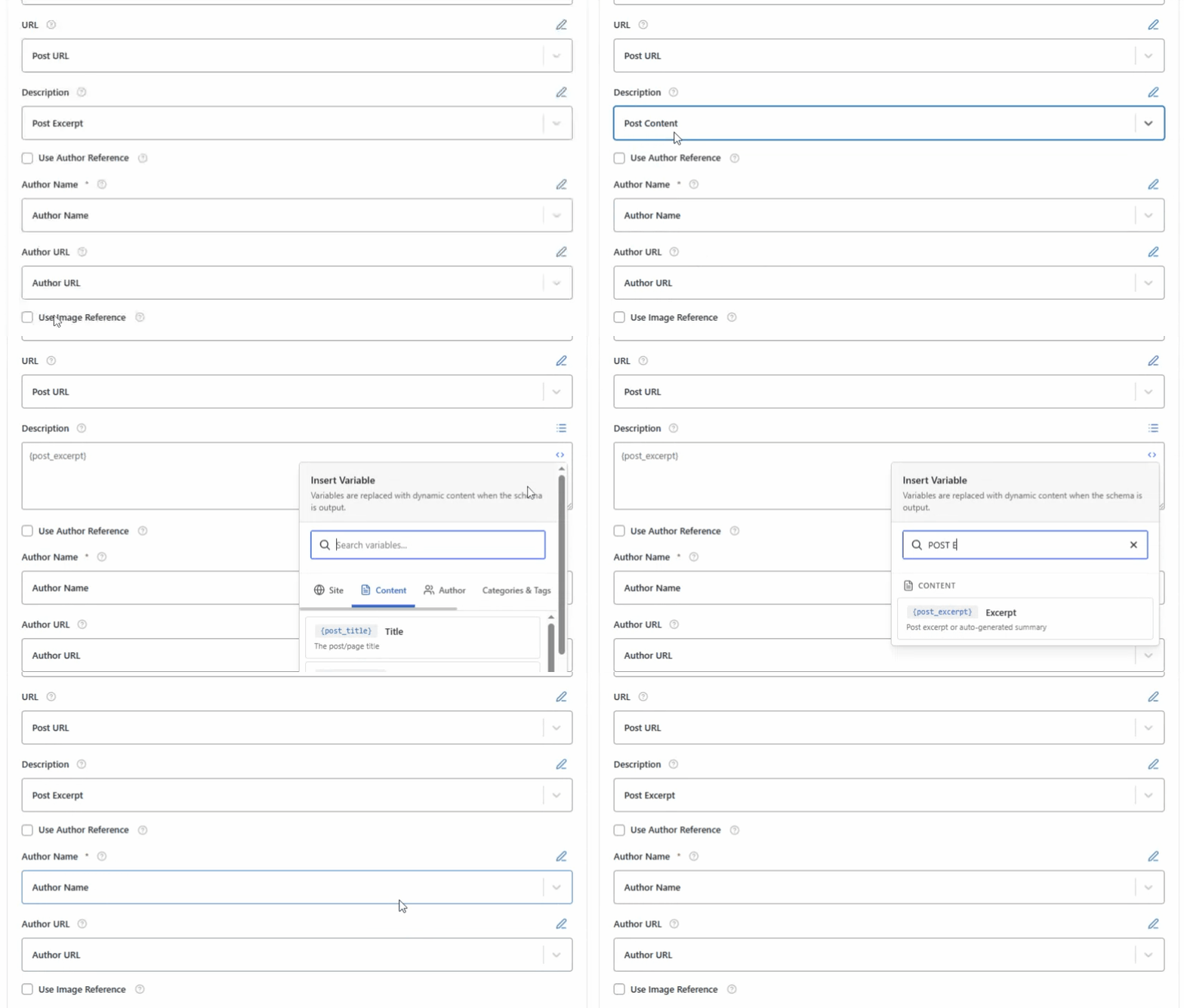
This field provides a brief summary of the article’s content, helping search engines understand its topic and context.
Author Name #
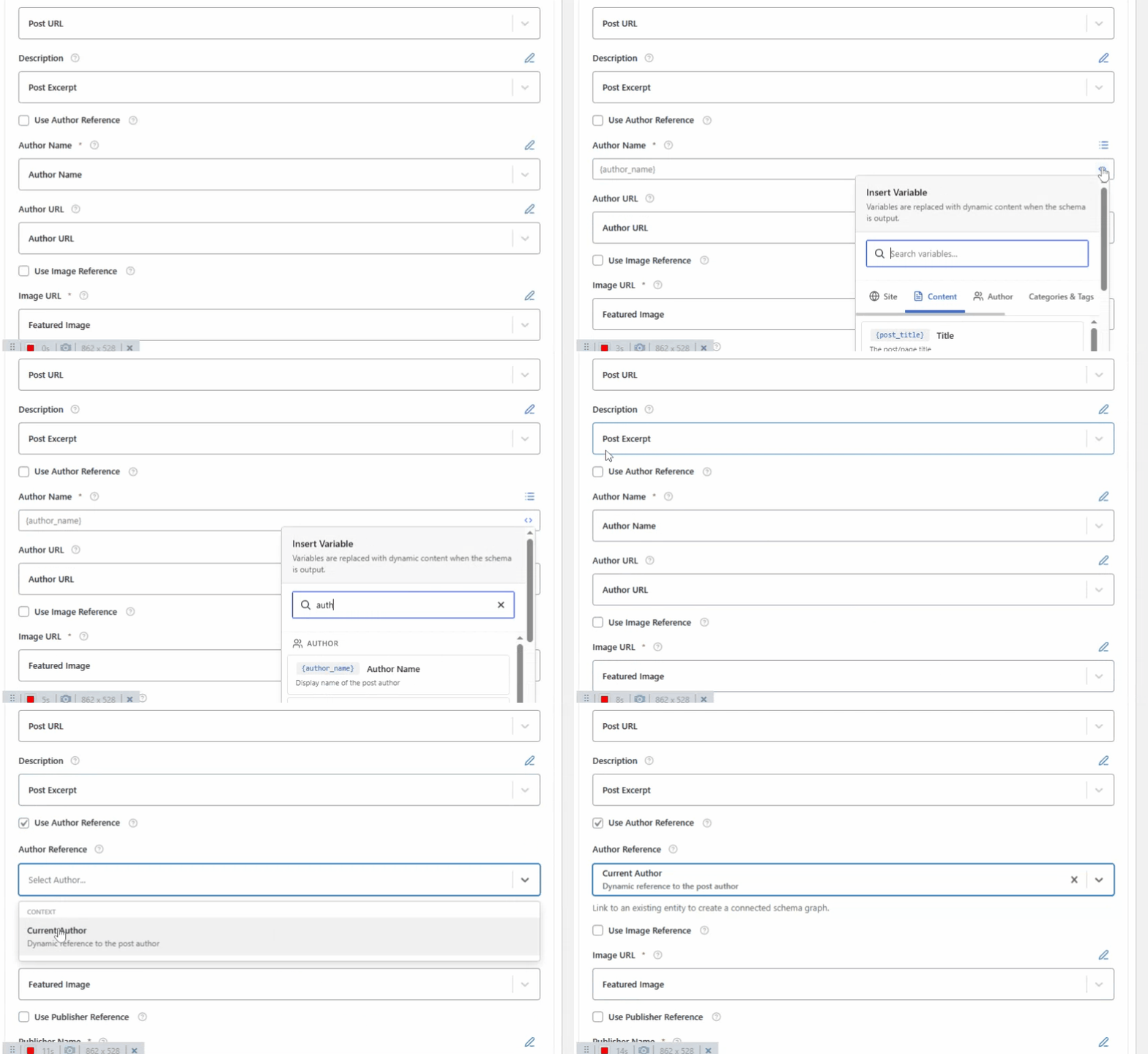
Click the pencil icon and select Author Name from the variable list to automatically assign the correct author for each post.
Author Reference #
Swift Rank allows you to enable Use Author Reference for structured author entities. After enabling it, click the pencil icon in the Author Reference field and select Current Author to link the article with the author entity.
Author URL #
You can use dynamic variables or a static URL, depending on your site setup.
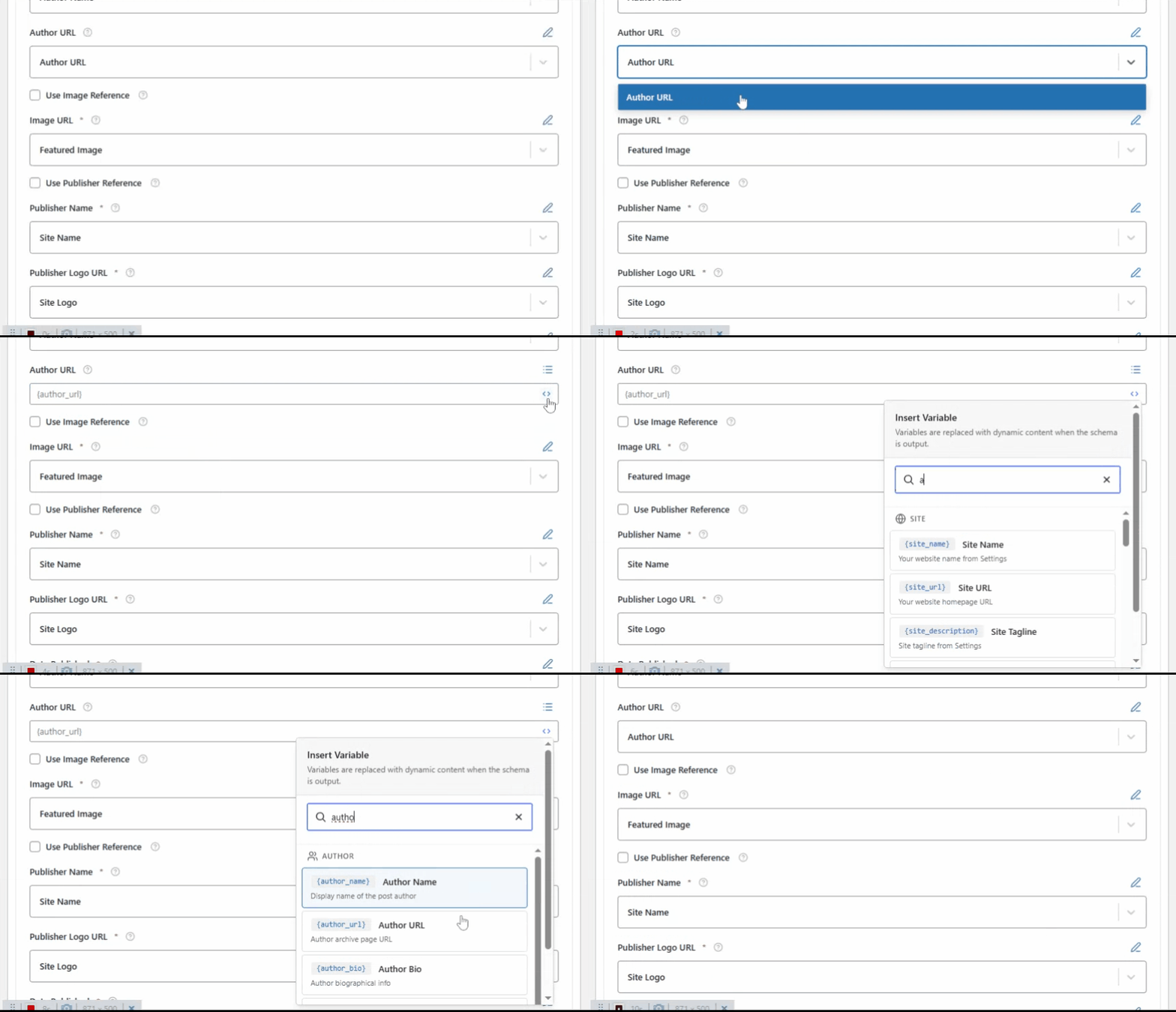
This field links to the author’s profile or archive page, strengthening author attribution and credibility signals.
Image URL #
The Image URL specifies the primary image associated with the article. By default, Swift Rank uses the featured image, which is recommended and required for rich results and visual enhancements. You may also provide a static image URL if needed.
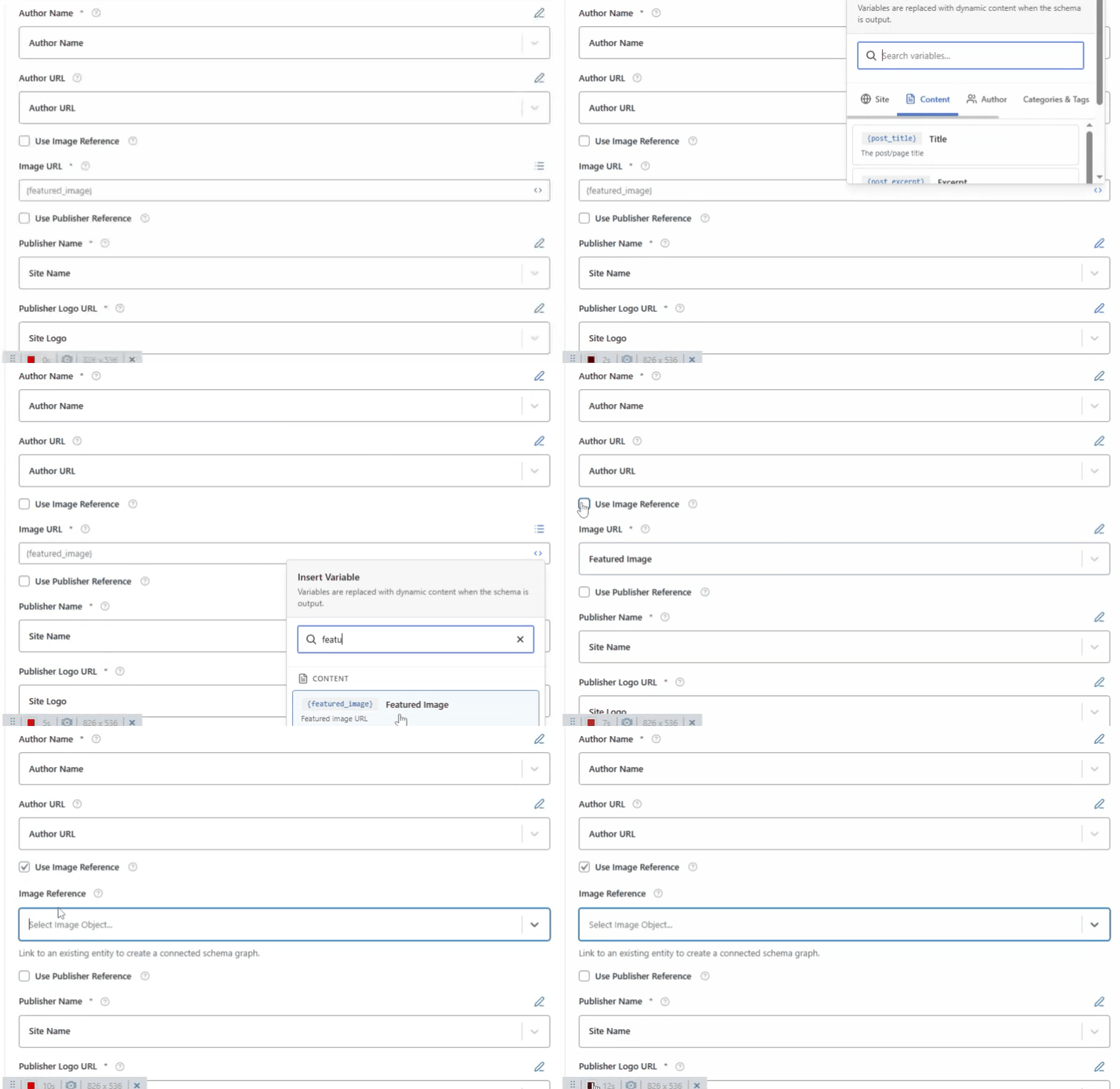
You can enable Image Reference to link the image to an Image Object entity, or disable it to use a custom image URL or entity.
Publisher Name #
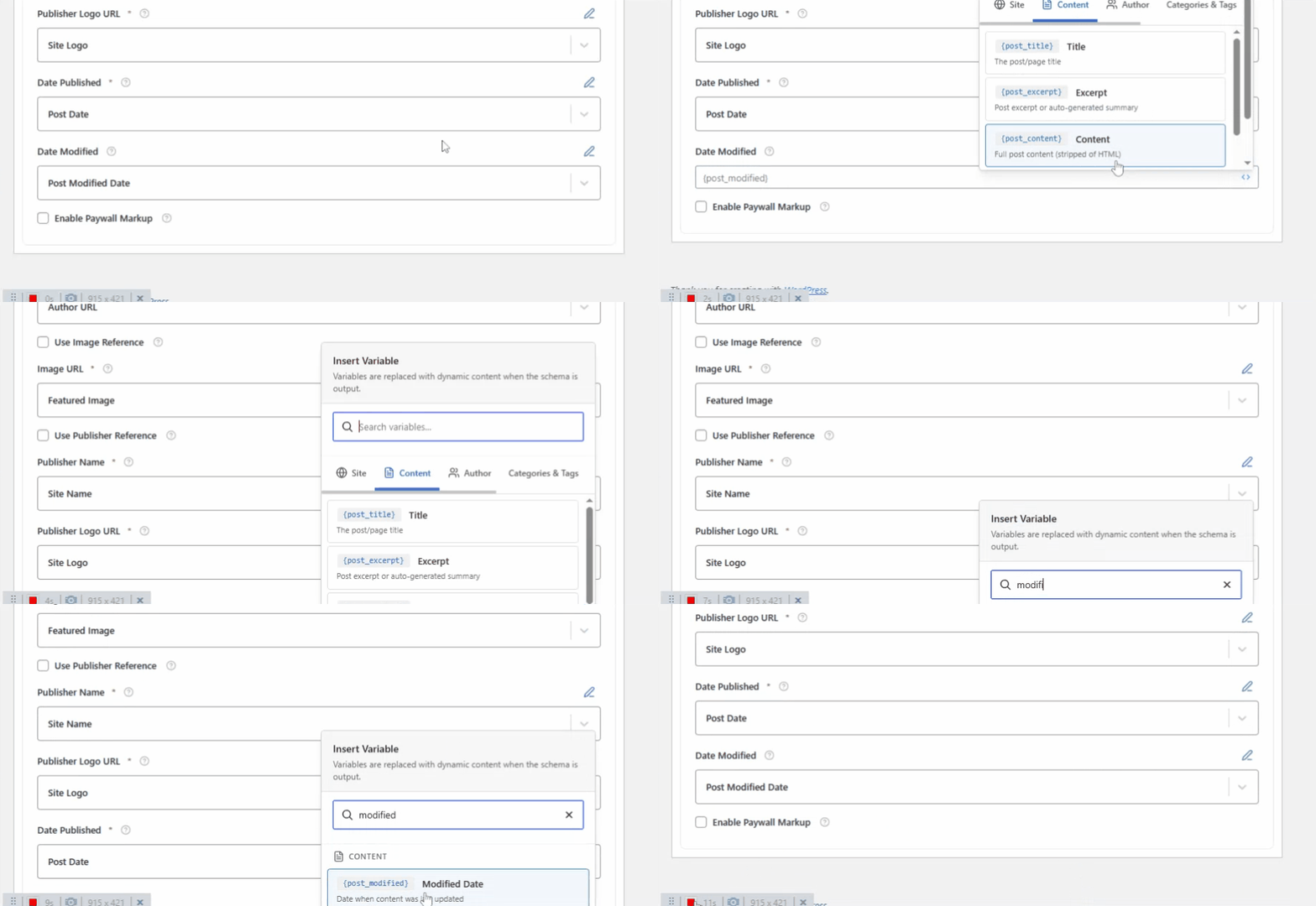
Click the pencil icon and insert the Site Name {site_name} variable.
You may also enable Use Publisher Reference or disable it if you prefer to rely solely on dynamic variables.
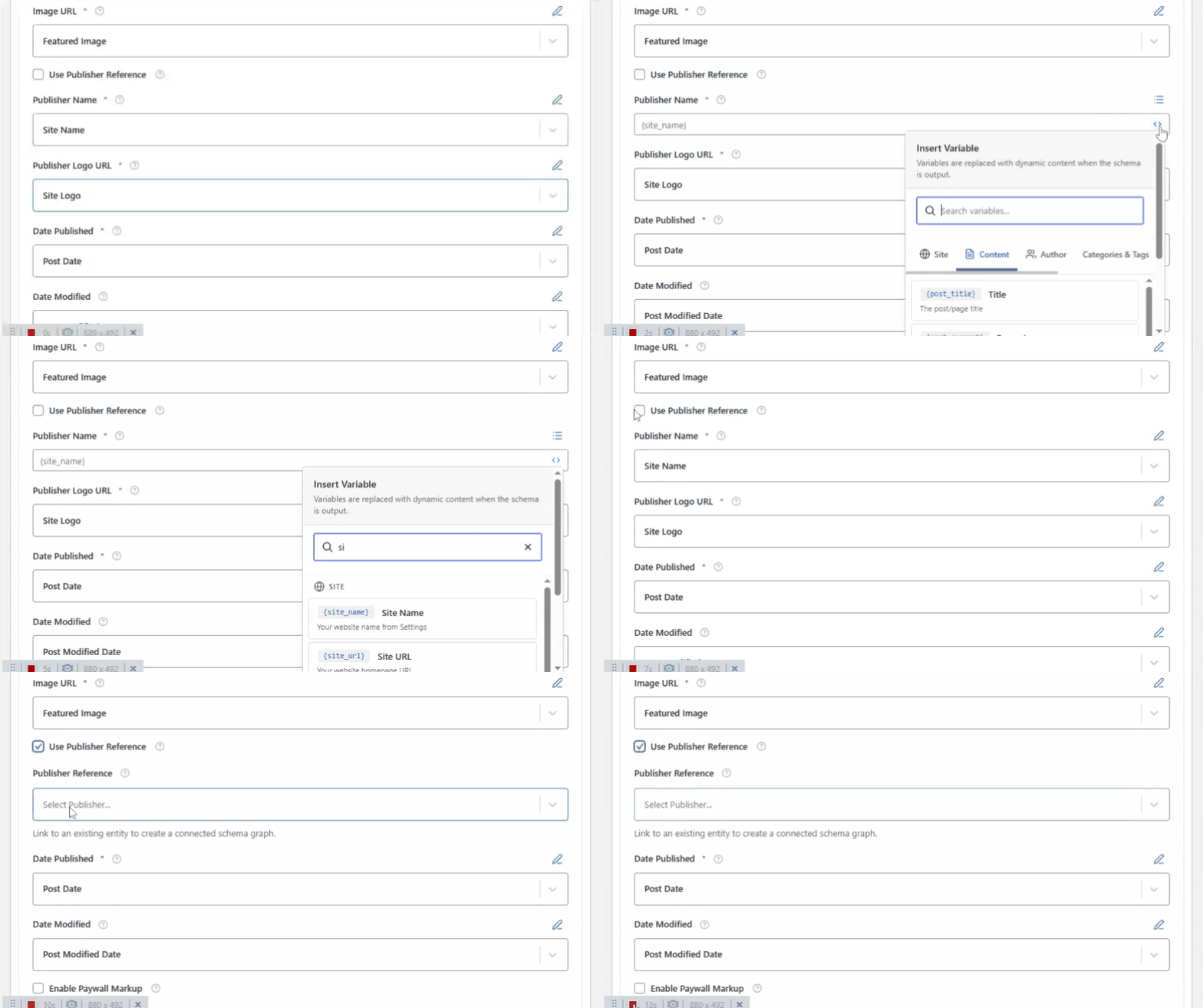
The Publisher Name identifies the publishing entity, typically your website or brand. This helps search engines connect the article to your organization.
Publisher Logo URL #
Click the pencil icon and insert the Site Logo {site_logo} variable.
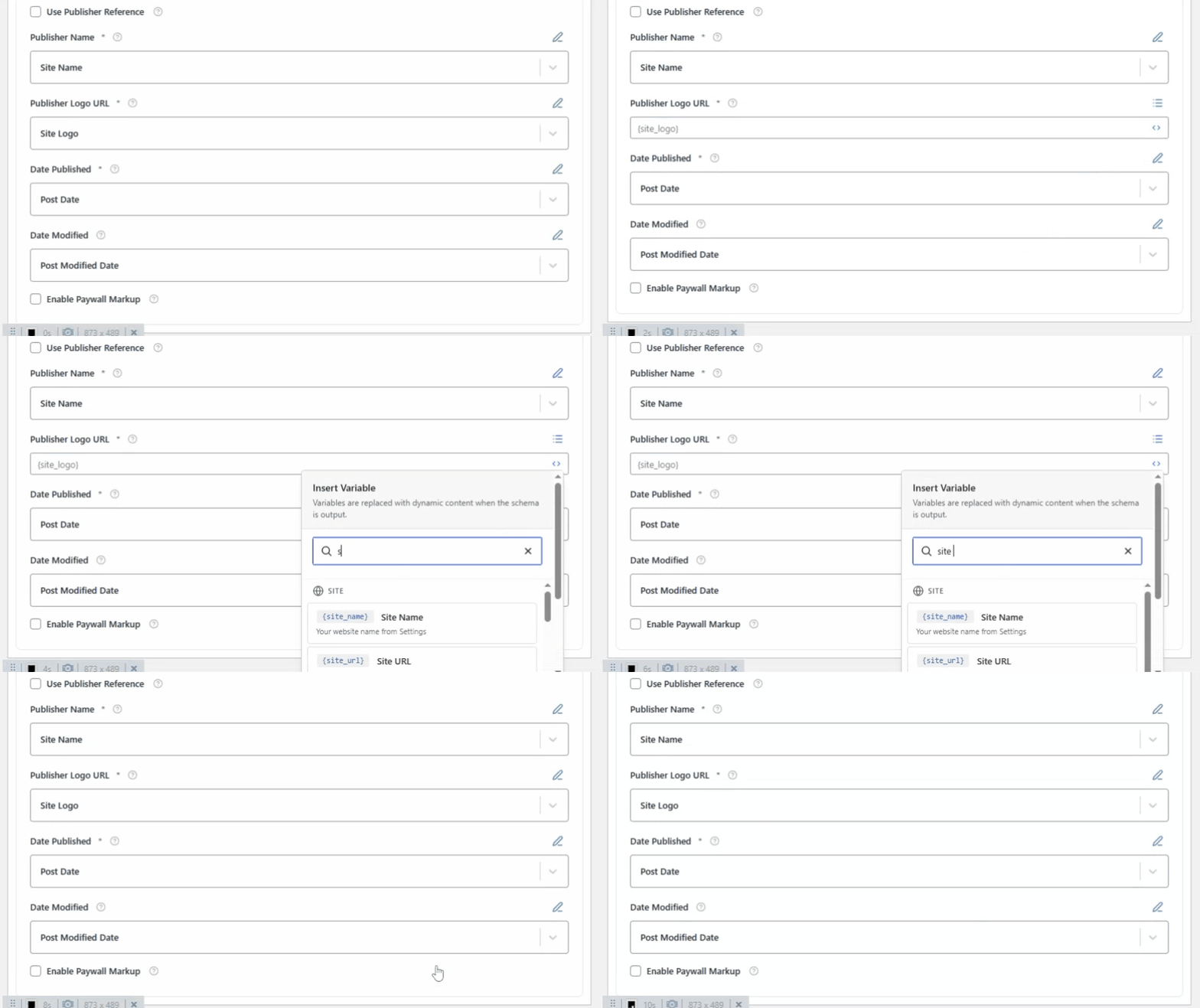
This field adds the official publisher logo, which is an important requirement for Article rich results. The logo should be consistent with the branding used across your website.
Date Published #
The Date Published field indicates when the article was originally published.
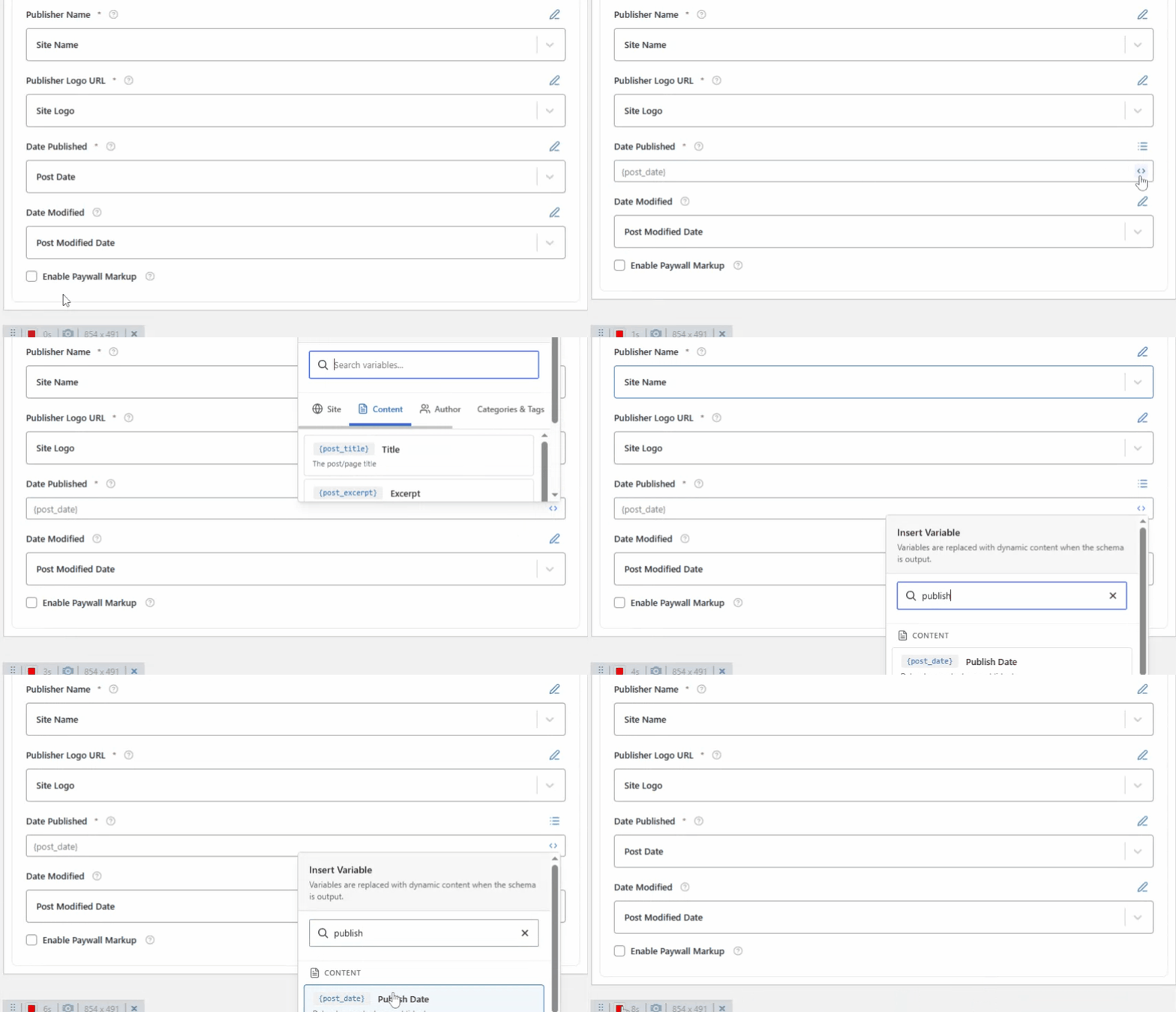
This helps search engines understand content freshness and timeline relevance. You can also edit these schema fields while editing an individual post or page.
Date Modified #
The Date Modified field shows the most recent update date of the article, signaling content updates and improvements to search engines.
Paywall Settings (Pro Feature) #
Swift Rank Pro includes Paywall Settings which is for subscription-based or restricted content. This feature allows you to indicate whether an article is freely accessible or requires payment, login, or subscription.
In addition to the built-in settings, you can also add paywalled content option by using the Custom Schema option. This enables you to apply structured data that signals content accessibility to search engines, helping them correctly interpret and index your pages.
From the dropdown:
- Select Free Content if the article is accessible to everyone.
- Select Paywalled Content if the article requires a subscription or payment.
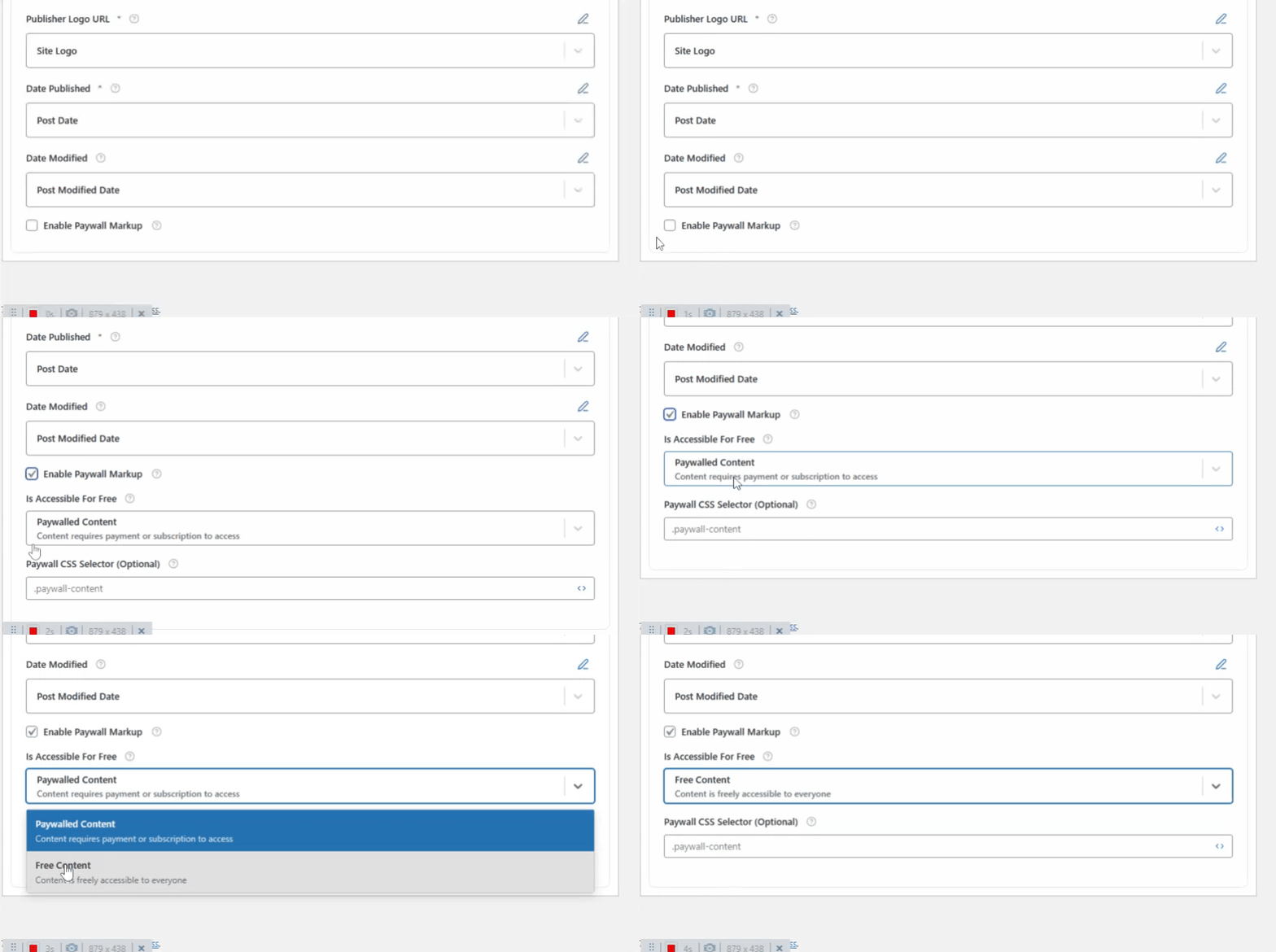
This ensures search engines correctly interpret the accessibility of your content. Paywall feature is a premium option to unlock advanced features and upgrades, check out the pricing page to find the right plan.
Conditions #
Now head over to the conditions tab and set the conditions.
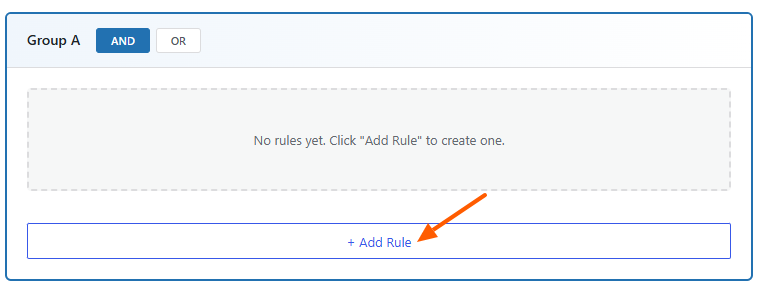
By default, Swift Rank creates Group A. Click on “Add Rule” button.
Now, configure the conditions to control where the Article schema is applied.
Add the following condition:
- Condition Type: Post Type
- Operator: Equal to
- Value:
post
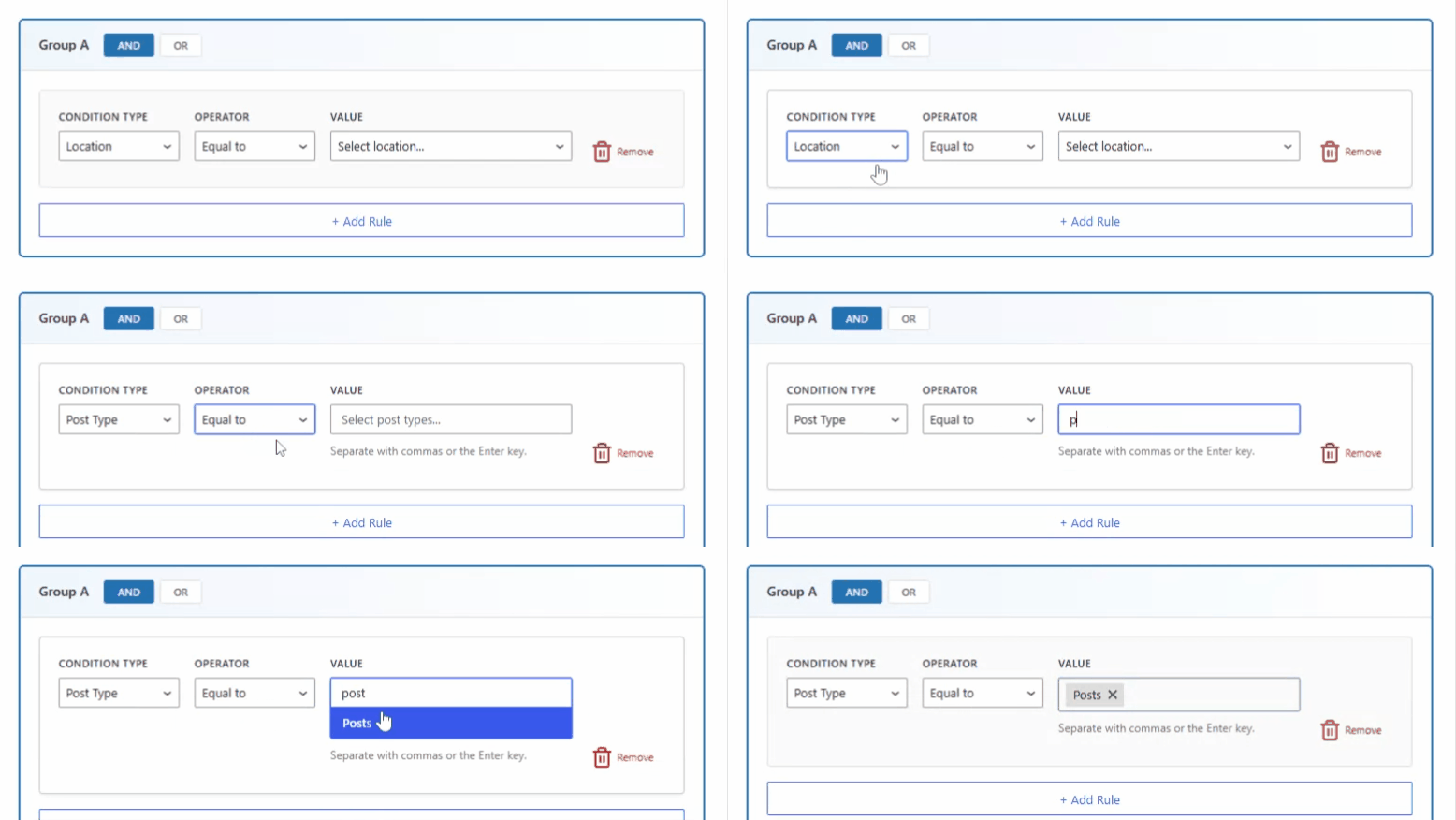
This ensures that the Article schema template is applied only to WordPress posts and not to other content types such as pages.
Once all fields are configured, publish your schema template.
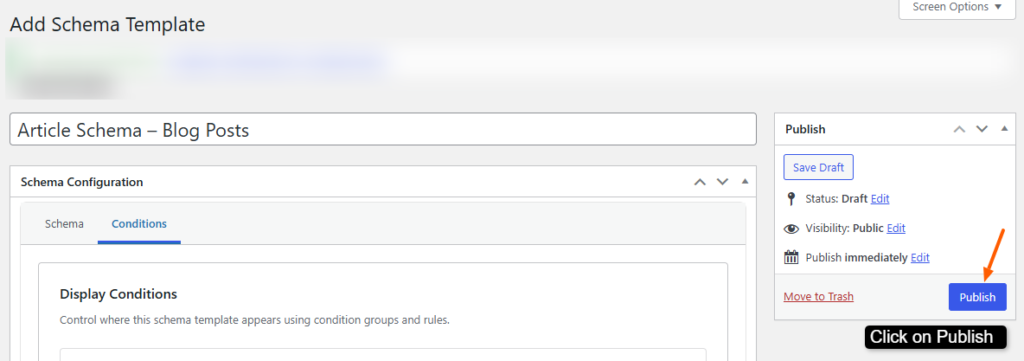
Your Article schema will now be automatically applied based on the template conditions you define.


