
In this documentation, we’re setting up Custom HTML inside ToolPress. ToolPress brings multiple tools together in one place, and adding your own HTML gives you control over custom features, scripts, and design elements. The setup is straightforward once you know where each option is located.
Prerequisites for Custom HTML #
Before adding Custom HTML through ToolPress, make sure you have the following in place:
- WordPress Installed – A functioning WordPress site.
- ToolPress Plugin Installed and Activated – Ensure you’re using the latest version.
- Admin Access – Needed to access tool settings and make adjustments.
- Basic Understanding of HTML – Useful for adding tags and interactive features effectively.
Access ToolPress in WordPress #
- Log in to your WordPress admin dashboard.
- From the left sidebar, click ToolPress → Tools (or the relevant section to add a new tool).
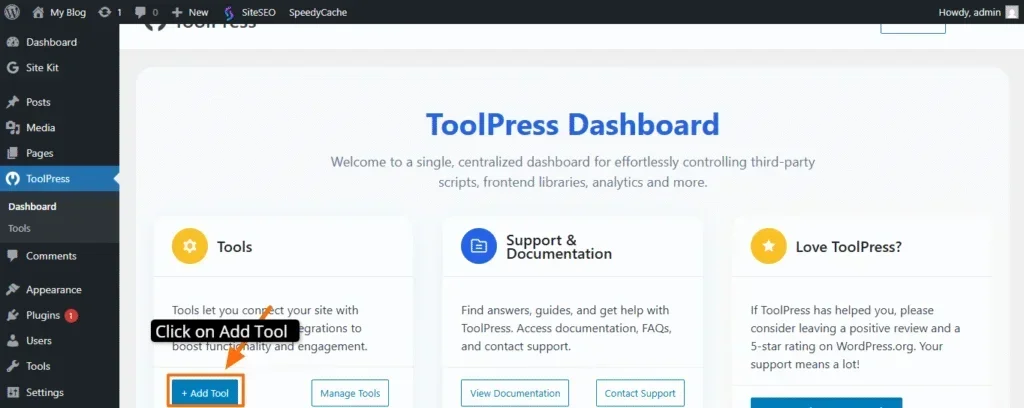
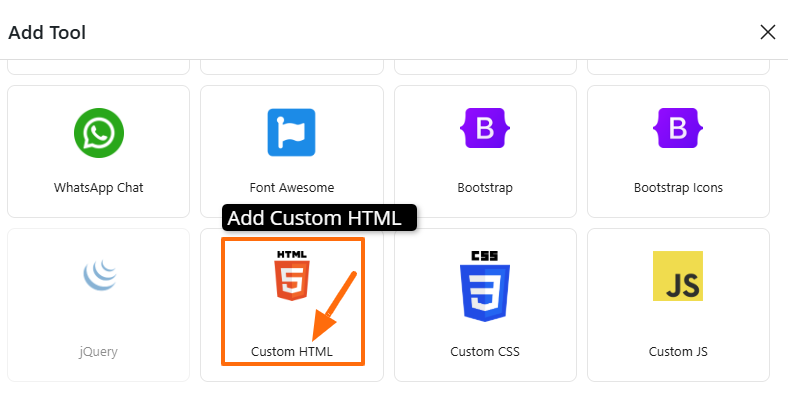
In the list of tools, select Custom HTML.
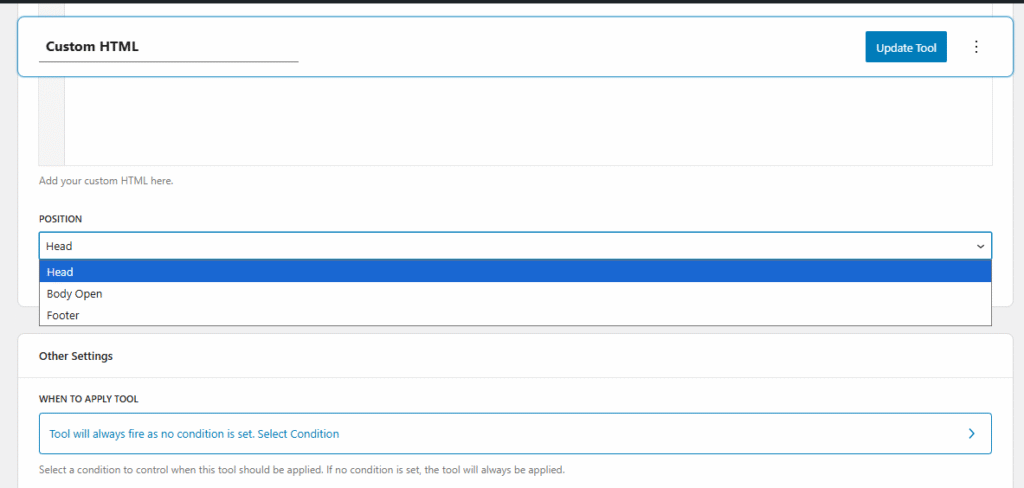
Before inserting your custom HTML code, ToolPress provides built-in options to configure the header, footer, and the opening of the body section.
Once you select, Add your custom html code in the section.
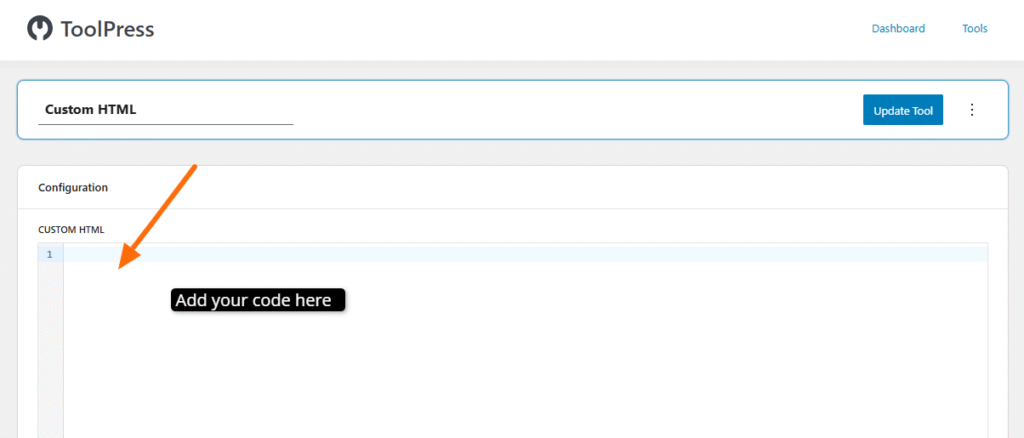
For example i am adding:
<!-- ToolPress Integration Test: adds a visible banner and logs to console -->
<div id="tp-integration-test" style="background:#fffae6;border:1px solid #f0d58c;padding:8px;text-align:center;font-family:Arial;">
  ToolPress Test Banner — integration successful
</div>
<script>
  console.log('ToolPress integration test: script executed at', new Date().toISOString());
  // Add an attribute so automated checks can find it
  document.getElementById('tp-integration-test').setAttribute('data-toolpress-test','true');
</script>
Now, you can update the tool to apply your settings.
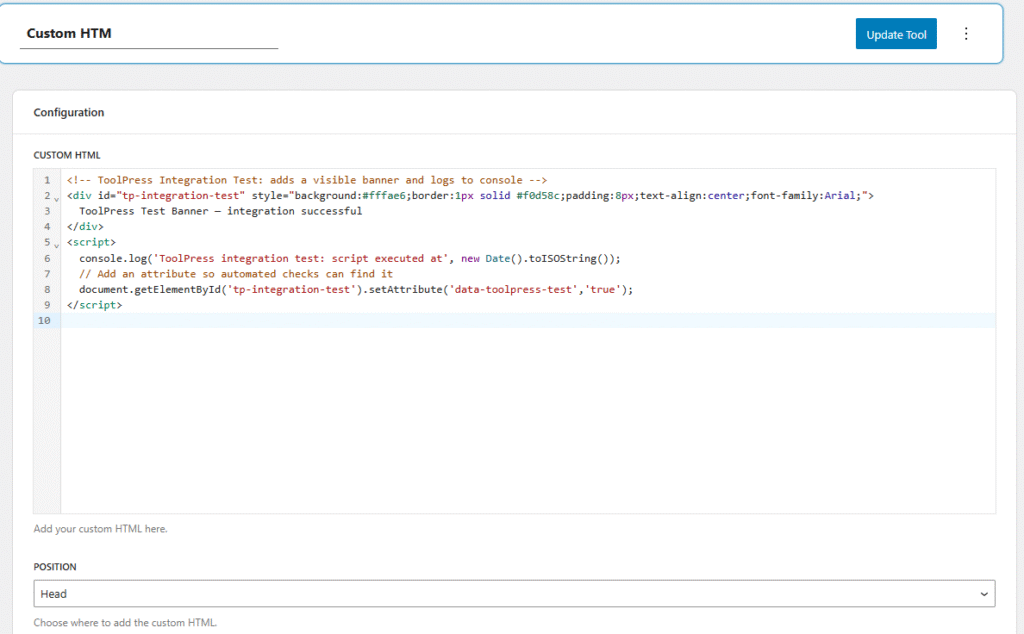
Since we’ve defined the header position, you can now verify that the code is functioning correctly.
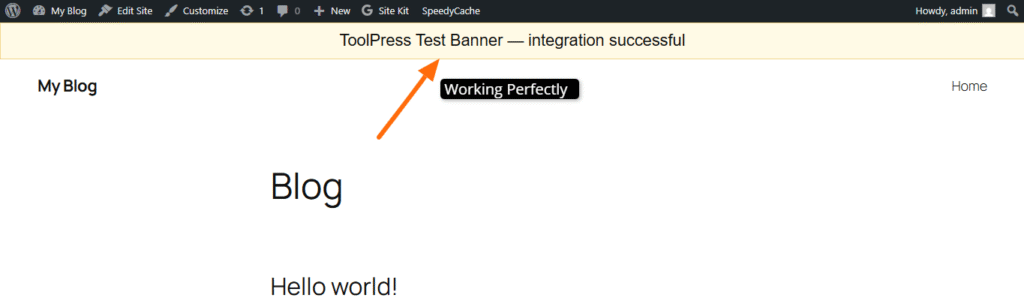
Integrating custom HTML through ToolPress is a straightforward and powerful way to extend your website with tracking codes, widgets, scripts, and design elements. By placing your HTML in the correct position—header, body open, or footer—you can control exactly how and when your code loads.
If you have any questions or need help along the way, feel free to contact us through our support page.


