
This documentation guides you through adding jQuery to your WordPress site using the ToolPress plugin. You’ll learn how to enable the library, set the version, and make sure it loads correctly so your interactive features work smoothly across your website.
Prerequisites #
Before adding jQuery through ToolPress, make sure you have the following in place:
- WordPress Installed – A functioning WordPress site.
- ToolPress Plugin Installed and Activated – Ensure you’re using the latest version.
- Admin Access – Needed to access tool settings and make adjustments.
- Basic Understanding of jQuery – Useful for applying scripts and interactive features effectively.
Access ToolPress in WordPress #
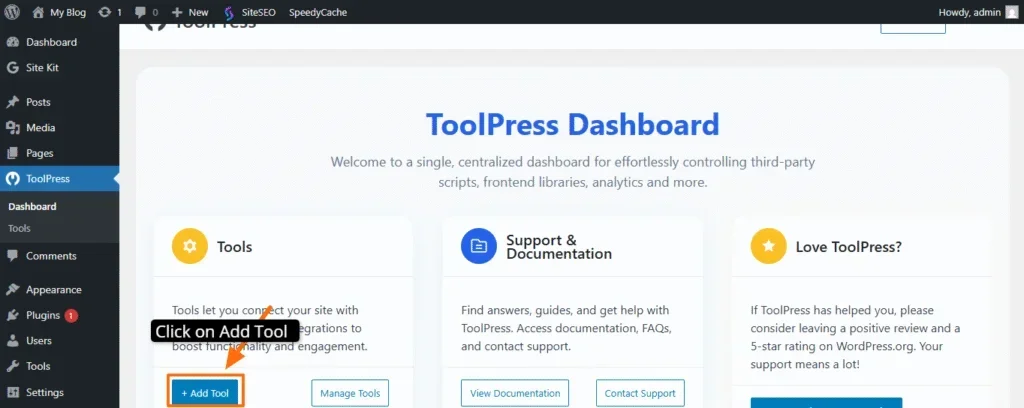
- From the sidebar, click ToolPress → Tools (or the relevant section to add a new tool).
- Log in to your WordPress admin dashboard.
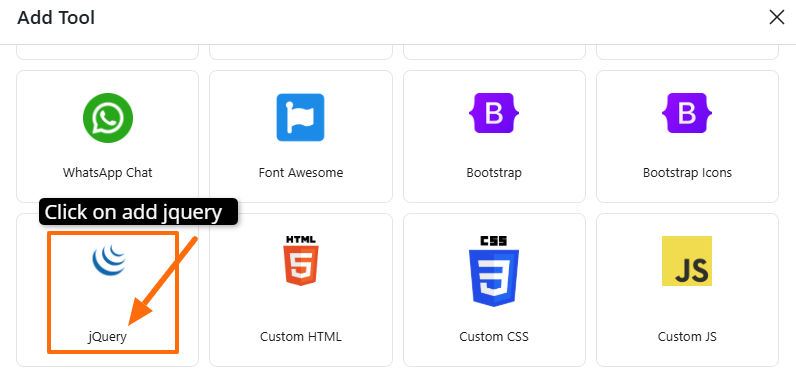
In the list of tools, select JQuery.
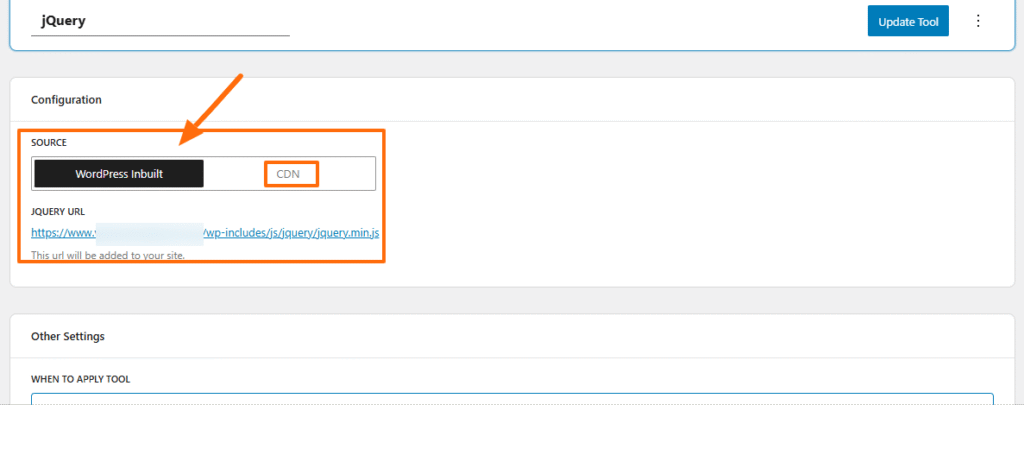
ToolPress gives you two ways to load jQuery:
WordPress Inbuilt (Default) #
- WordPress already includes a built-in jQuery library.
- If you choose this option, ToolPress will load the default WordPress jQuery file automatically.
- This is recommended if you want full compatibility with WordPress themes and plugins.
CDN #
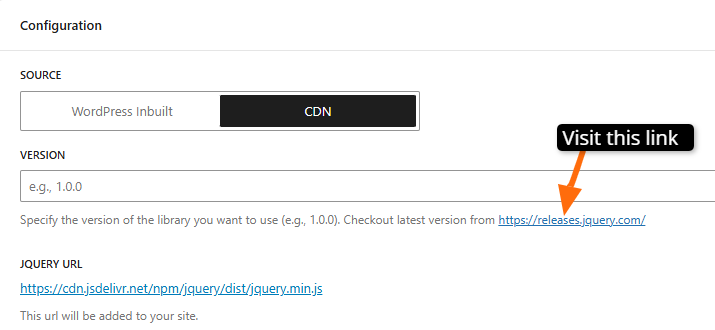
If you want the latest jQuery version or prefer a CDN for performance, switch to the CDN tab.
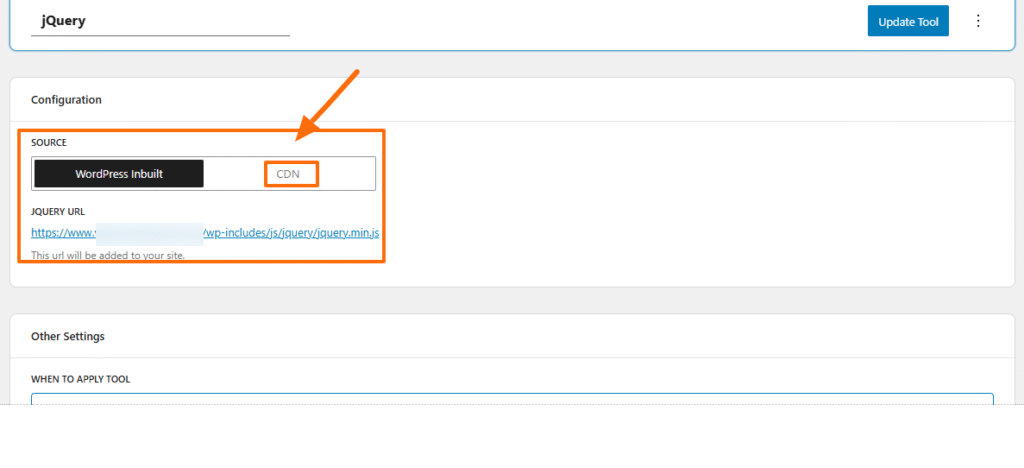
A field will appear where you can enter the jQuery version.Please visit the link provided under the ‘Version’ section.
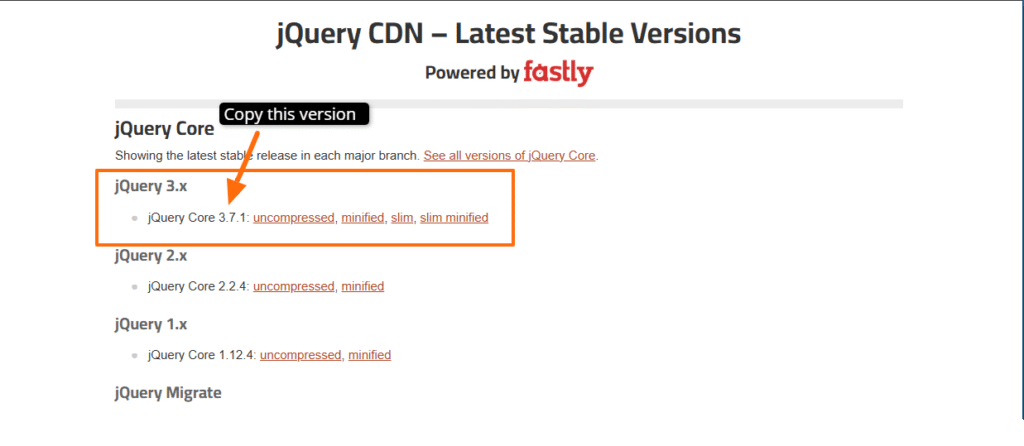
Copy the latest version of jquery.
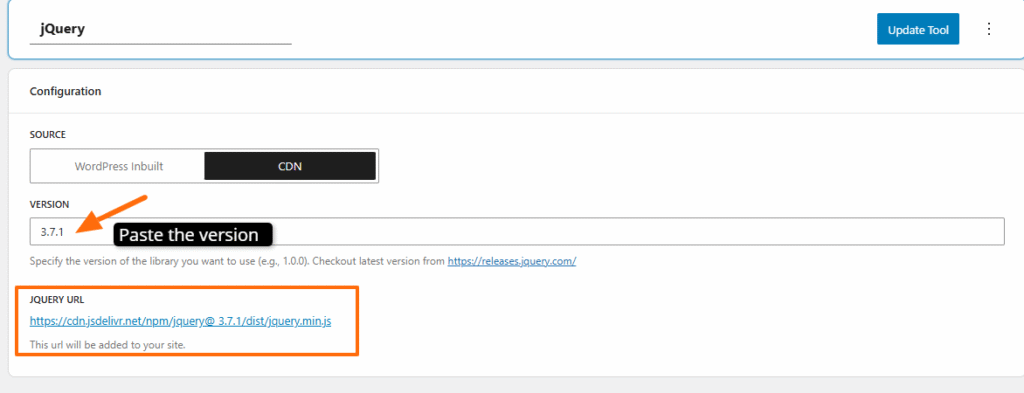
- Once you enter the version (e.g., 3.7.1), ToolPress will generate the correct CDN link automatically.
Save and Update the Tool #
- Click Update Tool to save your changes.
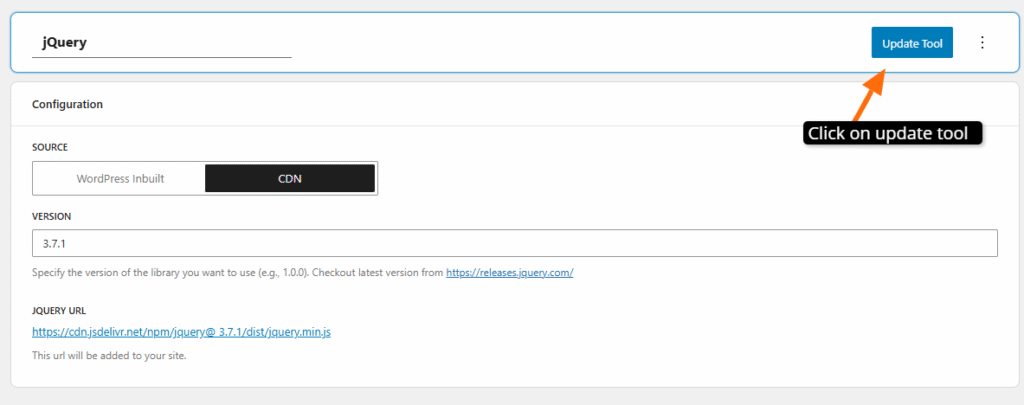
ToolPress will immediately apply the selected jQuery configuration to your website.
Verify jQuery is Working #
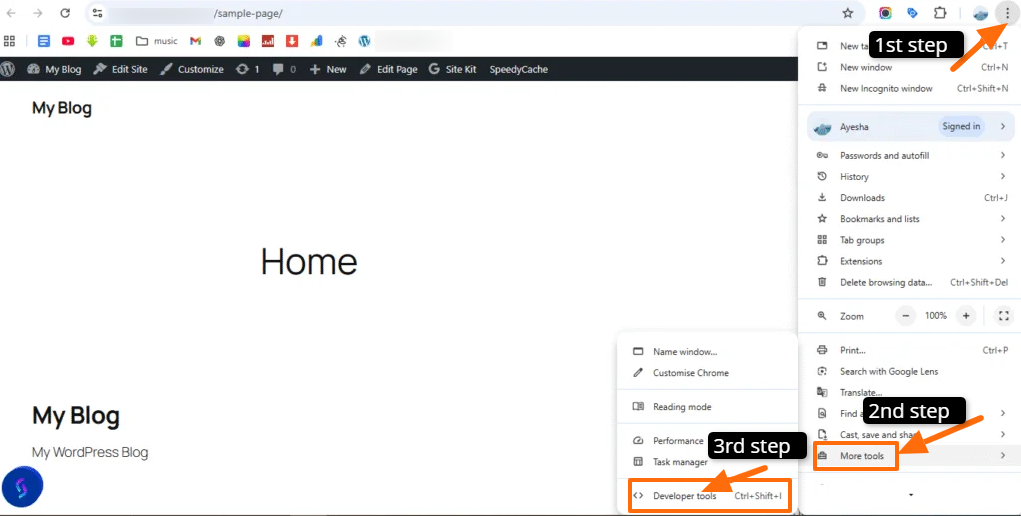
To confirm that everything is running correctly, open your website and access the browser’s developer tools. Click on 3 dots> more tool> developer tool.
Open the Network tab in your browser’s developer tools and filter for ‘jQuery’.
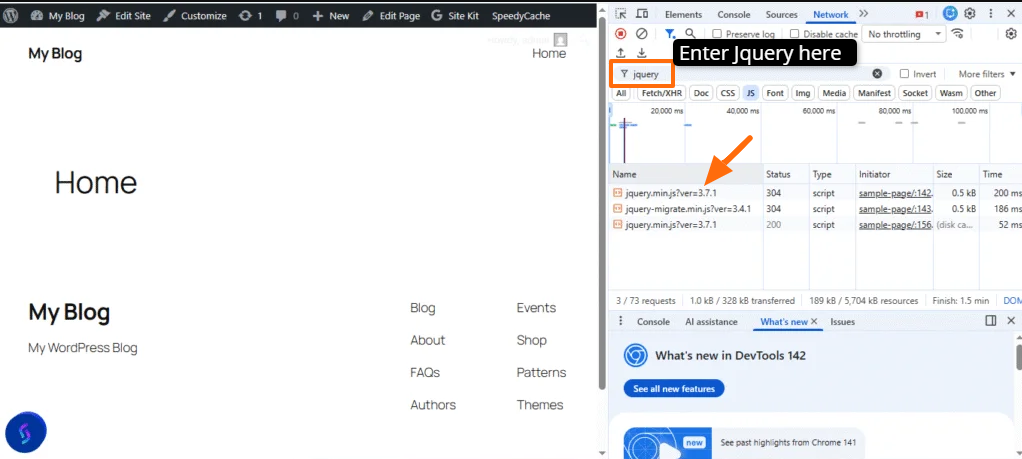
It is showing your active jQuery version.
Checking the Network tab to ensure the jQuery file is being loaded with no errors.With ToolPress handling your jQuery integration, adding scripts and interactive functionality to your WordPress site becomes straightforward.
Once the tool is set up and updated, jQuery loads automatically across your pages, allowing your features, plugins, and custom scripts to work smoothly without manual setup. This keeps your workflow efficient and your site running reliably.
If you have any questions or need help along the way, feel free to contact us through our support page.


