
Bootstrap is a popular front-end framework that helps you design responsive, mobile-friendly, and visually appealing websites with minimal effort. By integrating Bootstrap with WordPress using the ToolPress plugin, you can easily add pre-built components such as buttons, forms, cards, and grids to enhance your site’s functionality and user experience. ToolPress allows you to select the Bootstrap version you want and customize its appearance and behavior without touching code.
Prerequisites #
Before integrating Bootstrap with ToolPress, make sure you have the following:
- WordPress Installed – A working WordPress website.
- ToolPress Plugin Installed and Activated – Ensure ToolPress is up-to-date.
- Admin Access – Required to configure tools and add custom content.
- Basic Understanding of Bootstrap – Helpful for using its components effectively.
Access ToolPress in WordPress #
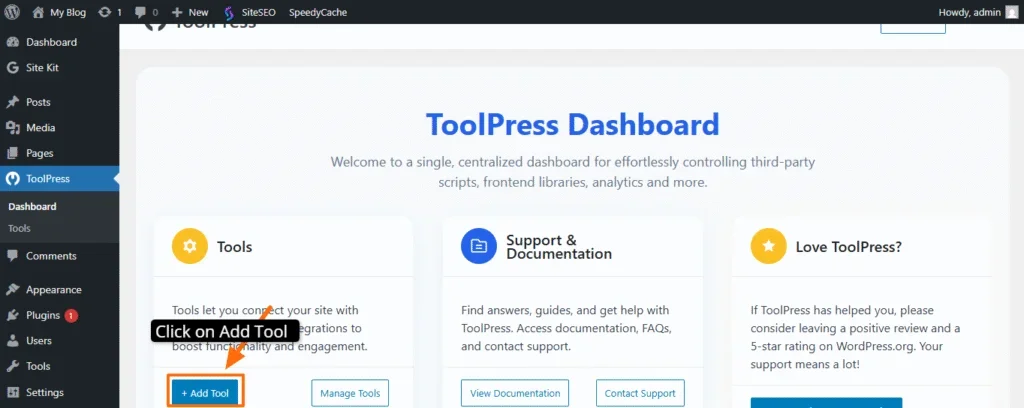
- From the sidebar, click ToolPress → Tools (or the relevant section to add a new tool).
- Log in to your WordPress admin dashboard.
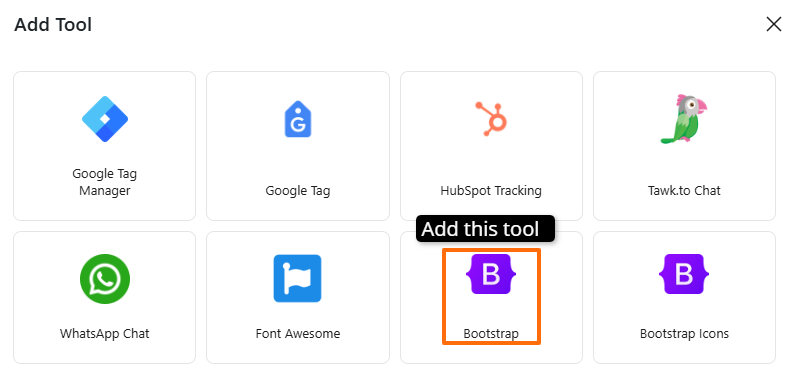
In the list of tools, select Bootstrap.
Select Bootstrap Version #
ToolPress allows you to choose the Bootstrap version (e.g., 1.0.0 or 3.4.1).
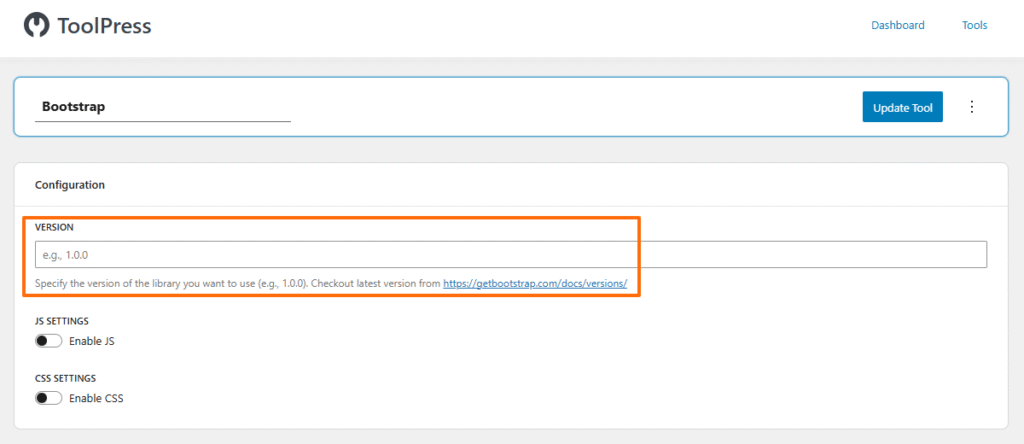
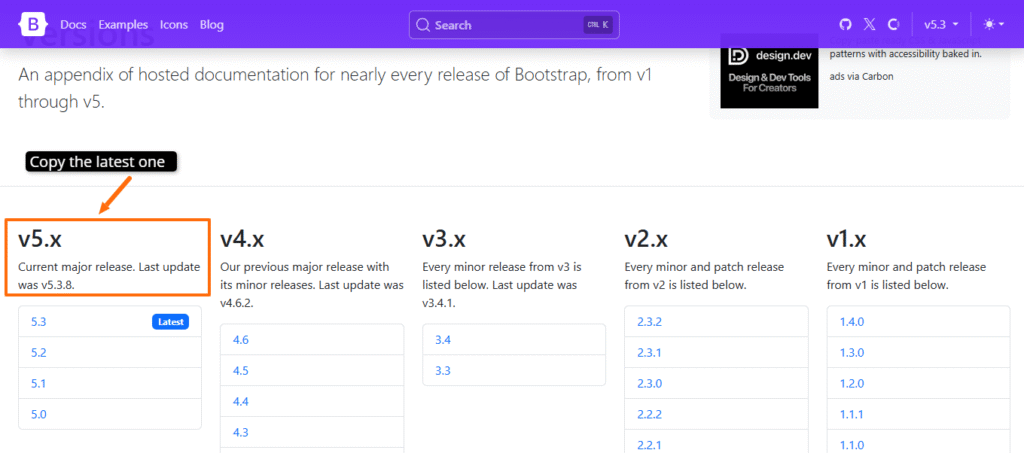
Please visit the link provided under the ‘Version’ section.
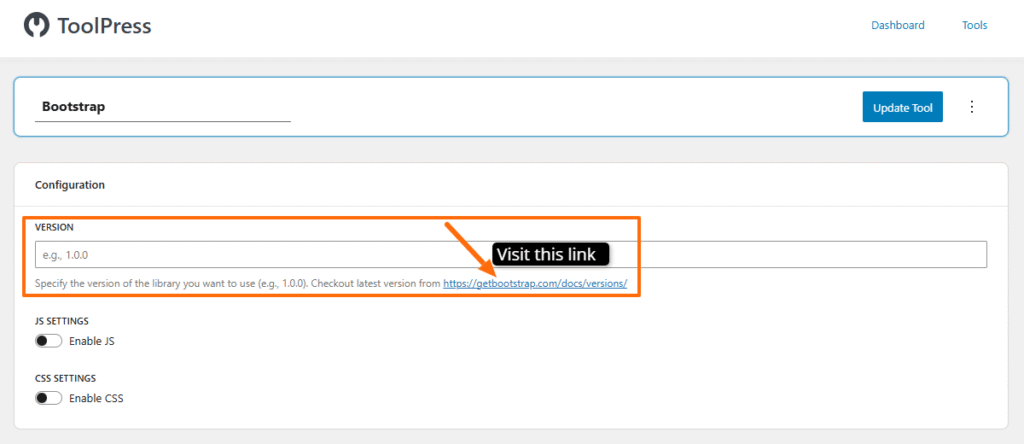
Now copy the latest one such as 5.3.8.
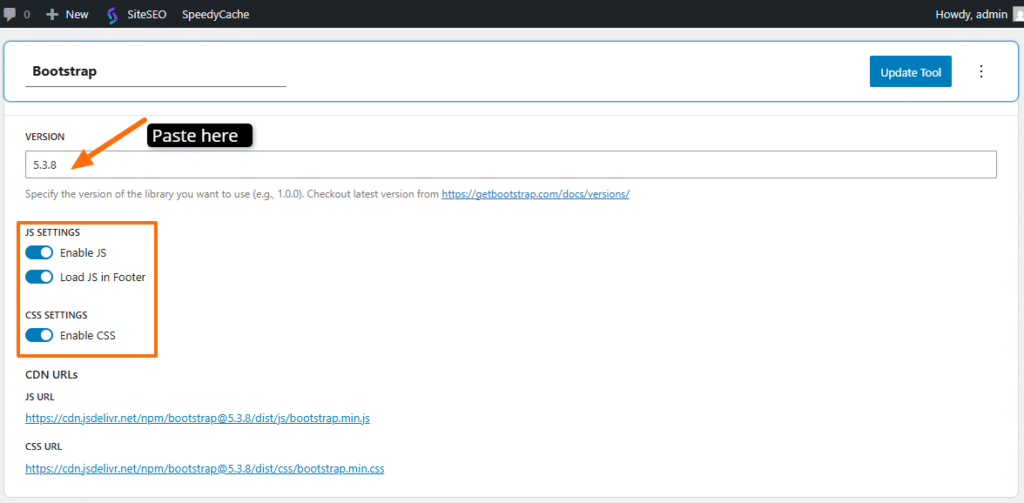
And paste bootstrap version in the version section. You can also enable JS, and CSS.
JS Settings #
- Enable JS: This should be ON if you want interactive Bootstrap components to work (like modals, dropdowns, tooltips, carousel, etc.).
- If you disable this, those components will not function.
- Load JS in Footer: This is recommended ON. It loads Bootstrap’s JavaScript at the bottom of the page, which improves page load speed and prevents render-blocking issues.
CSS Settings #
- Enable CSS: This must be ON for Bootstrap’s styling to apply to your website. Without it, the components will work but appear unstyled.
CDN URLs #
- ToolPress automatically provides the CDN links for both JS and CSS based on the version you choose.
- JS URL: The JavaScript file for Bootstrap.
- CSS URL: The stylesheet file for Bootstrap.
- These links ensure the correct library files are loaded without uploading them manually.
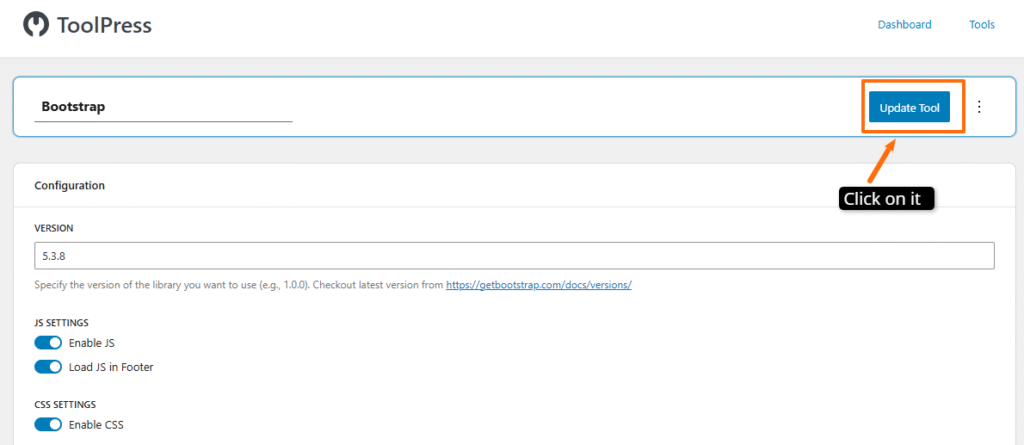
After doing all the changes please update the tool.
Check Test #
Edit a page or post in WordPress.
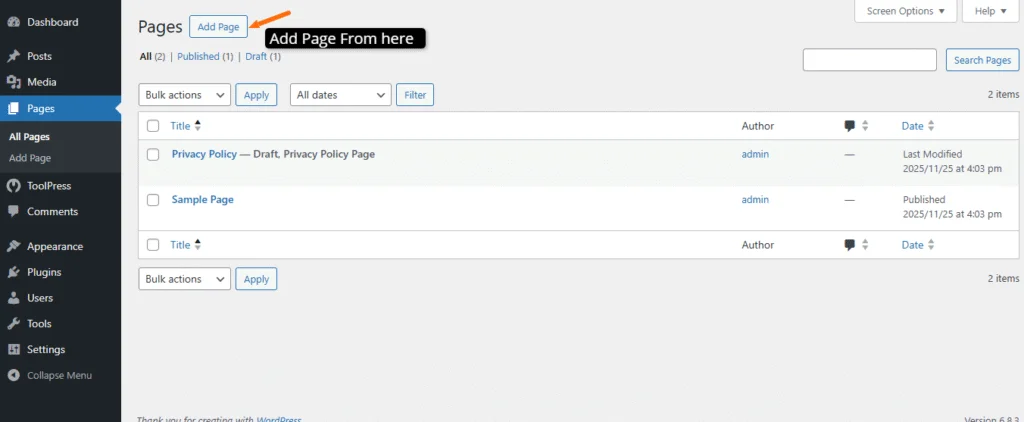
Add an HTML block and paste something like:
<button class=”btn btn-primary”>Test Button</button>
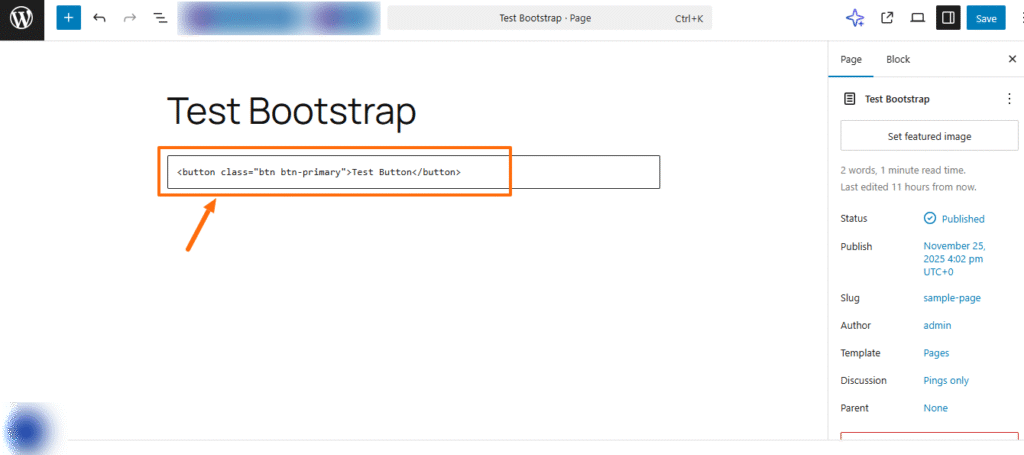
Update and view the page.If it’s blue and styled like a Bootstrap button and responds to hover effects, your integration is working perfectly.
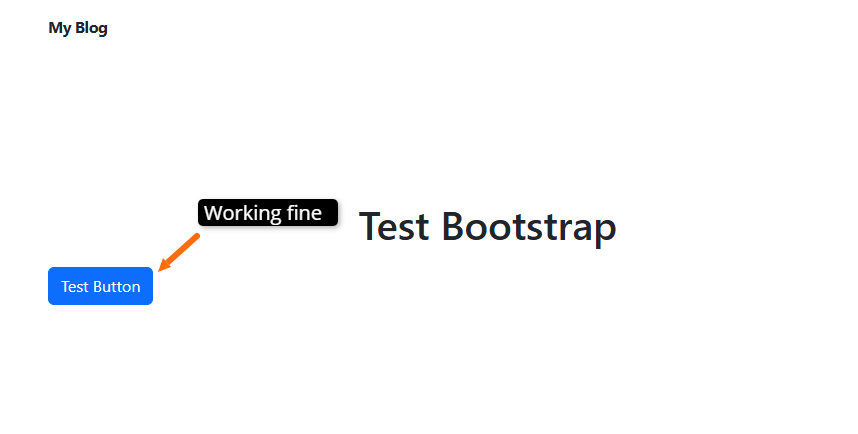
With ToolPress managing your Bootstrap integration, adding responsive layouts and interactive components to your WordPress site becomes effortless.
Once the tool is configured and updated, you can freely use Bootstrap elements like buttons, forms, cards, and grids across your website without touching any code. This ensures your workflow stays smooth and your site remains organized and visually consistent.
If you have any questions or need help along the way, feel free to contact us through our support page.


