
If you want to use Font Awesome icons across your website, the ToolPress plugin makes the setup quick and manageable. Instead of manually adding scripts or editing theme files, ToolPress handles the loading of all required CSS and JS files for you. Now let’s walk through the exact steps to get Font Awesome working properly on your site.
Prerequisites #
- A Working WordPress Website
- ToolPress Plugin Installed and Activated
- A Theme That Allows Front-End Script Loading
Access ToolPress in WordPress #
- Log in to your WordPress admin dashboard.
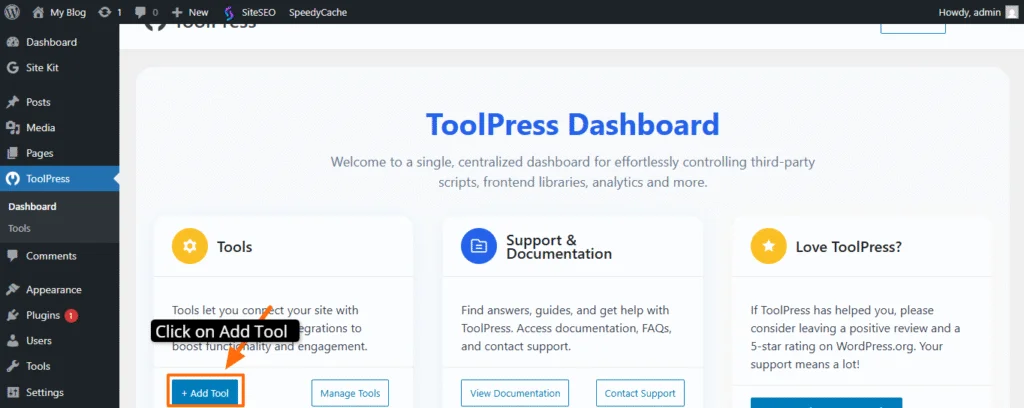
- From the sidebar, click ToolPress → Tools (or the relevant section to add a new tool).
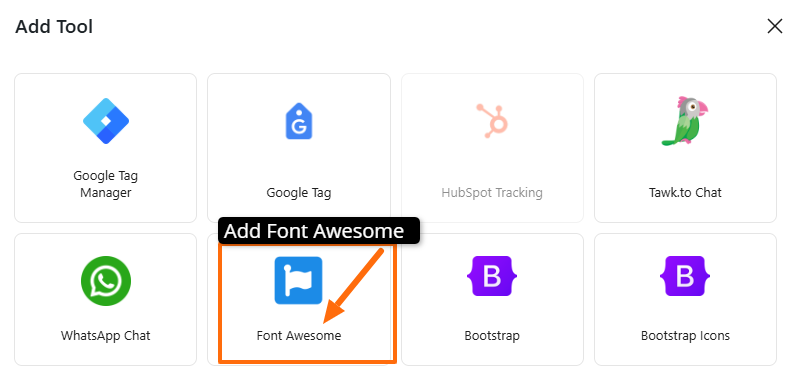
In the list of tools, select Font Awesome.
Step 2: Choose the Font Awesome Version #
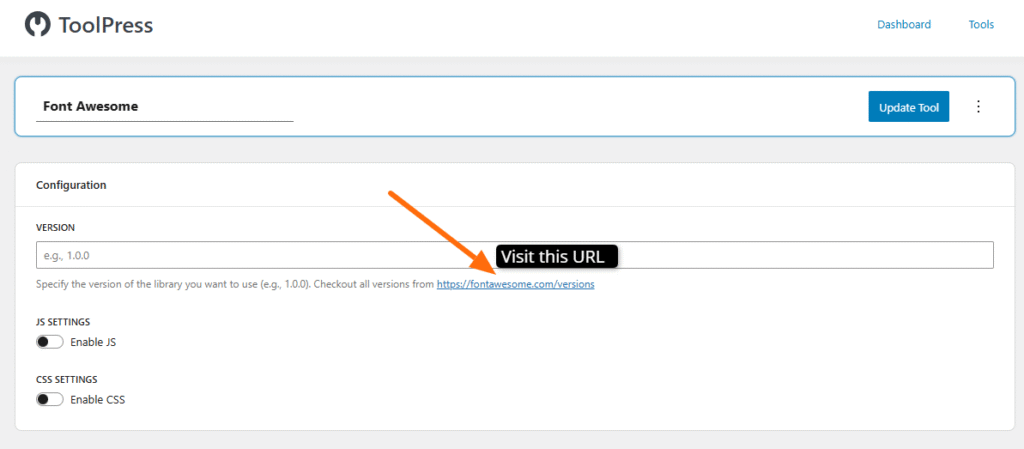
Visit the font awesom link:
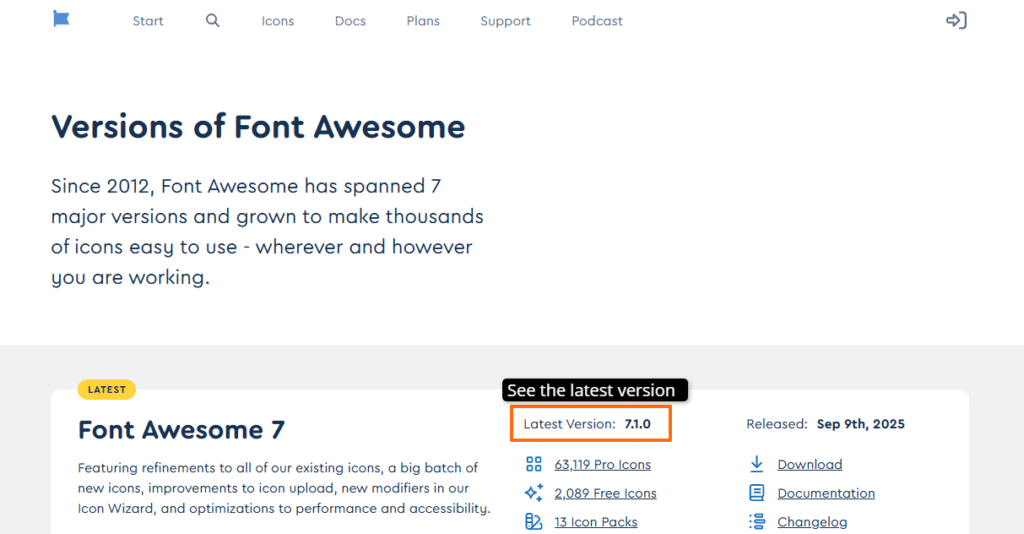
See the latest version, and copy that.
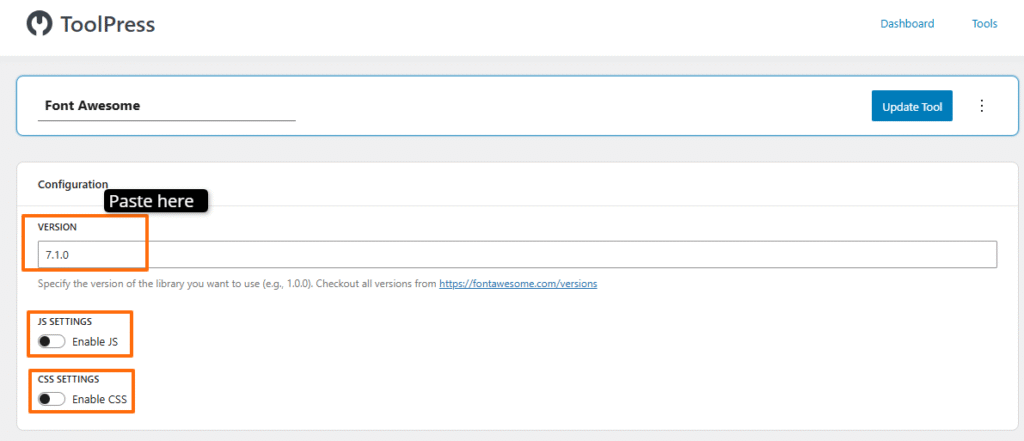
Now paste the version here in the required field. Turn Enable JS → ON. If you prefer better performance, turn Load JS in Footer → ON
(This helps the page load faster). You can Turn Enable CSS → ON
This is essential because Font Awesome icons depend on the main stylesheet.
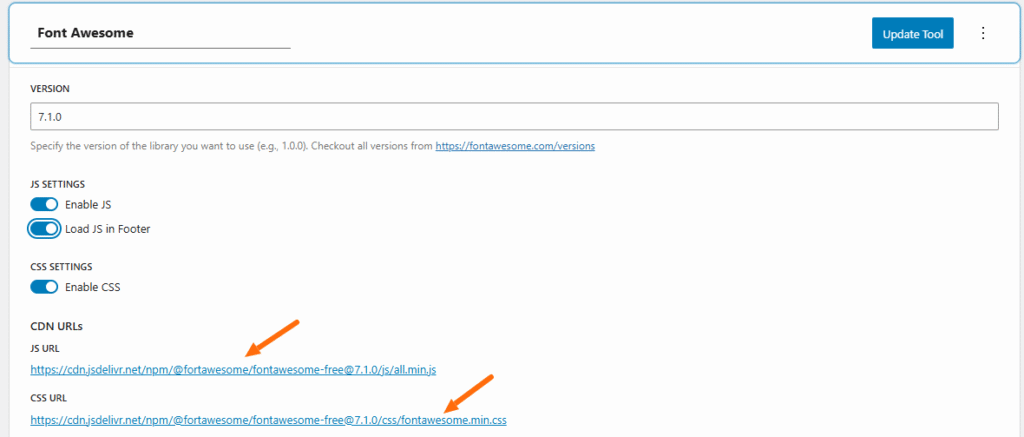
Step 5: Verify the CDN URLs #
The plugin automatically fills the correct URLs.Now update the tool.
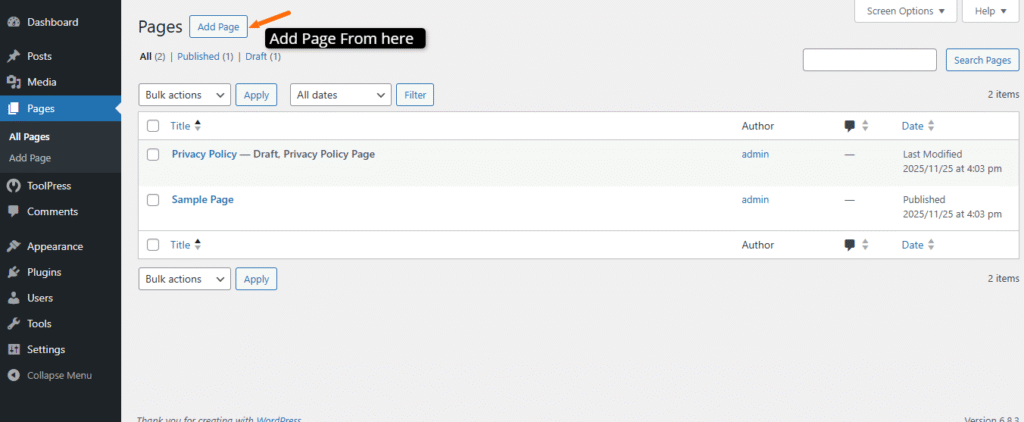
Test Using an Icon on a Page #
Edit a page or post in WordPress where you want to add icon.
Add an HTML block and paste something like:
<i class="fas fa-star"></i>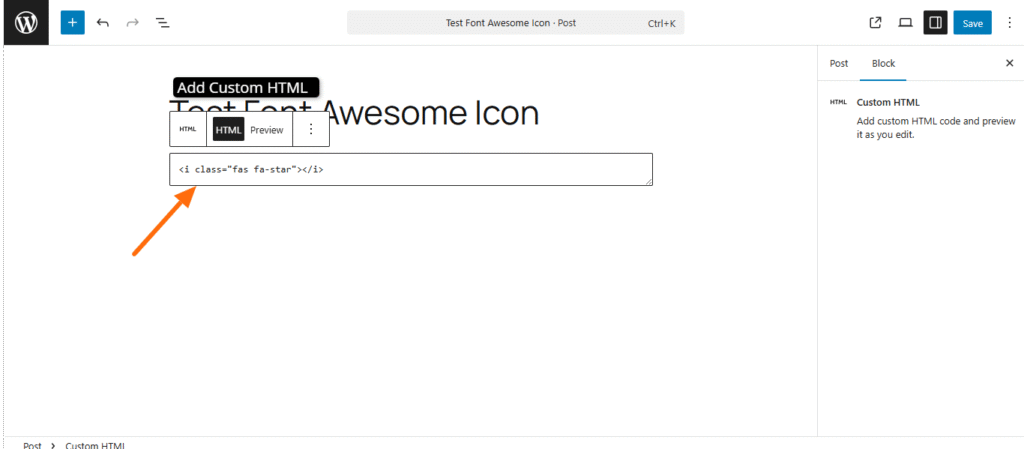
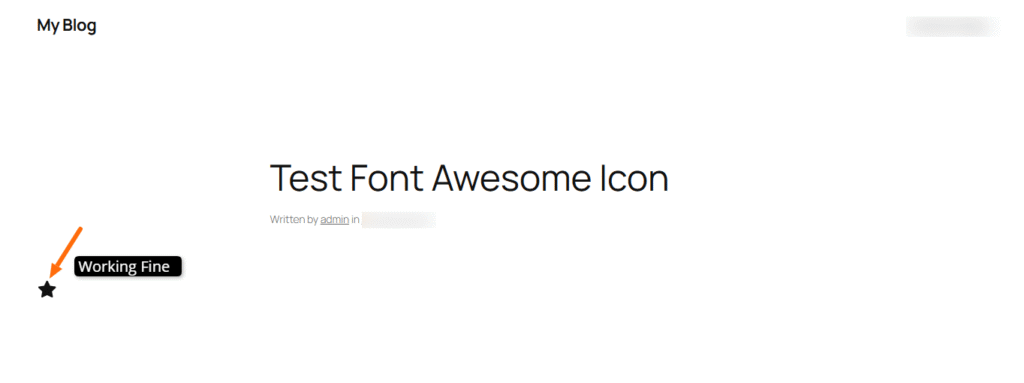
Update and view the page. If you see a star icon before the text, Font Awesome is working.
With ToolPress handling your script loading, setting up Font Awesome becomes a quick and dependable process. Once the tool is configured and updated, you can freely use any Font Awesome icons across your website without adding code manually each time. This approach keeps your workflow efficient and your site clean.
If you have any questions or need help along the way, feel free to contact us through our support page.


