
In this guide, we’re setting up the integration of HubSpot tracking inside Toolpress. Toolpress allows you to bring multiple tools together in one place, and adding HubSpot tracking helps you monitor user activity and keep your marketing data in one flow. The process is simple once you know where everything sits.
Prerequisites #
Before you start, make sure you have:
- An active HubSpot account with access to the Tracking Code section.
- Toolpress plugin installed and activated on your WordPress site.
- Administrator access to your WordPress dashboard so you can modify plugin settings.
- Your HubSpot Tracking Code (you’ll copy it during the steps, but you should have permissions to access it).
Step-by-Step: Adding HubSpot Tracking to Toolpress #
Get Your HubSpot Tracking Code #
- Log in to HubSpot.
- Open Settings.
- Navigate to Tracking & Analytics.
- Select Tracking Code.
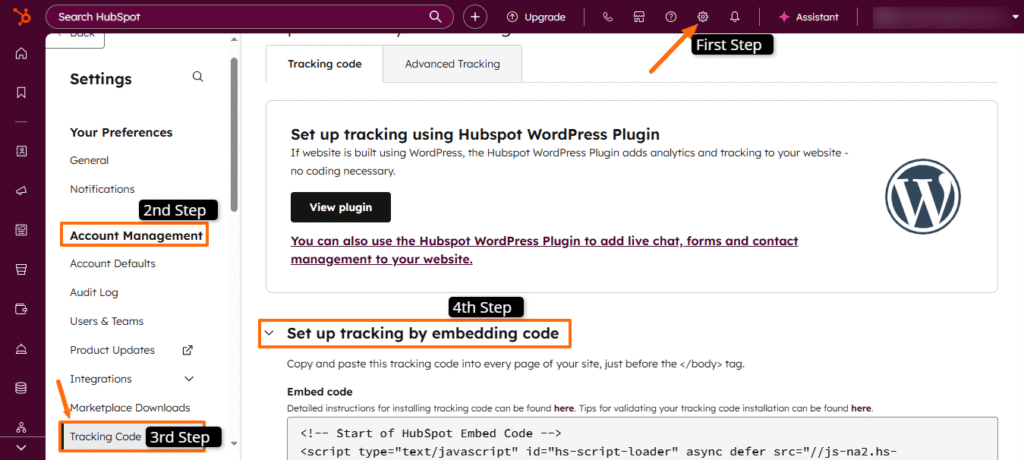
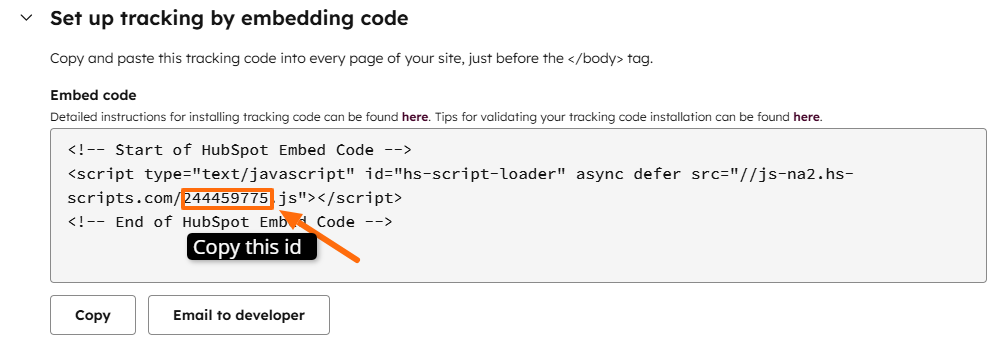
Now scroll down the page, and in the javascript code copy your id.
2. Open Toolpress Settings in WordPress #
- Log in to your WordPress admin dashboard.
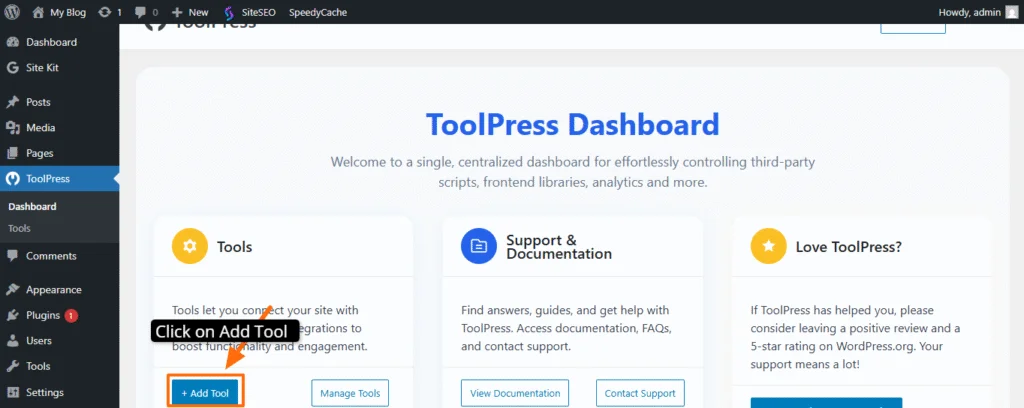
- From the sidebar, click ToolPress → Tools (or the relevant section to add a new tool)
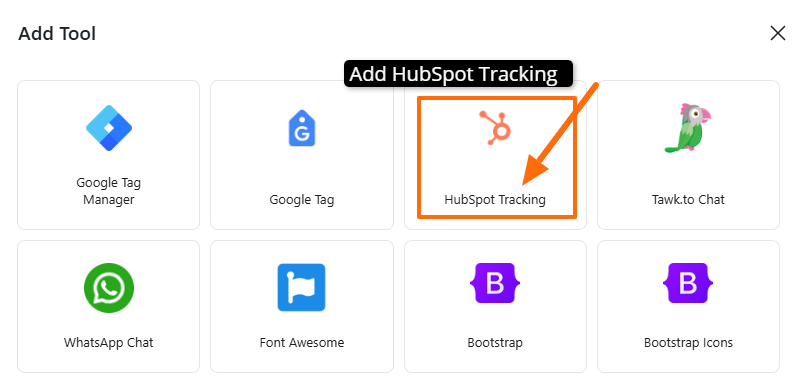
In the list of tools, select HubSpot Tracking.
3. Add the HubSpot Tracking ID #
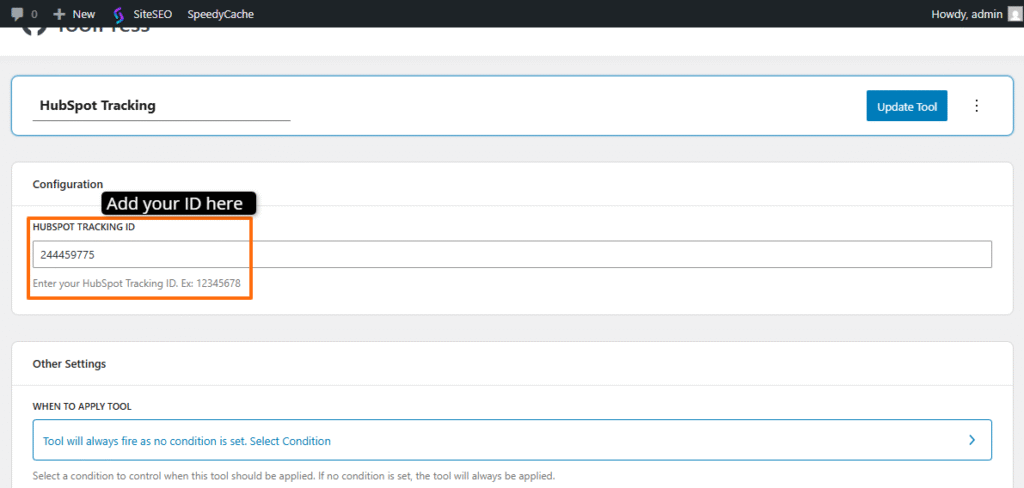
Paste the full HubSpot tracking id into the input field provided and update the tool.
4. Confirm the Integration #
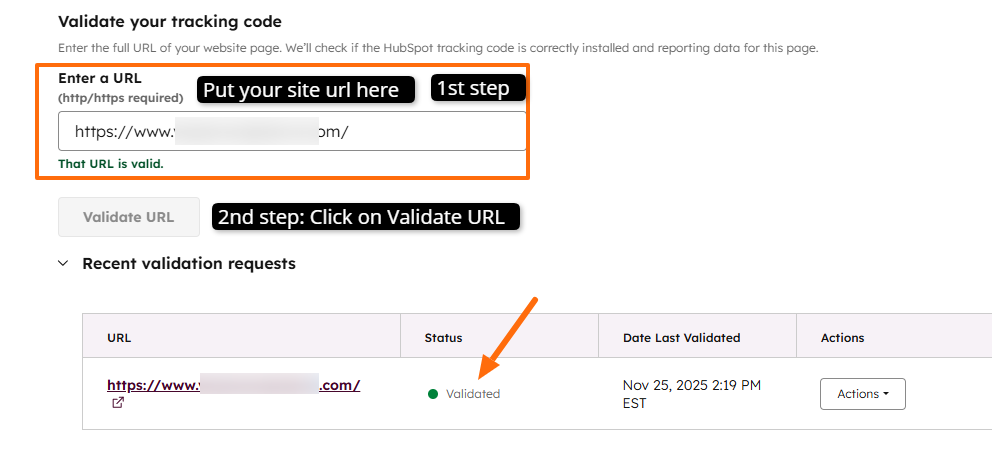
Now return to your HubSpot account and enter your website URL in the designated field. After that, select Validate URL. If the validation is successful, HubSpot will confirm that your tracking setup is active.
Setting up HubSpot tracking in Toolpress takes only a moment. If anything feels unclear or you need a hand during the process, reach out through our support page and we’ll guide you through it.


