
This guide walks you through the steps to add a Google Tag to your WordPress website using the ToolPress plugin. You will learn how to enter your Google Tag ID and verify that it’s working correctly, enabling accurate tracking and reporting of your website activity. Following these steps ensures seamless integration with Google Analytics or Google Tag Manager without touching any code.
Prerequisites #
Before adding a Google Tag using ToolPress, ensure you have the following:
- WordPress Access: Administrator access to your WordPress dashboard.
- ToolPress Plugin Installed: The ToolPress plugin should be installed and activated on your site.
- Google Account: Access to a Google account to use Google Analytics 4 (GA4) or Google Tag Manager (GTM).
- Google Tag ID: Your Measurement ID (for GA4, starts with
G-) or Container ID (for GTM, starts withGTM-). - Basic Understanding of Website Tracking: Familiarity with the purpose of analytics or tag tracking is helpful, though no coding skills are required.
Step 1: Prepare Your Google Tag ID #
- Sign in to your Google Analytics account.
- Navigate to the property you want to track.
- Go to Admin → Data Streams.
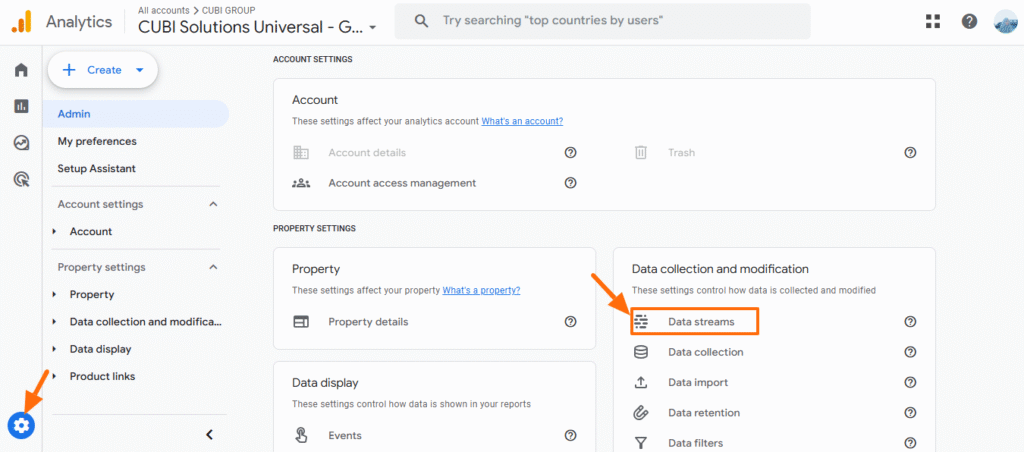
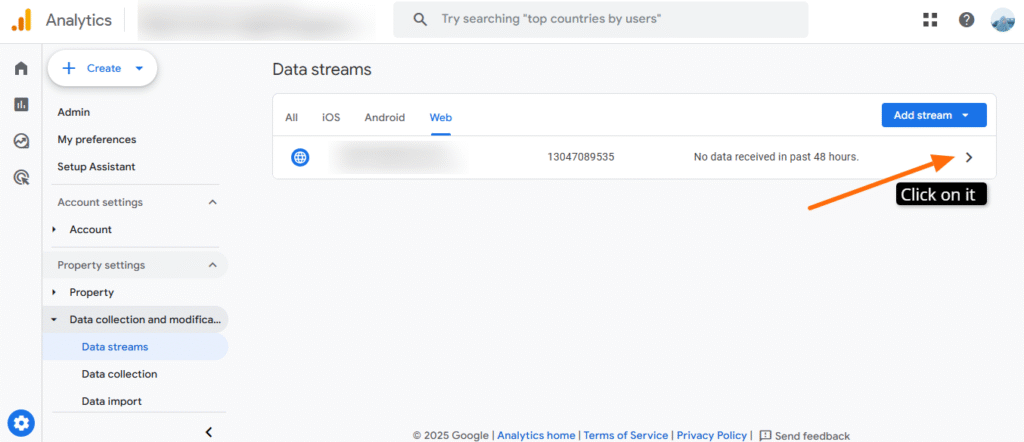
Now click on the web.
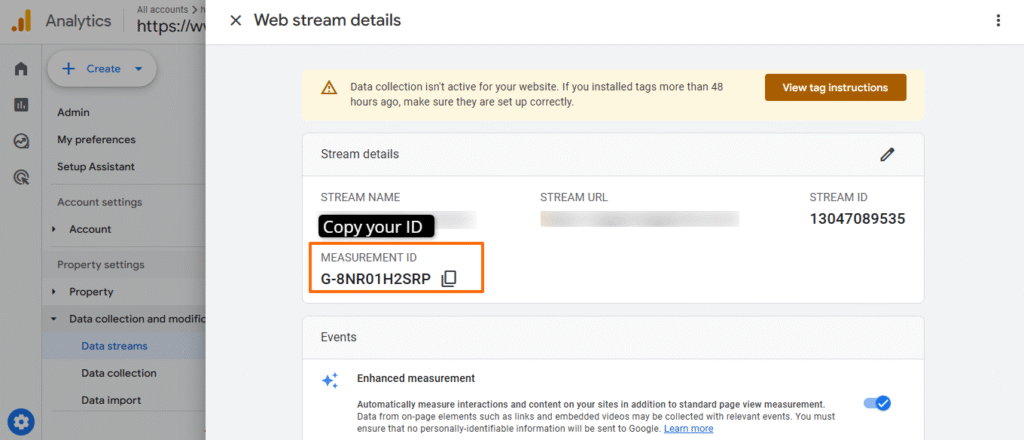
Copy the Measurement ID (starts with G-), which is your Google Tag ID.
Step 2: Access ToolPress in WordPress #
- Log in to your WordPress admin dashboard.
- From the sidebar, click ToolPress → Tools (or the relevant section to add a new tool).
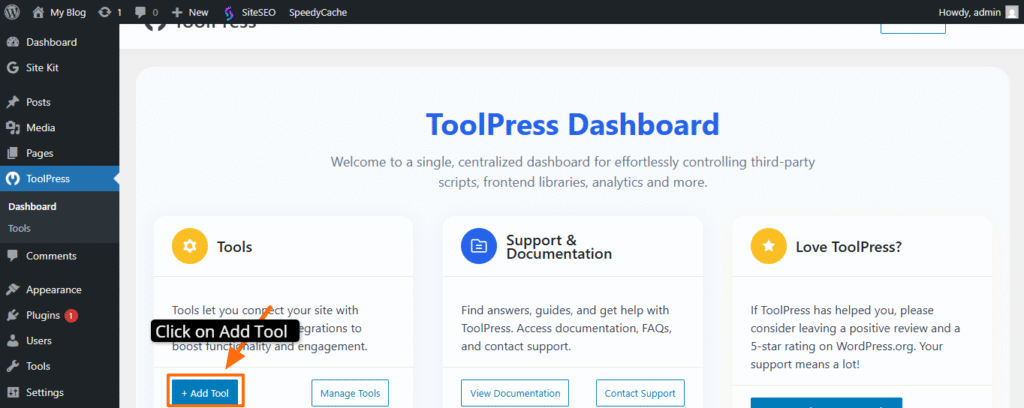
In the list of tools, select Google Tag (the option with the G tag icon).
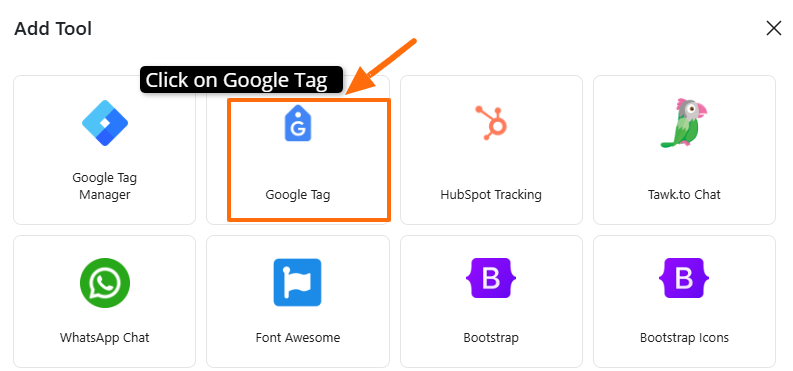
Step 3: Enter Your Google Tag ID #
- In the Google Tag setup screen, you will see a field labeled Google Tag ID.
- Paste the Measurement ID you copied from Google Analytics into this field.
- Example:
G-XXXXXXXXXX
- Example:
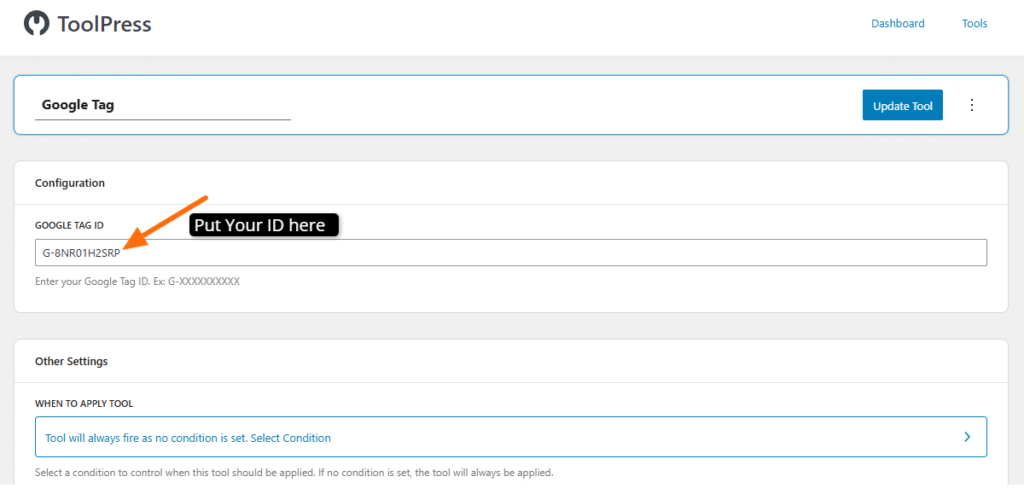
Click on Update tool to store the changes.
Step 4: Verify Your Integration #
- Open your website in a browser.
- Use the Tag Assistant (by Google) Chrome extension or check Google Analytics Realtime reports.
- Confirm that page views and events are being recorded, which indicates the Google Tag is active.
Adding the Google Tag to your WordPress site is quick and easy. If you have any questions or need help along the way, feel free to contact us through our support page.


