
This documentation walks you through the steps to add a WhatsApp Chat Widget to your WordPress website using the ToolPress plugin. You will learn how to configure the widget’s appearance, content, and agent settings to enhance customer communication.
Steps to Add the WhatsApp Chat Widget
From your WordPress dashboard, go to the ToolPress menu and click the Tools submenu to view all available site tools.
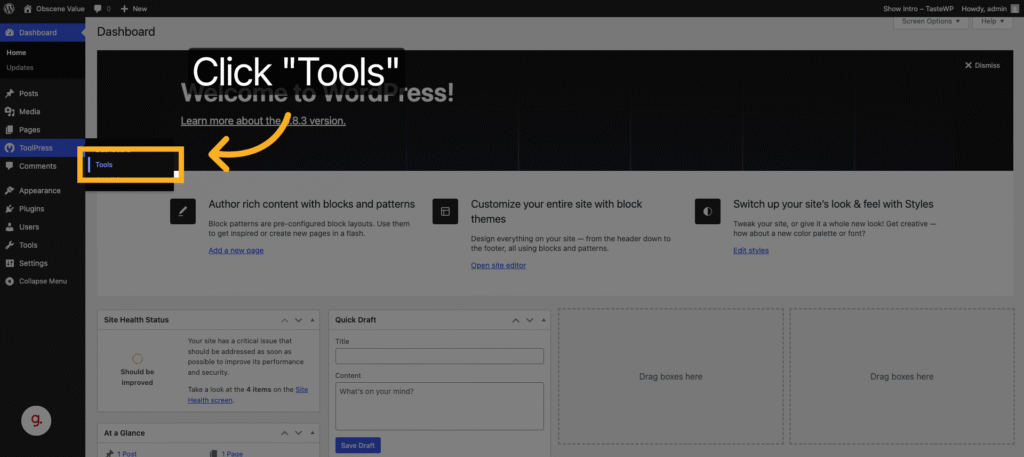
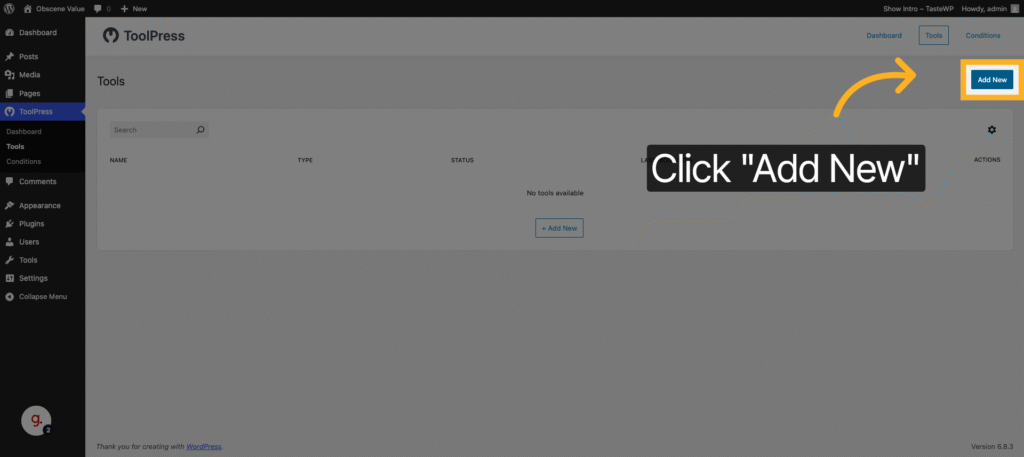
Click Add New to create a new tool for your website.
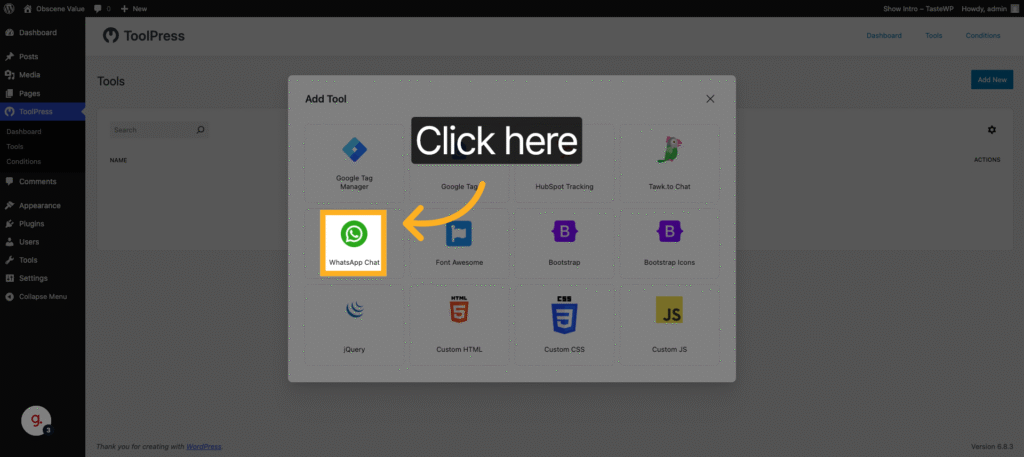
From the list of available tools, click “WhatsApp Chat” to add the chat widget.
Click on the title “Untitled WhatsApp Chat” and give your widget a unique name.
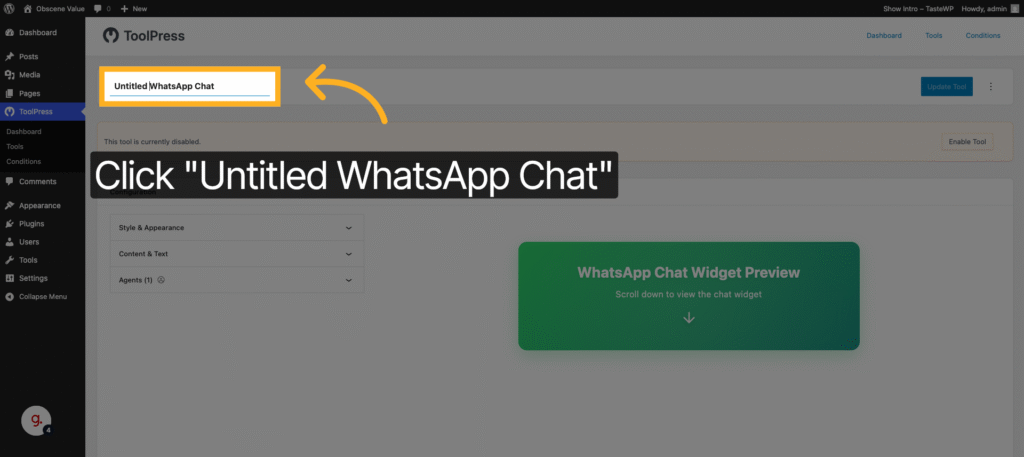
For example, you can name it “WhatsApp Chat Widget.“
Enable Tool
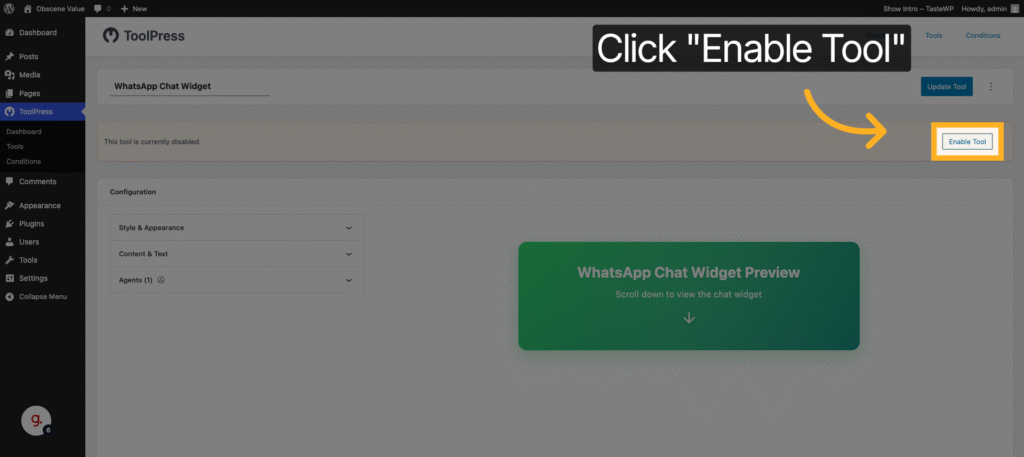
By default, newly created tools are disabled. Click “Enable Tool” to activate your WhatsApp Chat Widget.
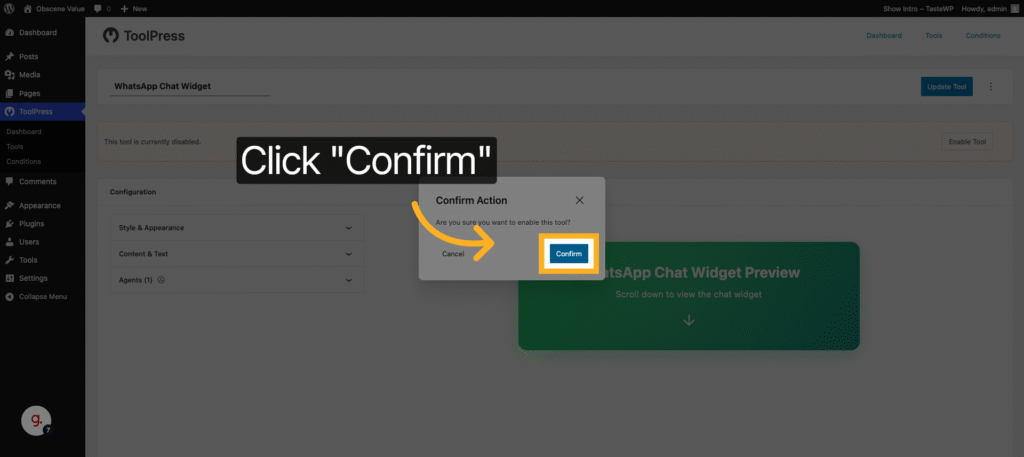
Then Click “Confirm” to finalize enabling the tool.
Configuration #
Under Configuration section you will see two panels.
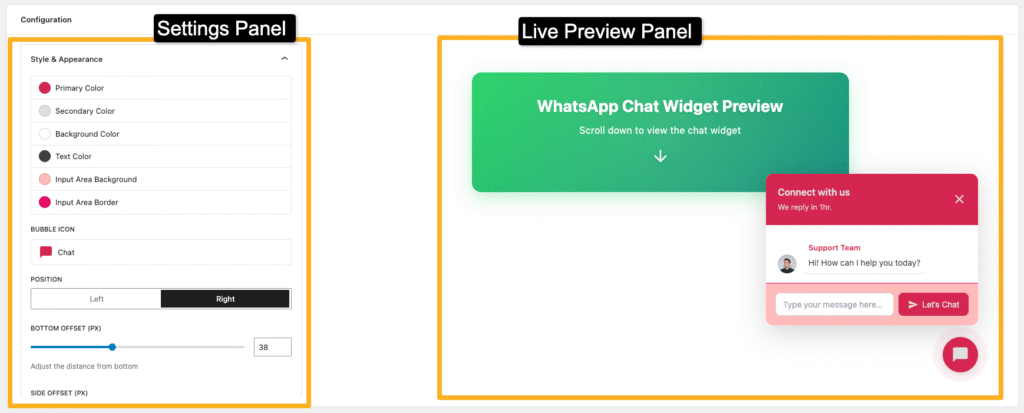
Settings panel (Left)
This panel has all the settings for widget. You can style, change content and update agent informations.
Live Preview panel (Right)
This panel has live preview of the widget. You can see live changes made from left panel here. You can click the bubble (Chat) Icon and open chat window.
Style & Appearance #
Open “Style & Appearance” section to style the widget. Here you will see color options, Icons, Position & Pulse settings.
Color Options:
- Primary Color: Click Primary Color to choose the main color for your chat widget. This changes Chat Bubble, Send Button, Profile Image & Chat Window Header Background and also Agent Name Color.
- Secondary Color: Click Secondary Color to change Chat Bubble, Send Button, Profile Image & Chat Window Header Text.
- Background Color: Click Background Color to change Chat window Background Color.
- Input Area Background: Click Input Area Background Color to change Background color of input area.
- Input Area Border: Click Input Area Border Color to change Color of live above the input area.
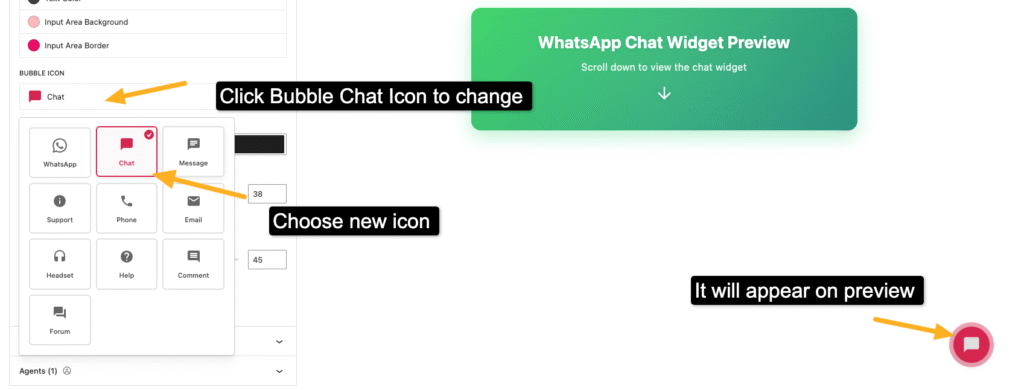
Bubble Icon:
On Bubble Icon option you can change icon of the chat widget. You will multiple icons and select icon as per you preference.
Position:
By default Chat widget is display at bottom right of the page.
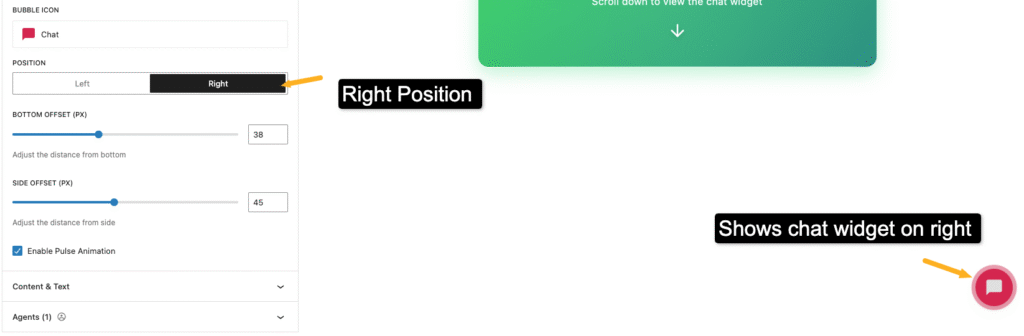
But you can change it to left if you wish.
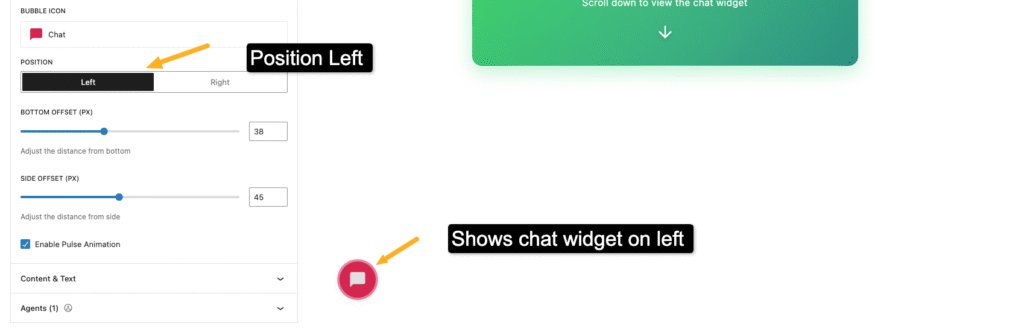
Offset Options:
The chat widget provides two configuration options for adjusting its position on the screen:
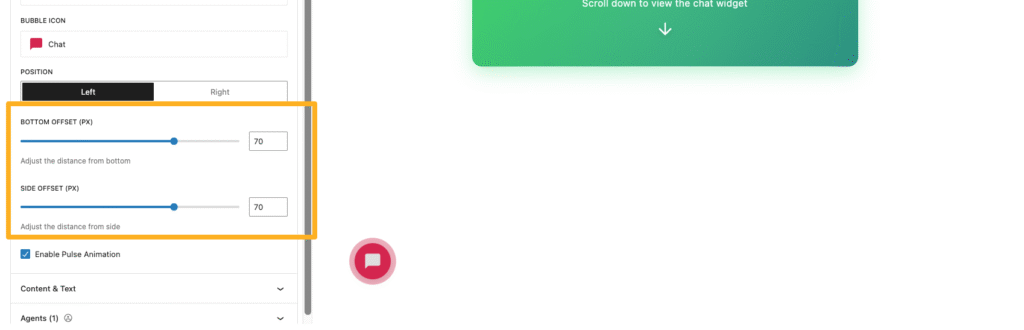
- Bottom Offset: Controls the vertical distance between the chat widget and the bottom edge of the screen. Increasing the value moves the widget farther from the bottom, while decreasing it brings it closer.
- Side Offset: Controls the horizontal distance between the chat widget and the side edge of the screen (left or right, depending on its position). Increasing the value moves the widget farther from the side, while decreasing it brings it closer.
Enable Pulse Animation
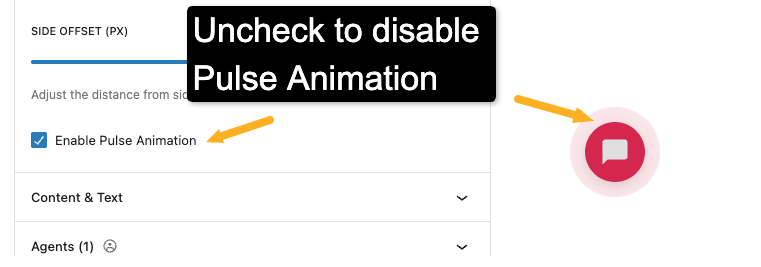
The Pulse Animation option controls the pulsing visual effect on the chat bubble.
- Enabled (default): Adds a subtle pulse effect to the chat bubble to attract user attention.
- Disabled: To remove the animation, uncheck the Enable Pulse Animation option and save your changes. This will disable the pulse effect on the chat widget.
Content & Text #
Open the Content & Text section to customize the text and content displayed in the chat widget. From here, you can update elements such as the chat title, welcome message, button labels, and other text content to match your brand voice and communication style.
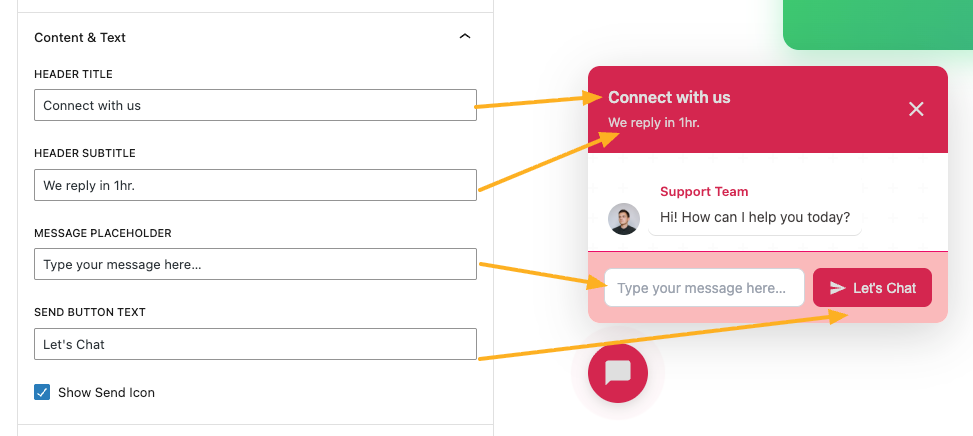
- Header Title: Updates the main title displayed in the chat window header.
- Header Subtitle: Updates the subtitle text shown below the header title in the chat window.
- Message Placeholder: Updates the placeholder text displayed inside the message input box.
- Send Button Text: Updates the label text shown on the send button.
- Show Send Icon: Toggles the display of the send icon within the send button. Enable to show the icon or disable to hide it.
Agents #
In the Agents section, you can update the contact information displayed in your WhatsApp Chat Widget. This includes customizing your agent’s details to better represent your business and improve customer interaction.
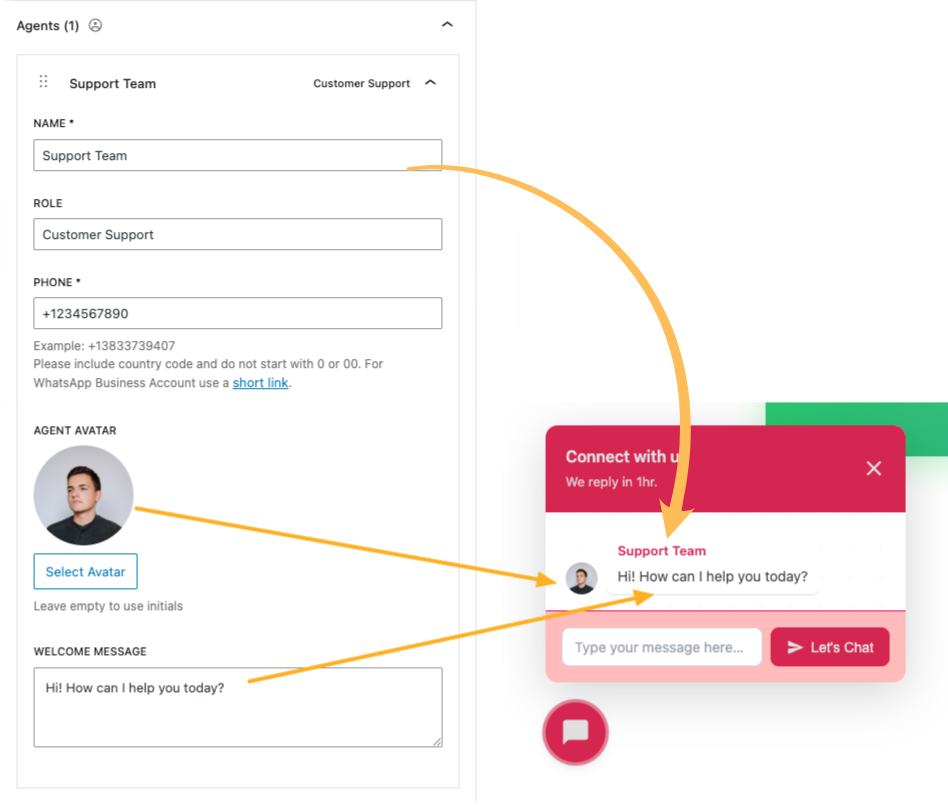
You can modify the following fields:
- Name: The display name shown to users in the chat widget.
- Role: The agent’s position or title (e.g., Sales Representative, Support Specialist).
- Phone Number: The WhatsApp number connected to the agent.
- Avatar: The profile image associated with the agent.
- Welcome Message: The initial message sent to users when they start a conversation.
This is all you need to add the WhatsApp Chat Widget to your WordPress website. If you have any questions or need further assistance, please reach out to us through our support page.


