
This tutorial demonstrates how to add Bootstrap Icons to your WordPress site using the ToolPress plugin. You will learn to configure and enable the tool for seamless integration of icon libraries.
Add Bootstrap Icons Tool #
Go to your WordPress Admin Dashboard to access tools configuration.
Click the ToolPress Dashboard to access a centralized control panel for managing third-party scripts, frontend libraries, analytics, and more.
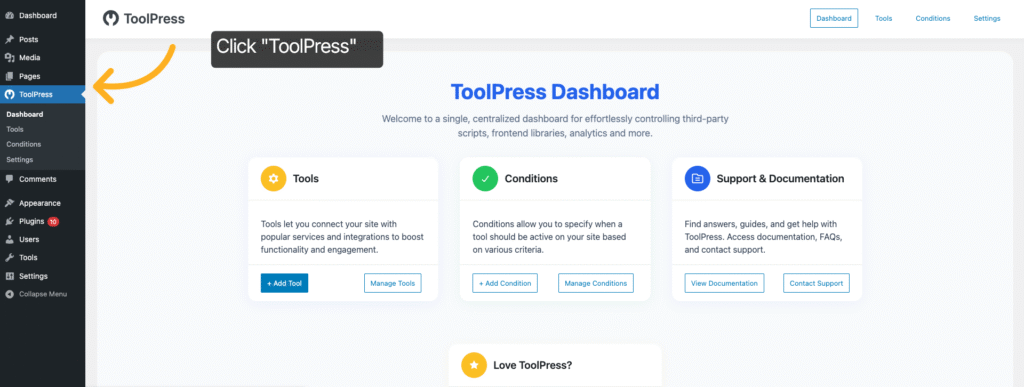
Click “Manage Tools” to view and control the tools connected to your WordPress site.
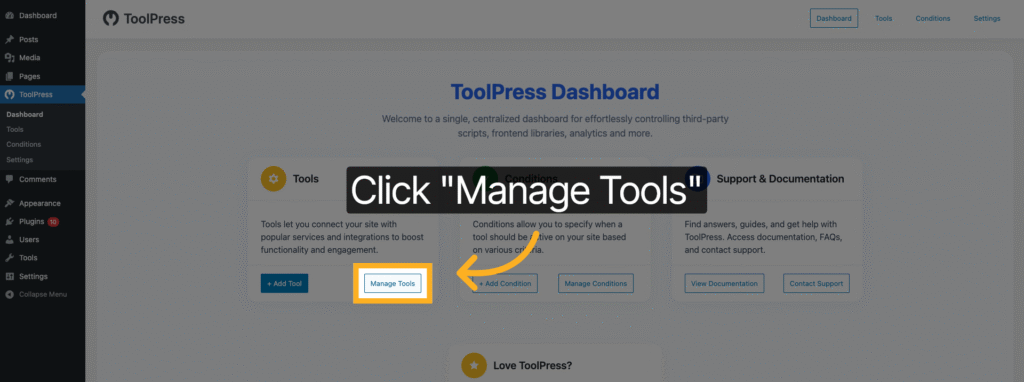
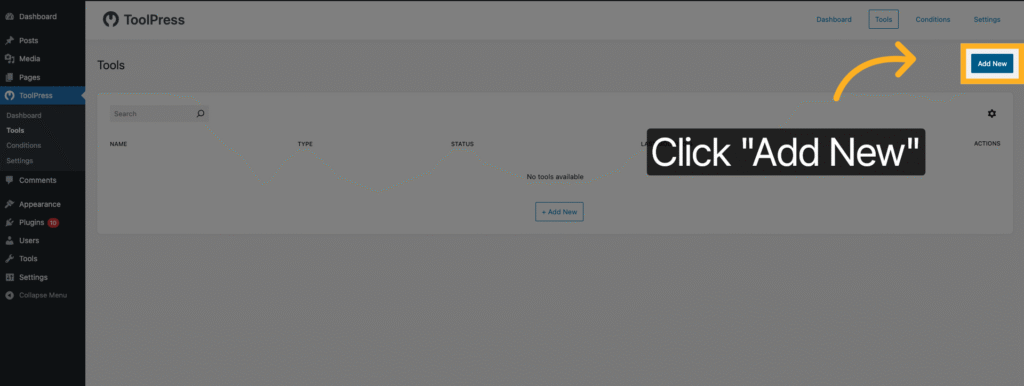
Click “Add New” to start adding a new tool to your WordPress site.
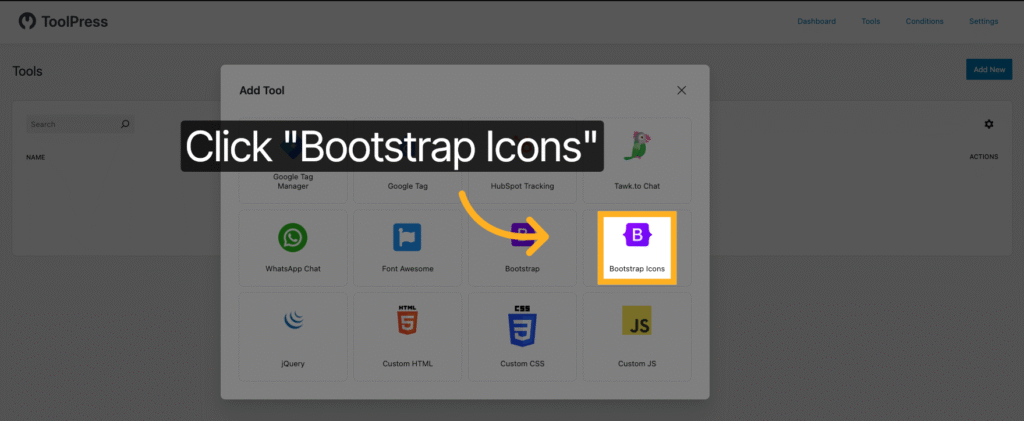
Click Bootstrap Icons to a add tool.
Click “Untitled Bootstrap Icons” to give a custom name for the too.
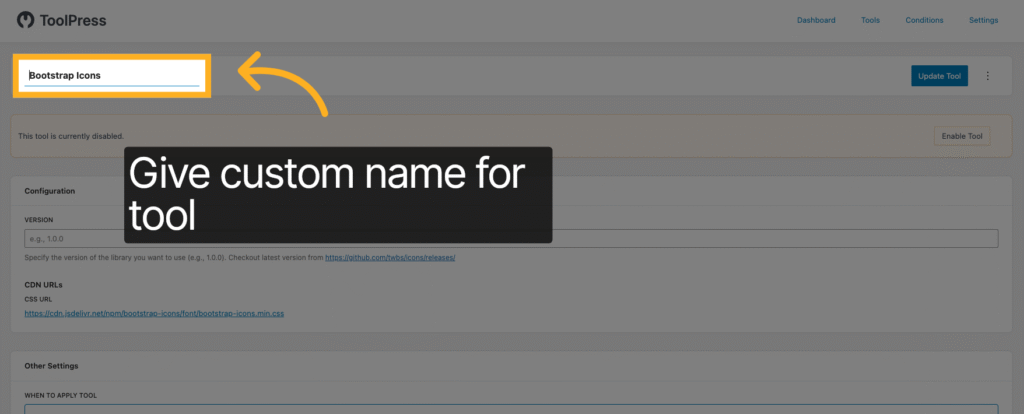
Here we are giving “Bootstrap Icons” as the name for the new tool to identify it clearly.
Enable Tool #
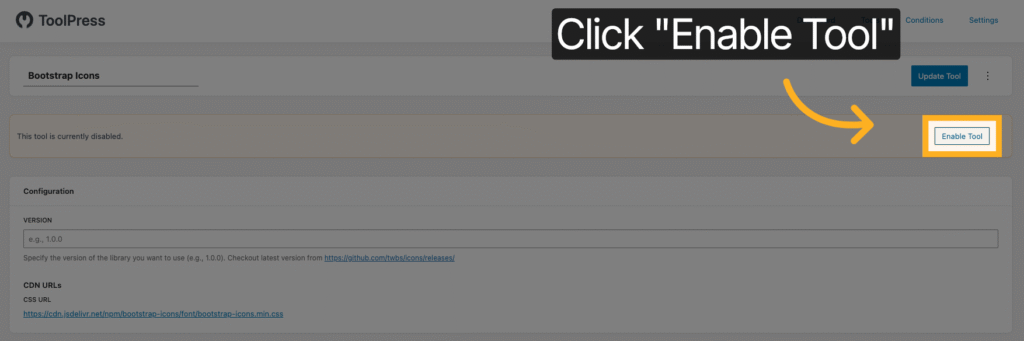
By default tool is disabled.
Click “Enable Tool” to activate the Bootstrap Icons tool on your site.
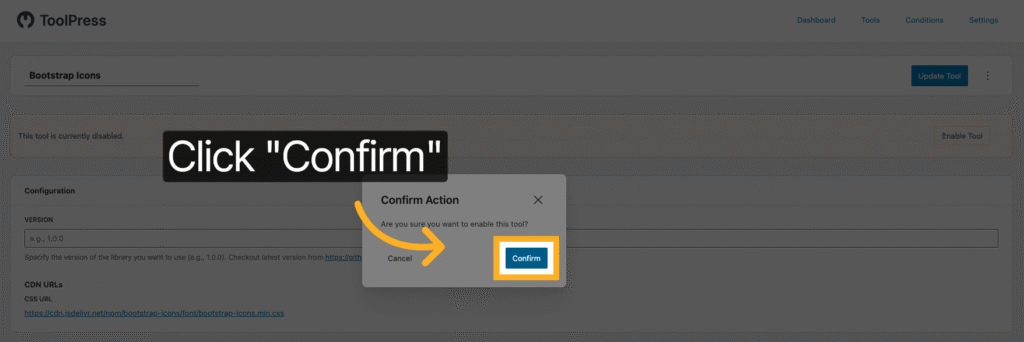
Click “Confirm” to finalize enabling the tool.
Publish Tool #
Click “Update Tool” to save the changes made to the Bootstrap Icons tool configuration.
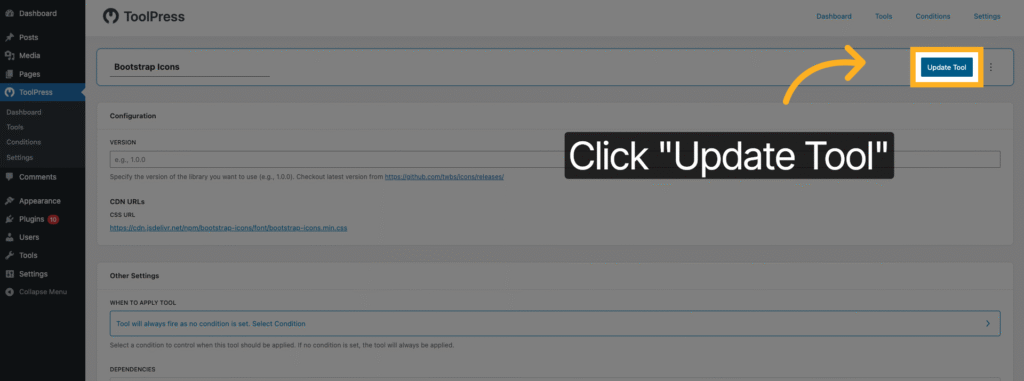
Now your Bootstrap Icon tool is ready to be used.
Lets use Bootstrap Icons #
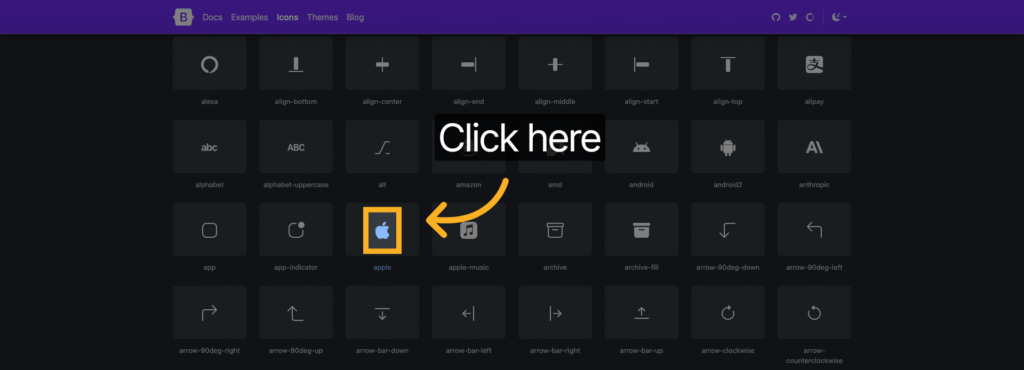
Go to “icons.getbootstrap.com” to browse available Bootstrap Icons for your site.
Click the icon you want to add to your site.
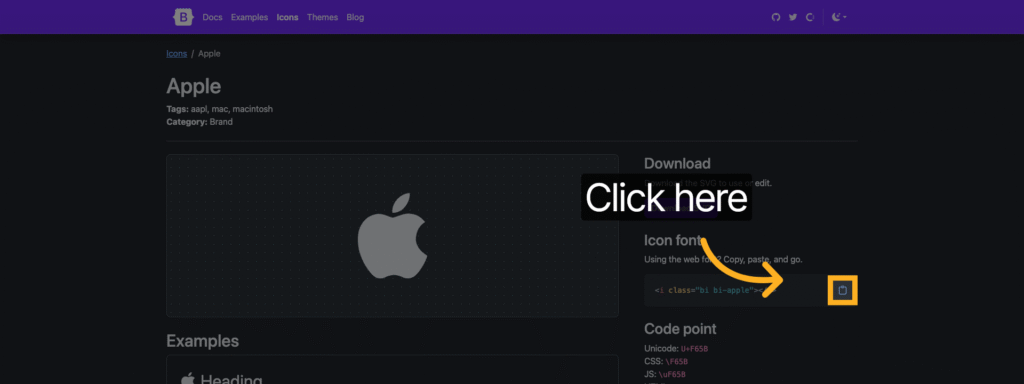
Click copy to get icon code to clipboard.
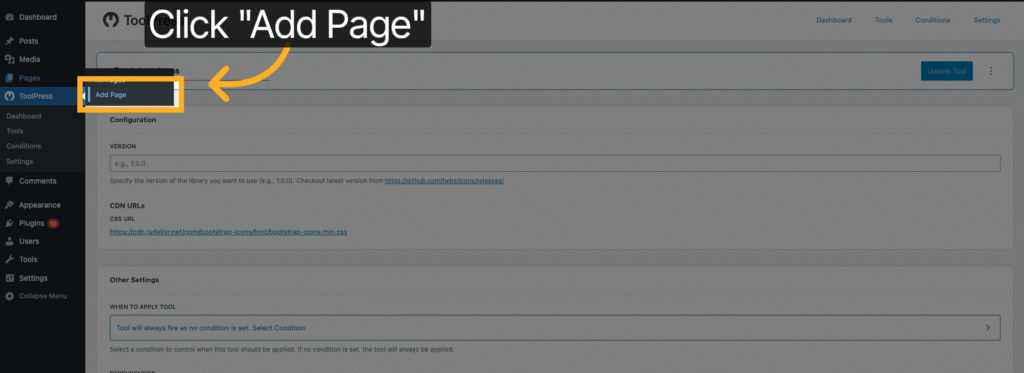
Click “Add Page” to create a new page where you can use the Bootstrap Icons.
Add Custom HTML block to your page and paste the icon code.
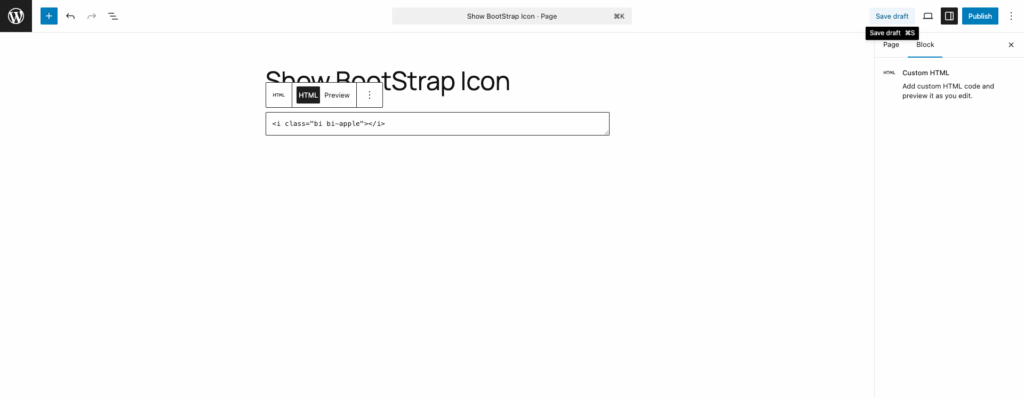
Click “Save draft” or “Publish” to save your current page.
Click the View Options to access additional page view options.
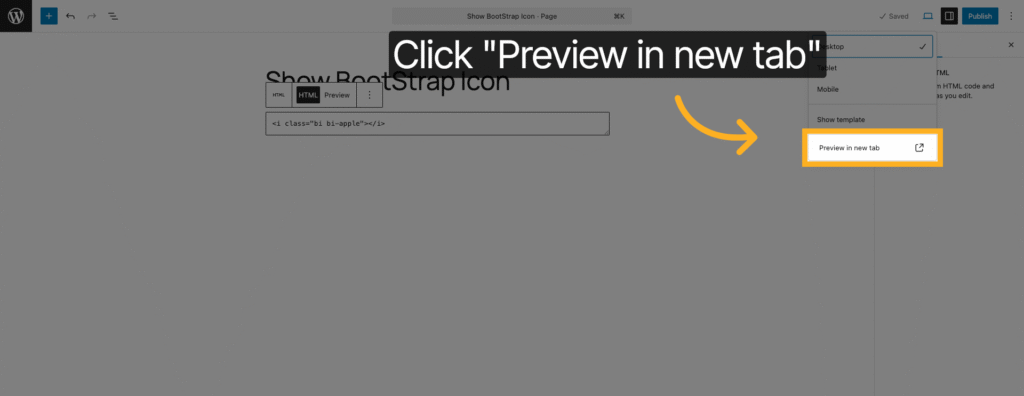
Click “Preview in new tab” to view how the page with Bootstrap Icons will appear to visitors.
Here you can see Bootstrap icon on your page.

You have successfully added and enabled the Bootstrap Icons tool using the ToolPress plugin on your WordPress site. Next, you can explore adding other icon libraries or customizing your site’s appearance further.


