
In this documentation, we will guide you through the complete process of activating the Swift Rank license key. License activation is a crucial step that enables all premium features of the Swift Rank plugin, allows you to receive regular updates, and ensures access to ongoing technical support.
You will learn how to enter and activate your license key correctly, and how to verify the activation status. By following this guide step by step, you can quickly activate your Swift Rank license and start using the plugin without any limitations.
Open Swift Rank License Settings #
From the WordPress dashboard, navigate to Swift Rank in the left sidebar. Click on Settings and open the License tab.
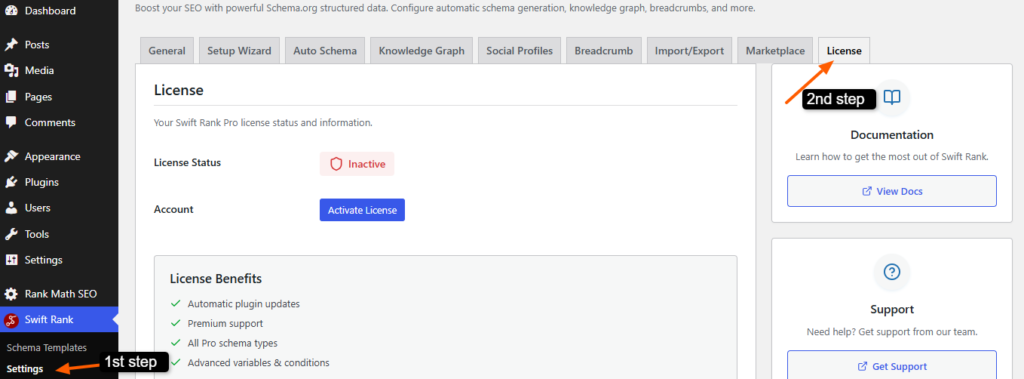
This section is specifically designed to manage your Swift Rank license key and its status.
Start the License Activation Process #
In the License tab, click on the Activate License button to begin the license activation process. After clicking the button, you will be redirected to the License Activation page, where you will see a dedicated input field for entering your license key.
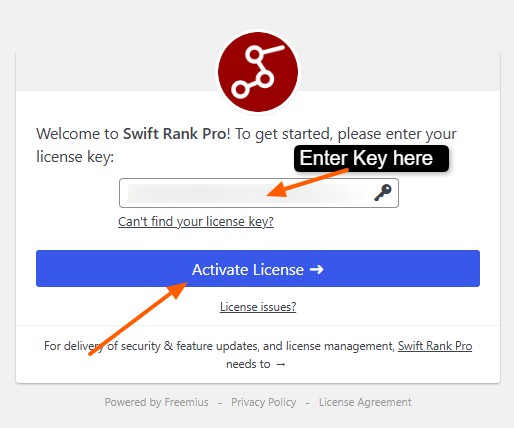
Carefully paste the license key you received at the time of purchase into this field, make sure there are no extra spaces or errors. Once the key is entered, click the Activate License button to complete the process. Swift Rank will connect to the license server and verify your key.
If the license key is valid, the activation process will complete within a few seconds.
Verify License Status #
Once the license is successfully activated, the License Status will be displayed as Active and the status text will appear in green color.
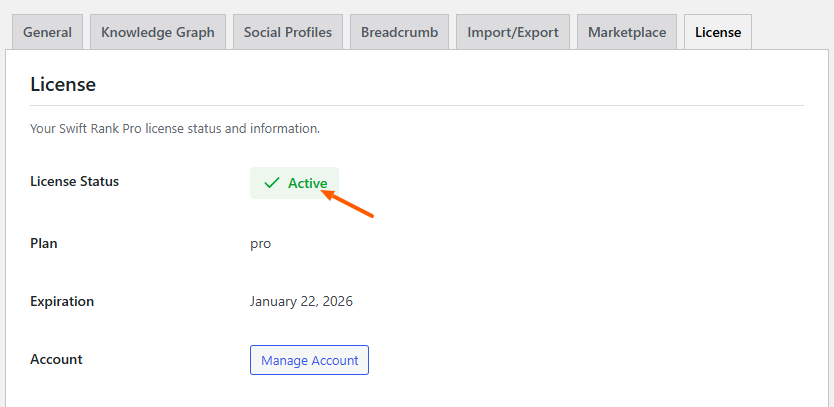
The Plan field displays the subscription level currently applied to your website, such as the Pro plan, allowing you to quickly verify which set of features and capabilities are available.
The Expiration date shows the validity period of your license and helps you track when a renewal is required to avoid any interruption in premium functionality.
Lastly, When you click the Manage Account button, Swift Rank opens the Account Details page, which provides a quick overview of your license and plugin information.
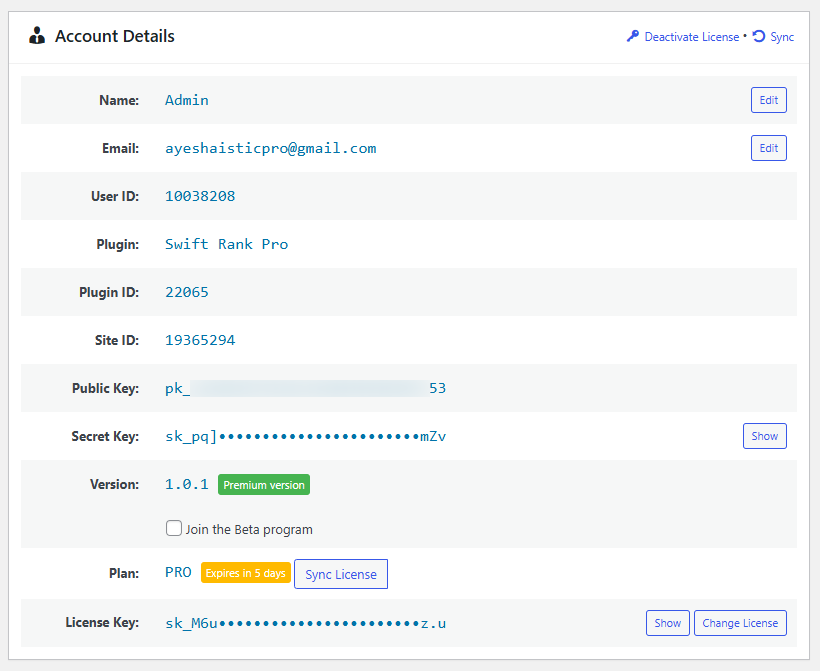
This page displays your account name and email, with options to edit them if needed, along with a unique User ID for identification and support purposes. It also confirms the active plugin name, Plugin ID, and Site ID, ensuring the license is correctly linked to your website.
The page includes secure Public and Secret Keys used to authenticate your site with Swift Rank, with sensitive data hidden by default for security. You can also see the installed plugin version, confirm that you are using the premium edition, and optionally join the beta program for early feature access.
The Plan section shows your current subscription and expiration status, while options like Sync License, Show License Key, Change License, and Deactivate License help you manage and update your license easily.


