
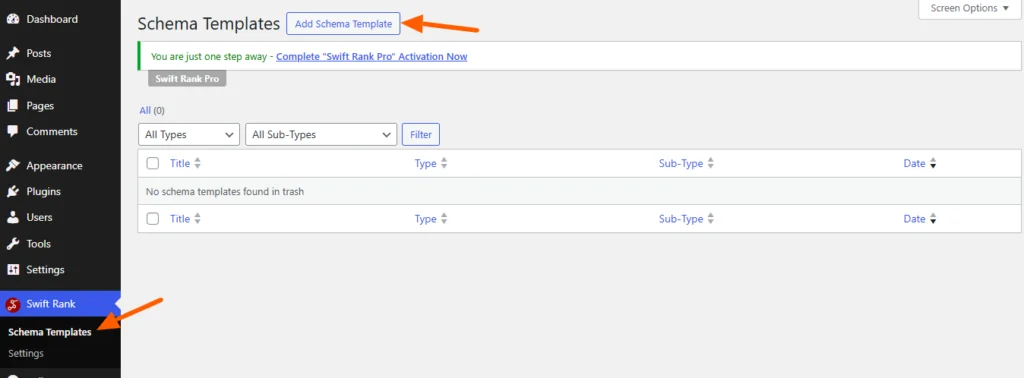
To add Software application schema using Swift Rank, first ensure that the Swift Rank plugin is properly installed and activated on your WordPress website. Once the plugin is active, navigate to Schema Templates from the Swift Rank dashboard to begin creating Software application schema template.
Click on Add Schema Template to start.
Please note that Software Application Schema is a Pro feature in Swift Rank, and you must upgrade to the Pro version to access and enable this functionality.
Name Your Software Application Schema Template #
At the top of the screen, enter a clear and descriptive title for your template.
For example: Software Application Schema
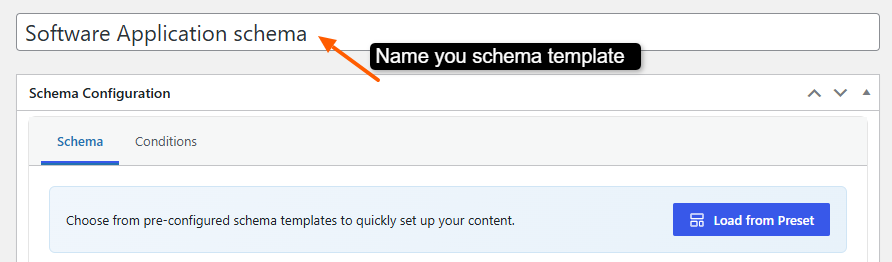
This helps you easily identify the template later, especially when managing multiple schemas.
Select the Schema Type #
In the Schema Configuration panel located in the right sidebar, find the Schema Type dropdown. Click the dropdown and select “Software Application Schema” from the available schemas.
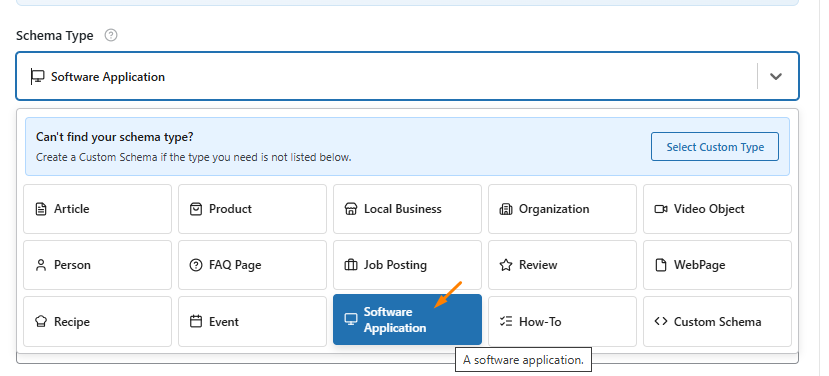
Once the Software Application Schema type is selected, Swift Rank will automatically load all predefined fields required to describe software application schema accurately. Most of these fields support dynamic variables, allowing the schema to automatically pull data from each individual post.
Configure Software Application Schema Fields #
App Name (Required) #
The App Name field defines the official and recognizable name of the software application.
To add the app name, Click the pencil (Edit) icon to enable editing. Instead of typing a static value, it is recommended to use a dynamic variable so the name is automatically populated for each software page.
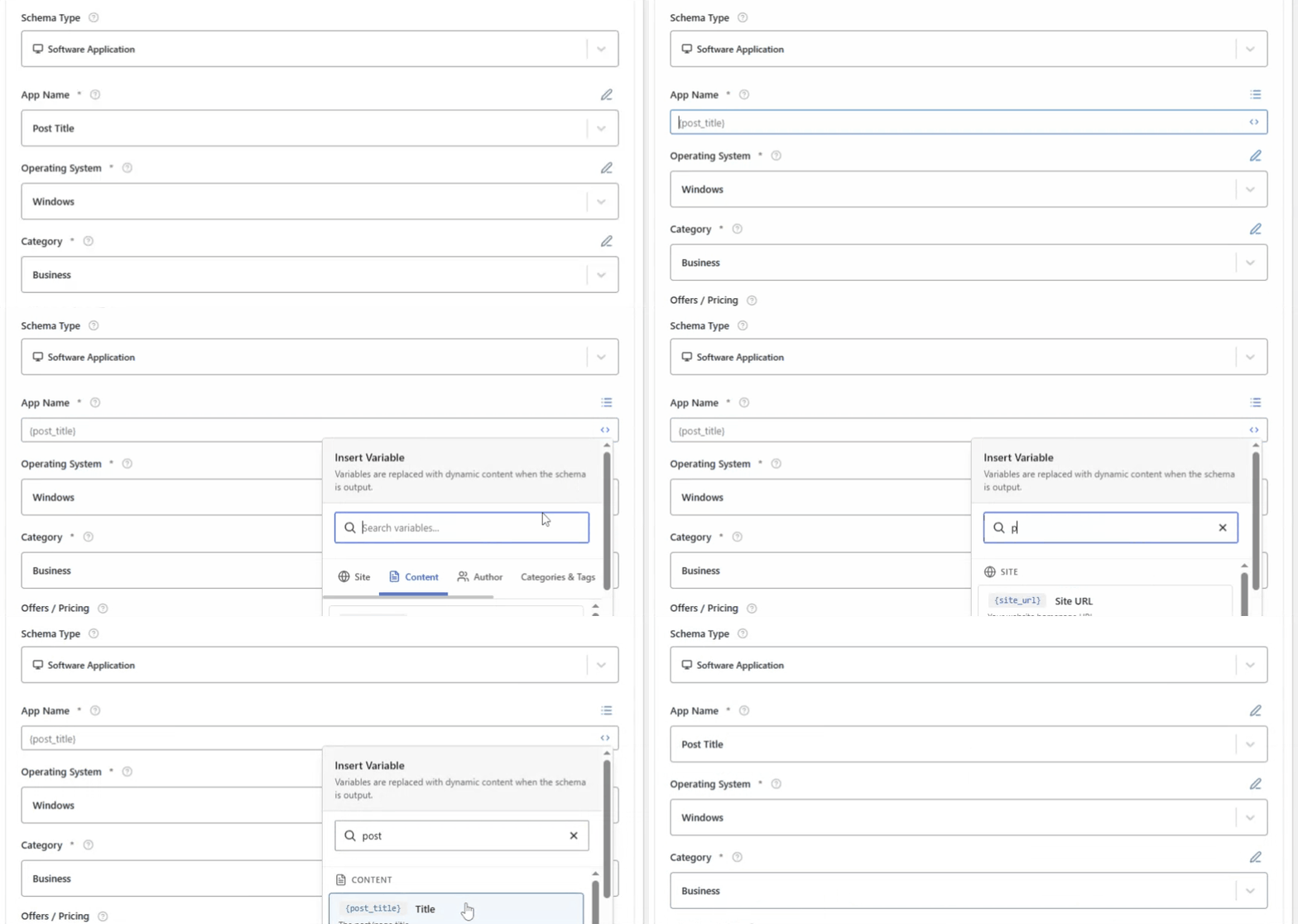
To insert a dynamic value, click the <> Insert Variable icon and select Post Title {post_title} from the dropdown list. This automatically pulls the title of the current post or page and uses it as the App Name in the schema.
Operating System (Required) #
The Operating System field specifies the platforms on which the software application can run. This information helps search engines and users clearly understand the compatibility of the software, such as whether it is designed for desktop, mobile, web-based, or cross-platform usage.
From the dropdown list, you can choose common operating systems such as:
- Windows
- macOS
- Android
- iOS
- Linux
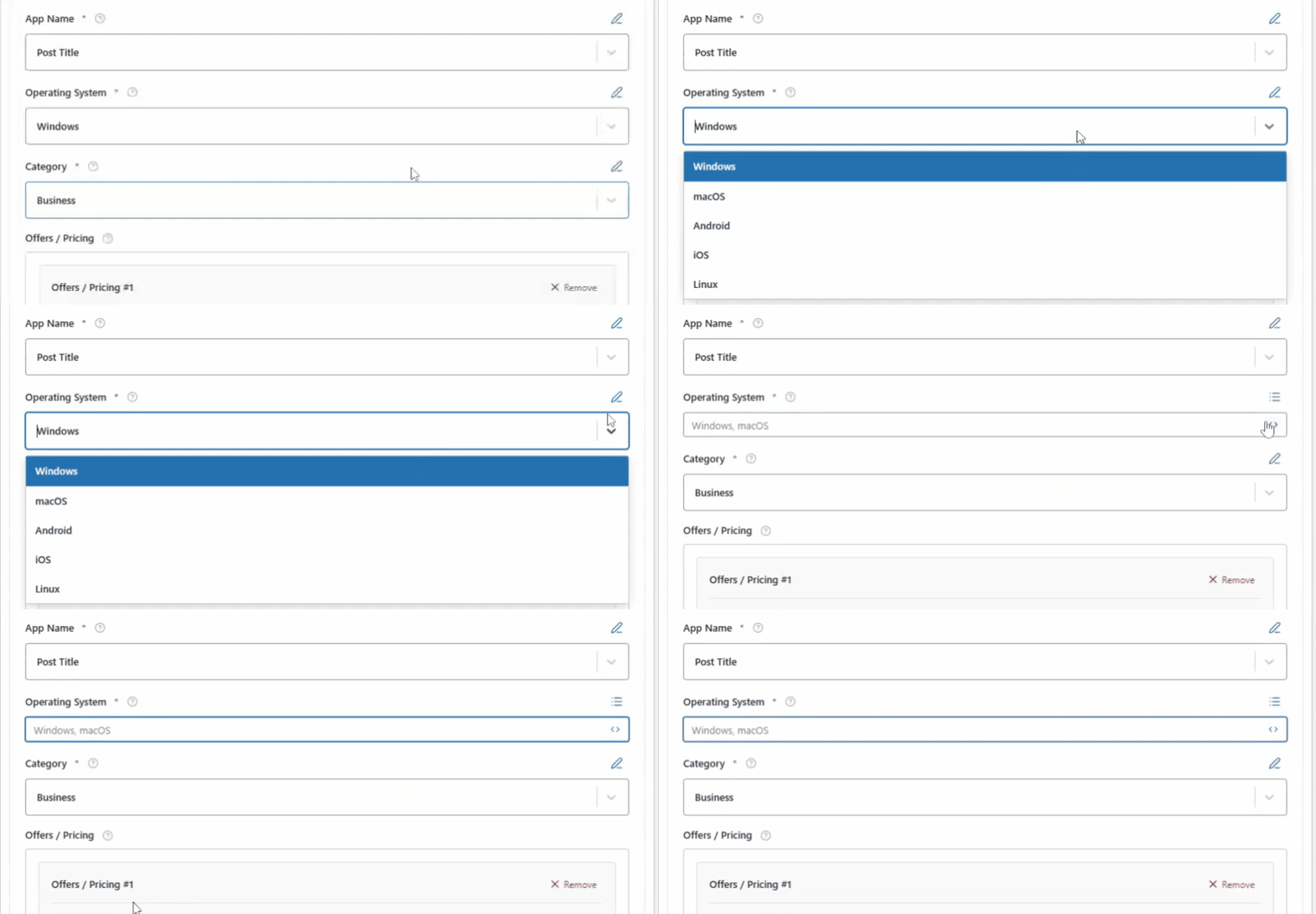
If your software does not fit into the standard options, you can use manual entry. Click the pencil edit icon and type a custom value such as:
- Web
- Cross-platform
- Cloud-based
- Chrome OS
Category (Required) #
The Category field defines the primary type or genre of the software application. It helps search engines understand what kind of software your application is and how it should be classified within search results.
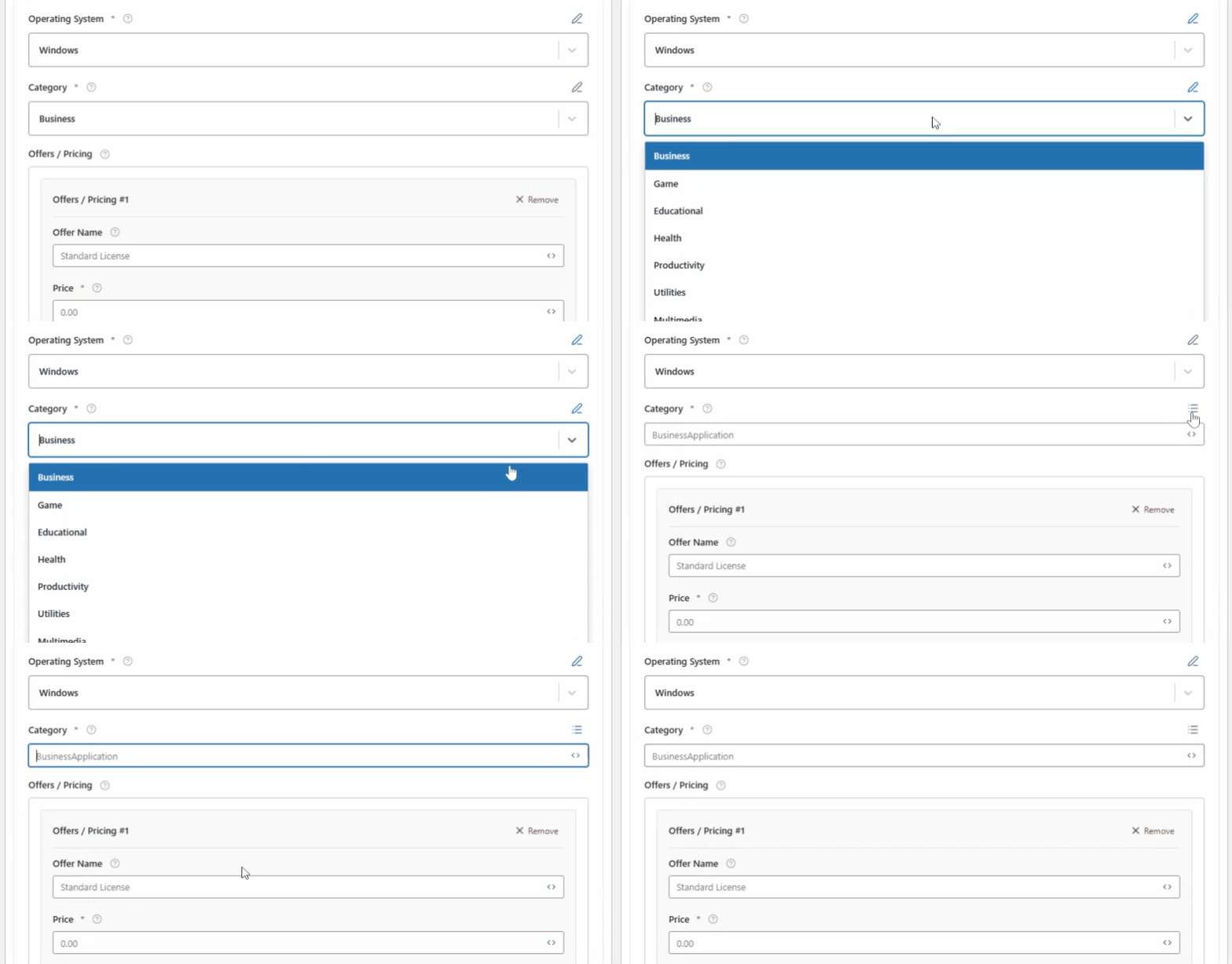
From the dropdown list, you can choose common categories such as:
- Business
- Game
- Educational
- Health
- Productivity
- Multimedia
- Utilities
If the category is not available, you can click the pencil edit icon and type a custom category.
Offers / Pricing #
The Offers / Pricing field is used to describe how the software is priced, licensed, or made available to users. This section helps search engines understand whether the software is free, paid, subscription-based, or offered under multiple plans.
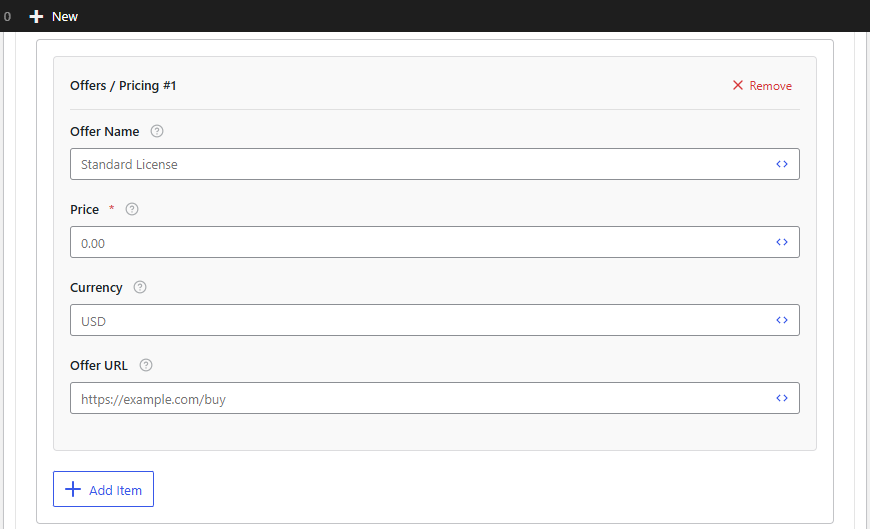
Offer Name #
So in the offers/pricing option, you can add the offer name to represent the label of the pricing plan or license type. This helps differentiate between multiple versions of the software. Common examples include Standard License, Pro Plan, Enterprise Plan, or Free Version.
Price #
The Price field specifies the cost of the software. Only numeric values should be used in this field—do not include currency symbols or text. If the software is completely free, you should enter 0.00.
Currency Field #
The Currency field defines the currency used for the price. You should always use standard three-letter ISO currency codes. Common examples include:
- USD (US Dollar)
- EUR (Euro)
- GBP (British Pound)
- INR (Indian Rupee)
Make sure the selected currency matches what is displayed on your website to avoid inconsistencies.
Offer URL #
The Offer URL is the page where users can take action related to the software offer. This could be a page where users can:
- Purchase the software
- Download it
- Subscribe to a plan
- View detailed pricing information
This URL should always point to a valid and relevant page, such as a pricing page, checkout page, or download page.
If your software has multiple pricing plans, you can add more than one offer. Click the ➕ Add Item option to create additional offers, such as Free, Pro, and Enterprise plans. Each offer should have its own name, price, currency, and URL to clearly represent the different options available.
Rating Value #
The Rating Value field represents the average user rating of the software application. This value is commonly displayed as star ratings in search results, helping users quickly judge the quality and popularity of the software.
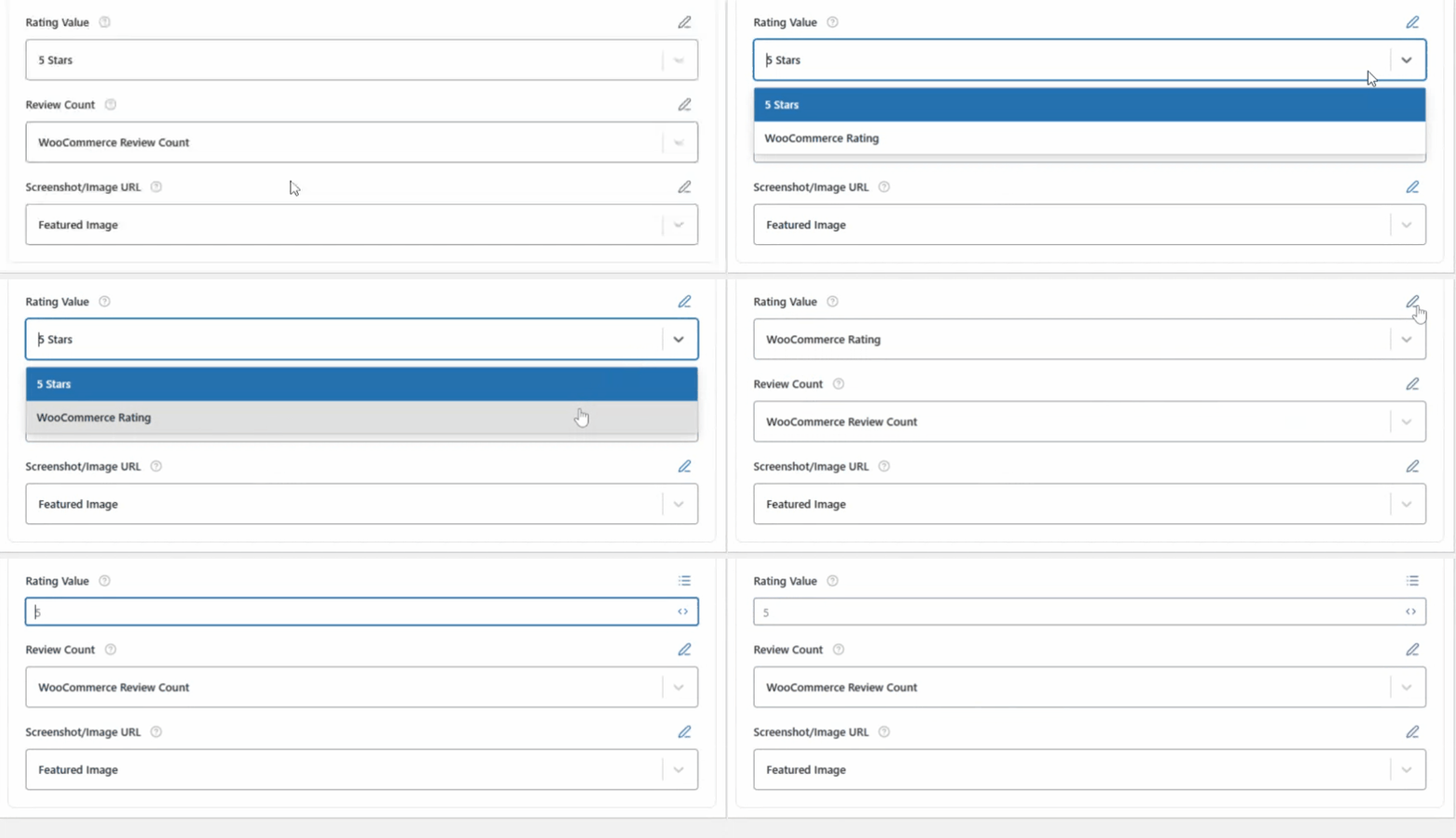
You can add 5 star rating value from the dropdown or can use WooCommerce Rating to automatically pull real customer ratings from WooCommerce product reviews.
Review Count #
The Review Count field represents the total number of user reviews the software has received. You can add it with the dynamic option, you can select WooCommerce Review Count, which automatically pulls the total number of product reviews from WooCommerce.
This value updates in real time as new reviews are added, ensuring your schema data always stays accurate and up to date.

If your reviews are not managed through WooCommerce, you can use the manual option. Click the pencil (Edit) icon and enter the total number of reviews as a numeric value.
Screenshot/Image URL #
The Screenshot / Image URL field provides a visual representation of the software application. With the dynamic option, select Featured Image {featured_image} by clicking on the pencil icon then <> Insert Variable icon.
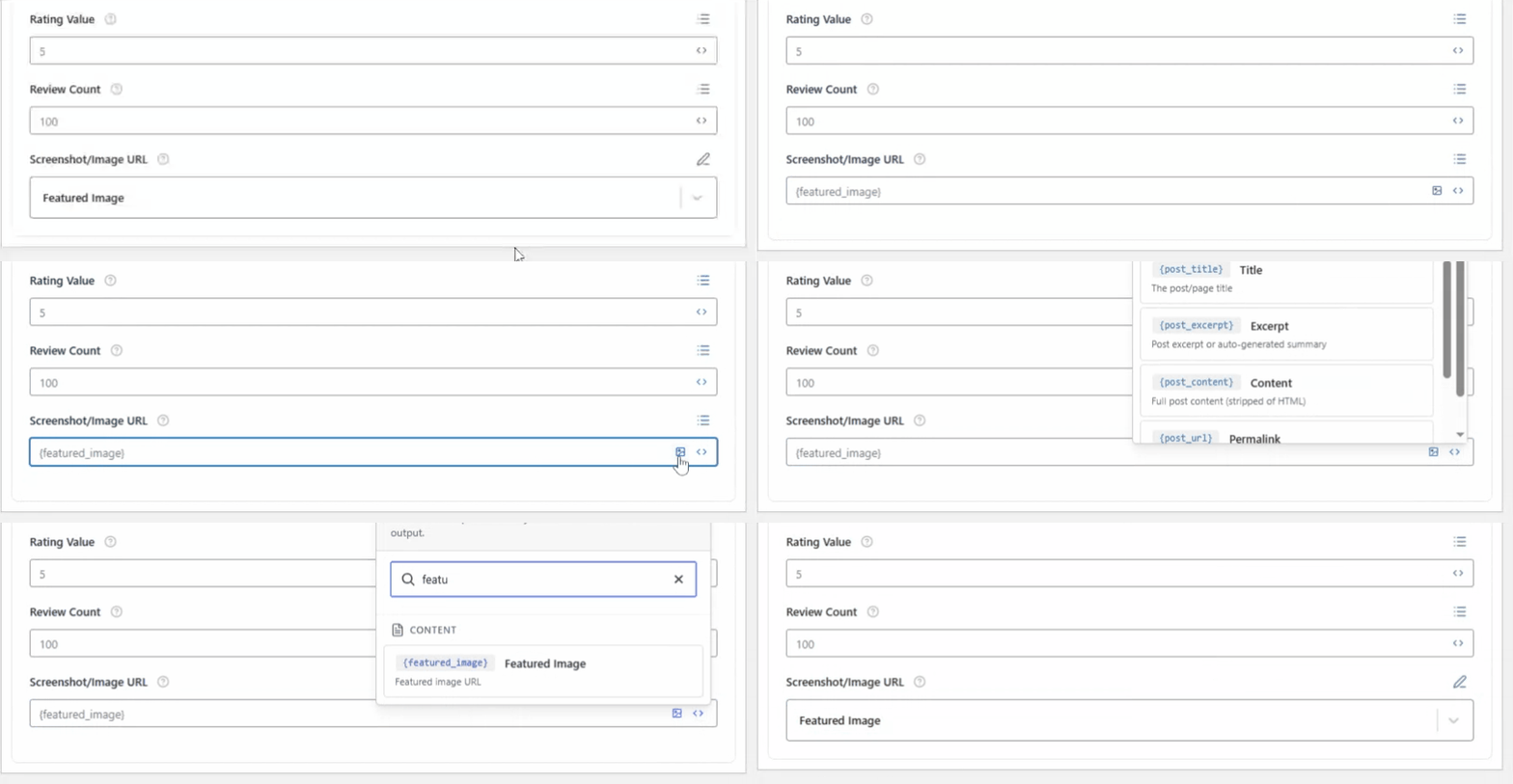
This automatically pulls the featured image of the page and assigns it as the software screenshot, ensuring consistency and reducing manual work across multiple pages.
Otherwise you can manually add an image by clicking the image icon.
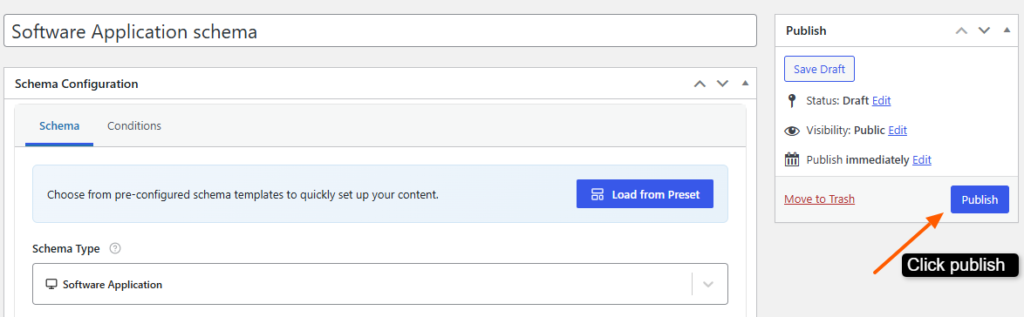
Once all fields are configured, publish your software application schema template. These schema fields can also be modified directly while editing an individual post or page.


