
To add event schema using Swift Rank, first ensure that the Swift Rank plugin is properly installed and activated on your WordPress website. Once the plugin is active, navigate to Schema Templates from the Swift Rank dashboard to begin creating event schema template.
Click on Add Schema Template to start.
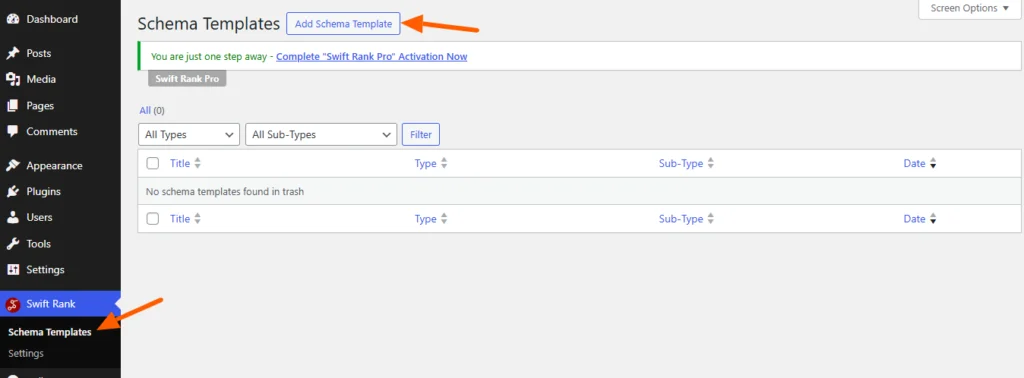
Name Your Schema Template #
You can enter a clear and descriptive title for your template.
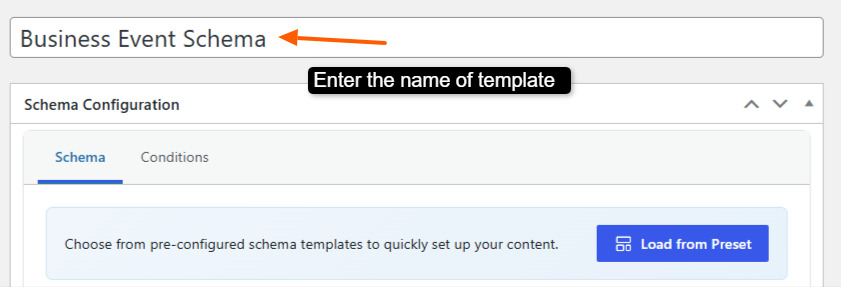
- Music Event Schema
- Business Event Schema
- Education Event Schema
- Online Event Schema
- Community Event Schema
This helps you easily identify the template later, especially when managing multiple schemas.
Please note that Event schema is a Pro feature in Swift Rank, and you must upgrade to the Pro version to access and enable this functionality.
Select the Event Schema Type #
In the Schema Configuration panel located in the right sidebar, find the Schema Type dropdown. Click the dropdown and select event from the available schemas.
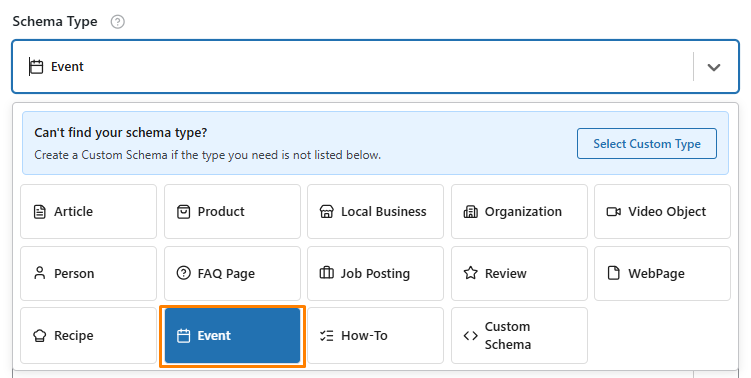
Once the event schema type is selected, Swift Rank will automatically load all predefined fields required to describe event content accurately.
Event Sub-Type #
Choose your Event type from the dropdown menu provided. This menu includes a wide range of predefined event options, allowing you to select the one that best represents your event, such as Business Event, Children’s Event, Comedy Event, and many others.
Each event type is built on a specific schema structure with its own set of properties tailored to that category. When you select an event type, Swift Rank automatically loads the relevant schema fields required to accurately describe that event.
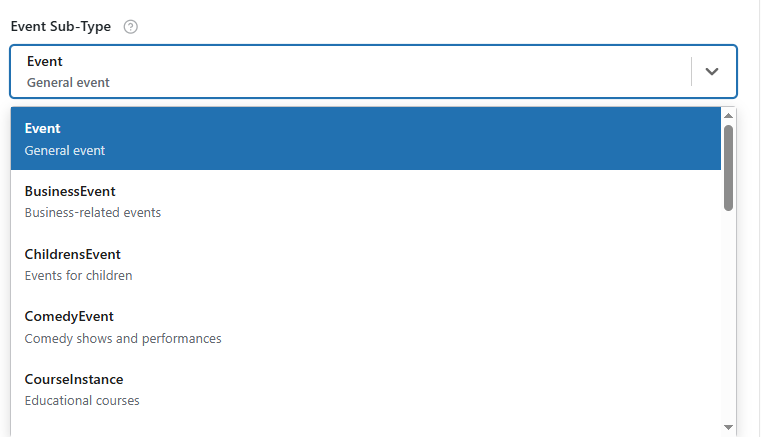
Different event types may also be displayed differently in search results, depending on how search engines interpret and present the structured data. For example, a business event may highlight details such as organizers, speakers, or location, while a children’s event may focus more on age suitability or family-friendly aspects.
Event Name #
Enter the Event Name by clicking the pencil (edit) icon next to the field and typing a clear, descriptive name for your event. Otherwise, you may click the <> (Insert Variable) icon to dynamically insert the {post_title} variable from the available list.
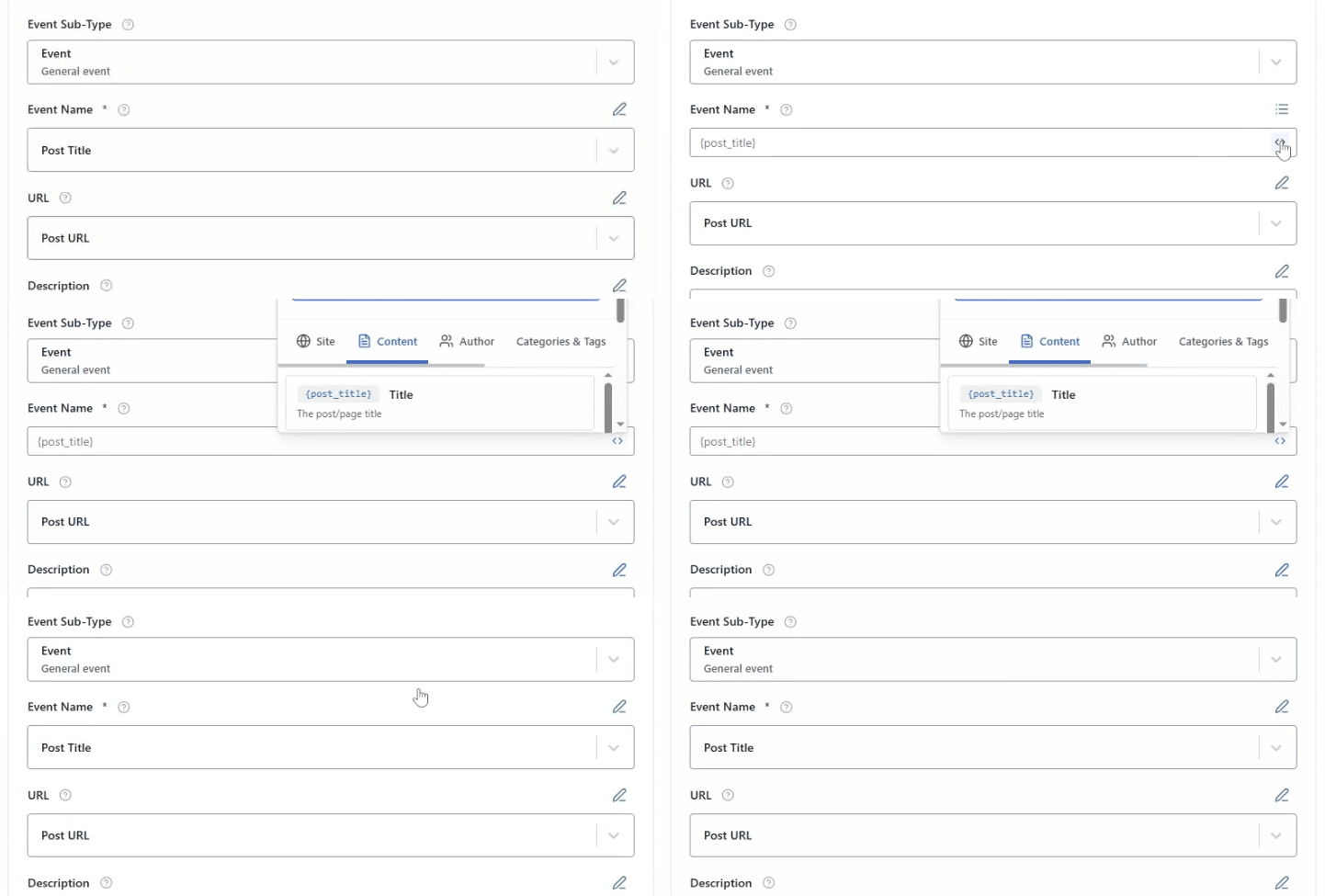
Choosing between a direct entry and a dynamic variable depends on your use case. Manual entry is ideal for unique or one-time events, while dynamic variables are recommended when applying the schema to multiple pages or recurring events.
URL #
The URL field specifies the canonical web address of the event page. This is usually the page where users can find full event details or register.

You can manually paste the event page URL or insert a dynamic variable such as {post_url} to automatically pull the current page URL. These schema fields can also be modified directly while editing an individual post or page.
Description #
This field provides a detailed summary of the event, explaining what it is about, who it is for, and what attendees can expect.
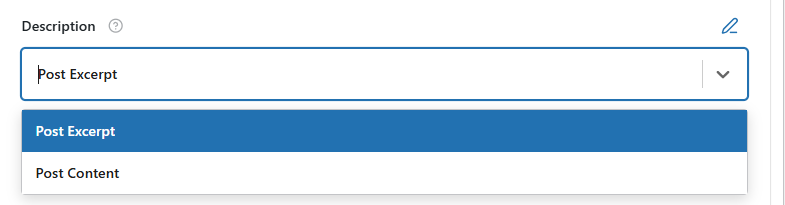
You may enter a custom description directly or use dynamic variables like {post_excerpt} or {post_content} for automated content population.
Start Date #
The Start Date field defines the exact date and time when the event begins. In Swift Rank, this value is saved and generated in ISO 8601 format, which is the internationally recognized standard for date and time representation in structured data.
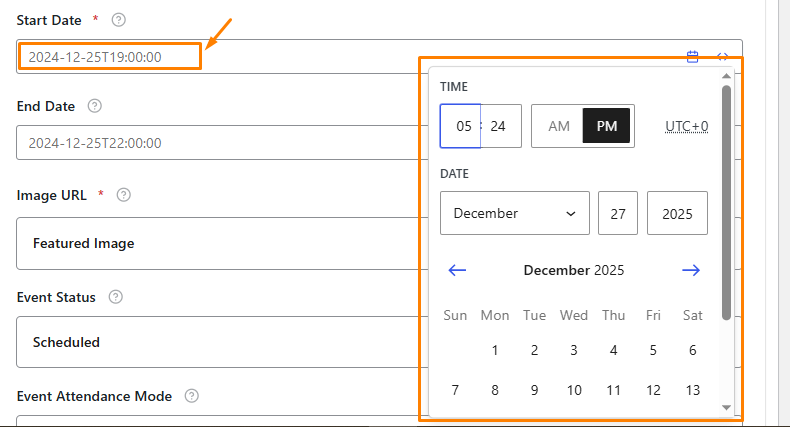
ISO 8601 formatting ensures that search engines clearly understand when the event starts, regardless of location or time zone. A complete start date includes the year, month, day, time in 24-hour format, and the applicable time zone.
Example:2025-04-10T09:30:00+05:00
2025-04-10→ Year-Month-DayT09:30:00→ 24-hour time (hours:minutes:seconds)+05:00→ Timezone offset
When adding the Start Date, select the precise date and time the event officially begins. Accurate start dates help search engines display your event correctly in rich results and allow users to plan their attendance with confidence.
End Date #
The End Date field specifies the exact date and time when the event concludes. Like the start date, this value is also output in ISO 8601 format to maintain consistency and ensure proper interpretation by search engines.

When entering the End Date, ensure it accurately reflects when the event finishes.
Image URL #
The Image URL field specifies the main visual representation of the event. This image may appear in search results and enhances visibility.
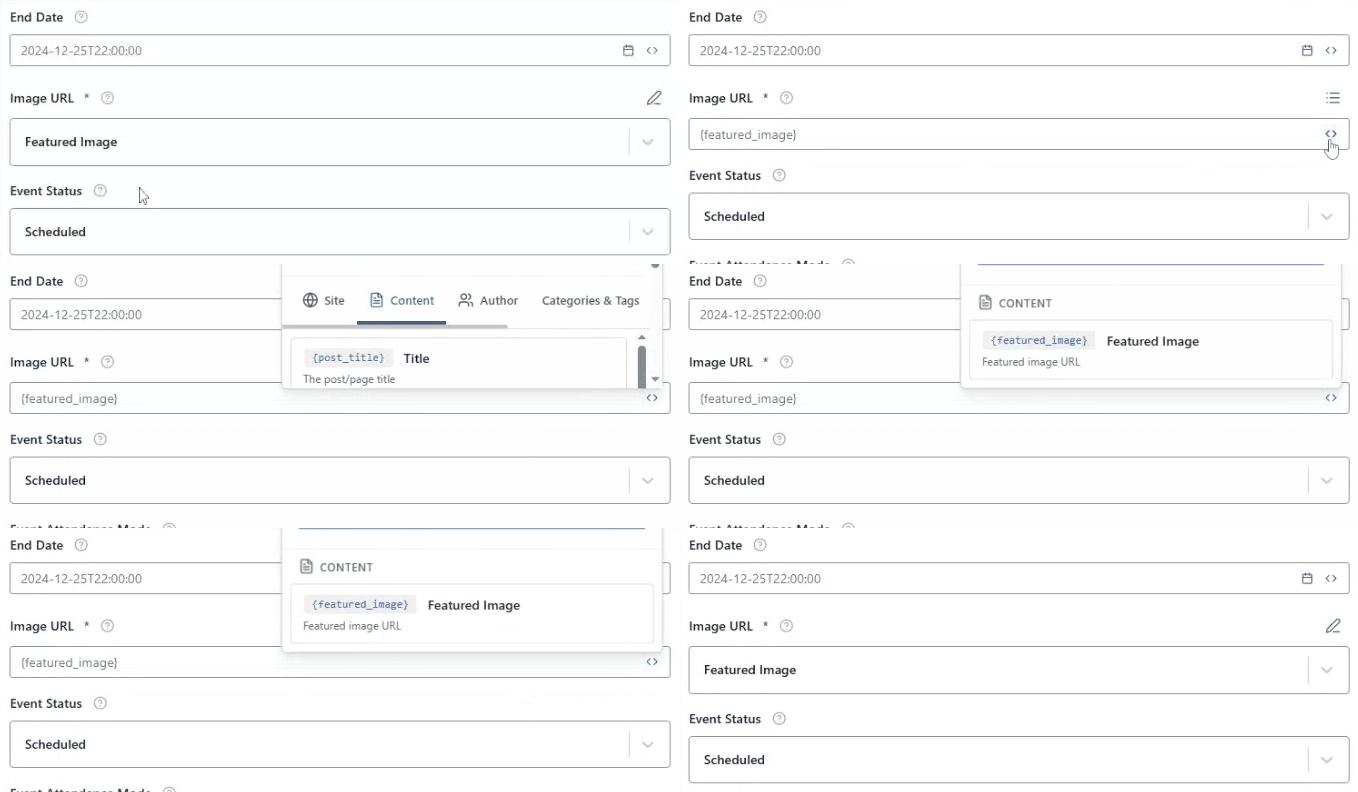
You can manually add an image URL or use a variable such as {featured_image} from the list of variables to automatically use the post’s featured image.
Event Status #
Event Status describes the current state of the event, such as Scheduled, Cancelled, Postponed, or Rescheduled.
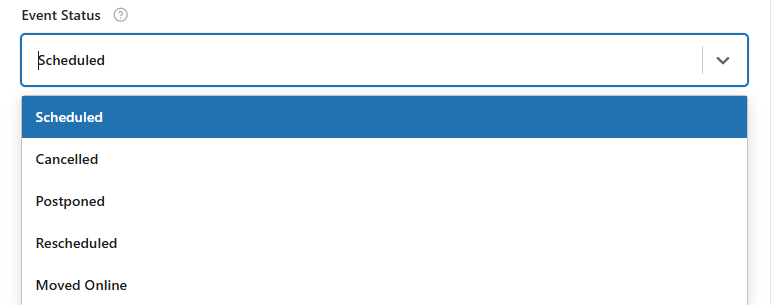
Select the appropriate option from the dropdown to keep users and search engines informed about the event’s availability.
Event Attendance Mode #
This field indicates how attendees can participate in the event. Options typically include Offline, Online, or Mixed.
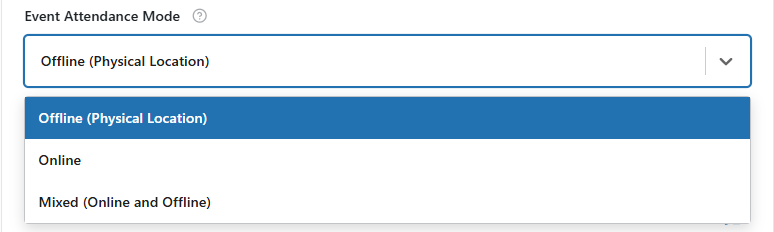
Selecting the correct attendance mode helps search engines understand whether the event is physical, virtual, or hybrid.
Location Type #
Location Type defines whether the event takes place at a physical venue or online. Choose the appropriate option based on your event format.
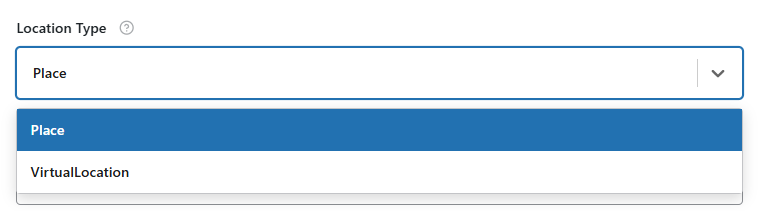
This selection determines which additional location-related fields are required.
Location Name #
The Location Name specifies the venue name where the event is held, such as a conference hall, auditorium, or online platform.

Enter the name manually for accuracy and clarity.
Location Address #
This field contains the full physical address of the event location, including street name, city, region, postal code, and country.

Providing a complete address helps search engines and users easily identify where the event takes place.
Organizer Type #
Organizer Type defines whether the event organizer is a Person or an Organization.
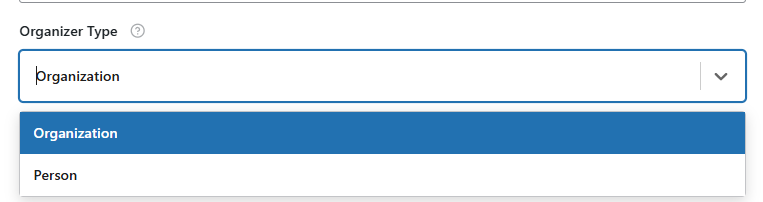
Select the option from the dropdown to ensure correct schema structure.
Organizer Name #
The Organizer Name is the name of the individual or organization responsible for hosting the event. You may enter it manually or insert a variable such as site name, author name.

You can manually add a static name by clciking on the pencil icon or click on insert variable <> icon to add {author_name} or {site_name} variable.
Organizer URL #
This field specifies the official website or profile URL of the organizer. Adding this helps establish credibility and provides users with more information about the event host.

You can enter a custom value by clicking on the pencil icon or <> insert variable icon to add url dynamically.
Performer Type #
Performer Type identifies whether the performer is a:
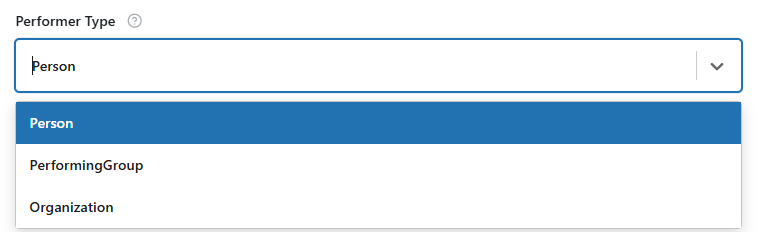
- Person
- Performing Group
- Organization
You can select any one option from the dropdown. This is especially useful for concerts, shows, or entertainment-based events.
Performer Name #
The Performer Name represents the artist, speaker, or group performing at the event.

Enter the name manually to ensure accuracy.
Offer Price #
Offer Price defines the cost of attending the event. Enter a numeric value only, without currency symbols.

This field helps search engines display ticket pricing in event listings.
Offer Currency #
The Offer Currency field defines the type of currency in which the event’s ticket price or registration fee is specified.
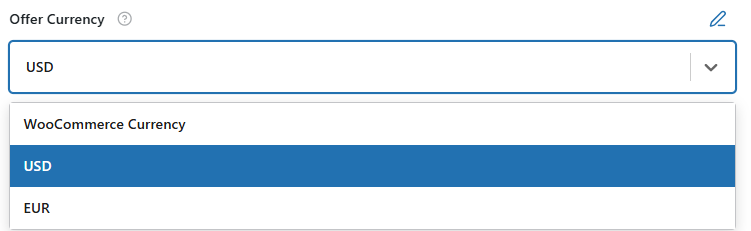
You should select the currency code that corresponds to the pricing used for your event. If your website uses WooCommerce to sell tickets or event products, the currency may already be defined in WooCommerce settings. Instead of manually selecting a currency, you can choose the “WooCommerce Currency” option. For example:
- USD – United States Dollar
- EUR – Euro
- WooCommerce Currency
Offer Availability #
Offer Availability indicates whether tickets are:
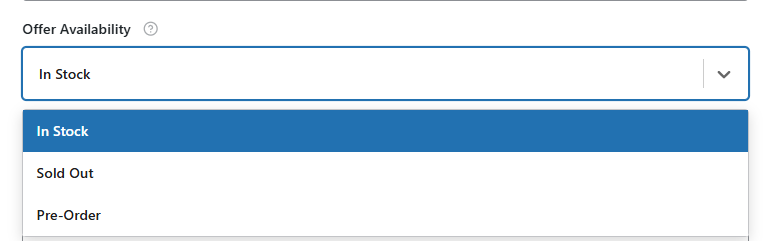
- Available
- Sold Out
- Pre-Order
Choose the correct option to reflect the current ticket status.
Offer URL #
The Offer URL directs users to the page where they can purchase tickets or register for the event. This should be a valid and accessible URL.

- For custom URL: Paste a valid link.
- Dynamic Variable: Insert a variable if applicable.
Offer Valid Form #
Offer Valid Form defines the date when ticket sales or registrations begin. Use the date picker to ensure correct formatting and accurate structured data.

- Click on the Offer Valid Form field in the Event Schema.
- Use the date picker to select the correct date.
- Enter the exact time if required, ensuring it reflects the correct start time for ticket sales.
- Confirm the time zone is accurate to avoid discrepancies for users in different regions.
Once all the chnages are done click on the publish template.


