
To add job posting schema using Swift Rank, first ensure that the Swift Rank plugin is properly installed and activated on your WordPress website. Once the plugin is active, navigate to Schema Templates from the Swift Rank dashboard to begin creating job posting schema template.
Click on Add Schema Template to start.
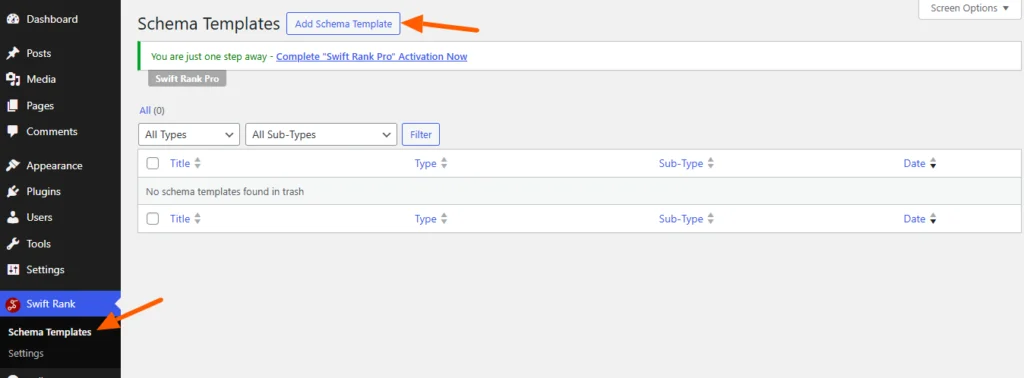
Name Your Job Posting Schema Template #
You can enter a clear and descriptive title for your template.
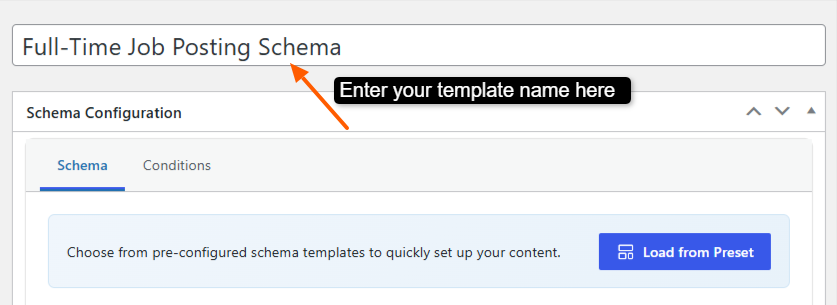
- Full-Time Job Posting Schema
- Part-Time Job Listing Schema
- Permanent Employment Schema
- Contract-Based Job Schema
- Remote Job Posting Schema
This helps you easily identify the template later, especially when managing multiple schemas.
Please note that Job Posting schema is a Pro feature in Swift Rank, and you must upgrade to the Pro version to access and enable this functionality.
Select the Schema Type #
In the Schema Configuration panel located in the right sidebar, find the Schema Type dropdown. Click the dropdown and select job posting from the available schemas.
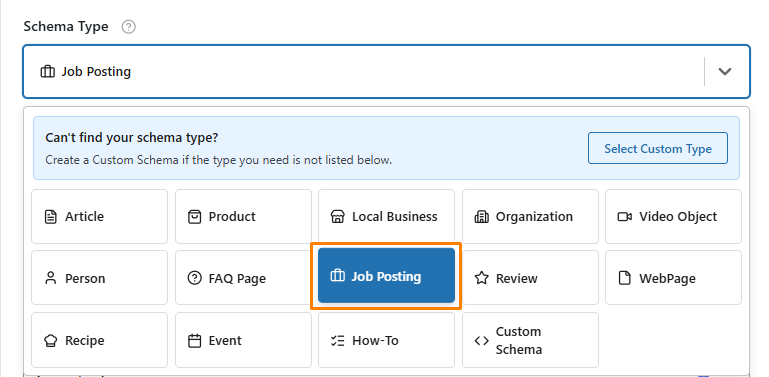
Once the job posting schema type is selected, Swift Rank will automatically load all predefined fields required to describe job posting content accurately.
Job Title #
The Job Title field allows you to define the official title of the job position you are posting. This title is one of the most important elements of a job listing, as it helps users and search engines quickly understand the role being offered.
Click on the pencil (edit) icon next to the Job Title field.
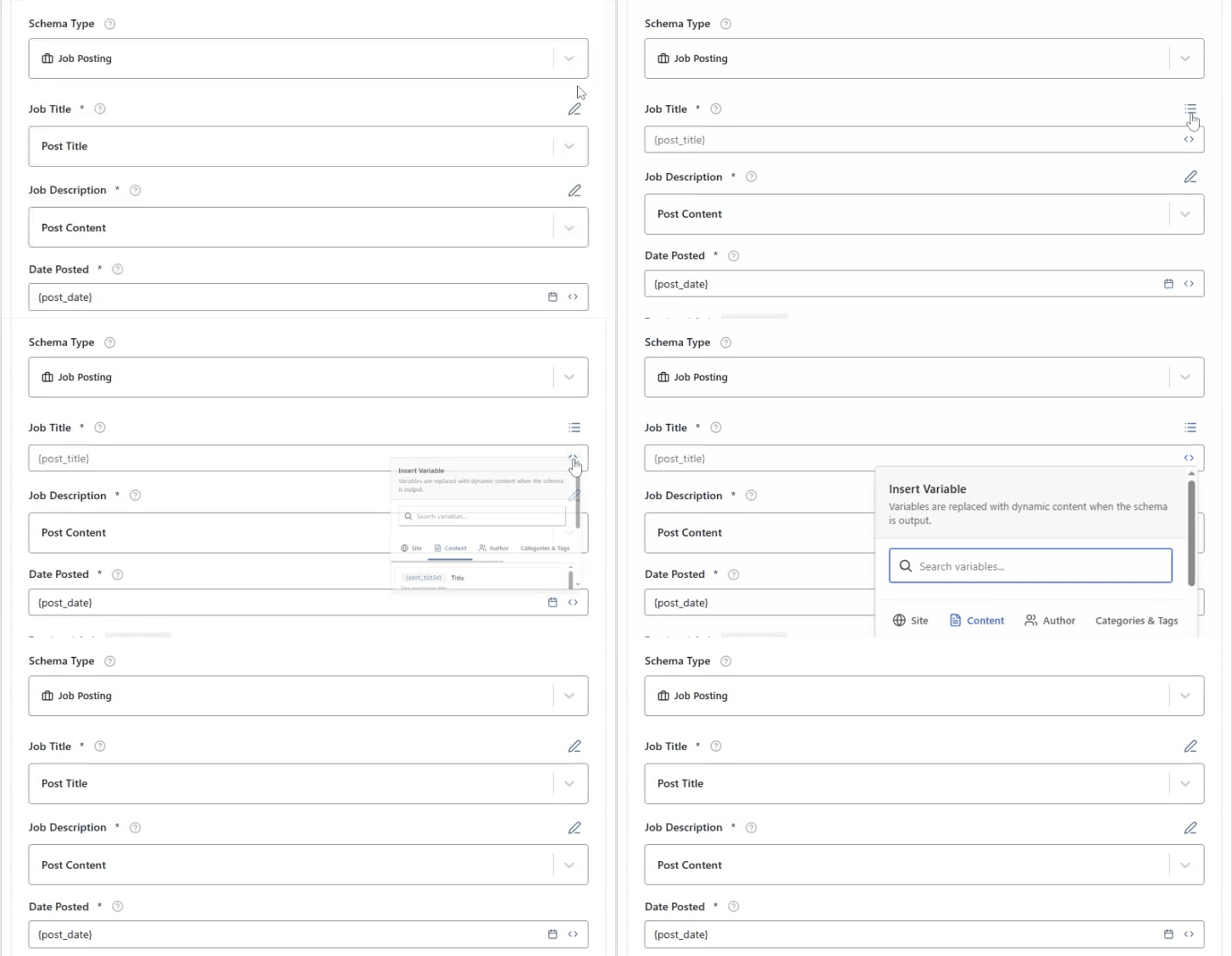
This allows you to type a custom job title that accurately reflects the position, such as Software Developer, Marketing Manager, or Customer Support Executive.
Click on the <> (Insert Variable) icon to choose a dynamic value instead of manual text.
From the list of available variables, select {site_name}.
This option is useful if you want the job title to automatically include your website or company name, ensuring consistency across multiple job postings and reducing the need for manual updates.
Job Description #
This field provides a detailed summary of the job description, explaining what it is about, who it is for, and what attendees can expect. Instead of writing the description manually, you can insert dynamic variables using the <> (Insert Variable) option.
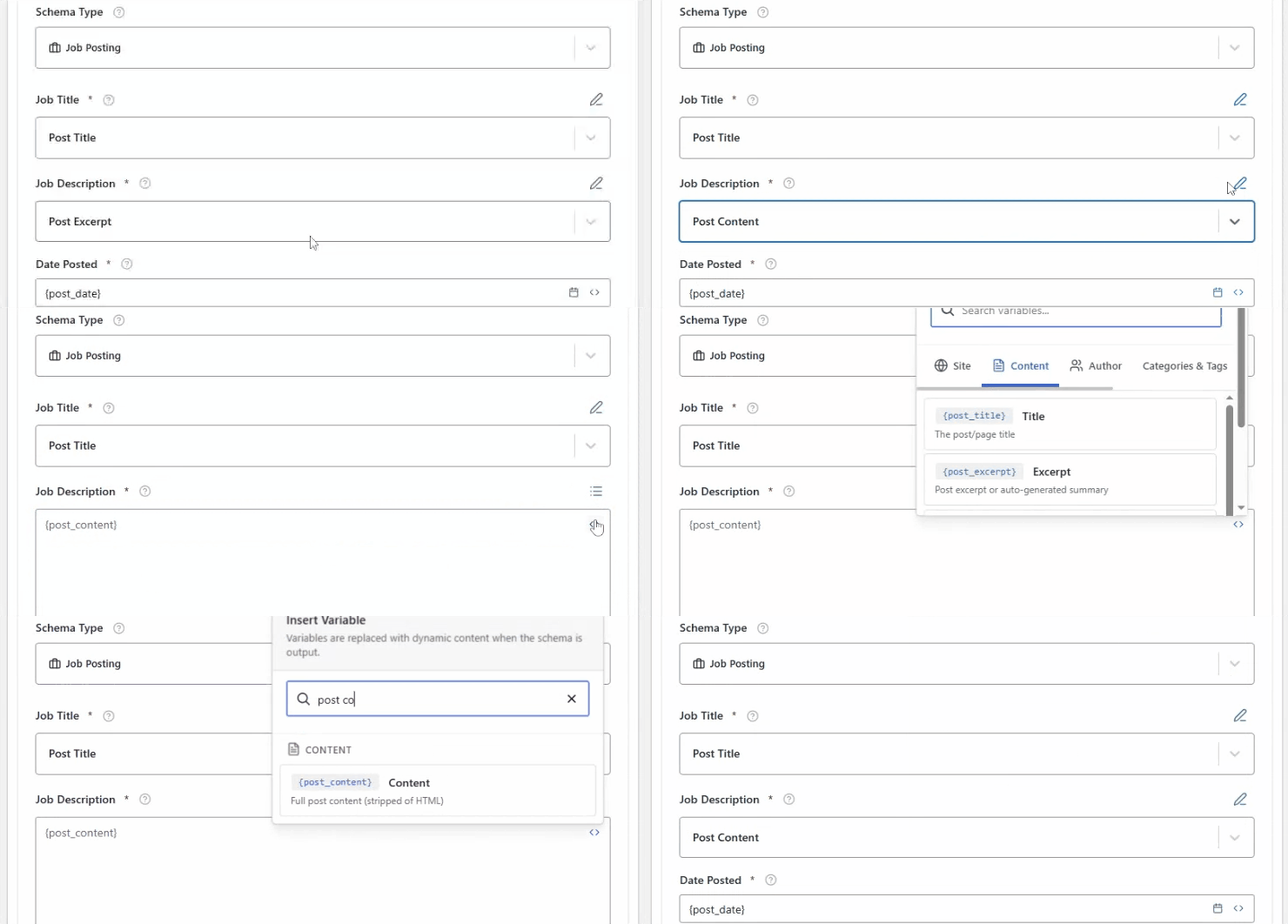
Commonly used variables include:
- {post_excerpt} – Automatically pulls a short summary from the post excerpt.
- {post_content} – Automatically uses the main content of the post or page.
This approach is ideal for large websites, as it keeps the schema description in sync with your page content and reduces manual updates.
These schema fields can also be modified directly while editing an individual post or page.
Date Posted #
The Date Posted field defines the exact date on which the job listing is published and made available to users.

This information is a required and important property in Job Posting schema, as it helps search engines understand the freshness of the job and display it correctly in job-related search results.
You can add the Date Posted in two different ways:
Using a Variable ({post_date})
You may manually insert the {post_date} variable into the field. This option automatically pulls the original publish date of the post from WordPress. It is especially useful when you want the schema date to always stay in sync with the actual post publication date, without requiring manual updates.
Selecting a Date Manually
Alternatively, you can click on the Select Date (calendar) icon and choose a specific date directly from the calendar.
Hiring Organization Name #
This field specifies the official name of the company or organization that is offering the job position. You can click on the pencil (edit) icon to manually type the name of the company or organization.
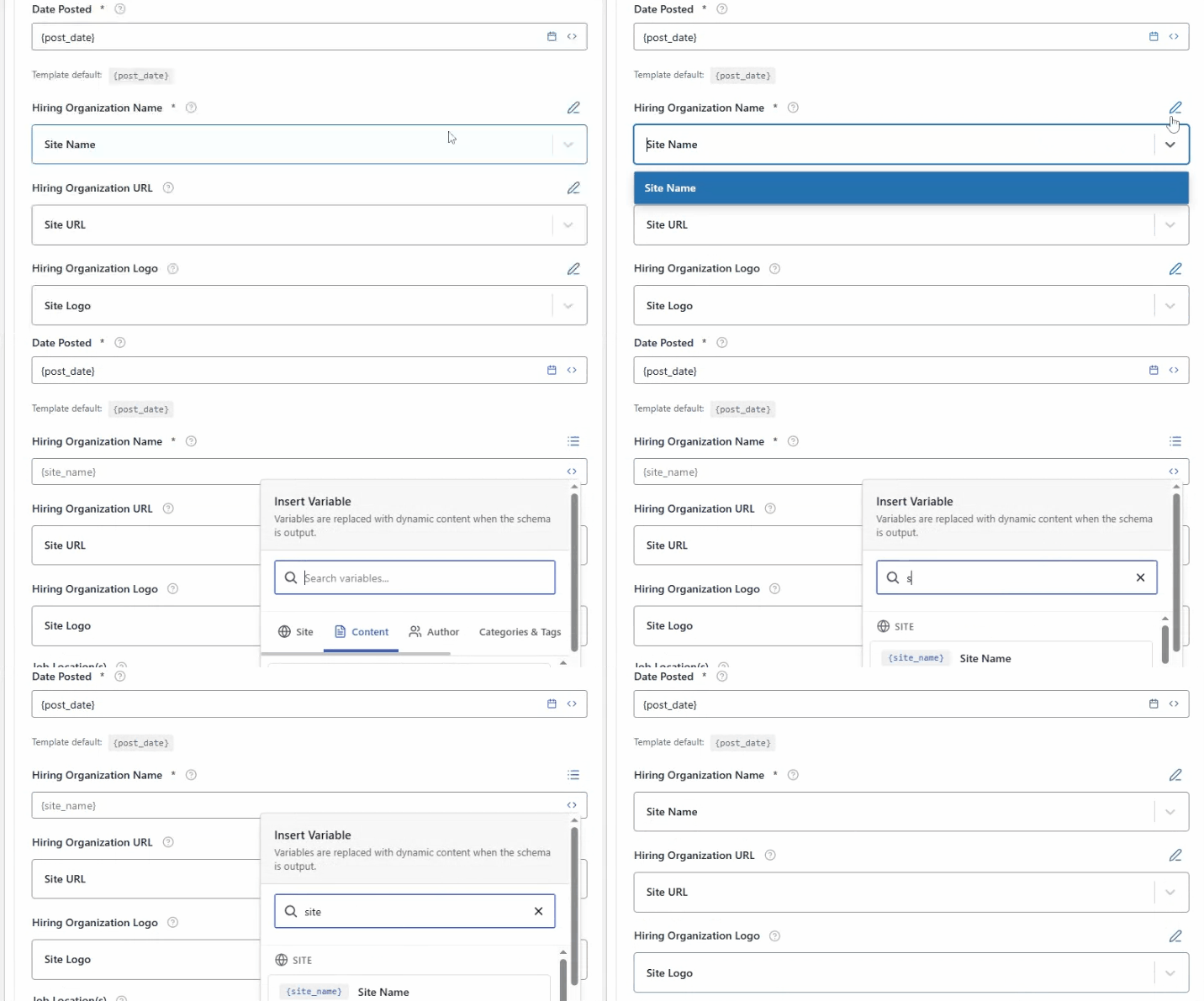
Otherwise, you can also click on the Insert Variable icon and select the {site_name} variable. This will automatically pull your website’s name and use it as the hiring organization.
Hiring Organization URL #
The Hiring Organization URL field contains the official website URL of the employer. To add this you can click on the pencil (edit) icon to manually type the URL of the company or organization.
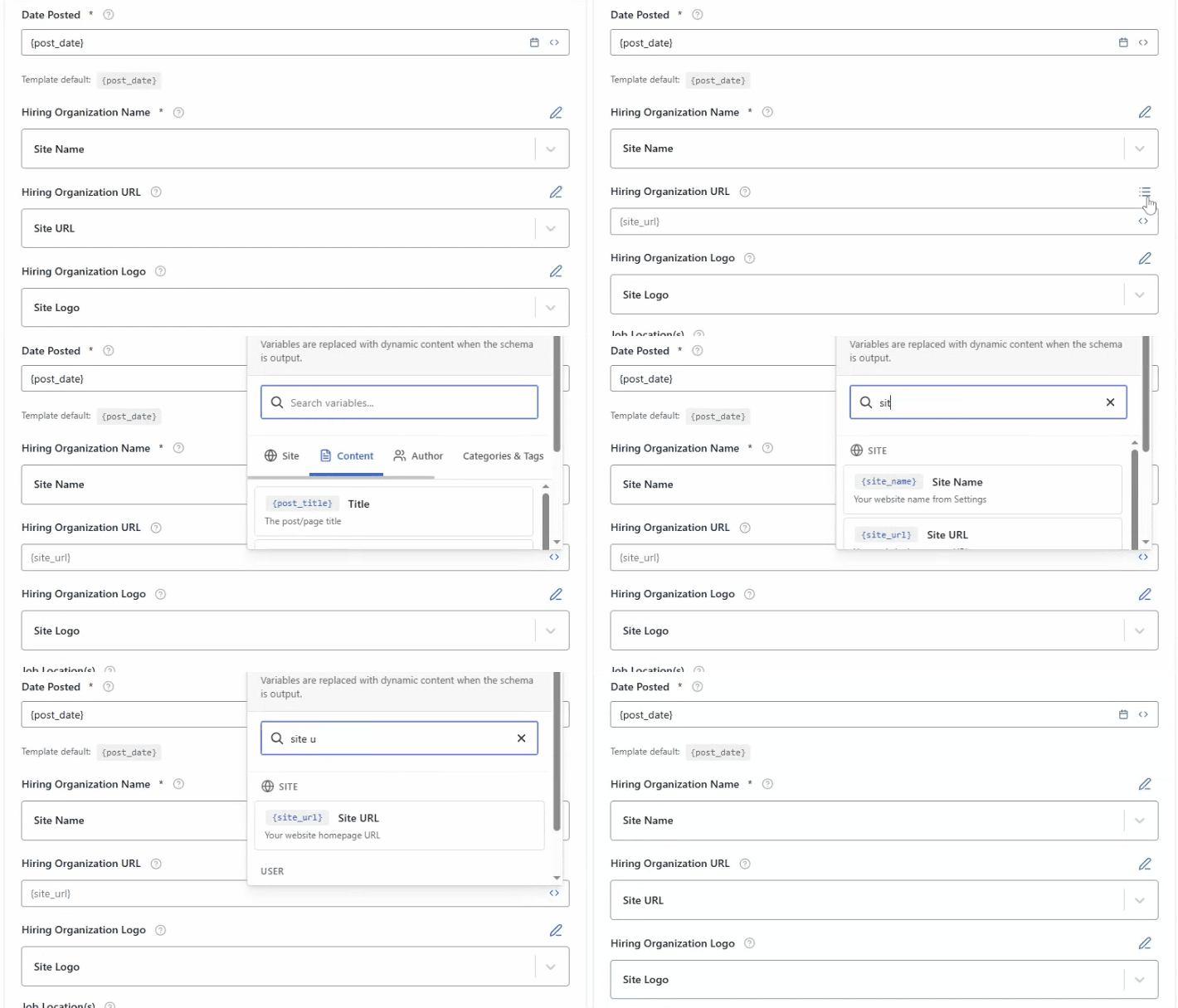
Otherwise, you can also click on the Insert Variable icon and select the {site_URL} variable. This will automatically pull your website’s URL and use it as the hiring organization.
Hiring Organization Logo #
The Hiring Organization Logo field is used to specify the official logo of the company or organization offering the job.
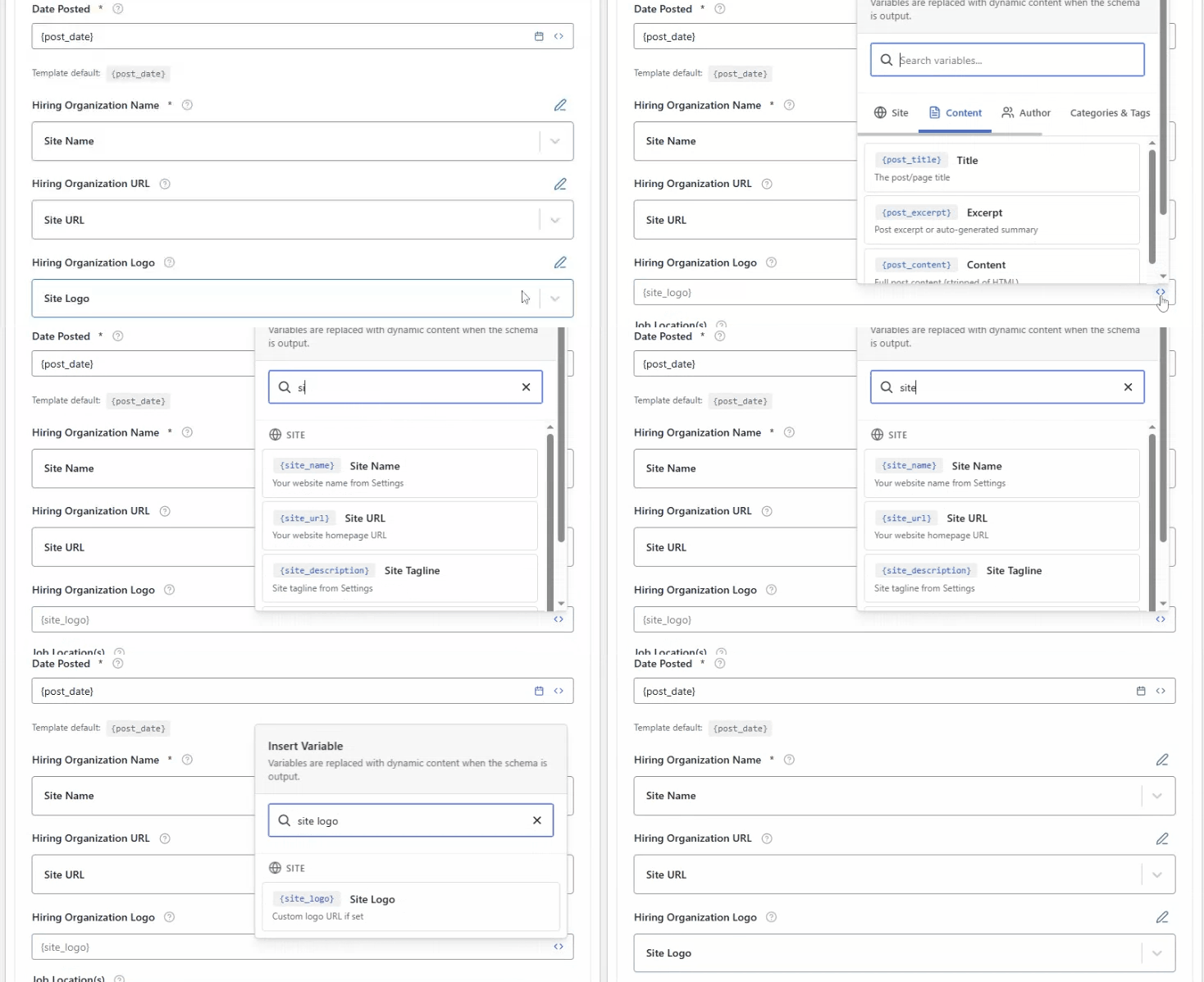
This logo may appear alongside the job listing in search results, helping improve brand recognition and making the job posting more visually appealing and trustworthy.
You can add the hiring organization logo in the following ways:
Manual Selection (Pencil / Edit Icon)
Click on the pencil (edit) icon to manually upload or select the logo image of the company or organization from your media library.
Using a Variable ({site_logo})
Click on the Insert Variable icon and choose the {site_logo} variable. This will automatically pull your website’s default logo and use it as the hiring organization’s logo.
Job Location(s) #
The Job Location section defines where the job is physically based.
You can add one or multiple locations depending on the role.
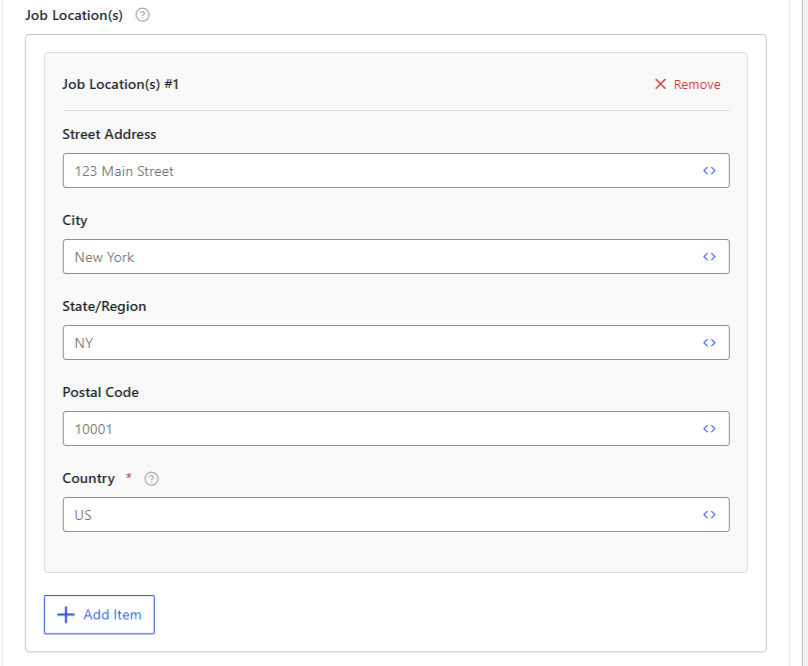
Street Address #
Enter the full street address, including building number and street name.
City
Eenter the city name exactly as it is commonly recognized. The City field specifies the city where your business is located. Accurate city information improves local search relevance and map visibility.
State/Region #
Enter the appropriate state or region name to help search engines accurately classify your location. The State / Region field defines the state, province, or administrative region of your business location.
Postal Code #
The Postal Code field represents the ZIP or postal code of your business address. This information helps refine geographic accuracy. You can put a static value or can use the dynamic variable.
Country #
Enter your country name in the field. You can also add static name here. Ensure consistency with your website and other business profiles. The Country field specifies the country where your business operates. This is important for international and local search accuracy.
Employment Type #
The Employment Type field describes the nature of employment.
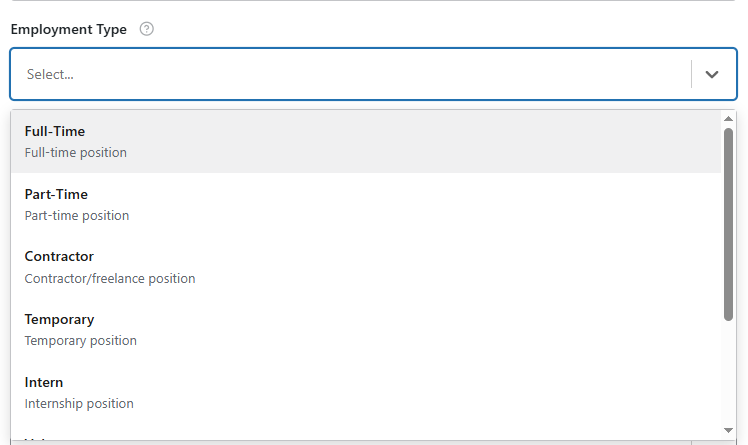
Common options include:
- Full-time
- Part-time
- Contract
- Temporary
- Internship
- Volunteer
Selecting the correct employment type helps users quickly understand the job arrangement.
Base Salary (Single Value) #
The Base Salary (Single Value) field is used when the job offers a fixed and exact salary amount rather than a range. This field helps clearly communicate the compensation to both users and search engines.

In this field, enter one numeric value that represents the base compensation for the job. This value should reflect the standard salary offered, excluding bonuses, commissions, or additional benefits unless they are part of the fixed base pay.
Base Salary Min (Range) #
The Base Salary Min (Range) field is used when the job compensation is offered as a salary range instead of a fixed amount.

This field specifies the lowest salary value that a candidate can expect for the position, helping set clear expectations for both users and search engines.
Enter a numeric value that represents the minimum base salary for the role. This amount should reflect the starting compensation before any increases based on experience, skills, or performance.
Base Salary Max (Range) #
The Base Salary Max (Range) field specifies the highest salary amount that can be offered for the job role. This field is used when compensation is variable and depends on factors such as experience, skills, seniority, or location.

When combined with the Base Salary Min field, it creates a clear and transparent salary range for the position. Enter a numeric value only that represents the maximum possible base salary (for example, 80000).
Salary Unit #
The Salary Unit specifies how the salary is calculated, such as:
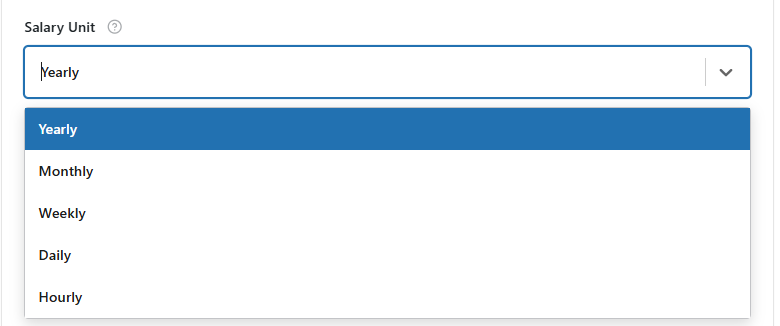
- Hourly
- Daily
- Weekly
- Monthly
- Yearly
Choose the unit that best matches the compensation structure.
Currency #
This field specifies the currency used for the salary, such as USD, EUR, GBP, or your WooCommerce store currency if applicable.

Always ensure the currency matches the salary values entered.
Valid Through #
The Valid Through field specifies the exact date until which the job posting remains active and open for applications.

This date represents the expiration date of the job listing. Once this date is reached, the job is considered no longer available.
Job Identifier #
The Job Identifier field is used to assign a unique reference ID to each job posting. This identifier is crucial for distinguishing one job listing from another, particularly when you have multiple openings for the same role or multiple roles posted on your website.

Each job should have its own unique ID. Using the same identifier for multiple jobs can create conflicts and may cause search engines to misinterpret or ignore some listings.
The identifier can be numeric, alphanumeric, or a combination, depending on your internal tracking system. For example: JOB-001, DEV-2025-03, or FT-MARKETING-01.
Job Location Type #
This field indicates whether the job is:
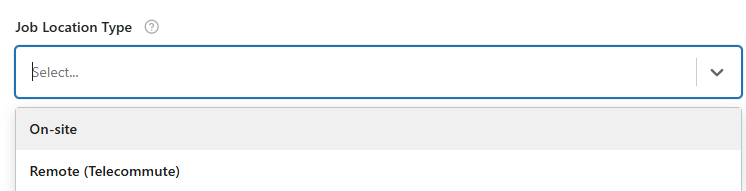
- On-site
- Remote
- Hybrid
It clarifies how and where the job is performed.
Eligible Remote Locations #
The Eligible Remote Locations field is used for remote job postings to clearly define the geographic areas where applicants are allowed to apply. Even though the job can be performed remotely, many employers have specific restrictions based on legal, tax, or operational requirements.
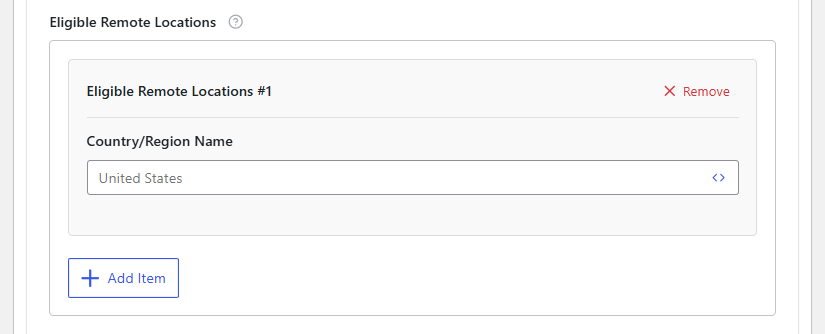
This field ensures that candidates understand exactly where they are eligible to work from, preventing confusion and streamlining the application process.
Enter one or multiple countries where applicants are eligible. For example: United States, Canada, or European Union.
Experience Required (Months) #
The Experience Required (Months) field is used to specify the minimum professional experience a candidate must have for the job.

This helps job seekers understand the level of expertise needed and allows search engines to display accurate eligibility information in Job Posting schema.
Enter the required experience in months. For example:
36months = 3 years of experience24months = 2 years of experience
Education Requirements #
This field defines the minimum educational qualifications required for the role, such as:
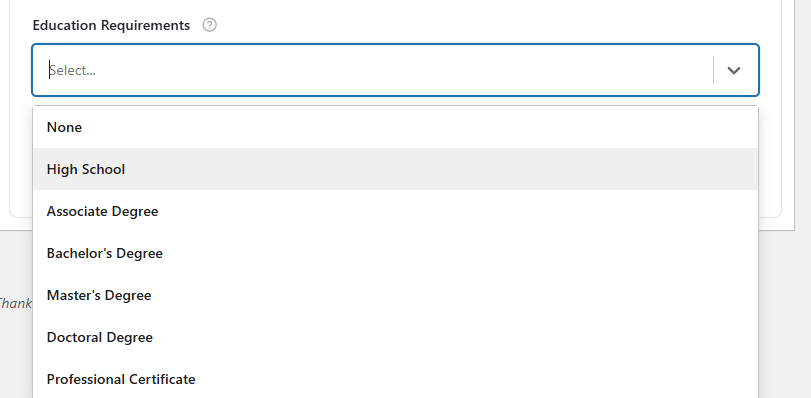
- High School
- Bachelor’s Degree
- Master’s Degree
- Certification
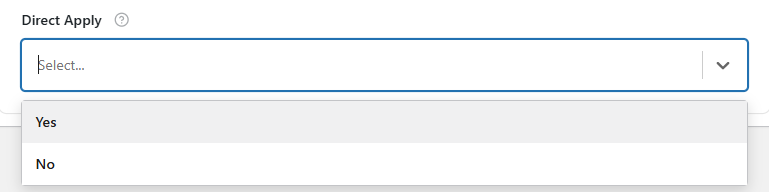
Direct Apply #
The Direct Apply option indicates whether candidates can apply directly through your website without being redirected to a third-party platform.
Enabling this improves user experience and may enhance job visibility in search results.
Once you are done with all your changes click on the publish button.


