
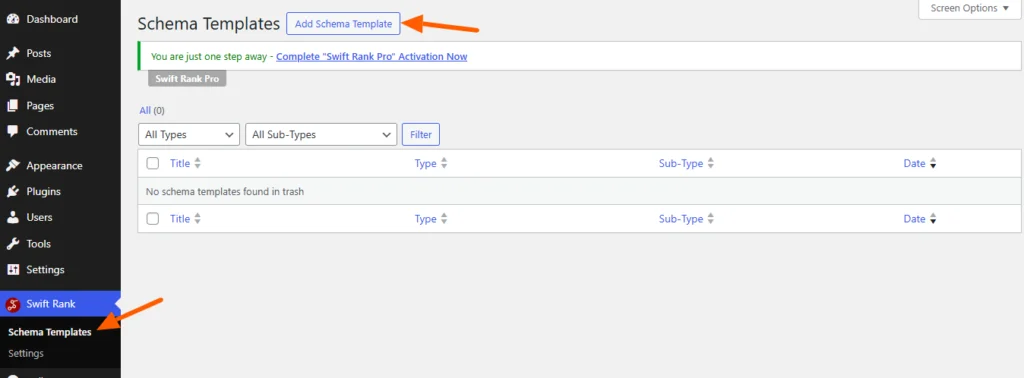
To add FAQ page schema using Swift Rank, first ensure that the Swift Rank plugin is properly installed and activated on your WordPress website. Once the plugin is active, navigate to Schema Templates from the Swift Rank dashboard to begin creating FAQ page schema template.
Click on Add Schema Template to start.
Name Your FAQ Page Schema Template #
You can enter a clear and descriptive title for your template.
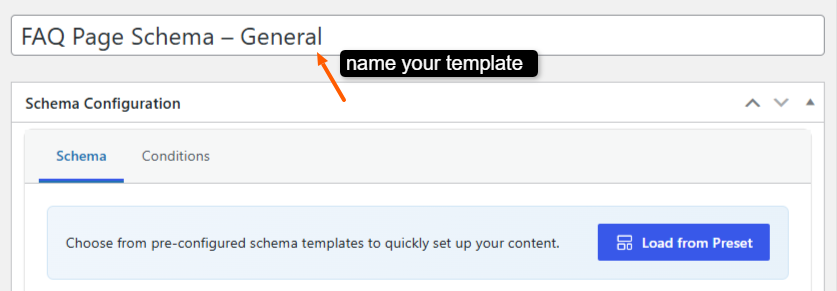
- FAQ Page Schema – General
- FAQ Schema – Website FAQs
- FAQ Schema – Help Center
- FAQ Schema – Service FAQs
- FAQ Schema – eCommerce FAQs
This helps you easily identify the template later, especially when managing multiple schemas.
Select the Schema Type #
In the Schema Configuration panel located in the right sidebar, find the Schema Type dropdown. Click the dropdown and select FAQ page from the available schemas.
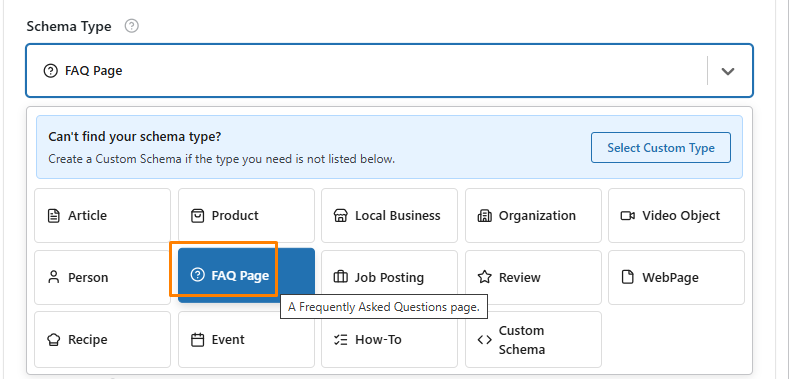
Once the FAQ page schema type is selected, Swift Rank will automatically load all predefined fields required to describe FAQ page content accurately.
Page Name #
The Page Name represents the title of the webpage where your FAQ content is located. It helps search engines understand what the page is about and often appears in search results. Enter the exact title of your FAQ page.

Example: “Shipping & Returns FAQ” or “Website Support FAQs.” You can also type this {site_name} variable.
URL #
The URL field specifies the web address of the FAQ page. This ensures search engines link the structured data to the correct page.

Enter the full canonical URL of the FAQ page, including https://.
Example: https://www.example.com/faq/shipping-returns
Or you can enter this {site_url} variable.
FAQ Items #
This is the most critical part of the FAQ Page Schema. FAQ items are structured as question-answer pairs and help search engines display your FAQs directly in search results (rich results).
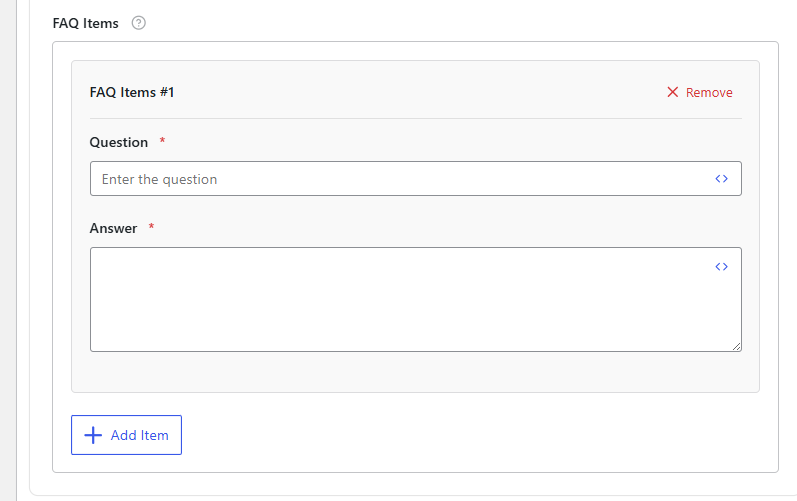
You can add as many faqs as you want. You can also edit this faq schema in any individual post or page.
After filling in these fields, click the ‘Publish’ button to save your changes.


