
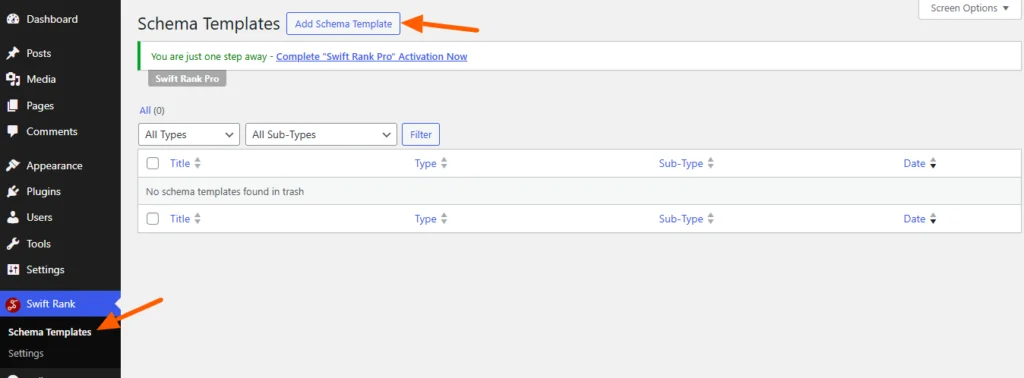
To add product schema using Swift Rank, first ensure that the Swift Rank plugin is properly installed and activated on your WordPress website. Once the plugin is active, navigate to Schema Templates from the Swift Rank dashboard to begin creating product schema template.
Click on Add Schema Template to start.
Name Your Schema Template #
At the top of the screen, enter a clear and descriptive title for your template. For example:
- Product Schema – WooCommerce Products
- Product Schema – Store Products
- Product Schema – Online Shop Products
- Product Schema – Physical Products
- Product Schema – Digital Products
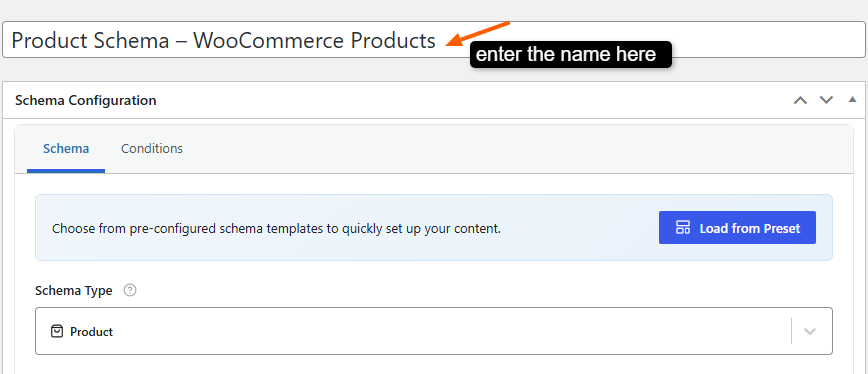
This helps you easily identify the template later, especially when managing multiple schemas.
Select the Schema Type #
In the Schema Configuration panel located in the right sidebar, find the Schema Type dropdown. Click the dropdown and select “product” from the available schemas.
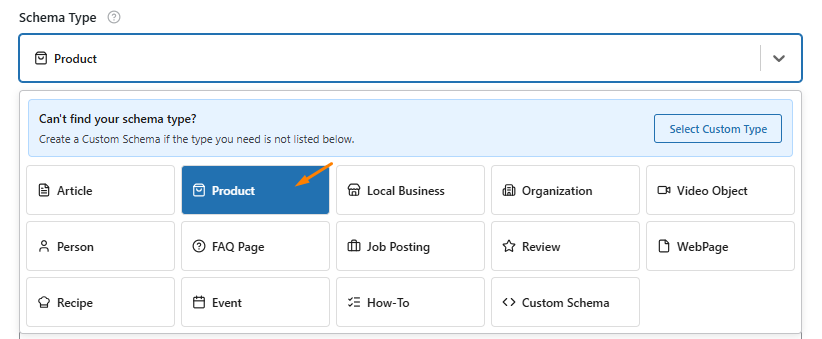
Once the Article schema type is selected, Swift Rank will automatically load all predefined fields required to describe product-based content accurately. Most of these fields support dynamic variables, allowing the schema to automatically pull data from each individual post.
Configure Product Fields #
Product Name #
The Product Name field defines the official name of the product.
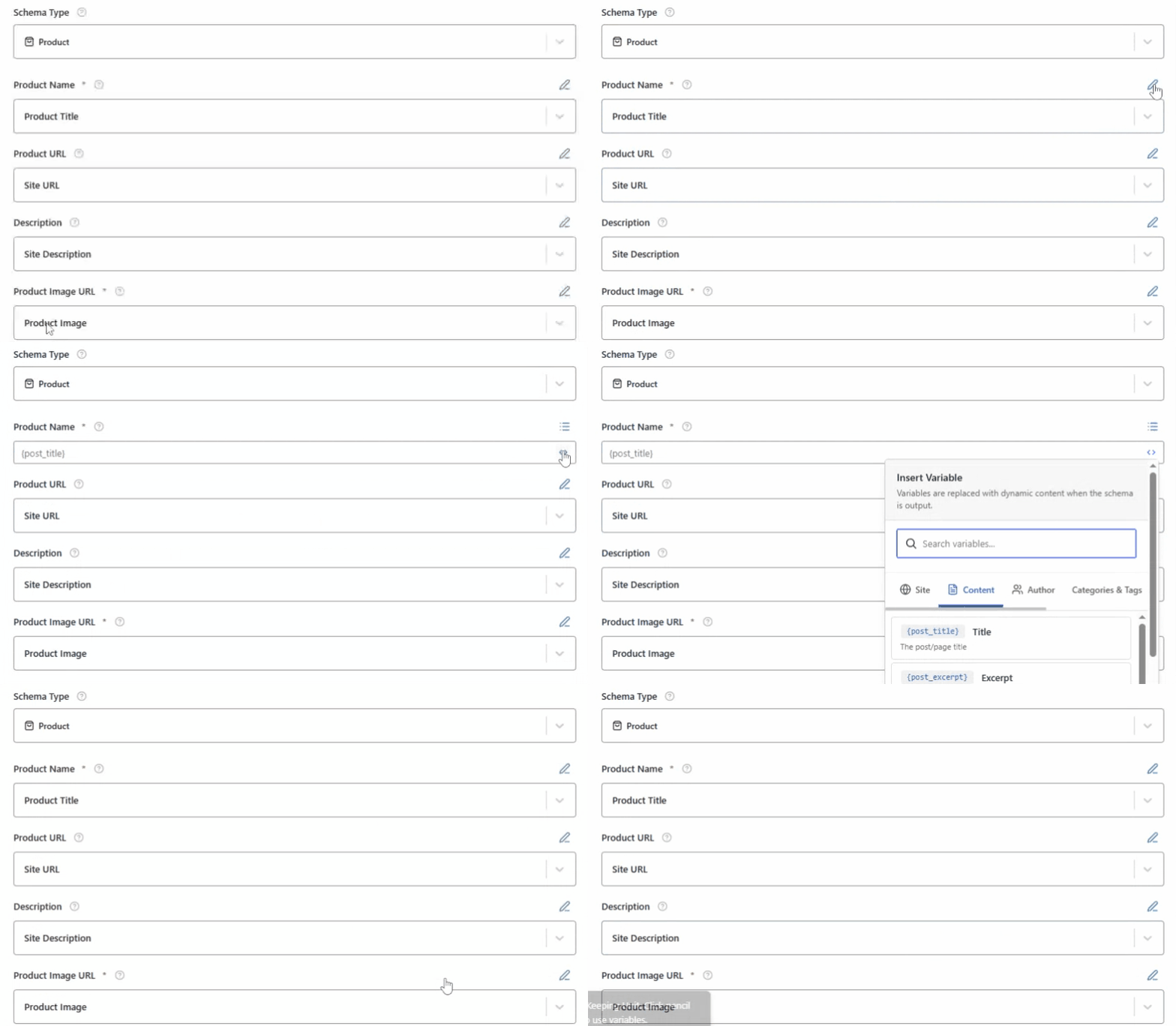
To add a dynamic product name:
- Click the pencil (edit) icon next to the field.
- Once the field becomes editable, click the <> (Insert Variable) icon.
- From the variable list, select Product Title Or you can also type this {product_title}.
Using this variable ensures that Swift Rank automatically inserts the correct product name for each product page. You may also use a static name, but dynamic variables are recommended for scalability and accuracy.
Product URL #
The Product URL specifies the canonical URL of the product page.
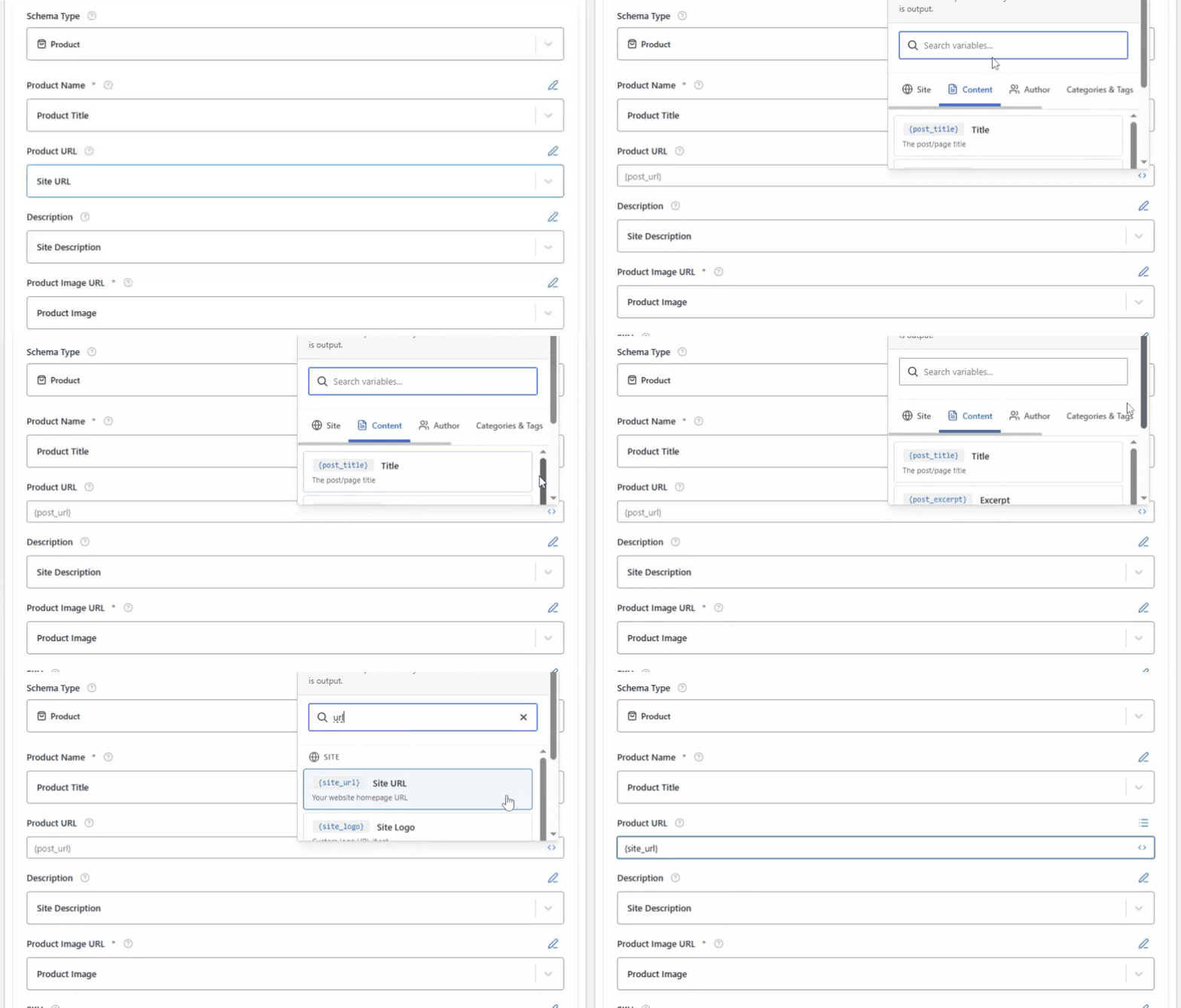
To set this dynamically:
- Click the pencil icon.
- Open the Insert Variables panel.
- Select Product URL varibale or you can type this {product_url}.
This ensures each product schema is correctly linked to its respective product page.
Product Description #
The Description field provides a summary of the product and helps search engines understand its purpose and features.
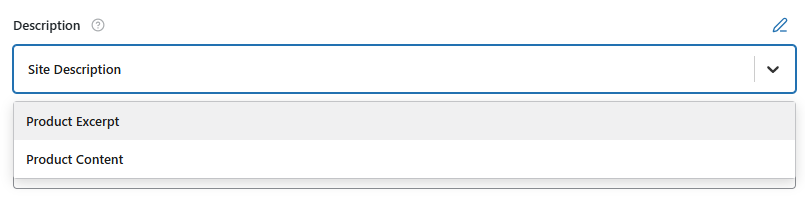
You can configure this field by:
- Selecting Product Excerpt or Product content through the dropdown or using variable selector, or
- Entering a custom static description if required.
Dynamic descriptions are preferred as they reflect individual product content.
Product Image URL #
The Product Image URL is a required field and specifies the primary image associated with the product.
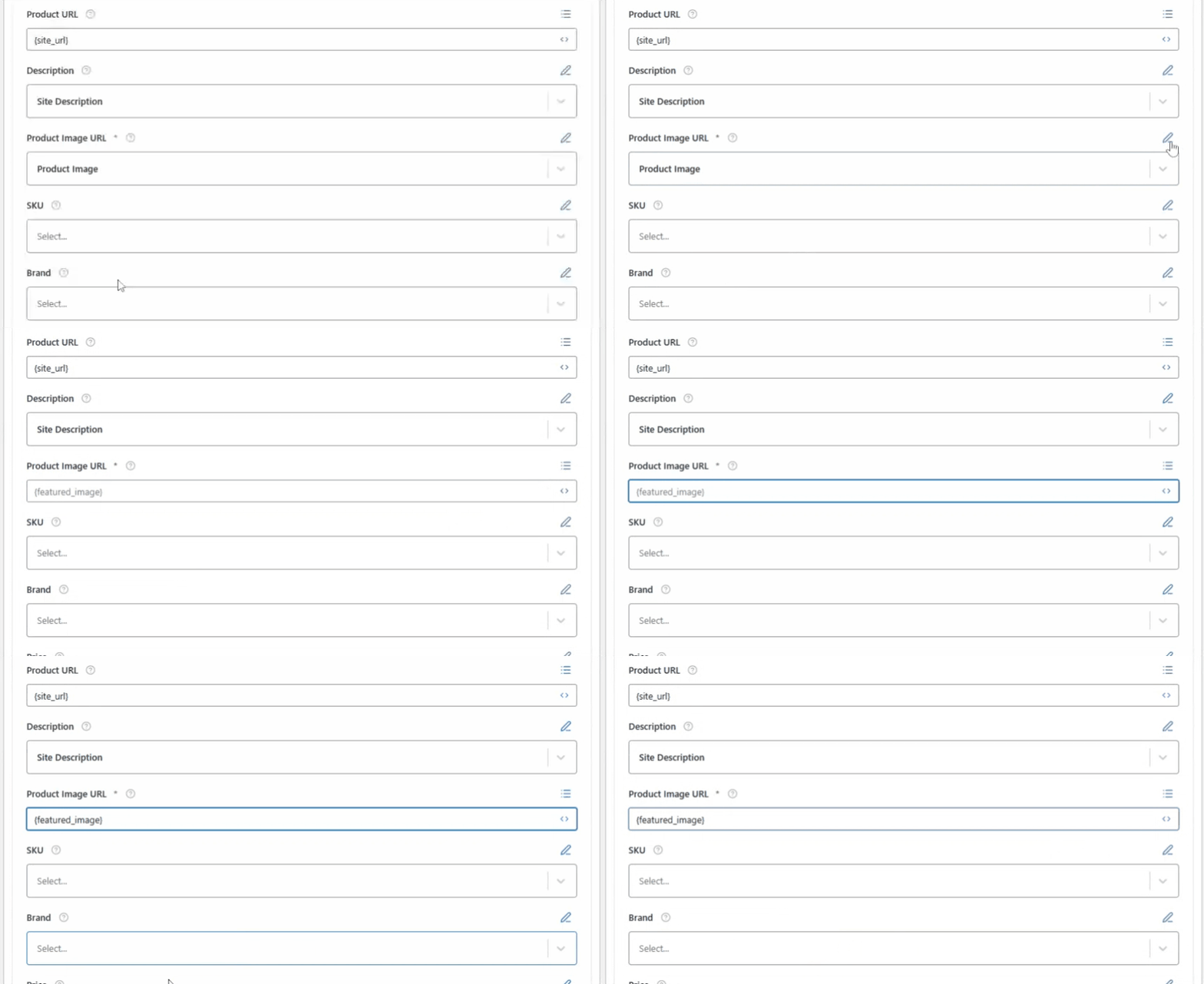
By default, Swift Rank uses the featured product image, which is recommended for rich results. You can also:
- Insert the image dynamically using variables, or
- Provide a static image URL.
Additionally, you may enable Image Reference to associate the image with an Image Object entity. Disabling it allows you to use a custom image URL or entity instead.
SKU #
By default, the Product SKU (WooCommerce) option is available in this field. You can also insert the SKU dynamically by clicking the pencil icon, selecting Insert Variable (<>), and then choosing Product SKU (WooCommerce) from the list of available variables.

Alternatively, you may enter a static SKU value manually if you prefer to define a fixed identifier for the product.
Brand #
The Brand Name represents the brand under which your product is sold. Swift Rank provides multiple options to populate this field. From the dropdown, you can select:
- Product Brand (WooCommerce), or
- Site Title to use your website name as the brand.
If your WooCommerce store uses separate brand name for products, you can select the Product Brand (WooCommerce) option so the correct brand is automatically applied to each product. You can also select Site Title as the brand name. This option is suitable when your website name itself represents your brand and all products are sold under the same brand identity, ensuring consistent branding across your entire product catalog.
To add this, you may click the pencil icon to insert a variable, or manually enter a static brand name if you prefer to define a fixed value.

Price #
The Price field specifies the current selling price of the product.
To ensure accuracy across all product pages, you can dynamically fetch pricing data by selecting Product Price (WooCommerce). This automatically updates the schema whenever the product price changes.

Alternatively, you may enter a static price by clicking the pencil icon and defining a fixed value.
Currency Code #
The Currency Code indicates the currency in which the product is sold. Common examples include:
- USD
- EUR
- GBP
- Currency (WooCommerce)
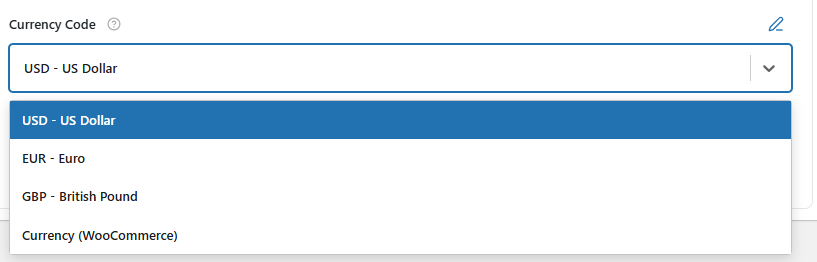
The selected currency should always match the currency used in your online store to avoid inconsistencies.
Availability (Stock Status) #
The Availability field indicates whether the product is currently in stock.
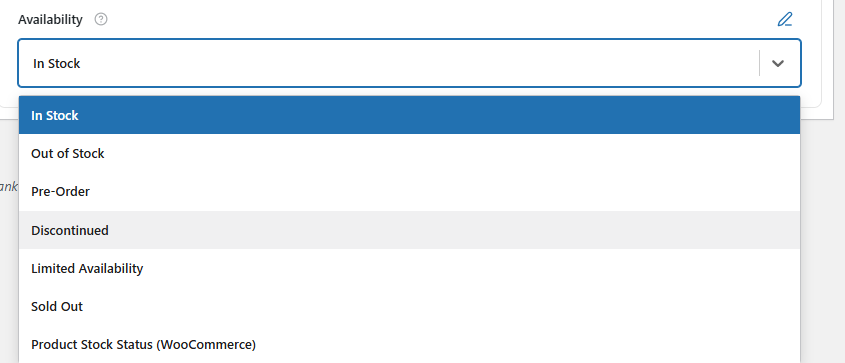
From the dropdown, you can select options such as:
- In Stock
- Out of Stock
- Discontinued
- Preorder
- Limited Availability
- Sold Out
- Product Stock Status (WooCommerce)
This information helps search engines display accurate stock status in search results and improves user trust. These schema fields can also be modified directly while editing an individual post or page.
Publish the Schema Template #
After completing all required fields and reviewing your configuration, click Publish to activate the Product schema template.
Once published, Swift Rank will automatically apply the schema to eligible product pages based on your conditions, helping search engines better understand your product data and enhancing your eligibility for rich results.


