
This guide will walk you through setting up and enabling Google Tag Manager (GTM) on your WordPress site using ToolPress.
Prerequisites #
Before you begin, make sure you have:
- ToolPress Plugin Installed: The plugin should be active on your WordPress site
- Google Tag Manager Account: Create an account at Google Tag Manager
- GTM Container ID: You’ll need your GTM container ID (format:
GTM-XXXXXXX) - Admin Access: You need WordPress admin privileges to configure tools
Step-by-Step Setup #
Access ToolPress Dashboard #
- Log in to your WordPress admin panel
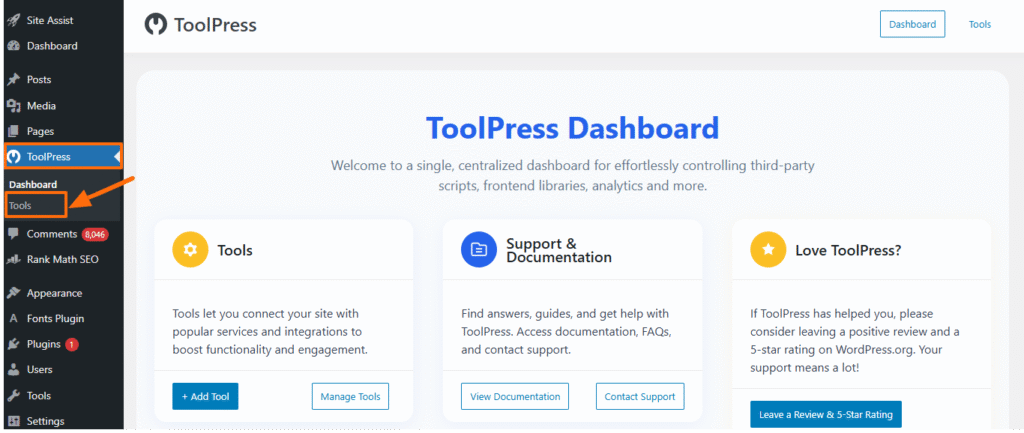
- Navigate to ToolPress in the left sidebar menu
- Click on Tools to view all available tools
Create a New Google Tag Manager Tool #
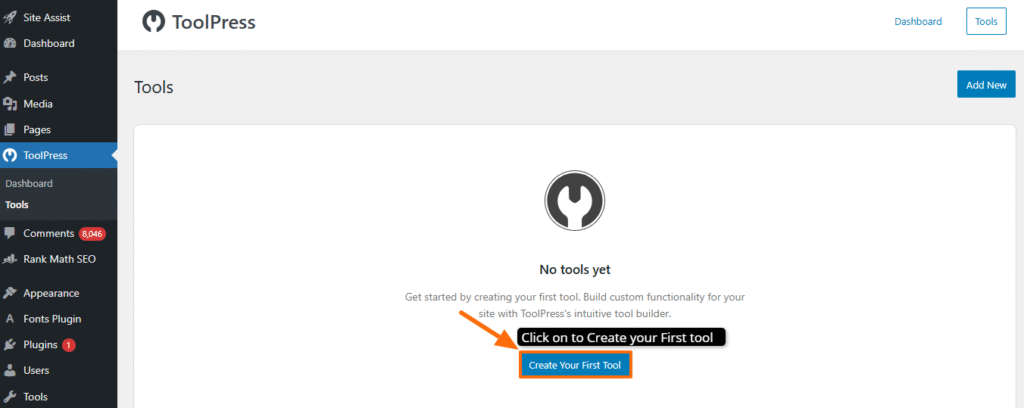
- From Tools listing page, Click the “Add New” button
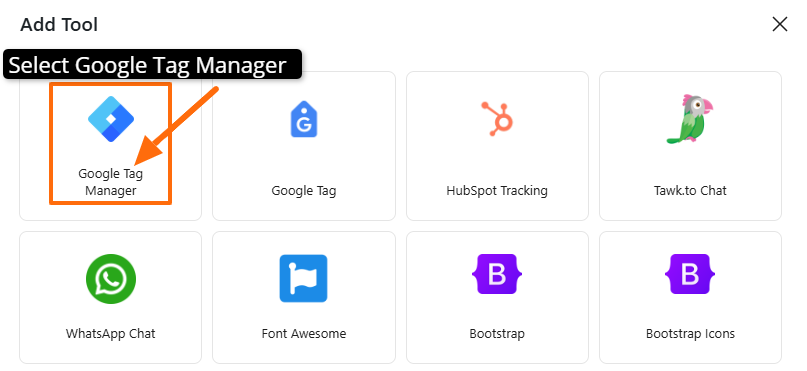
- From Popup click “Google Tag Manager”
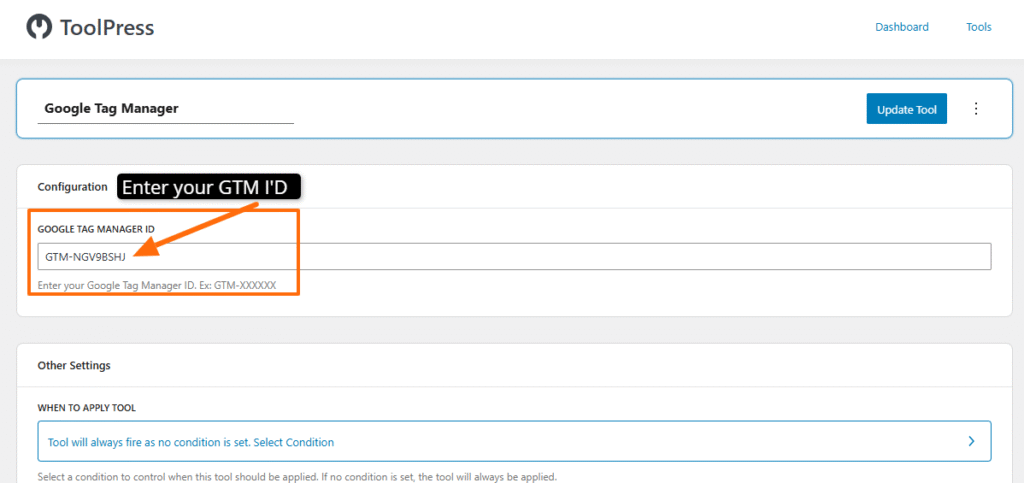
- Once clicked it will redirect page to Edit page where you can add GTM settings.
Configure GTM Settings #
In the GTM settings panel, you’ll see a field labeled “Google Tag Manager ID”:
- Enter your GTM container ID in the format:
GTM-XXXXXXX
- Example:
GTM-ABC1234 - The ID must start with
GTM-followed by alphanumeric characters

- The field will validate your input automatically
- If the format is incorrect, you’ll see an error message: “Please enter a valid Google Tag Manager ID. Ex: GTM-XXXXXX”
Publish Your Tool #
- Review all settings
- Click the “Update Tool” button
- Your GTM container will now be active on your site
Troubleshooting #
GTM Not Loading #
Problem: Google Tag Manager script not appearing on your site.
Solutions:
- Verify the tool is Published (not in Disabled status)
- Check that display conditions allow GTM to load on the current page
- Ensure GTM ID is in correct format:
GTM-XXXXXXX - Clear browser cache and WordPress cache plugins
- Check browser console for JavaScript errors
Invalid GTM ID Error #
Problem: Error message when entering GTM ID.
Solutions:
- Ensure ID starts with
GTM-(uppercase) - Use only uppercase letters and numbers after
GTM- - Copy ID directly from Google Tag Manager dashboard
- Don’t include spaces or special characters
GTM Works on Some Pages But Not Others #
Problem: Inconsistent GTM loading across pages.
Solutions:
- Review display conditions in tool settings
- Check if conditions exclude certain pages
- Verify user role conditions if logged in
- Test in incognito mode to rule out user-specific issues
Multiple GTM Containers Conflict #
Problem: Multiple GTM tools causing issues.
Solutions:
- Use only one GTM tool per site (recommended)
- If using multiple containers, ensure they have different priorities
- Use conditions to load different containers on different pages
- Consider using GTM’s multi-container feature instead
Technical Details #
How ToolPress Implements GTM #
ToolPress adds Google Tag Manager in two locations as recommended by Google:
1. Head Section (High Priority) #
The GTM JavaScript snippet is injected into the <head> section:
<!-- Google Tag Manager -->
<script>(function(w,d,s,l,i){w[l]=w[l]||[];w[l].push({'gtm.start':
new Date().getTime(),event:'gtm.js'});var f=d.getElementsByTagName(s)[0],
j=d.createElement(s),dl=l!='dataLayer'?'&l='+l:'';j.async=true;j.src=
'https://www.googletagmanager.com/gtm.js?id='+i+dl;f.parentNode.insertBefore(j,f);
})(window,document,'script','dataLayer','GTM-XXXXXXX');</script>
<!-- End Google Tag Manager -->
2. Body Opening (Fallback) #
A noscript fallback is added right after the opening <body> tag:
<!-- Google Tag Manager (noscript) -->
<noscript><iframe src="https://www.googletagmanager.com/ns.html?id=GTM-XXXXXXX"
height="0" width="0" style="display:none;visibility:hidden"></iframe></noscript>
<!-- End Google Tag Manager (noscript) -->
Theme Compatibility #
For the noscript fallback to work properly, your theme must support the wp_body_open hook (WordPress 5.2+).
If your theme doesn’t support this, add this to your theme’s header.php right after <body>:
<?php wp_body_open(); ?>Additional Resources #
Support #
If you encounter issues not covered in this guide:
- Review WordPress error logs
- Test with default WordPress theme to rule out conflicts
- Contact ToolPress support with:
- WordPress version
- ToolPress version
- Active theme and plugins
- Browser console errors (if any)
- Steps to reproduce the issue


