
The Social Profiles section allows you to add and manage your website’s social media profile URLs. These profiles are used to enhance your Knowledge Graph visibility, helping search engines clearly associate your website or brand with its official social media accounts. Properly configured social profiles improve brand credibility and increase the chances of enhanced search results.
Social Profiles of the Swift Rank Schema plugin #
Navigate to Swift Rank→ Settings → Social Profile Tab.
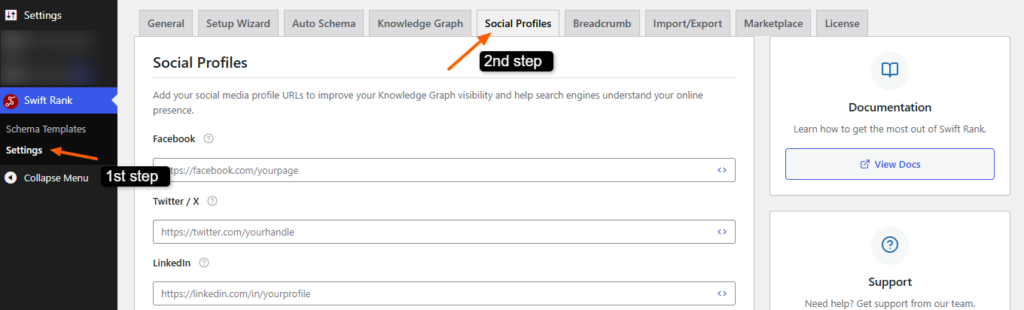
Facebook #
The Facebook field is used to add the URL of your official Facebook page. This should be a public business page or brand page rather than a personal profile. Enter the full URL starting with https://.
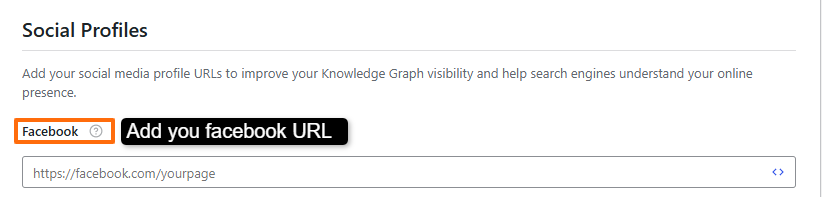
Direct URL Example: #
Variable Example: #
If your plugin supports dynamic variables, you may use:
{facebook_url}
Using variables is helpful when managing multiple sites or environments, allowing the value to be updated dynamically from a central configuration.
Twitter / X #
The Twitter / X field allows you to enter the URL of your official Twitter (X) profile. This helps search engines connect your brand with its verified presence on X.

Direct URL Example: #
https://twitter.com/yourhandleVariable Example: #
{twitter_url}
LinkedIn #
The LinkedIn field is used to define your LinkedIn profile or company page. For businesses, a company page is recommended.

Direct URL Example: #
https://linkedin.com/company/yourcompany
or
https://linkedin.com/in/yourprofile
Variable Example: #
{linkedin_url}
Instagram #
The Instagram option allows you to add your official Instagram profile URL. This helps search engines associate your visual and social presence with your brand.

Direct URL Example: #
https://instagram.com/yourusername
Variable Example: #
{instagram_url}
YouTube #
The YouTube field is used to link your official YouTube channel. This is especially useful for brands publishing video content.

Direct URL Examples: #
https://youtube.com/@yourchannel
or
https://youtube.com/channel/CHANNEL_ID
Variable Example: #
{youtube_url}
Custom Social Profiles #
The Custom Social Profiles section allows you to add social platforms that are not listed by default, such as Pinterest, TikTok, Snapchat, Threads, or any other platform relevant to your brand.
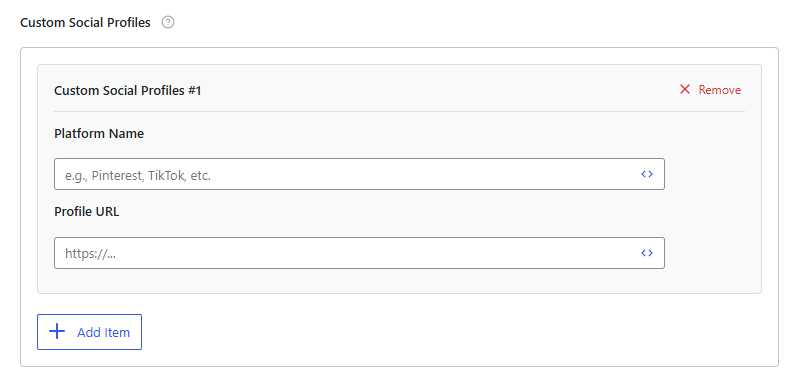
Platform Name #
Enter the name of the social platform (for example, Pinterest or TikTok). This label helps identify the platform within the settings.
Profile URL #
Enter the full public URL of your profile on that platform.
Direct URL Example: #
https://pinterest.com/yourprofile
Variable Example: #
{pinterest_url}
You can add multiple custom profiles by clicking the Add Item button. Each profile can also be removed individually using the Remove option.
Saving Your Social Profiles #
After adding or updating your social profile URLs, click the Save Changes button to apply them. Once saved, these profiles are automatically included in your site’s structured data and used for Knowledge Graph and brand entity recognition.

Best Practices #
- Always use official and public profile URLs
- Avoid linking to personal or inactive accounts
- Ensure URLs are accessible without login
- Keep profiles consistent across platforms
After configuring these settings, click the Save Changes button to apply them across your website. The updated schema settings will take effect immediately, although search engines may require some time to recrawl and reflect the changes in search results.


