
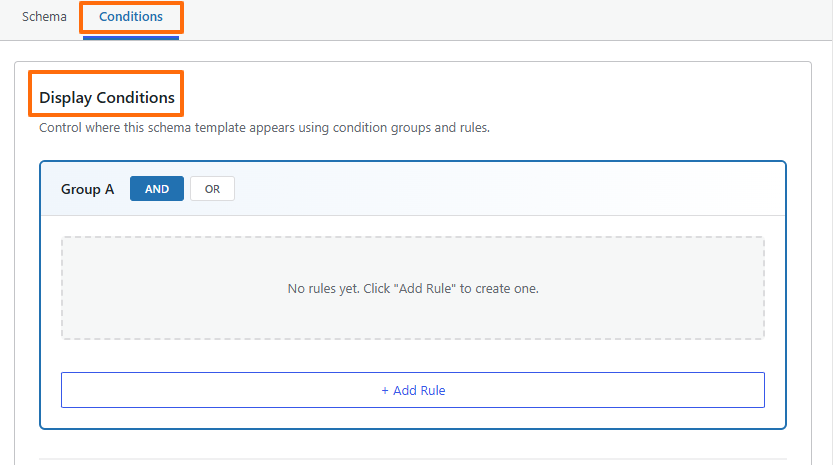
The Conditions tab is where you control when and where a schema template appears on your website. In this documentation, you’ll learn what the Conditions tab is, how it works, and how to add and manage conditions effectively. Conditions allow you to set clear rules that determine which pages should receive a specific schema template.
Instead of manually assigning schema to individual pages, you define these rules once, and Swift Rank automatically applies the schema wherever the conditions are met. Using conditions correctly helps ensure your structured data is accurate, consistent, and applied only to the right pages across your site.
Without Conditions #
- Schema may appear across unintended areas or not apply correctly
- No control over where the schema is displayed
- Increases the risk of incorrect or overlapping schema
With Conditions #
- Full control over schema placement
- Apply schema only where it is relevant
- Use different schema templates for different content types
- Maintain clean and accurate structured data across the site
Display Conditions Overview #
Display conditions are built using:
- Condition Groups
- Rules
- Logical operators (AND / OR)
Each schema template must have at least one rule to become active.
Condition Group (Group A) #
A condition group is a collection of rules that work together.
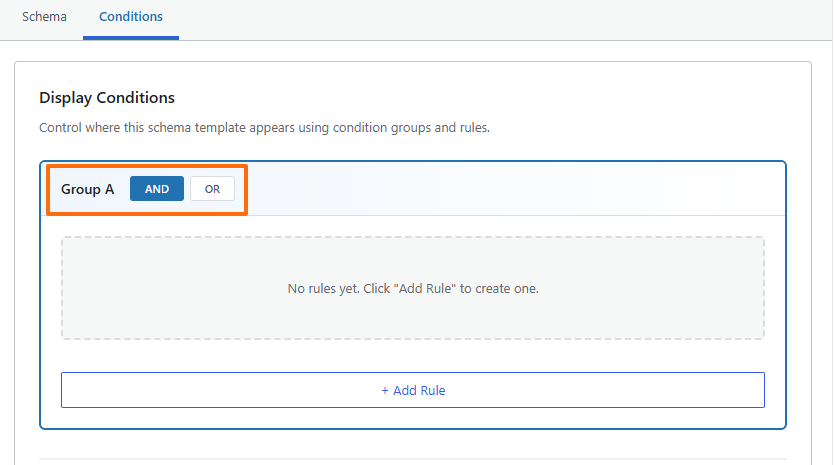
By default, Swift Rank creates Group A. All rules inside this group follow the selected logical operator:
- AND (default): All rules must be true
- OR: Any one rule must be true
You can switch between AND and OR depending on how strict or flexible you want the rule set to be.
Adding Rules #
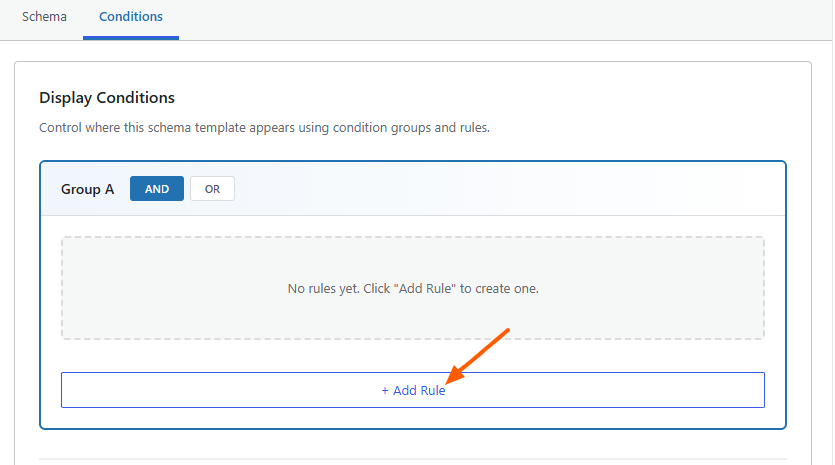
Click + Add Rule to create a new condition.
Condition Rule Structure #
Each display condition in Swift Rank is made up of three parts. These work together to determine exactly where the schema template will appear.
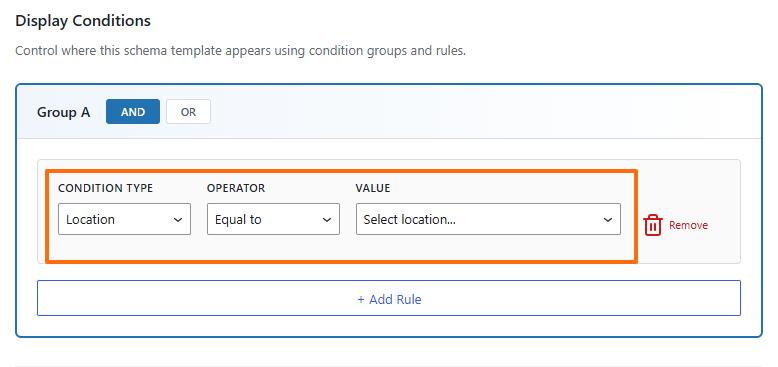
- Condition Type (e.g., Location, Post Type, Singular post/ Page)
- Operator (Equal to, Not equal to)
- Value (Whole site, home page)
These rules determine exactly where the schema should be applied.
Condition Type #
This defines where the schema should be applied on your site. Available options include:
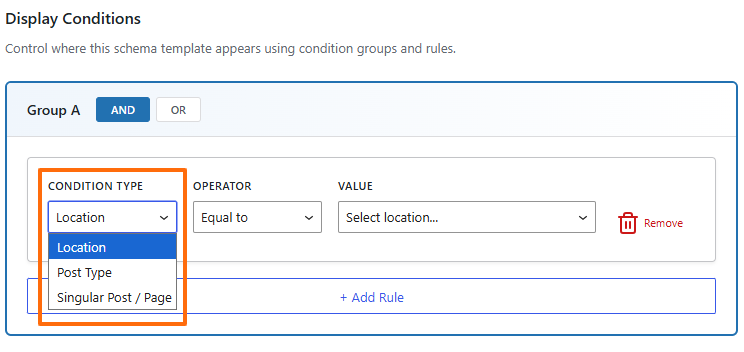
- Location – Targets specific areas of your site
- Post Type – Applies schema to content types such as posts or pages
- Singular Post / Page – Targets an individual post or page
Choose the option that best matches your schema use case.
Operator #
The operator determines how the condition is evaluated. Available operators include:
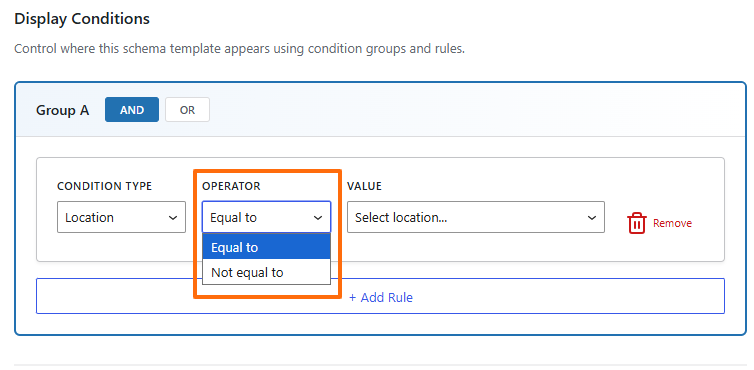
- Equal to – Applies the schema when the condition matches exactly
- Not equal to – Excludes the schema from the selected location or content
This allows you to include or exclude specific areas of your site.
Value #
The value defines the exact location or content where the schema should be applied. Common options include:
- Whole Site – Applies the schema across the entire website
- Home Page – Applies the schema only to the homepage
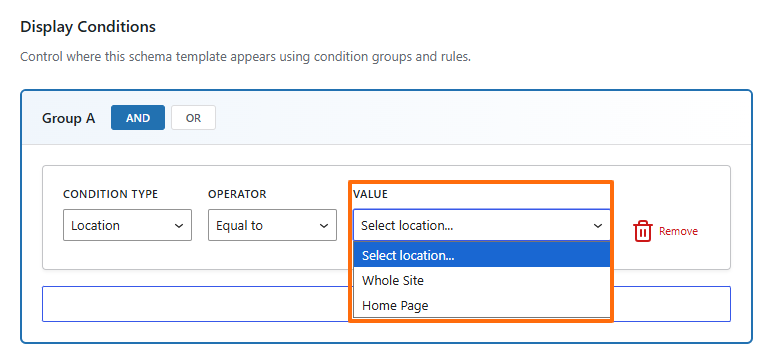
The available values change based on the selected condition type.
Example Conditions #
Apply Schema to the Entire Website #
- Condition Type: Location
- Operator: Equal to
- Value: Whole Site
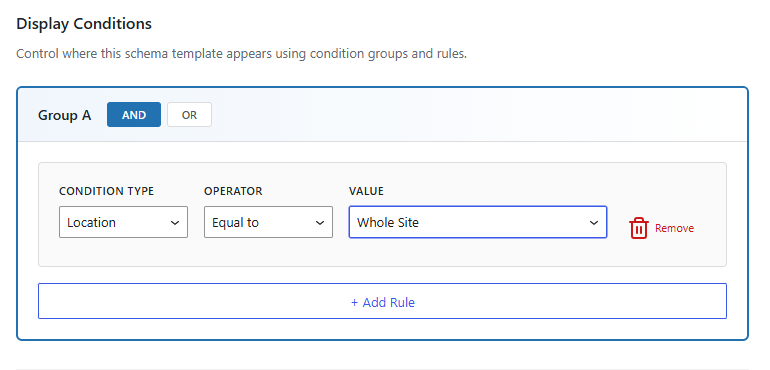
What this does:
This rule tells Swift Rank to apply the schema on every page of your website, including posts, pages, and archives. It is commonly used for site-wide schema such as Organization, Knowledge Graph, or Website schema.
Apply Schema Only to the Home Page #
- Condition Type: Location
- Operator: Equal to
- Value: Home Page
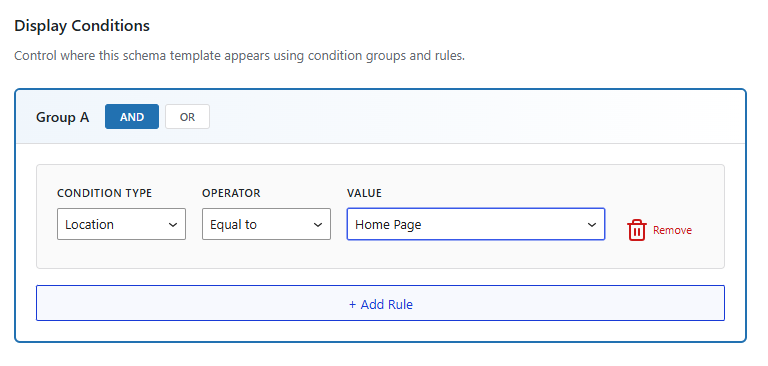
This means the schema markup will only appear on your homepage. No other pages, posts, or archives will have this schema applied.
Exclude Schema from a Specific Page #
- Condition Type: Singular Post / Page
- Operator: Not equal to
- Value: Select the page
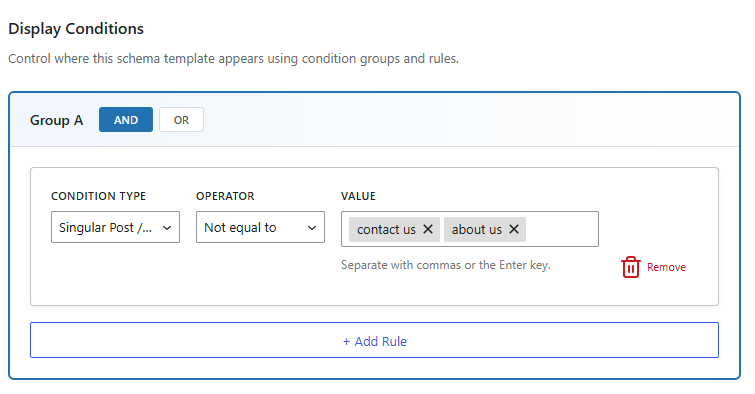
This is where you would pick the specific page you want to exclude. For example, if you select pages called “Contact Us, About us” the schema will not appear on those pages.
Group B (OR Condition) – Detailed Explanation #
Group B allows you to define an alternative set of conditions for displaying a schema. When OR logic is used within Group B, the schema will be applied if any one of the rules inside Group B is matched.
This is useful when you want the same schema to appear on different types of pages without creating separate schema templates.
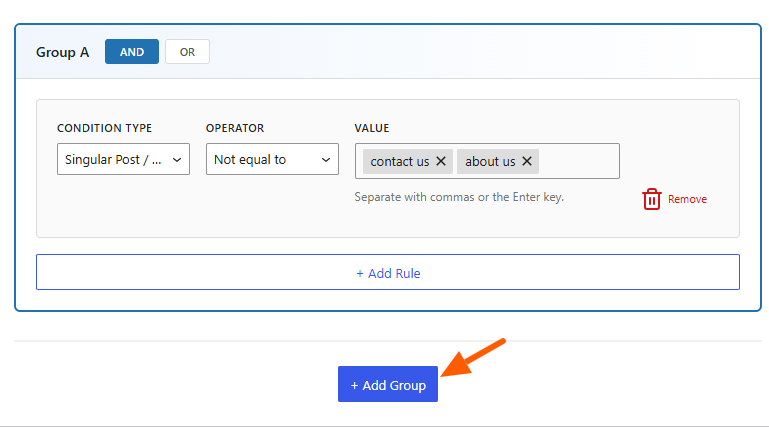
Add Group B #
Click the + Add Group button to create a new condition group.
This newly created group is referred to as Group B and works independently from Group A.
Select OR Logic for Group B #
At the top of Group B, select the OR option.
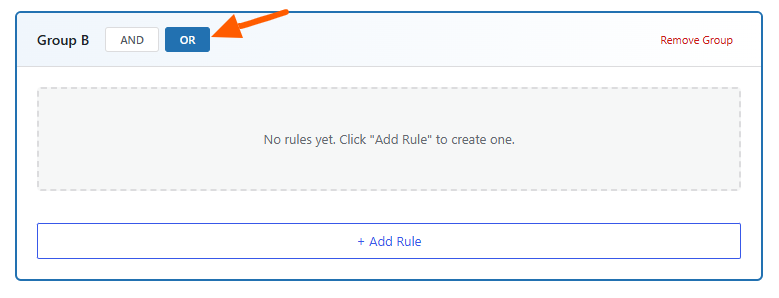
- OR logic means:
The schema will be displayed if at least one condition inside Group B evaluates to true. - You do not need all rules to match—matching just one is sufficient.
This makes Group B ideal for handling multiple page scenarios with flexible logic.
Add the First Rule in Group B #
Click + Add Rule inside Group B.
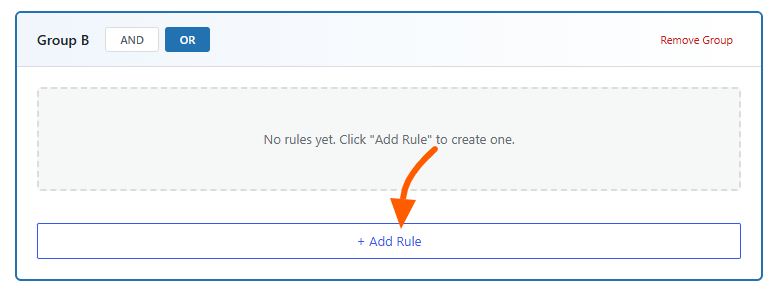
Condition Type: #
Use Group B with OR logic when you want the schema to appear on any one of multiple page types or scenarios. Use this when you want the same schema to appear on different content types (for example, products or blog posts).
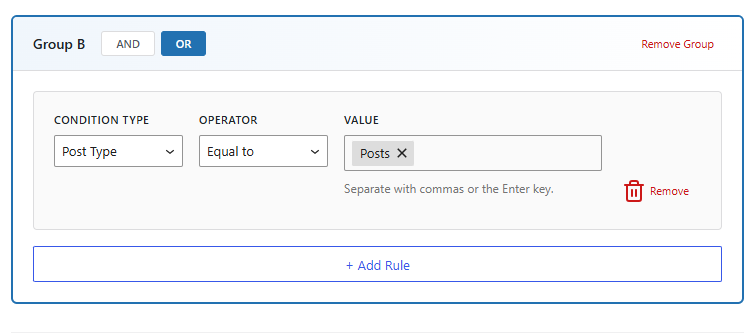
- Condition Type: Post Type
- Operator: Equal to
- Value:
post
Add another rule in the same Group B:
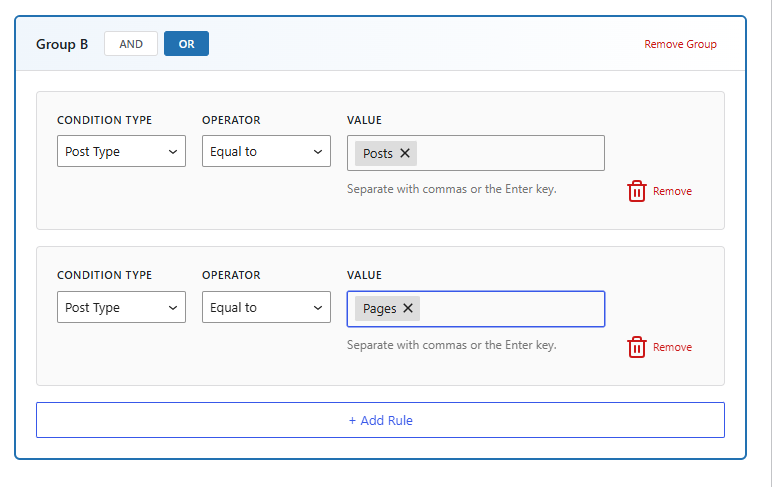
- Condition Type: Post Type
- Operator: Equal to
- Value:
page
Result: Schema appears on posts OR pages.
Step 6: Save Your Conditions #
Once the schema template is fully configured and your display conditions are set, click Publish to activate it. Swift Rank will now automatically apply the schema wherever the conditions are met, keeping your structured data consistent and scalable without any manual effort.


